How to Use a Smart Pet Food Dispenser with AI Camera: A Complete Beginner’s Step-by-Step Guide
Learn how to set up, use, and manage a smart pet food dispenser with an AI camera to automate feeding, monitor your pet remotely, and ensure they never miss a meal.
By TechScaleMedia Editorial · Updated July 2026 · 11 min read
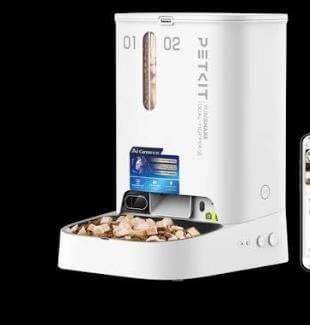
Busy schedules, long workdays, and travel can make it challenging to feed your pet on time every day. A Smart Pet Food Dispenser with AI Camera offers a convenient solution by automating meal schedules while letting you monitor and interact with your pet remotely. Equipped with features such as Wi-Fi connectivity, an HD AI camera, two-way audio, motion detection, and app-based controls, these smart feeders help ensure your cat or dog receives meals consistently, even when you’re away. However, proper setup is essential for accurate portion control, reliable scheduling, and smooth remote access. Connecting the feeder to Wi-Fi, configuring feeding plans, and positioning the camera correctly all contribute to dependable performance. Whether you’re caring for a playful puppy, an indoor cat, or multiple pets, this beginner-friendly guide explains everything from setup and programming to maintenance, troubleshooting, and best practices so you can feed your pet with confidence from anywhere.
Want to feed your pet even when you’re away? Follow this step-by-step guide to set up your Smart Pet Food Dispenser and keep your furry companion happy, healthy, and well-fed.
How do you use a Smart Pet Food Dispenser with AI Camera?
Quick Answer
Using a Smart Pet Food Dispenser is simple:
- Fill the food container.
- Plug in the feeder.
- Install the companion app.
- Connect the feeder to Wi-Fi.
- Set feeding schedules.
- Monitor your pet through the AI camera.
- Refill food and clean the dispenser regularly.
Prerequisites
Before you begin, make sure you have:
- Smart Pet Food Dispenser with AI Camera
- Dry pet food compatible with the feeder
- Smartphone or tablet
- Companion mobile app
- Wi-Fi connection
- Power adapter
- User manual
Step-by-Step Instructions
Follow these simple steps to set up your AI-powered smart pet food dispenser, connect the camera, and automate your pet’s feeding schedule with ease.
Step 1: Assemble the Feeder
Unpack all components.
Attach:
- Food storage container
- Feeding bowl
- Lid
- Power adapter
Ensure all parts fit securely.
Step 2: Fill the Food Hopper
Open the food container.
Pour in the recommended dry kibble.
Avoid overfilling beyond the maximum capacity.
Close the lid tightly to keep food fresh.
Step 3: Download the Mobile App
Install the manufacturer’s app.
Create an account.
Enable Bluetooth and Wi-Fi if required.
Step 4: Connect the Feeder to Wi-Fi
Open the app.
Select Add Device.
Follow the pairing instructions until the feeder connects successfully.
Confirm that the feeder appears in your device list.
Step 5: Program Feeding Schedules
Create automatic feeding plans by selecting:
- Meal times
- Number of meals per day
- Portion sizes
Save the schedule.
Review the settings before activation.
Step 6: Set Up the AI Camera
Adjust the camera angle toward the feeding area.
Enable features such as:
- Live video
- Motion detection
- Two-way audio
- Recording (if supported)
Test the camera through the mobile app.
Step 7: Monitor and Feed Remotely
Use the app to:
- Watch live video
- Dispense meals manually
- Receive feeding notifications
- Check feeding history
- Talk to your pet through two-way audio
What Tips Help Keep Your Pet Feeding Routine Reliable?
Tips
Following these tips helps improve feeding consistency.
Use Fresh Dry Food
Fresh kibble helps prevent blockages inside the dispenser.
Keep the Camera Lens Clean
A clean lens provides clearer video monitoring.
Test Portion Sizes
Verify that the selected portions match your pet’s dietary needs.
Enable Feeding Notifications
Receive alerts whenever meals are dispensed.
Refill Before the Hopper Is Empty
Avoid missed meals by maintaining an adequate food supply.
Keep the Wi-Fi Signal Strong
Stable internet improves remote control and live video performance.
Check the Feeding Bowl Daily
Ensure food dispenses properly after each scheduled meal.
What Common Mistakes Should You Avoid?
Common Mistakes
Using Oversized Kibble
Large food pieces may jam the dispenser.
Ignoring Low Food Levels
Always monitor the hopper before leaving home.
Skipping Schedule Verification
Double-check feeding times after making changes.
Placing the Feeder Near Water
Avoid excessive moisture around electronic components.
Blocking the AI Camera
Keep the camera’s field of view clear.
Forgetting Software Updates
Firmware updates often improve reliability and security.
Neglecting Routine Cleaning
Food residue can affect dispenser performance.
How Can You Troubleshoot Common Smart Pet Feeder Problems?
Troubleshooting
Problem: Food Isn’t Dispensing
Solution
- Check for food blockages.
- Refill the hopper.
- Verify the scheduled feeding settings.
Problem: Feeder Won’t Connect to Wi-Fi
Solution
- Restart the feeder.
- Verify the Wi-Fi password.
- Move the feeder closer to the router.
Problem: Camera Isn’t Showing Live Video
Solution
- Check your internet connection.
- Restart the app.
- Clean the camera lens.
Problem: Notifications Aren’t Working
Solution
- Enable app notifications.
- Update the mobile app.
- Verify internet connectivity.
Problem: Incorrect Portion Sizes
Solution
- Recalibrate the feeding settings.
- Test a manual feeding cycle.
- Adjust the meal portions.
Problem: Device Loses Power
Solution
- Check the power adapter.
- Confirm the outlet is functioning.
- Inspect the power cable.
What Are the Best Practices for Long-Term Performance?
Best Practices
Clean the Food Container Weekly
Remove crumbs and food residue regularly.
Keep the Camera Lens Dust-Free
Clean gently using a microfiber cloth.
Update Firmware Regularly
Install software updates through the companion app.
Store Dry Food Properly
Use fresh kibble suitable for your feeder.
Inspect the Dispensing Mechanism
Check for blockages before they become a problem.
Monitor Feeding History
Review meal records to confirm your pet is fed consistently.
Test Remote Feeding Occasionally
Verify that manual feeding works before extended trips.
Frequently Asked Questions
Can I feed my pet while I’m away from home?
Yes. The mobile app allows remote feeding from virtually anywhere with an internet connection.
Does the feeder work without Wi-Fi?
Many models continue scheduled feedings even if the internet connection is temporarily unavailable, but remote features may be limited.
What type of food can I use?
Most smart feeders are designed for dry pet food of compatible size.
Can I see my pet in real time?
Yes. The built-in AI camera provides live video monitoring on supported models.
Can multiple family members access the feeder?
Many companion apps allow shared access for multiple users.
How often should I clean the feeder?
Cleaning the food container and bowl weekly helps maintain hygiene and reliable operation.
Does the AI camera record video?
Some models support video recording or cloud storage, depending on the manufacturer’s features.
Conclusion
A Smart Pet Food Dispenser with AI Camera makes it easier to maintain a consistent feeding routine while giving you the ability to monitor your pet from anywhere. By setting accurate feeding schedules, keeping the dispenser clean, and maintaining a stable Wi-Fi connection, you can ensure reliable performance and greater peace of mind. Regular maintenance and software updates will help your feeder continue operating efficiently over time.
Ready to simplify your pet’s feeding routine? Set up your Smart Pet Food Dispenser with AI Camera today, schedule meals with confidence, and stay connected to your furry companion wherever you are.
Care for Your Pet Anytime, Anywhere
Your Smart Pet Food Dispenser with AI Camera helps you stay connected to your pet no matter where life takes you. Schedule meals, monitor every feeding, and enjoy the confidence of knowing your furry companion is cared for—even when you can’t be there in person.