How to Fix a Gaming Headset Mic That’s Not Working
Learn simple troubleshooting steps to fix a gaming headset microphone that isn’t working properly.
By TechScaleMedia Editorial · Updated July 2026 · 11 min read
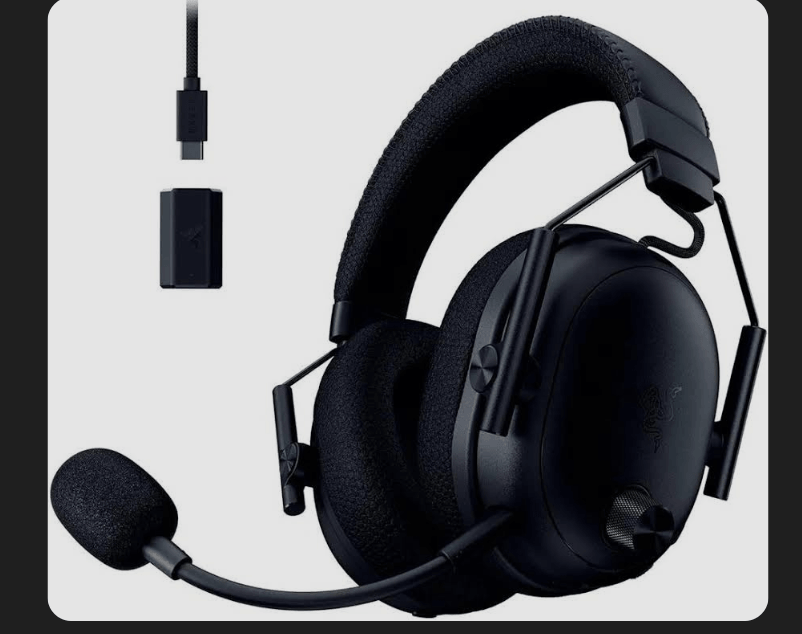
A gaming headset can deliver excellent sound, but when the microphone suddenly stops working, voice chat becomes impossible. You may still hear the game normally while teammates can’t hear a word you say. In many cases, this doesn’t mean the headset is damaged. Incorrect input settings, muted controls, permissions, connection problems, and audio driver issues are much more common causes.
The good news is that most gaming headset microphone problems can be diagnosed without replacing the headset. The key is to check the physical connection first, then verify your operating system, application, and driver settings.
This guide explains why a gaming headset microphone may stop working, what to check on PC and console, and which solutions can restore microphone functionality. Whether you’re troubleshooting Discord, in-game voice chat, or a streaming setup, these checks can help you identify the problem efficiently.
Why Isn’t My Gaming Headset Mic Working?
A gaming headset microphone may stop working because of:
- A loose or incorrect connection
- A physical mute switch being enabled
- A flip-to-mute microphone being positioned incorrectly
- The wrong microphone being selected
- Disabled microphone permissions
- Low microphone input volume
- In-game or app-specific audio settings
- Outdated or corrupted audio drivers
- USB or 3.5mm port problems
- Conflicts between multiple audio devices
Start with the physical connection and mute controls before changing software settings. This helps rule out simple problems before moving to more advanced troubleshooting.
Check the Physical Connection First
A headset microphone cannot work correctly if the connection between the headset and device is incomplete.
Make Sure the Headset Is Fully Connected
For a 3.5mm headset, make sure the plug is completely inserted into the correct audio jack.
For a USB headset, try another USB port. This can help determine whether the problem is related to the original port.
Check the Correct Audio Port
Some older or specialized PC setups use separate microphone and headphone connections. If your headset has separate plugs, make sure the microphone connector is connected to the microphone input rather than the headphone output.
Headsets using a single combined 3.5mm connector may require a compatible combo jack or adapter.
Check the Physical Mute Control
Many gaming headsets have a dedicated mute button or a flip-to-mute microphone.
Check that:
- The mute button isn’t enabled
- The microphone boom is fully lowered
- The microphone isn’t physically blocked or damaged
A hardware mute control can override software settings, making the microphone appear completely inactive.
Inspect the Cable
Look for obvious signs of cable damage, particularly around the connector and areas where the cable bends frequently.
If your headset has a detachable cable, testing another compatible cable can help determine whether the cable is responsible.
Check Wireless Power and Connection
For wireless headsets, make sure the headset has sufficient battery power and is properly connected to its receiver.
If the headset uses a USB wireless dongle, reconnect the receiver and check whether the headset is properly paired.
Check Your Operating System Settings
If the physical connection appears normal, the next place to look is your operating system.
Make Sure the Microphone Is Enabled
Windows can disable recording devices without making the cause immediately obvious.
Open your sound settings and confirm that the headset microphone appears as an available input device and is enabled.
Select the Correct Input Device
Having a headset connected doesn’t necessarily mean your computer will automatically use its microphone.
Your system may instead select:
- A laptop’s built-in microphone
- A webcam microphone
- Another USB microphone
- A monitor or capture device
Select your gaming headset’s microphone as the active input device.
Check Microphone Volume
A microphone can appear to be nonfunctional when its input level is simply too low.
Check the microphone input level and increase it if necessary. Then test whether the system detects your voice.
Check Microphone Permissions
Windows includes privacy controls that determine which applications can access your microphone.
Make sure microphone access is enabled at the system level and that the specific application you’re using has permission to access it.
This is especially important after installing applications or performing major operating system updates.
Check Your Game or Voice Chat Application
A microphone can work correctly in Windows but fail inside a particular game or communication application.
Select the Correct Microphone
Applications such as Discord, Zoom, and games with built-in voice chat may have their own input-device settings.
Make sure the application is using your gaming headset’s microphone rather than another available input.
Check the Application’s Mute Setting
Many voice chat programs have their own microphone mute controls.
Your headset may be unmuted physically while the software microphone remains muted.
Check Voice Activation Settings
Some games use voice activation or push-to-talk.
If push-to-talk is enabled, your microphone may appear inactive until the assigned key or button is pressed.
If voice activation is being used, check whether the input sensitivity is high enough to detect your voice.
Check Microphone Input Levels and Sensitivity
Microphone sensitivity determines how strongly the system responds to your voice.
If the level is too low, your teammates may barely hear you or receive no usable signal. If it’s excessively high, background noise can overwhelm your voice.
A properly adjusted microphone should register your speech consistently without requiring excessive input gain.
This is particularly important when using voice activity detection, noise suppression, or other software-based audio processing.
Update or Reinstall Audio Drivers
Audio drivers allow your operating system to communicate with the headset and other sound hardware.
Driver problems can appear after:
- Windows updates
- Driver changes
- New software installations
- Hardware changes
- System configuration changes
If the microphone worked previously but suddenly stopped after a system update, checking for updated drivers can be worthwhile.
Depending on your headset and computer, relevant software may include manufacturer-specific drivers, USB audio drivers, or onboard audio drivers.
When available, the headset manufacturer’s software can provide firmware and device updates that generic operating system updates may not include.
Use Windows’ Built-In Audio Troubleshooter
Windows includes troubleshooting tools designed to identify common audio configuration problems.
The recording-audio troubleshooter can check for issues involving microphone configuration and related system settings.
It won’t solve every headset problem, but it can identify straightforward configuration issues without requiring extensive manual changes.
Test the Headset on Another Device
Testing the headset on another compatible device is one of the most useful ways to separate a headset problem from a computer problem.
For example, you can test the microphone on another:
- PC
- Laptop
- Gaming console
- Compatible mobile device
If the microphone works normally on another device, the original computer, port, driver, or software configuration is more likely to be responsible.
If the microphone fails everywhere, the headset or its cable becomes a stronger suspect.
What If the Headset Mic Works but Sounds Bad?
A microphone doesn’t have to be completely silent to have a problem.
If teammates can hear you but your voice sounds:
- Very quiet
- Distorted
- Muffled
- Robotic
- Intermittent
the issue may involve microphone gain, connection quality, software processing, or hardware.
Check the microphone level first and make sure the microphone is positioned correctly. If the problem continues across multiple devices, hardware may need further investigation.
Gaming Headset Mic Problems After a Windows Update
A previously working microphone can stop functioning after an operating system update because updates may change device preferences, permissions, or driver behavior.
If the problem appeared immediately after an update, check:
- Default microphone selection
- Microphone permissions
- Input volume
- Audio driver status
- App-specific microphone settings
This approach helps determine whether the update changed the configuration rather than assuming the headset suddenly failed.
PS5 Gaming Headset Mic Troubleshooting
On PS5, first confirm that the headset is correctly connected through its controller jack or USB connection.
Then check the console’s audio settings to confirm that the intended headset microphone is being used as the input device.
Also check the controller’s physical mute button. The PS5 controller includes its own microphone and mute controls, so it is possible for the wrong microphone to be active or for the microphone to be muted without a problem with the headset itself.
What If Nothing Works?
If the microphone still doesn’t work after checking connections, settings, permissions, drivers, and another device, consider whether the problem is hardware-related.
Before replacing the headset, you can try:
- A different compatible cable
- Another USB port
- A compatible USB sound adapter
- Another device for testing
A USB audio adapter can also help determine whether the computer’s built-in audio hardware or headphone jack is causing the issue.
If the headset microphone consistently fails across multiple compatible devices, a defective microphone, cable, connector, or internal component becomes more likely.
An Audio Troubleshooting Perspective
From an audio troubleshooting perspective, the most effective approach is to isolate the signal path rather than changing several settings at once.
The microphone has to pass through multiple stages before another player hears your voice: the physical connection, operating system, input device configuration, application settings, and sometimes additional driver or software processing.
Testing each stage separately makes it easier to identify where the signal is being lost. This is also why testing the headset on another device is so useful—it can quickly separate a headset-side issue from a system-side configuration problem.
Common Mistakes When Troubleshooting a Headset Mic
Checking Software Before the Physical Connection
A loose plug or physical mute switch can make software troubleshooting unnecessary.
Assuming the Headset Is the Default Microphone
Connecting a headset doesn’t always change the active recording device.
Forgetting App-Specific Settings
Discord, games, and other communication software can use a different microphone than the operating system.
Ignoring Microphone Permissions
An application cannot use the microphone if operating system privacy settings block access.
Updating Only Windows Drivers
Generic system updates don’t always include manufacturer-specific headset software or firmware.
Replacing the Headset Too Quickly
Testing the microphone on another device can often reveal whether the headset itself is actually faulty.
Frequently Asked Questions
Why is my gaming headset mic not working?
The most common causes include a muted microphone, loose connection, incorrect input device, blocked microphone permissions, low input volume, application settings, or driver problems.
Why can I hear game audio but nobody can hear me?
This usually means the headset’s output is working while its microphone input is not. Check the microphone mute control, input device selection, microphone permissions, and in-game or voice chat settings.
Why did my headset mic stop working after a Windows update?
An update can change default audio devices, privacy permissions, or driver behavior. Checking these settings can often restore microphone functionality without replacing the headset.
How can I tell if my headset mic is broken?
Test the microphone on another compatible device. If it works elsewhere, the original computer or software configuration is more likely to be responsible. If it fails on multiple devices, hardware becomes a stronger possibility.
Why does my flip-to-mute microphone not work?
Make sure the microphone boom is completely lowered into its active position. Some headsets use the physical position of the boom to control the mute function.
Should I update my headset drivers?
It’s worth checking for manufacturer-specific driver, firmware, or software updates, particularly if the microphone stopped working after a system or software update.
Can a USB port cause a headset microphone to stop working?
Yes. A faulty or unstable USB port can prevent a USB headset from working correctly. Testing another USB port can help rule this out.
Can I use an external microphone if my headset mic stops working?
Yes. A USB or compatible 3.5mm microphone can be used as an alternative while you troubleshoot the headset or as a permanent solution if the built-in microphone has failed.
Conclusion
A gaming headset mic that stops working is often caused by a connection, mute control, device setting, permission, application configuration, or driver issue rather than failed hardware. Check these areas systematically and test the headset on another device before deciding it needs to be replaced.
Get Your Voice Chat Working Again
Start with the simplest checks and move toward software and driver troubleshooting only when necessary. A few targeted checks can often restore clear microphone performance without spending money on new equipment.