How to Use Passbolt: A Beginner’s Step-by-Step Guide
Managing passwords across a team can quickly become difficult without the right tools. Sharing login credentials through emails, chat apps, or spreadsheets increases the risk of unauthorized access, data breaches, and security incidents.
By TechScaleMedia Editorial · Updated July 2026 · 11 min read
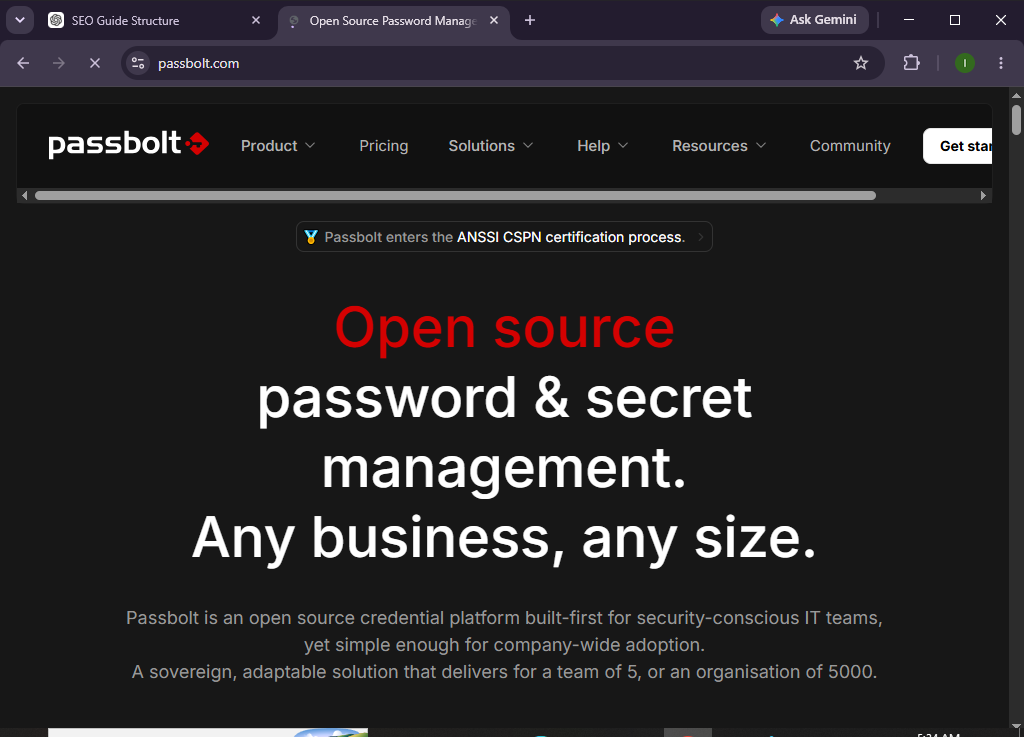
Passbolt is an open-source password manager designed specifically for teams. It allows organizations to securely store, manage, and share passwords using end-to-end encryption. With role-based access controls and collaboration features, Passbolt helps teams improve security without sacrificing productivity.
Whether you’re an IT administrator, business owner, or part of a growing team, this guide will show you exactly how to set up and use Passbolt from scratch.
How Do You Set Up and Use Passbolt?
Quick Answer
To use Passbolt, create an account or deploy a Passbolt server, install the browser extension, sign in, create password folders, add credentials, organize users into groups, securely share passwords, and manage access permissions. Regularly updating passwords and reviewing user access helps maintain strong security.
Prerequisites
Before you begin, make sure you have:
- A Passbolt account or self-hosted Passbolt server
- Administrator access (for setup)
- A supported web browser
- The Passbolt browser extension
- Internet or network access
- Permission to install browser extensions
- Basic knowledge of password management
Create a Workflow Manually (Recommended for Beginners)
If you’re new to password management, creating your first vault in Passbolt is the best way to understand how the platform actually works.
Step 1: Create Your Passbolt Account
Begin by creating your Passbolt account or logging into your organization’s Passbolt workspace.
If you’re deploying Passbolt yourself:
- Install the Passbolt server.
- Configure your organization.
- Create the administrator account.
- Verify your email address.
Once setup is complete, access the Passbolt dashboard.
Step 2: Install the Passbolt Browser Extension
Passbolt works through a browser extension.
To install it:
- Open your browser’s extension store.
- Search for Passbolt.
- Click Add Extension.
- Confirm the installation.
- Pin the extension to your browser toolbar.
The extension enables secure password management directly from your browser.
Step 3: Complete Your Security Setup
When launching Passbolt for the first time:
- Generate your security key.
- Download your recovery kit if provided.
- Confirm your passphrase.
- Finish the security setup.
These security credentials help protect access to your encrypted password vault.
Step 4: Create Password Folders
Organize credentials before adding passwords.
Examples include:
- Marketing
- Finance
- HR
- Development
- Cloud Services
- Social Media
- Client Accounts
Proper organization makes passwords easier to manage as your team grows.
Step 5: Add Your Passwords
To save a new password:
- Click Create Password.
- Enter the website URL.
- Add the username.
- Enter the password.
- Include notes if necessary.
- Save the credential.
Passbolt encrypts the password before storing it.
Step 6: Create User Groups
Instead of sharing passwords individually, organize users into groups.
Examples include:
- Administrators
- Developers
- Sales
- Customer Support
- Finance
- Human Resources
Groups simplify password sharing and permission management.
Step 7: Share Passwords Securely
To share credentials:
- Select the password.
- Click Share.
- Choose a user or group.
- Assign permissions.
- Confirm sharing.
Only authorized users can view or use the shared credentials.
Step 8: Manage Permissions
Review access permissions regularly.
You can:
- Grant read-only access.
- Allow editing rights.
- Revoke access instantly.
- Update group permissions.
Applying the principle of least privilege helps reduce security risks.
Step 9: Update Passwords Regularly
Strong password hygiene improves security.
When updating credentials:
- Replace weak passwords.
- Use unique passwords for every account.
- Notify affected team members if necessary.
- Save the updated credential in Passbolt.
Step 10: Monitor User Activity
Administrators should regularly review:
- User logins
- Password sharing activity
- Permission changes
- New user invitations
- Security events
Routine monitoring helps identify unusual behavior and maintain account security.
Need a smarter way to manage shared passwords?
Explore Passbolt and give your team a secure, organized place to store and share credentials.
How Can You Manage Team Passwords More Efficiently?
Tips
- Organize passwords into folders.
- Create groups before sharing credentials.
- Use strong, unique passwords.
- Review permissions frequently.
- Remove inactive users promptly.
- Rotate critical passwords regularly.
- Keep the browser extension updated.
- Store notes for important login details when appropriate.
What Should You Avoid When Using Passbolt?
Common Mistakes
- Sharing passwords outside Passbolt
- Giving every user administrative access
- Reusing passwords across multiple accounts
- Ignoring permission reviews
- Forgetting to rotate sensitive credentials
- Leaving inactive accounts enabled
- Skipping recovery kit backups
How Can You Keep Your Passbolt Workspace Secure?
Best Practices
- Enable multi-factor authentication if available.
- Rotate passwords regularly.
- Use strong passphrases.
- Review user permissions monthly.
- Remove inactive users immediately.
- Keep Passbolt updated.
- Back up important recovery information securely.
- Monitor account activity regularly.
- Limit administrator privileges.
- Educate your team on secure password practices.
What Should You Do If Passbolt Isn’t Working?
Troubleshooting
Unable to sign in
- Verify your login credentials.
- Reset your password if necessary.
- Confirm your account is active.
Browser extension isn’t working
- Restart your browser.
- Update the extension.
- Reinstall it if necessary.
Password sharing fails
- Verify user permissions.
- Confirm the recipient has an active account.
- Refresh the application.
Missing passwords
- Check folder permissions.
- Verify group membership.
- Contact your administrator if needed.
Frequently Asked Questions
Is Passbolt free?
Passbolt offers an open-source Community Edition as well as paid business plans with additional features and support.
Can Passbolt be self-hosted?
Yes. Organizations can deploy Passbolt on their own servers for greater control over their data.
Does Passbolt encrypt passwords?
Yes. Passbolt uses end-to-end encryption to protect stored credentials.
Can I share passwords with my team?
Yes. Passbolt is designed specifically for secure password sharing among team members.
Which browsers support Passbolt?
Passbolt supports major browsers through its browser extension, including Chrome, Firefox, and other compatible browsers.
Is Passbolt suitable for businesses?
Absolutely. It’s built for organizations that need secure password management, collaboration, and access control.
Conclusion
Passbolt simplifies secure password management by giving teams a centralized platform to store, organize, and share credentials safely. Its end-to-end encryption, role-based permissions, and collaboration features make it easier to protect sensitive accounts while improving productivity.
By following this guide—creating your account, installing the browser extension, organizing passwords, managing user groups, and reviewing permissions—you can build a secure password management system that grows with your team.
Strengthen your team’s password security with Passbolt.
Set up your password vault, organize shared credentials, and give your team a safer way to collaborate without compromising sensitive information.