How to Use PrivadoVPN: A Beginner’s Step-by-Step Guide
Browsing the internet without protection can expose your personal information to cybercriminals, advertisers, and other third parties. Whether you’re using public Wi-Fi, working remotely, or simply value your online privacy, a VPN can help secure your internet connection and protect your digital identity.
By TechScaleMedia Editorial · Updated July 2026 · 11 min read
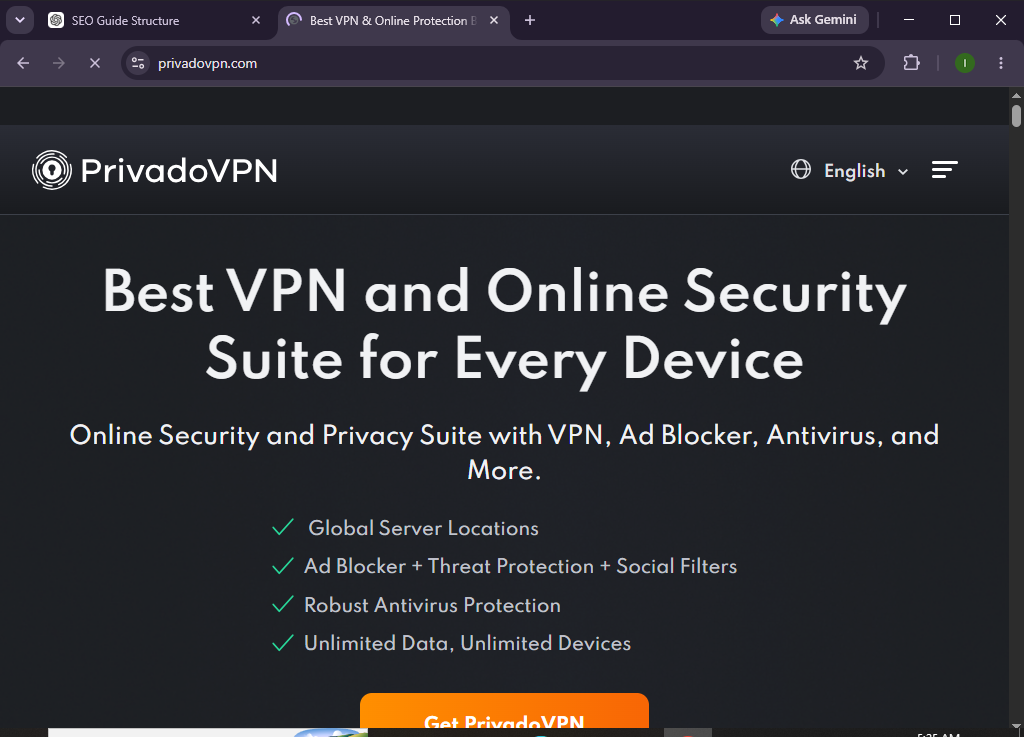
PrivadoVPN is a privacy-focused VPN service that encrypts your internet traffic, masks your IP address, and allows you to browse the web securely. With user-friendly apps, servers in multiple countries, and strong encryption, PrivadoVPN makes online security simple for beginners and experienced users alike.
Whether you’re protecting sensitive data, securing your online activities, or accessing the internet more privately, this guide will show you exactly how to set up and use PrivadoVPN from scratch.
How Do You Set Up and Use PrivadoVPN?
Quick Answer
To use PrivadoVPN, create an account, choose a subscription plan, download the PrivadoVPN app, install it on your device, sign in, select a VPN server, and connect. Once connected, your internet traffic is encrypted, providing greater privacy and protection while you browse.
Prerequisites
Before you begin, make sure you have:
- A PrivadoVPN account
- An active PrivadoVPN subscription or Free plan
- A Windows, macOS, Linux, Android, or iOS device
- A stable internet connection
- Permission to install software
- Basic knowledge of internet browsing
Create a Workflow Manually (Recommended for Beginners)
If you’re new to online privacy, setting up your first secure connection in PrivadoVPN is the best way to understand how the platform actually works.
Step 1: Create Your PrivadoVPN Account
Visit the PrivadoVPN website and create your account.
During registration:
- Enter your email address.
- Create a secure password.
- Choose your subscription plan.
- Verify your email address if prompted.
After registration, log in to your PrivadoVPN account.
Step 2: Download the PrivadoVPN App
Download the application compatible with your operating system.
Supported platforms include:
- Windows
- macOS
- Linux
- Android
- iPhone/iPad
Save the installer to your device.
Step 3: Install the Application
Open the downloaded installer.
Follow the setup wizard to:
- Accept the license agreement.
- Complete the installation.
- Launch the PrivadoVPN application.
Once installed, you’ll be ready to sign in.
Step 4: Sign In to Your Account
Open the PrivadoVPN application.
Then:
- Enter your email address.
- Type your password.
- Click Sign In.
After authentication, you’ll see the list of available VPN servers.
Step 5: Select a VPN Server
Choose a server based on your needs.
For example:
- A nearby server for better speeds.
- A specific country for regional browsing.
- The recommended fastest server.
Click the server to prepare your connection.
Step 6: Connect to the VPN
Click Connect.
After a few seconds:
- Your IP address changes.
- Your connection becomes encrypted.
- Your browsing session is protected.
The application will display a connected status.
Step 7: Configure Security Settings
Navigate to the Settings menu.
Enable features such as:
- Kill Switch
- Auto Connect
- Preferred VPN Protocol
- Launch on Startup
These options improve your overall security and convenience.
Step 8: Confirm Your Connection
Open an online IP checker.
Verify that:
- Your IP address has changed.
- Your displayed location matches your selected server.
This confirms that PrivadoVPN is functioning correctly.
Step 9: Browse the Internet Securely
While connected, you can safely:
- Browse websites
- Use public Wi-Fi
- Access online banking
- Shop online
- Work remotely
- Protect sensitive information
Your internet traffic remains encrypted throughout your session.
Step 10: Disconnect When Finished
When you’re done:
- Open the PrivadoVPN application.
- Click Disconnect.
- Exit the application if desired.
Reconnect anytime you need secure browsing.
Looking for an easy way to enhance your online privacy?
Discover how PrivadoVPN can help you browse securely with encrypted connections and user-friendly features.
How Can You Get the Best Results with PrivadoVPN?
Tips
- Connect to the nearest server for better performance.
- Keep the VPN application updated.
- Enable the Kill Switch.
- Turn on Auto Connect for public Wi-Fi.
- Use strong passwords for your account.
- Test different servers if speeds vary.
- Keep your operating system updated.
- Review your VPN settings regularly.
What Should You Avoid When Using PrivadoVPN?
Common Mistakes
- Forgetting to activate the VPN on public networks
- Using outdated VPN software
- Sharing your account credentials
- Choosing distant servers unnecessarily
- Ignoring application updates
- Disabling security features
- Using weak passwords
How Can You Maximize Your Privacy with PrivadoVPN?
Best Practices
- Keep the VPN enabled while using public Wi-Fi.
- Turn on the Kill Switch.
- Update the app regularly.
- Enable Auto Connect.
- Use unique, strong passwords.
- Review your account activity periodically.
- Connect before accessing sensitive accounts.
- Keep your devices updated.
- Regularly check for software updates.
- Choose reliable server locations for optimal performance.
What Should You Do If PrivadoVPN Isn’t Working?
Troubleshooting
Unable to connect
- Check your internet connection.
- Restart the VPN application.
- Try another server location.
Slow browsing speeds
- Connect to a nearby server.
- Restart your router.
- Close bandwidth-intensive applications.
Login problems
- Verify your account credentials.
- Reset your password if necessary.
- Confirm your subscription status.
Frequent disconnections
- Update the application.
- Check your network stability.
- Switch to another VPN protocol if available.
Frequently Asked Questions
Is PrivadoVPN free to use?
Yes. PrivadoVPN offers a free plan with limited server access, along with premium plans that provide additional features and locations.
Does PrivadoVPN encrypt my internet traffic?
Yes. PrivadoVPN encrypts your internet connection to help protect your online activity and personal information.
Can I use PrivadoVPN on multiple devices?
Yes. Depending on your subscription plan, you can connect multiple supported devices.
Is PrivadoVPN safe for public Wi-Fi?
Yes. Using PrivadoVPN on public Wi-Fi helps secure your connection by encrypting your internet traffic.
Does PrivadoVPN hide my IP address?
Yes. When connected, your public IP address is replaced with the IP address of the selected VPN server.
Is PrivadoVPN beginner-friendly?
Absolutely. Its intuitive interface makes it easy to install, connect, and manage your VPN connection.
Conclusion
PrivadoVPN offers an easy way to improve your online privacy with encrypted internet connections and a straightforward user experience. Whether you’re working remotely, traveling, or simply browsing from home, it helps protect your personal information from online threats.
By following this guide—creating your account, installing the application, connecting to a server, and enabling key security features—you’ll be well-equipped to browse the internet with greater confidence and privacy.
Give your online privacy the attention it deserves.
Download PrivadoVPN, connect to a secure server, and make encrypted browsing a regular part of your digital routine today.