How to Use Time Doctor: A Beginner’s Step-by-Step Guide
Learn how to use Time Doctor to track work hours, monitor productivity, manage tasks, and improve team efficiency with this easy beginner-friendly guide.
By TechScaleMedia Editorial · Updated July 2026 · 11 min read
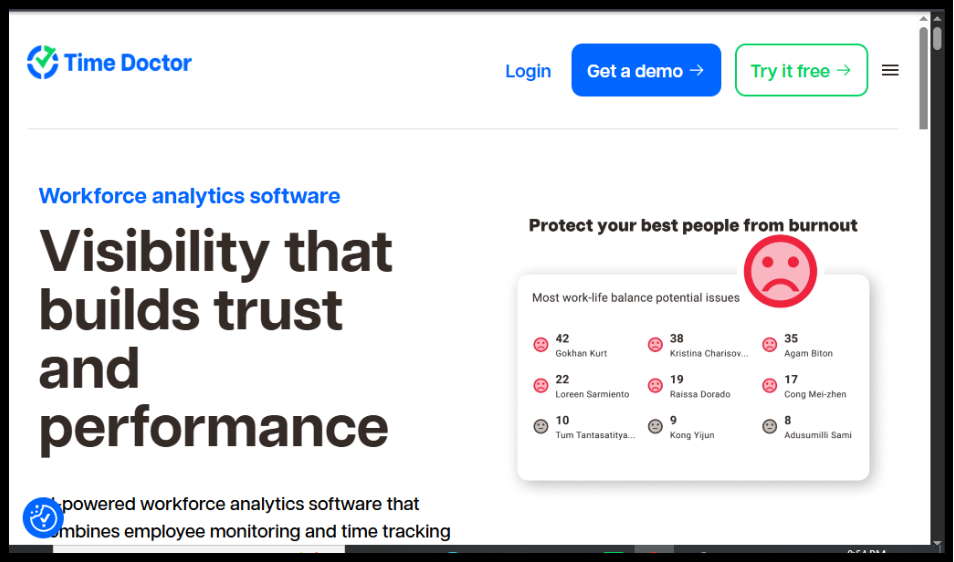
Managing employee productivity and tracking billable hours can be challenging, especially for remote and hybrid teams. Time Doctor is a powerful workforce analytics and time-tracking tool that helps businesses monitor work hours, improve productivity, manage attendance, and gain valuable insights into team performance.
In this guide, you’ll learn how to use Time Doctor to set up your workspace, invite employees, track time, monitor productivity, and generate reports. Whether you’re managing a remote team, running an agency, or working as a freelancer, this guide will help you get started quickly.
Ready to improve team productivity? Try Time Doctor and simplify time tracking, workforce management, and performance monitoring today.
How do you use Time Doctor to track employee work hours and productivity?
Quick Answer
Getting started with Time Doctor is simple:
- Create a Time Doctor account.
- Set up your company workspace.
- Invite team members.
- Create projects and tasks.
- Install the Time Doctor desktop app.
- Start tracking time.
- Review reports and productivity insights.
Prerequisites
Before using Time Doctor, you’ll need:
- A Time Doctor account
- Internet connection
- Employee email addresses
- Desktop or mobile Time Doctor app
- List of projects or clients
- Payroll details (optional)
Step-by-Step Instructions
Follow a simple walkthrough to set up Time Doctor, track work hours, monitor productivity, and manage tasks efficiently.
Step 1: Create Your Time Doctor Account
Visit the Time Doctor website and sign up using your
business email.
Verify your email address and complete your account setup.
Step 2: Set Up Your Company Workspace
Create your organization by entering:
- Company name
- Time zone
- Working hours
- Organization settings
This workspace will store your team’s projects, reports, and employee activity.
Step 3: Invite Team Members
Navigate to Users and click Invite Users.
Enter each employee’s email address and assign:
- User role
- Team
- Projects
- Permissions
Employees will receive an invitation to join your workspace.
Step 4: Create Projects and Tasks
Go to Projects and create a new project.
Add:
- Project name
- Client name (optional)
- Tasks
- Team members
- Budget (optional)
Assign projects to the appropriate employees.
Step 5: Install the Time Doctor App
Download and install the Time Doctor desktop application.
Log in using your account credentials.
The desktop app enables accurate time tracking and productivity monitoring.
Step 6: Start Tracking Time
Open the desktop app.
Select your:
- Project
- Task
Click Start to begin tracking.
Time Doctor records:
- Work hours
- Active time
- Idle time
- Website usage
- Application usage
- Optional screenshots (if enabled)
Click Stop when you finish working.
Step 7: Review Productivity Reports
Use the reporting dashboard to monitor:
- Hours worked
- Attendance
- Productivity scores
- Website usage
- App usage
- Project hours
- Employee performance
These reports help managers identify productivity trends and optimize workflows.
Step 8: Manage Payroll and Attendance
If using payroll features, configure:
- Hourly rates
- Payroll periods
- Attendance policies
- Time approvals
Review tracked hours before processing payments.
How can you get the most out of Time Doctor?
Tips
Discover helpful tips and tricks to optimize Time Doctor’s features, improve productivity tracking, and manage your workflow more efficiently.
- Create separate projects for each client or department.
- Encourage employees to track time consistently.
- Review productivity reports weekly.
- Set realistic work schedules.
- Enable reminders to start tracking.
- Use project-based reporting for accurate billing.
- Keep task names clear and organized.
- Regularly update employee permissions.
What mistakes should you avoid when using Time Doctor?
Common Mistakes
- Forgetting to start or stop the timer.
- Assigning employees to the wrong project.
- Ignoring idle time notifications.
- Not reviewing timesheets before payroll.
- Overlooking productivity reports.
- Giving incorrect user permissions.
What should you do if Time Doctor isn’t working as expected?
Troubleshooting
Fix common Time Doctor issues with simple solutions for login errors, tracking problems, app glitches, and syncing issues to keep your productivity tracking running smoothly.
Timer isn’t recording work hours
Ensure the desktop application is running and you’re connected to the internet.
Employees can’t access projects
Verify project assignments and user permissions.
Reports show incorrect hours
Check whether employees selected the correct project before starting the timer.
Screenshots aren’t being captured
Review screenshot settings and ensure monitoring permissions are enabled.
Login issues
Reset your password or verify your email address.
How can you improve productivity using Time Doctor?
Best Practices
- Track time for every work session.
- Review reports regularly.
- Organize projects by client or department.
- Set clear expectations for employees.
- Monitor productivity trends instead of individual moments.
- Keep project lists organized.
- Approve timesheets before payroll processing.
- Use analytics to improve team performance.
Frequently Asked Questions
Is Time Doctor free?
Time Doctor offers a free trial, while advanced workforce monitoring and reporting features are available through paid plans.
Does Time Doctor track employee activity?
Yes. Depending on your settings, Time Doctor can track work hours, application usage, website activity, idle time, and optional screenshots.
Can freelancers use Time Doctor?
Absolutely. Freelancers can track billable hours, manage multiple clients, and generate detailed work reports.
Does Time Doctor integrate with project management tools?
Yes. Time Doctor integrates with many popular project management and collaboration platforms to streamline workflows.
Can Time Doctor generate payroll reports?
Yes. It can calculate hours worked and generate reports that support payroll processing.
Is Time Doctor suitable for remote teams?
Yes. Time Doctor is widely used by remote, hybrid, and distributed teams to improve accountability, productivity, and time management.
Conclusion
Time Doctor is a comprehensive time-tracking and workforce analytics platform designed to help businesses improve productivity, monitor work hours, and manage remote teams effectively. With features like automated time tracking, detailed productivity reports, attendance management, and payroll support, it simplifies workforce management while providing valuable insights into team performance.
By following the steps in this guide and implementing best practices, you’ll be able to track time accurately, optimize team productivity, and make data-driven decisions that improve overall business efficiency.
Get Started with Time Doctor Today
Ready to gain better visibility into your team’s work? Explore Time Doctor and discover how easy it is to track time, manage projects, and improve productivity.