How to Use Notta AI: A Beginner’s Step-by-Step Guide
Learn how to use Notta AI to transcribe audio, convert speech to text, summarize meetings, and boost productivity with easy step-by-step instructions.
By TechScaleMedia Editorial · Updated July 2026 · 11 min read
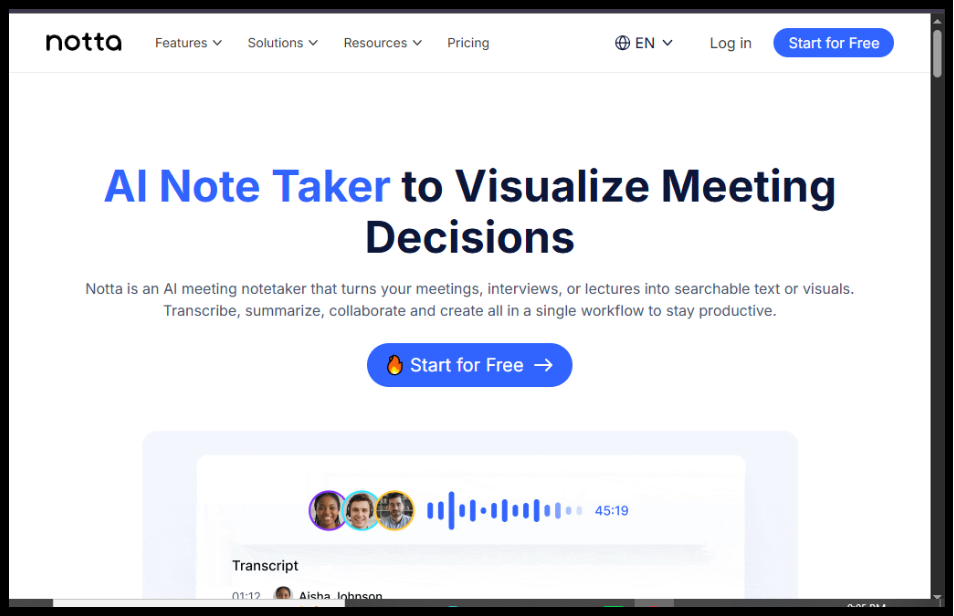
Taking notes during meetings can distract you from important conversations. Notta AI is an AI-powered transcription and meeting assistant that automatically converts speech into accurate text, generates meeting summaries, and helps you organize important discussions in one place.
Whether you’re attending online meetings, conducting interviews, recording lectures, or creating meeting minutes, Notta AI saves time by handling the note-taking process for you.
In this guide, you’ll learn how to use Notta AI to record meetings, generate transcripts, edit notes, and share them with your team.
Want to spend less time taking notes and more time participating in conversations? Notta AI makes meeting transcription fast, accurate, and effortless.
How do you use Notta AI to transcribe meetings and audio recordings?
Quick Answer
Using Notta AI is simple:
- Create a Notta AI account.
- Connect your calendar or meeting platform.
- Start or upload a recording.
- Let AI generate the transcript.
- Edit and organize the transcript.
- Generate an AI summary.
- Export or share your notes.
Prerequisites
Before using Notta AI, you’ll need:
- A Notta AI account
- Internet connection
- Computer or mobile device
- Microphone (for live recording)
- Audio or video file (optional)
- Zoom, Google Meet, or Microsoft Teams account (optional)
Step-by-Step Instructions
Follow a simple step-by-step process to set up Notta AI, record or upload audio, generate accurate transcriptions, and organize your notes efficiently.
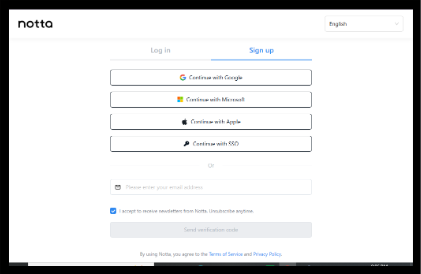
Step 1: Create Your Notta AI Account
- Visit the Notta AI website and sign up using your email,Google, or Apple account.
- Verify your account and log in.
Step 2: Connect Your Meeting Platform
Navigate to Integrations and connect:
- Zoom
- Google Meet
- Microsoft Teams
- Google Calendar
This allows Notta AI to automatically join and transcribe scheduled meetings.
Step 3: Start a Live Recording or Upload a File
You can either:
- Record a live conversation
- Upload an existing audio file
- Upload a video recording
Supported formats include MP3, WAV, MP4, and more.
Step 4: Generate the Transcript
Once recording begins or the file is uploaded, Notta AI automatically:
- Converts speech into text
- Identifies speakers
- Adds timestamps
- Organizes the transcript
The transcript updates in real time during live recordings.
Step 5: Review and Edit the Transcript
After transcription, you can:
- Correct text
- Rename speakers
- Highlight key points
- Add comments
- Search specific keywords
Editing ensures maximum accuracy.
Step 6: Generate an AI Meeting Summary
Use the AI Summary feature to automatically create:
- Key discussion points
- Action items
- Decisions made
- Meeting highlights
- Follow-up tasks
This saves time when sharing meeting outcomes.
Step 7: Export or Share Your Notes
Export your transcript as:
- Word
- TXT
- SRT
- CSV (where supported)
You can also share transcripts directly with teammates using a secure link
Step 8: Organize Your Workspace
Create folders to organize:
- Client meetings
- Team meetings
- Interviews
- Lectures
- Personal recordings
A well-organized workspace makes future searches much easier.
How can you improve transcription accuracy with Notta AI?
Tips
Get the most out of Notta AI by organizing your recordings, customizing transcription settings, and using smart features to improve accuracy and productivity.
- Use a high-quality microphone.
- Minimize background noise.
- Speak clearly during recordings.
- Label speakers whenever possible.
- Review transcripts after each meeting.
- Organize recordings into folders.
- Use AI summaries to save review time.
- Regularly back up important transcripts.
What mistakes should you avoid when using Notta AI?
Common Mistakes
- Recording in noisy environments.
- Forgetting to review AI-generated transcripts.
- Uploading poor-quality audio files.
- Not organizing recordings into folders.
- Ignoring speaker labels.
- Waiting too long to edit transcripts.
What should you do if Notta AI isn’t working as expected?
Troubleshooting
Learn how to fix common Notta AI issues, resolve transcription errors, and troubleshoot problems for a smoother experience.
Audio isn’t transcribing
Check your microphone settings or upload a clearer audio file.
Transcript contains errors
Edit the transcript manually and ensure the recording quality is sufficient.
Meeting wasn’t recorded
Verify that Notta AI joined the meeting and that microphone permissions are enabled.
Unable to export transcripts
Check your subscription plan and supported export formats.
Login issues
Reset your password or verify your email address.
How can you use Notta AI more effectively?
Best Practices
- Record meetings in quiet environments.
- Review AI summaries before sharing.
- Organize transcripts by project or client.
- Name recordings clearly.
- Share meeting notes promptly.
- Archive completed projects regularly.
- Keep sensitive recordings secure.
- Use folders and tags for faster searching.
Frequently Asked Questions
Is Notta AI free?
Notta AI offers a free plan with limited transcription minutes, while paid plans provide additional recording time, AI summaries, and collaboration features.
Can Notta AI transcribe live meetings?
Yes. Notta AI can transcribe live meetings from platforms like Zoom, Google Meet, and Microsoft Teams.
Does Notta AI support multiple languages?
Yes. Notta AI supports transcription in multiple languages, making it suitable for international teams.
Can I upload recorded audio?
Yes. You can upload audio and video files for automatic transcription.
Can I export transcripts?
Yes. Notta AI supports exporting transcripts in several popular formats, including PDF, DOCX, TXT, and SRT.
Is Notta AI suitable for students?
Absolutely. Students can use Notta AI to record lectures, transcribe classes, summarize notes, and improve study efficiency.
Conclusion
Notta AI simplifies note-taking by automatically transcribing conversations, generating AI-powered summaries, and organizing meeting records in one place. Whether you’re managing business meetings, interviews, online classes, or webinars, Notta AI helps you focus on the conversation while capturing every important detail.
By following this guide and adopting best practices, you’ll be able to create accurate transcripts, collaborate more effectively, and save valuable time on manual note-taking.
Try Notta AI Today and Work Smarter
Stop worrying about taking notes during every meeting. Try Notta AI today and let AI capture conversations, generate smart summaries, and keep your meeting records organized automatically.