How to Use Raycast Pro: A Beginner’s Step-byStep Guide
Switching between apps, searching for files, and performing repetitive tasks can slow down your workflow. Raycast Pro is a premium productivity tool for macOS that acts as a powerful launcher, command center, and AI assistant. It lets you quickly open applications, search files, run scripts, manage clipboard history, create snippets, and automate everyday tasks—all from a single keyboard shortcut.
By TechScaleMedia Editorial · Updated July 2026 · 11 min read
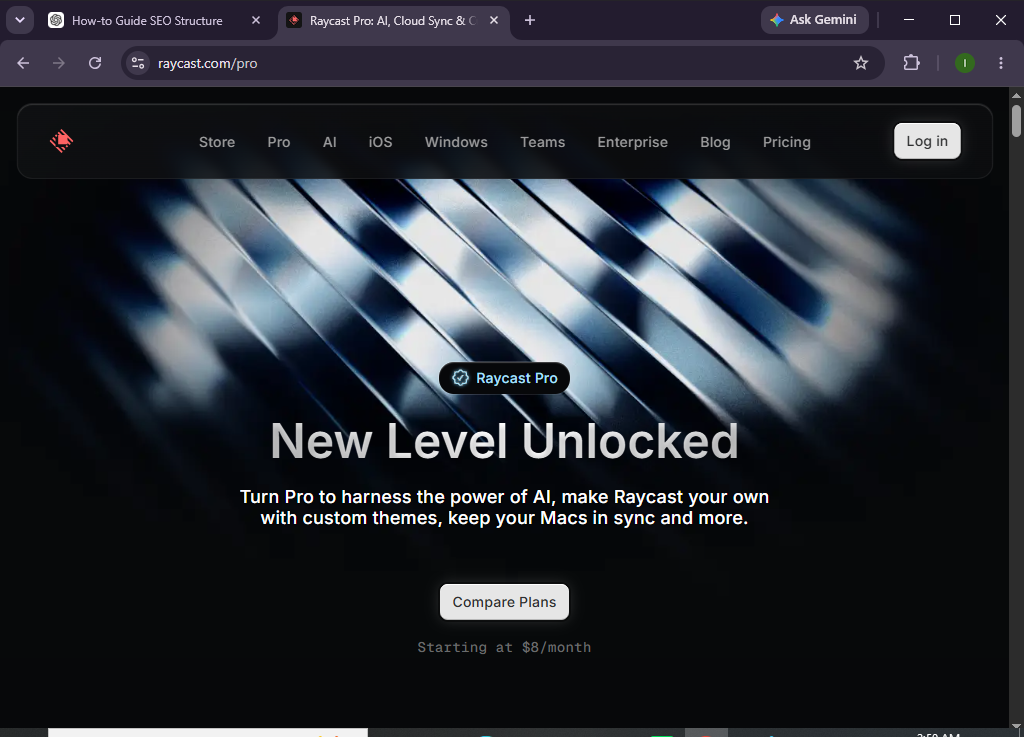
In this guide, you’ll learn how to use Raycast Pro to streamline your workflow, leverage AI features, and work more efficiently on your Mac.
How do you use Raycast Pro to improve productivity on your Mac?
Quick Answer
Getting started with Raycast Pro is simple:
- Install Raycast and activate Pro features.
- Learn the keyboard shortcut.
- Launch apps and search files.
- Use AI commands.
- Create snippets and quick links.
- Automate repetitive tasks.
- Customize your workflow.
Prerequisites
Before using Raycast Pro, you’ll need:
- A Mac running a supported version of macOS
- A Raycast account with a Pro subscription
- Internet connection (for AI features)
- Administrator permission to install applications
- Frequently used apps and workflows
Create a Workflow Manually (Recommended for Beginners)
If you’re new to productivity tools, setting up your first workspace in Raycast Pro is the best way to understand how the platform actually works.
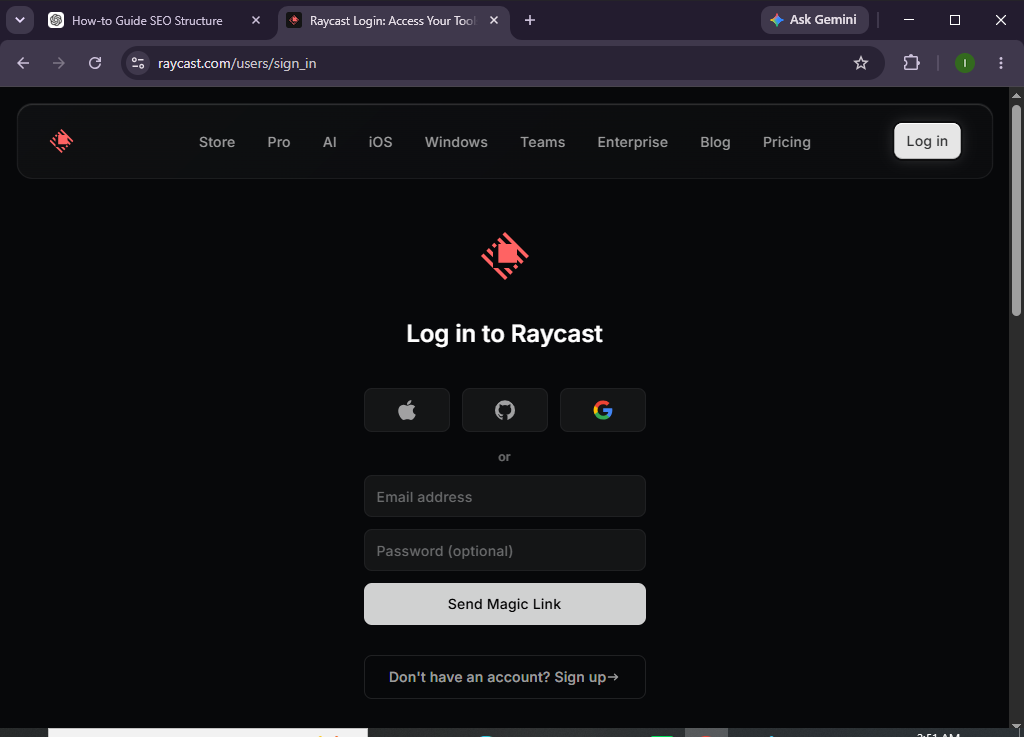
Step 1: Install Raycast and Sign In
Download and install Raycast from the official website.
Sign in to your account and activate your Raycast Pro subscription.
Step 2: Learn the Raycast Shortcut
Launch Raycast using its default keyboard shortcut.
Use the command bar to:
- Open applications
- Search files
- Find folders
- Run commands
- Access extensions
Mastering this shortcut is the fastest way to boost productivity.
Step 3: Launch Apps and Search Files
Type the name of any:
- Application
- Document
- Folder
- Setting
- Browser bookmark
Press Enter to open it instantly.
Step 4: Use Raycast AI
With Raycast Pro, you can use AI to:
- Summarize text
- Generate emails
- Brainstorm ideas
- Translate content
- Write code
- Answer questions
Simply open the AI command and enter your prompt.
Step 5: Create Snippets
Save frequently used content such as:
- Email responses
- Code templates
- Addresses
- Meeting links
- Social media replies
Insert snippets anywhere using keyboard shortcuts.
Step 6: Install Extensions
Browse the Extension Store to add tools for:
- GitHub
- Notion
- Slack
- Google Workspace
- Jira
- Spotify
- Calendar
- Todoist
Extensions allow you to control your favorite apps directly from Raycast.
Step 7: Automate Repetitive Tasks
Create Quicklinks and custom commands to:
- Open multiple websites
- Run terminal scripts
- Launch workflows
- Trigger shortcuts
- Execute automation commands
Automation reduces repetitive manual work.
Step 8: Customize Raycast
Personalize your experience by configuring:
- Themes
- Keyboard shortcuts
- Hotkeys
- Window behavior
- AI preferences
- Extension settings
Customize Raycast to match your workflow.
Want to get more done without leaving your keyboard?
Raycast Pro brings shortcuts, AI, and automation together to help you work faster and smarter.
How can you get the most out of Raycast Pro?
Tips
- Learn the primary keyboard shortcut.
- Install only the extensions you regularly use.
- Use snippets to save repetitive typing.
- Organize Quicklinks for daily websites.
- Explore AI commands for writing and research.
- Keep extensions updated.
- Create custom shortcuts for common actions.
- Spend a few minutes each week learning new commands.
What mistakes should you avoid when using Raycast Pro?
Common Mistakes
- Installing unnecessary extensions.
- Ignoring keyboard shortcuts.
- Forgetting to organize snippets.
- Overlooking AI capabilities.
- Not updating Raycast regularly.
- Creating duplicate Quicklinks.
How can you maximize productivity with Raycast Pro?
Best Practices
- Use keyboard shortcuts instead of mouse navigation.
- Organize your extensions by frequency of use.
- Keep your snippets updated.
- Automate repetitive workflows.
- Regularly review installed extensions.
- Customize hotkeys for important actions.
- Use AI to speed up writing and research.
- Explore new features after each update.
What should you do if Raycast Pro isn’t working properly?
Troubleshooting
Raycast won’t open
Restart the application and verify accessibility permissions.
Extensions aren’t working
Update or reinstall the affected extension.
AI commands aren’t responding
Check your internet connection and confirm your Pro subscription is active.
Keyboard shortcuts conflict
Modify shortcut settings to avoid overlapping system shortcuts.
Search results are incomplete
Allow Raycast to index your files and review search settings.
Frequently Asked Questions
Is Raycast Pro free?
Raycast offers a free version with core launcher features, while Raycast Pro unlocks advanced AI tools, cloud syncing, premium extensions, and additional productivity features.
Does Raycast Pro work on Windows?
No. Raycast is currently designed exclusively for macOS.
Can Raycast Pro replace Spotlight?
Yes. Many users choose Raycast as a more powerful alternative to Spotlight because it includes automation, AI, extensions, clipboard history, and workflow customization.
Does Raycast Pro include AI?
Yes. Raycast Pro offers built-in AI features for writing, summarization, coding assistance, brainstorming, and more.
Can I automate workflows with Raycast?
Absolutely. You can use Quicklinks, scripts, extensions, and custom commands to automate many everyday tasks.
Who should use Raycast Pro?
Raycast Pro is ideal for developers, designers, writers, marketers, students, entrepreneurs, and anyone who wants to speed up their workflow on a Mac.
Conclusion
Raycast Pro transforms your Mac into a powerful productivity hub by combining application launching, file search, AI assistance, extensions, and workflow automation into one intuitive interface. Instead of navigating through multiple apps and menus, you can complete everyday tasks with just a few keystrokes.
Whether you’re writing, coding, managing projects, or simply trying to save time, Raycast Pro helps you work faster, stay organized, and make the most of your Mac.
Upgrade your Mac workflow with tools built for speed.
Explore Raycast Pro today and discover how powerful shortcuts, AI assistance, and smart automation can help you accomplish more in less time.