How to Use WordPress: A Beginner’s Step-by-Step Guide
Building a website may seem complicated if you’ve never done it before. From choosing a hosting provider to designing pages and publishing content, the process can feel overwhelming for beginners. Without the right platform, creating a professional website often requires coding knowledge or hiring a developer.
By TechScaleMedia Editorial · Updated July 2026 · 11 min read
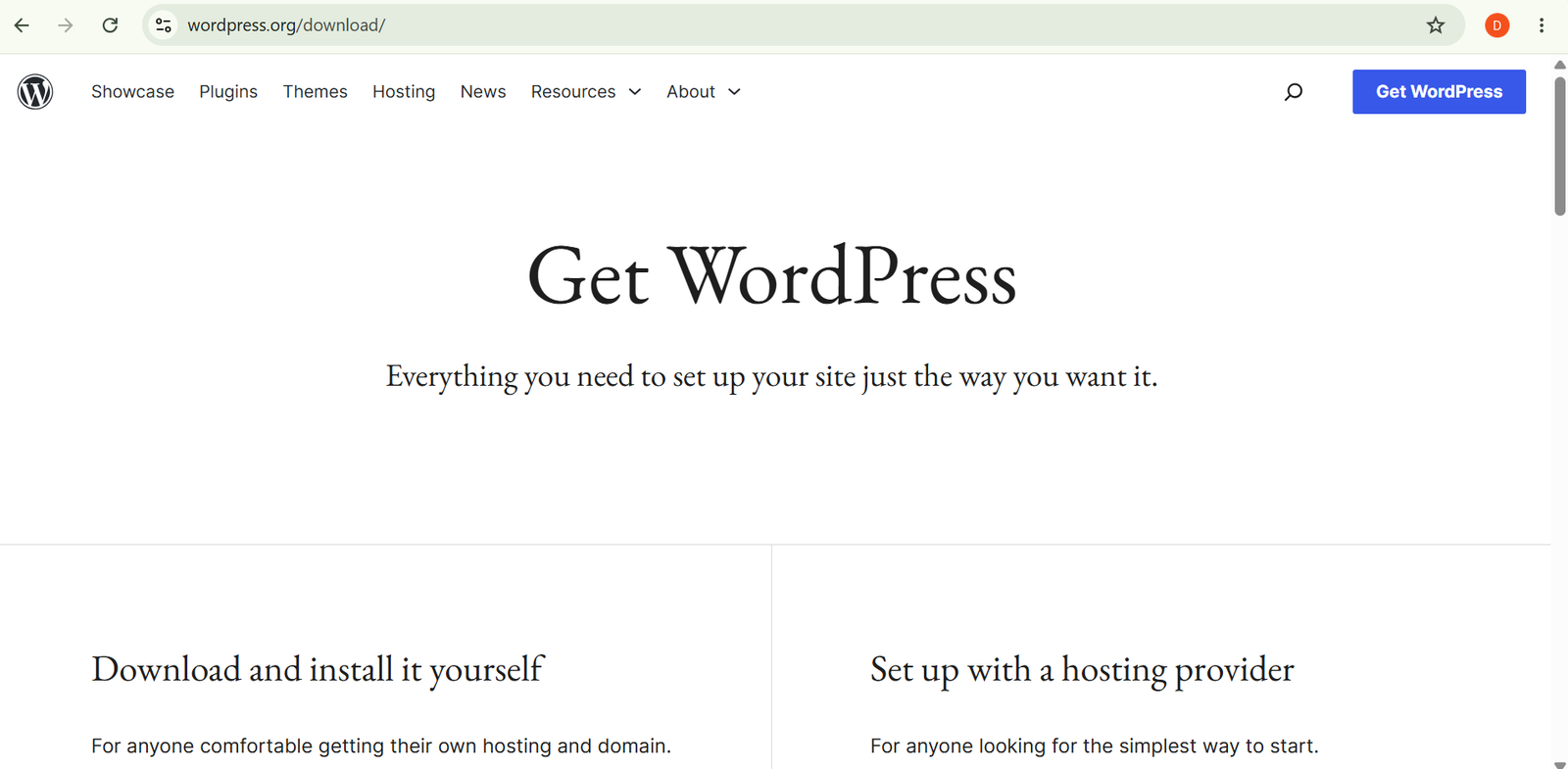
WordPress makes website creation much easier. As the world’s most popular content management system (CMS), it lets you build blogs, business websites, portfolios, and online stores using customizable themes, plugins, and an intuitive block editor. Whether you’re launching your first website or growing an existing one, WordPress gives you the flexibility to create and manage your site without advanced technical skills.
In this guide, you’ll learn how to use WordPress step by step, from installing the platform and choosing a theme to publishing content, optimizing your site for search engines, and keeping everything secure.
How Do You Use WordPress?
Quick Answer
Getting started with WordPress is simple:
- Choose between WordPress.com or self-hosted WordPress.org.
- Purchase a domain name and hosting (for WordPress.org).
- Install WordPress.
- Select and customize a theme.
- Create essential website pages.
- Install important plugins.
- Learn the Block Editor (Gutenberg).
- Publish your first page or blog post.
- Configure SEO settings.
- Keep your website updated and backed up.
Prerequisites
Before getting started, you’ll need:
- A computer with an internet connection
- A domain name (for self-hosted WordPress)
- A web hosting account (for WordPress.org)
- A WordPress account (WordPress.com users)
- Images and content for your website
- Basic understanding of the type of website you want to create
Create a Workflow Manually (Recommended for Beginners)
If you’re new to website building, creating your first website in WordPress is the best way to understand how the platform actually works.
Step 1: Choose Between WordPress.com and WordPress.org
Your first decision is selecting the version of WordPress that best fits your needs.
WordPress.com is a hosted solution where hosting, maintenance, and updates are handled for you. It’s a good choice for beginners who want a simple setup.
WordPress.org is the self-hosted version that gives you complete control over your website. You’ll need your own hosting provider and domain name, but you’ll have greater flexibility for customization, plugins, and themes.
If you plan to build a business website, portfolio, or online store, self-hosted WordPress is usually the better long-term option.
Step 2: Install WordPress
Most web hosting providers offer one-click WordPress installation.
Simply:
- Log in to your hosting account.
- Open the WordPress installer.
- Select your domain.
- Complete the installation.
Once installed, you’ll receive your WordPress login URL, typically ending with /wp-admin.
After signing in, you’ll see the WordPress Dashboard, where you’ll manage your website.
Step 3: Choose and Install a Theme
A theme controls your website’s overall appearance, including its layout, typography, colors, and navigation.
Browse the WordPress Theme Directory or install a premium theme if you need additional design options.
When selecting a theme, consider:
- Mobile responsiveness
- Fast loading speed
- Regular updates
- Compatibility with popular plugins
- Customization options
After activating your theme, you can personalize it to match your brand.
Step 4: Customize Your Website
Before publishing content, adjust your site’s design and structure.
You can customize:
- Site title and tagline
- Logo
- Header and footer
- Navigation menus
- Colors
- Fonts
- Homepage layout
- Widgets
Many modern themes also support the Full Site Editor, allowing you to customize different parts of your website visually.
Step 5: Create Essential Pages
Every website should include a few important pages that help visitors understand your business or purpose.
Common pages include:
- Home
- About
- Contact
- Services
- Blog
- Privacy Policy
To create a page:
- Go to Pages.
- Select Add New.
- Enter your content.
- Publish the page.
These pages provide the foundation for your website.
Step 6: Learn the Gutenberg Block Editor
WordPress uses the Gutenberg Block Editor to build pages and posts.
Instead of editing one large text area, you create content using individual blocks.
Popular blocks include:
- Paragraph
- Heading
- Image
- Gallery
- Video
- Button
- Columns
- List
- Quote
- Table
This visual editing approach makes page creation much easier, even for beginners.
Step 7: Install Essential Plugins
Plugins add new functionality to your website without requiring coding.
Some commonly used plugin categories include:
- SEO optimization
- Website security
- Contact forms
- Performance and caching
- Image optimization
- Backups
- Spam protection
Only install plugins that you genuinely need to avoid slowing down your website.
Step 8: Publish Your First Blog Post or Page
Now you’re ready to publish content.
When creating a post or page:
- Add a clear title.
- Organize content with headings.
- Include relevant images.
- Add internal and external links where appropriate.
- Preview the page.
- Click Publish.
Consistently publishing valuable content helps keep your website active and useful for visitors.
Step 9: Configure SEO Settings
Search engine optimization helps people discover your website through search engines.
Start with these basic settings:
- Create SEO-friendly page titles.
- Write unique meta descriptions.
- Use descriptive URLs.
- Add image alt text.
- Organize content with heading tags.
- Submit an XML sitemap.
- Choose a clean permalink structure.
An SEO plugin can simplify many of these tasks and provide optimization suggestions.
Step 10: Back Up and Maintain Your Website
Regular maintenance helps keep your website secure and performing well.
Create a maintenance routine that includes:
- Updating WordPress core
- Updating themes
- Updating plugins
- Removing unused plugins
- Creating regular backups
- Checking website performance
- Monitoring security
Keeping everything updated reduces the risk of security vulnerabilities and compatibility issues.
Step 11: Add an Online Store (Optional)
If you want to sell products or services, you can turn your website into an online store.
Install WooCommerce to add features such as:
- Product listings
- Shopping cart
- Secure checkout
- Payment gateways
- Shipping options
- Inventory management
This allows you to manage your website and online store from the same WordPress dashboard.
Ready to build your website?
Start using WordPress to create a professional, customizable, and SEO-friendly website that grows with your business or personal brand.
How Can You Use WordPress More Efficiently?
Tips
- Choose a lightweight theme for better performance.
- Keep your navigation menu simple and easy to use.
- Compress images before uploading them.
- Preview pages on desktop and mobile devices before publishing.
- Create categories to organize blog posts.
- Schedule regular backups.
- Learn keyboard shortcuts to speed up content editing.
How Can You Avoid Common WordPress Errors?
Common Mistakes
- Installing too many plugins.
- Ignoring WordPress updates.
- Choosing a slow or outdated theme.
- Publishing pages without proofreading.
- Using large image files that slow down the website.
- Forgetting to back up your site.
- Leaving default settings unchanged after installation.
How Can You Get the Most Value from WordPress?
Best Practices
- Keep WordPress, themes, and plugins updated.
- Use strong passwords for administrator accounts.
- Install only trusted themes and plugins.
- Organize content with categories and tags.
- Monitor website performance regularly.
- Back up your website before major updates.
- Review your site’s security settings periodically.
- Publish fresh, high-quality content consistently.
How Can You Troubleshoot WordPress Effectively?
Troubleshooting
Website is loading slowly
Optimize images, remove unnecessary plugins, and use a caching solution to improve performance.
Can’t log in to WordPress
Verify your username and password or use the password reset option from the login page.
Plugin causes website issues
Deactivate the plugin and check whether the problem is resolved before installing an alternative.
Theme doesn’t display correctly
Ensure the theme is compatible with your WordPress version and update it if needed.
Changes aren’t appearing
Clear your browser cache and any website caching tools before checking the updated page again.
Frequently Asked Questions
What’s the difference between WordPress.com and WordPress.org?
WordPress.com is a hosted platform that manages hosting and maintenance for you, while WordPress.org is self-hosted and gives you full control over your website, themes, plugins, and customization.
Do I need coding skills to use WordPress?
No. Most WordPress websites can be built using themes, plugins, and the Block Editor without writing code.
Can I create an online store with WordPress?
Yes. By installing WooCommerce, you can add products, accept online payments, manage inventory, and run a fully functional e-commerce website.
How often should I update WordPress?
You should install updates whenever new versions of WordPress core, themes, or plugins become available to improve security, performance, and compatibility.
Is WordPress good for SEO?
Yes. WordPress is SEO-friendly and offers many plugins and customization options that help improve search engine visibility when combined with quality content and proper optimization.
Conclusion
WordPress makes website creation accessible for beginners while providing the flexibility needed for advanced users and growing businesses. From selecting a theme and publishing content to optimizing your site for search engines and maintaining its performance, every step contributes to building a professional online presence.
By following this guide, you’ll have the knowledge to create, customize, and manage a WordPress website confidently while keeping it secure, organized, and ready to grow over time.
Build a stronger foundation for website creation and online publishing with WordPress.
Start using WordPress today to build a website that reflects your goals, whether you’re launching a personal blog, showcasing your portfolio, growing a business, or opening an online store. With the right setup and regular maintenance, your WordPress website can become a powerful platform for reaching your audience and achieving long-term success.