How to Use Sync.com: A Beginner’s Step-by-Step Guide
Learn how to use Sync.com with this beginner-friendly step-by-step guide to securely store, sync, share, and manage your files across all your devices.
By TechScaleMedia Editorial · Updated July 2026 · 11 min read
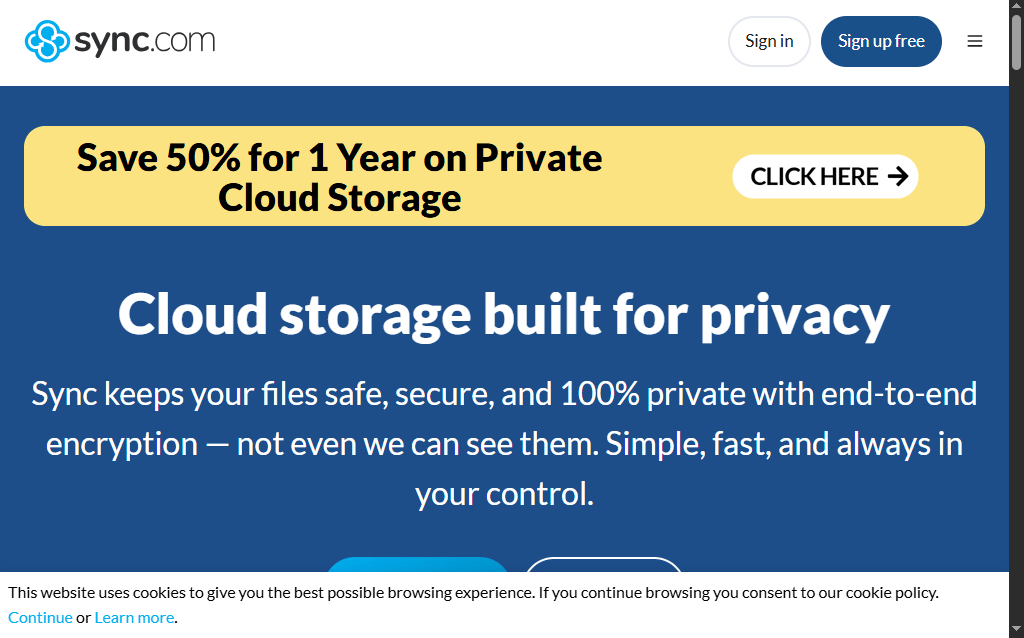
Keeping your files secure, backed up, and accessible across multiple devices is essential for both personal and professional use. Sync.com is a privacy-focused cloud storage and file-sharing platform that helps you store, sync, back up, and securely share files using end-to-end encryption. It’s an excellent choice for individuals, teams, and businesses that prioritize data privacy.
In this guide, you’ll learn how to use Sync.com step by step, from creating your account to uploading, syncing, and sharing files securely.New to Sync.com? Follow this beginner-friendly guide to securely back up, sync, and share your files in just a few minutes.
How do you use Sync.com?
Quick Answer
To use Sync.com:
- Create a Sync.com account.
- Install the Sync.com desktop or mobile app.
- Upload files to your cloud storage.
- Sync files across your devices.
- Share files and folders securely.
- Manage and restore your files whenever needed.
Prerequisites
Before getting started, you’ll need:
- A Sync.com account
- A computer or mobile device
- The Sync.com desktop or mobile application (recommended)
- Files you want to upload or back up
- A stable internet connection
Step-by-Step Instructions
Follow these simple, beginner-friendly steps to set up and use Sync.com, from creating your account to securely uploading, syncing, and sharing your files.
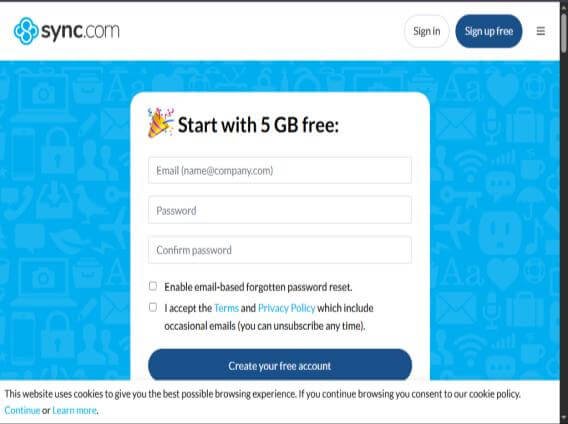
Step 1: Create a Sync.com Account
- Visit the official Sync.com website.
- Click Sign Up.
- Enter your email address and create a secure password.
- Verify your email address.
- Sign in to your Sync.com dashboard.
Step 2: Install the Sync.com App
- Download the Sync.com desktop or mobile app.
- Install the application.
- Launch Sync.com.
- Sign in with your account credentials.
The desktop application automatically creates a Sync Folder on your computer.
Step 3: Upload Your Files
You can upload files by:
- Dragging and dropping files into your Sync Folder.
- Clicking Upload in the web dashboard.
- Selecting files or folders from your computer.
Uploaded files are automatically encrypted before being stored in the cloud.
Step 4: Sync Files Across Devices
Install Sync.com on all your devices
After signing in:
- Files automatically sync across devices.
- Changes update in real time.
- Access your files from your computer, smartphone, or tablet.
This ensures you always have the latest version of your documents.
Step 5: Share Files and Folders Securely
To share files:
- Select a file or folder.
- Click Share.
- Generate a secure sharing link.
- Set optional permissions such as:
- Password protection
- Expiration date
- Download limits
- Copy and send the link.
Step 6: Manage and Restore Files
From your dashboard, you can:
- Organize files into folders.
- Rename files.
- Delete unwanted files.
- Restore deleted files (within the available recovery period).
- View previous file versions.
This helps protect important documents from accidental deletion or unwanted changes.
How can you use Sync.com more effectively?
Tips
Follow these simple Sync.com tips to securely store, organize, and share your files while making the most of its cloud storage features.
- Organize files into clearly labeled folders.
- Enable automatic backups for important documents.
- Use password-protected sharing links for sensitive files.
- Regularly review shared folders and permissions.
- Install the app on all your devices for seamless synchronization.
What mistakes should you avoid when using Sync.com?
Common Mistakes
- Forgetting your account password or recovery key.
- Uploading duplicate files.
- Sharing confidential documents without password protection.
- Ignoring available storage limits.
- Accidentally deleting synced files.
Why isn’t Sync.com syncing my files?
Troubleshooting
Try these solutions:
- Check your internet connection.
- Restart the Sync.com application.
- Ensure you’re signed into the correct account.
- Verify that your storage quota hasn’t been exceeded.
- Update the application to the latest version.
How can you get the most out of Sync.com?
Best Practices
Learn how to use Sync.com step by step to securely upload, organize, sync, and share your files with ease, even if you’re a complete beginner.
- Back up important files regularly.
- Create a consistent folder structure.
- Use secure sharing options for confidential documents.
- Enable two-factor authentication for your account.
- Keep the Sync.com app updated for the latest features and security improvements.
Frequently Asked Questions
Is Sync.com free?
Yes. Sync.com offers a free plan with limited cloud storage, along with paid plans that provide more storage and advanced collaboration features.
Is Sync.com secure?
Yes. Sync.com uses end-to-end encryption to protect your files and ensure only you and authorized users can access your data.
Can I access my files on multiple devices?
Yes. Sync.com automatically synchronizes your files across supported computers, smartphones, and tablets.
Can I recover deleted files?
Yes. Sync.com includes file recovery and version history features, depending on your subscription plan.
Is Sync.com suitable for businesses?
Yes. Sync.com offers collaboration, secure file sharing, and team management features for businesses of all sizes.
Conclusion
Sync.com is a reliable and privacy-focused cloud storage solution that makes it easy to back up, sync, and securely share your files. By following this guide, you can organize your data, collaborate safely, and access your files from anywhere with confidence.
Ready to Master Sync.com?
Ready to protect your files with secure cloud storage? Try Sync.com today to back up your documents, sync files across all your devices, and share them securely with end-to-end encryption. Whether you’re an individual or a business, Sync.com helps keep your data safe and accessible wherever you go.