How to Use RemotePC: A Beginner’s Step-by-Step Guide
Learn how to use RemotePC with this beginner-friendly step-by-step guide to securely access and control your computer from anywhere, making remote work and file access simple and efficient.
By TechScaleMedia Editorial · Updated July 2026 · 11 min read
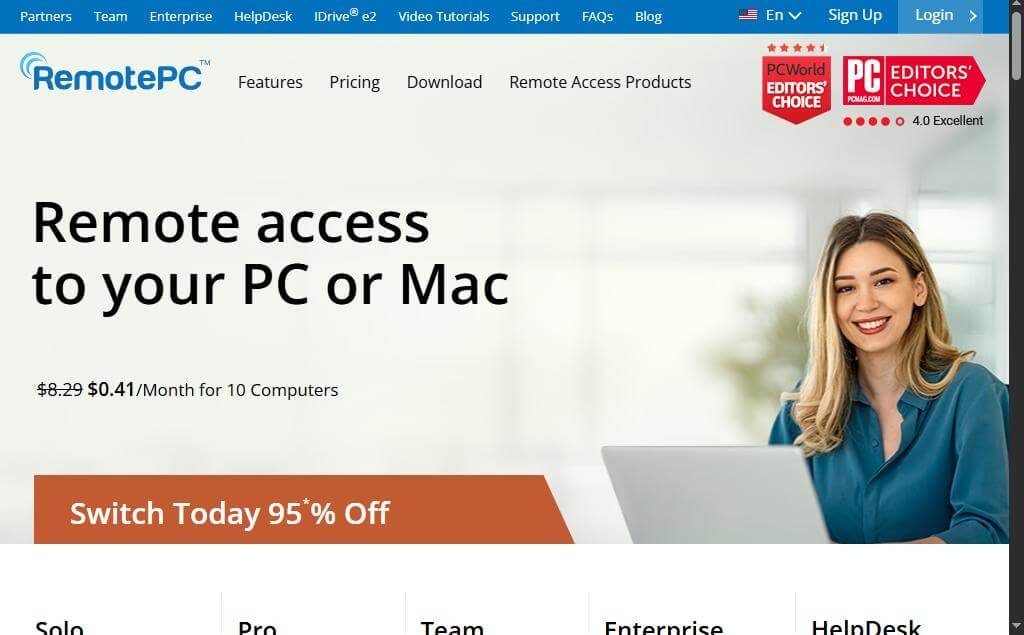
Accessing your computer from anywhere has become essential for remote work, IT support, and personal productivity. RemotePC is a secure remote desktop solution that allows you to remotely access, control, and transfer files between computers from virtually any location. Whether you’re working from home, traveling, or providing technical support, RemotePC makes remote access simple and reliable.
In this guide, you’ll learn how to use RemotePC step by step, from setting up your account to remotely accessing your computer. New to RemotePC? Follow this beginner-friendly guide to securely access your computer from anywhere in just a few minutes.
How do you use RemotePC?
Quick Answer
To use RemotePC:
- Create a RemotePC account.
- Install the RemotePC application.
- Configure your computer for remote access.
- Sign in on another device.
- Connect to your remote computer.
- Transfer files and manage your remote session.
Prerequisites
Before getting started, you’ll need:
- A RemotePC account
- RemotePC installed on the host computer
- A second device (computer, tablet, or smartphone)
- A stable internet connection on both devices
- Administrator access to install the software
Step-by-Step Instructions
Follow these simple, beginner-friendly steps to set up and use RemotePC for secure remote access to your computer from anywhere.
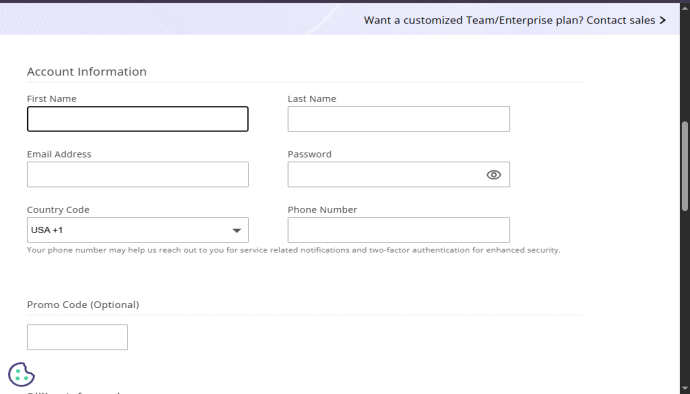
Step 1: Create a RemotePC Account
- Visit the RemotePC website.
- Click Sign Up.
- Choose your preferred plan.
- Create your account.
- Verify your email address.
Step 2: Install the RemotePC Application
- Download the RemotePC application.
- Install it on the computer you want to access remotely.
- Launch the application.
- Sign in using your RemotePC account.
Step 3: Configure Your Computer
To enable remote access:
- Assign a name to your computer.
- Create a Personal Key (security password).
- Enable Always-On Remote Access.
- Save your settings.
Your computer is now ready for remote connections. .
Step 4: Sign In from Another Device
On the second device:
- Install the RemotePC app or use the web interface.
- Sign in with the same RemotePC account.
- Your registered computers will appear in the dashboard.
Step 5: Connect to Your Remote Computer
- Select the computer you want to access.
- Click Connect.
- Enter your Personal Key if prompted.
- Wait for the remote desktop session to load.
You can now control your computer just as if you were sitting in front of it.
Step 6: Transfer Files and Manage Your Session
During the remote session, you can:
- Transfer files between devices
- Copy and paste text
- Print documents remotely
- Chat with the remote user (if applicable)
- End the session securely when finished
How can you improve your remote access experience with RemotePC?
Tips
Learn how to use RemotePC with this beginner-friendly step-by-step guide to securely access and control your computer from anywhere.
- Use a high-speed internet connection.
- Enable Always-On Remote Access.
- Create a strong Personal Key.
- Keep both devices updated.
- Close unnecessary applications before connecting remotely.
What mistakes should you avoid when using RemotePC?
Common Mistakes
- Forgetting your Personal Key.
- Using weak account passwords.
- Disconnecting the host computer from the internet.
- Leaving remote sessions open after use.
- Ignoring software updates.
Why can’t I connect to my remote computer with RemotePC?
Troubleshooting
Try these solutions:
- Verify that both devices are connected to the internet.
- Ensure the host computer is powered on.
- Check that RemotePC is running.
- Confirm you’re using the correct Personal Key.
- Restart the RemotePC application if the connection fails.
How can you get the most out of RemotePC?
Best Practices
Follow these best practices to maximize RemotePC’s performance, security, and reliability for a smooth and efficient remote access experience.
- Enable two-factor authentication for your account.
- Use strong, unique passwords.
- Regularly update the RemotePC application.
- Lock your remote computer after each session.
- Monitor your account activity for added security.
Frequently Asked Questions
Is RemotePC free?
RemotePC offers a free trial, while continued access requires a paid subscription with different plans for individuals and businesses.
Can I access my computer from a smartphone?
Yes. RemotePC offers mobile apps for both Android and iOS devices.
Is RemotePC secure?
Yes. RemotePC uses TLS encryption and personal access keys to help protect remote sessions and user data.
Can I transfer files during a remote session?
Yes. RemotePC includes a built-in file transfer feature that allows you to move files between connected devices.
Does RemotePC support multiple computers?
Yes. Depending on your subscription plan, you can manage and access multiple computers from a single account.
Conclusion
RemotePC makes it easy to securely access your computers from anywhere, making it an excellent solution for remote work, technical support, and personal productivity. By following this guide, you can quickly set up remote access, connect from any device, and manage files with confidence.
Ready to Work Remotely?
Start using RemotePC today to securely access your devices from anywhere and enjoy seamless remote work, support, and collaboration.