How to Use Monday.com: A Beginner’s Step-by-Step Guide
Managing projects across spreadsheets, emails, and chat apps can quickly become confusing. Tasks get overlooked, deadlines slip, and team members often struggle to stay on the same page. Whether you’re managing a marketing campaign, tracking client work, or organizing daily operations, having a central place to manage everything makes collaboration much easier.
By TechScaleMedia Editorial · Updated July 2026 · 11 min read
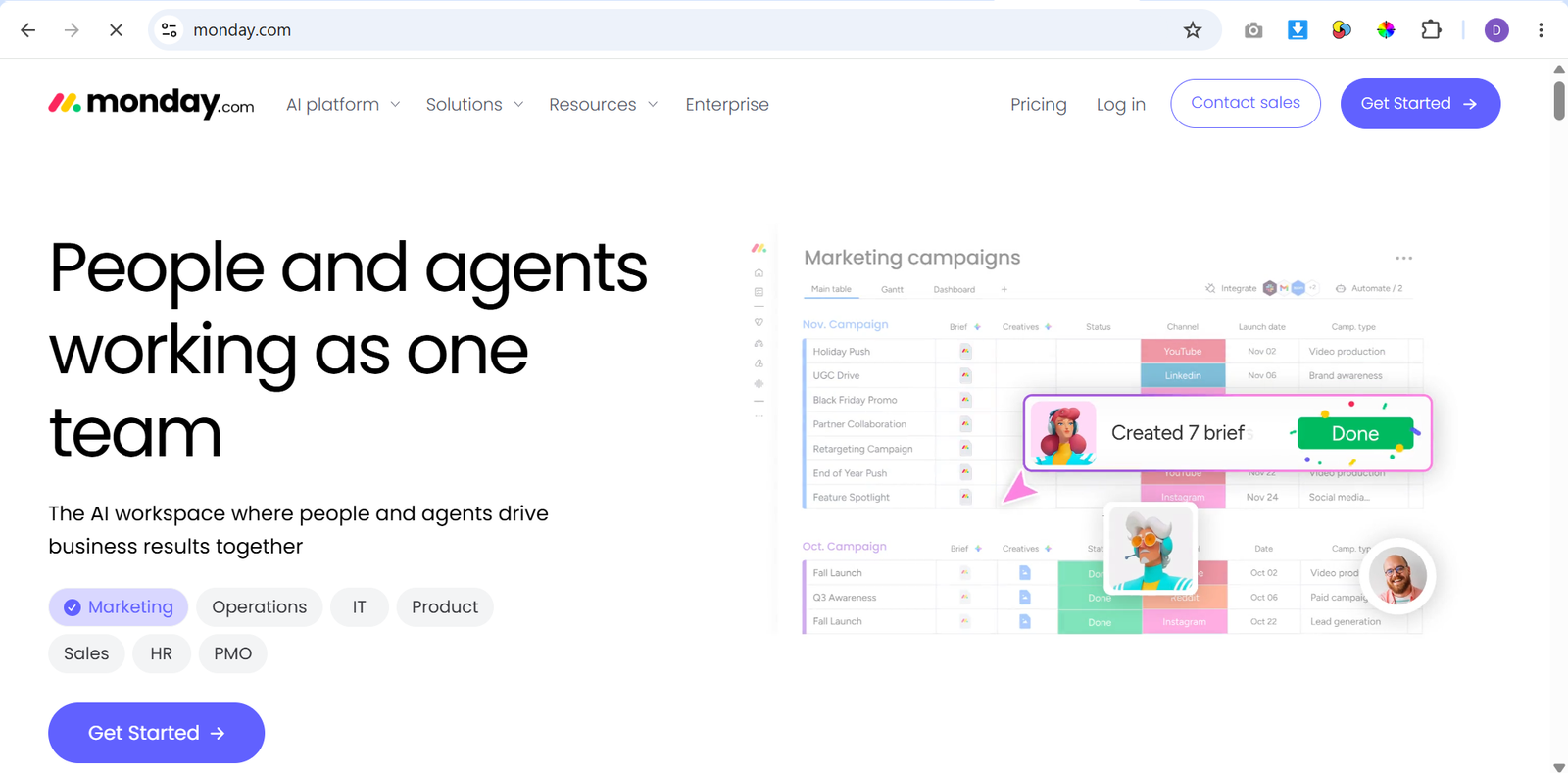
Monday.com solves this problem by bringing your projects, tasks, timelines, and team communication into one visual workspace. With customizable boards, multiple project views, workflow automations, and powerful integrations, you can organize work efficiently without needing technical expertise.
In this guide, you’ll learn how to use Monday.com step by step, from creating your first workspace and board to managing tasks, automating repetitive work, and tracking project progress.
How Do You Use Monday.com?
Quick Answer
Using Monday.com is straightforward:
- Create your Monday.com account.
- Create a Workspace.
- Choose or customize a board template.
- Add groups and columns.
- Create tasks and assign team members.
- Select the best project view.
- Build workflow automations.
- Connect your favorite apps.
- Create dashboards to monitor progress.
- Review and improve your workflows regularly.
Prerequisites
Before getting started, you’ll need:
- A Monday.com account
- A computer or mobile device
- Internet connection
- Team member email addresses (if collaborating)
- Basic understanding of your project workflow
- Optional cloud apps such as Slack, Gmail, Google Drive, or Zoom for integrations
Create a Workflow Manually (Recommended for Beginners)
If you’re new to work management, creating your first project in Monday.com is the best way to understand how the platform actually works.
Step 1: Create Your Monday.com Account
Visit Monday.com and sign up using your email address or a Google account.
After logging in, you’ll be asked about:
- Your team size
- Your role
- Your primary use case (project management, CRM, marketing, software development, etc.)
These answers help Monday.com recommend the most suitable templates for your workspace.
Once setup is complete, you’ll enter your new Work OS dashboard.
Step 2: Create Your Workspace
A Workspace is your company’s main area where projects are organized.
If you’re managing different departments, you might create separate workspaces for:
- Marketing
- Sales
- Human Resources
- Product Development
- Customer Support
Organizing workspaces early helps keep projects structured as your business grows.
Step 3: Choose a Board Template
Boards are where most work happens inside Monday.com.
Instead of starting from scratch, browse the template library.
Popular templates include:
- Project Management
- Marketing Campaign Planning
- CRM Pipeline
- Content Calendar
- Event Planning
- Product Roadmap
- Employee Onboarding
- IT Project Tracking
If none match your workflow, choose a blank board and customize everything yourself.
Step 4: Build Your Board Structure
Now customize the board to match your workflow.
Start by creating Groups, which divide work into logical sections.
Examples include:
- Planning
- In Progress
- Review
- Completed
Next, add Columns to store important information.
Common columns include:
- Status
- Owner
- Due Date
- Priority
- Timeline
- Budget
- Progress
- Files
- Tags
- Notes
A well-designed board makes project updates much easier to understand.
Step 5: Add Tasks and Assign Owners
Every task becomes an Item on your board.
For each task, enter:
- Task name
- Responsible team member
- Due date
- Priority level
- Current status
- Supporting documents
- Comments or updates
Assigning ownership ensures everyone knows exactly who is responsible for completing each task.
As projects grow, you can also add subitems to break large assignments into smaller, manageable steps.
Step 6: Choose the Best Project View
Monday.com offers several ways to visualize your work.
Switch between views depending on your project.
Popular options include:
Table View
Ideal for detailed task management and data entry.
Kanban View
Perfect for visual workflows using columns such as:
- To Do
- Working On
- Done
Timeline or Gantt View
Useful for planning project schedules and tracking task dependencies.
Calendar View
Great for content planning, marketing campaigns, and event scheduling.
Workload View
Helps managers balance work across team members and prevent overloading individuals.
Using multiple views gives every stakeholder the information they need in their preferred format.
Step 7: Automate Repetitive Tasks
One of Monday.com’s biggest strengths is its no-code automation builder.
Instead of updating tasks manually, create automation rules.
Examples include:
- When a task is marked “Done,” notify the project manager.
- When a due date arrives, remind the assigned employee.
- When a status changes, move the task to another group.
- When a new item is created, assign it automatically.
- When a deadline passes, change the task priority.
These automations reduce repetitive work while keeping projects moving smoothly.
Step 8: Connect Your Favorite Applications
Monday.com integrates with many popular business tools.
Examples include:
- Slack
- Gmail
- Outlook
- Zoom
- Google Drive
- Microsoft Teams
- Dropbox
- GitHub
- Jira
- Salesforce
Connecting these tools keeps files, conversations, and updates synchronized without constantly switching between applications.
Step 9: Create Dashboards
Dashboards provide a high-level overview of multiple projects.
Instead of opening every board individually, dashboards combine information into visual reports.
Useful dashboard widgets include:
- Progress charts
- Workload summaries
- Budget tracking
- Calendar widgets
- Time tracking
- Task completion reports
- Team performance metrics
Managers can quickly identify delays, monitor workloads, and make informed decisions.
Step 10: Review and Improve Your Workflow
As your projects evolve, your boards should evolve too.
Schedule regular reviews to:
- Archive completed projects.
- Remove unnecessary columns.
- Update automation rules.
- Improve task organization.
- Adjust permissions.
- Refine dashboards.
Continuous improvement helps your workspace remain organized and efficient over time.
Ready to organize your work more efficiently?
Start using Monday.com to manage projects, improve team collaboration, and keep every task moving forward from one centralized platform.
How Can You Use Monday.com More Efficiently?
Tips
- Start with a template before building a custom board.
- Keep board names clear and descriptive.
- Use color-coded status labels consistently.
- Create recurring automations for repetitive processes.
- Use dashboards to monitor multiple projects at once.
- Encourage team members to update task statuses daily.
- Organize files directly within task items instead of separate folders.
How Can You Avoid Common Monday.com Errors?
Common Mistakes
- Creating too many boards for small projects.
- Adding unnecessary columns that complicate workflows.
- Forgetting to assign task owners.
- Ignoring overdue tasks.
- Building overly complex automation rules too early.
- Not updating project statuses regularly.
- Giving every user administrative permissions.
How Can You Get the Most Value from Monday.com?
Best Practices
- Standardize board templates across departments.
- Use naming conventions for projects and tasks.
- Review dashboards during weekly team meetings.
- Limit automations to processes that save meaningful time.
- Organize projects by department or client.
- Use workload tracking to balance team capacity.
- Regularly clean up completed projects and inactive boards.
- Train new team members on your workspace structure before assigning projects.
How Can You Troubleshoot Monday.com Effectively?
Troubleshooting
Automations aren’t working
Review the automation trigger and verify that all required conditions are configured correctly.
Team members aren’t receiving notifications
Check notification settings and confirm they have access to the board.
Dashboard isn’t showing project data
Ensure the correct boards are connected to the dashboard widgets.
Integrations stop syncing
Reconnect the external application and verify that the required permissions are still active.
Projects become difficult to manage
Archive completed boards, simplify your structure, and remove outdated workflows.
Frequently Asked Questions
What is Monday.com used for?
Monday.com is a work management platform that helps teams organize projects, manage tasks, automate workflows, track progress, and collaborate from one centralized workspace.
Is Monday.com suitable for small businesses?
Yes. Monday.com works well for freelancers, startups, small businesses, and large enterprises because its boards and workflows can be customized for teams of any size.
Can I automate tasks without coding?
Yes. Monday.com’s no-code automation builder lets you create workflow rules using simple triggers and actions, eliminating many repetitive manual tasks.
Does Monday.com integrate with other software?
Yes. Monday.com connects with many popular tools, including Slack, Gmail, Zoom, Google Drive, Microsoft Teams, GitHub, Jira, Salesforce, and many others.
Which project view should I use?
It depends on your workflow. Table View works well for detailed task management, Kanban is ideal for visual workflows, Timeline and Gantt views help with scheduling, Calendar View is useful for planning events or content, and Workload View helps balance team capacity.
Can I track project timelines in Monday.com?
Yes. Timeline and Gantt views allow you to plan schedules, monitor deadlines, and visualize task dependencies across your projects.
Conclusion
Monday.com makes project management easier by giving teams a flexible, visual workspace to organize tasks, monitor deadlines, and collaborate more effectively. From customizable boards and multiple project views to powerful automations and dashboards, the platform helps reduce manual work while keeping everyone aligned on project goals.
By following the steps in this guide, you can confidently build your first workspace, organize projects, automate routine processes, and create a workflow that scales as your team grows.
Build a stronger foundation for project management and team collaboration with Monday.com.
Start using Monday.com today to organize your projects, streamline team collaboration, and automate repetitive tasks. With a well-structured workspace and the right workflows in place, you can keep every project on track and help your team work more efficiently every day.