How to Use Akiflow: A Beginner’s Step-by-Step Guide
Managing tasks across multiple apps can quickly become overwhelming. Akiflow is a productivity platform that combines task management, calendar scheduling, and workflow organization into one centralized workspace. It helps you collect tasks from different tools, prioritize your work, and plan your day without constantly switching between applications.
By TechScaleMedia Editorial · Updated July 2026 · 11 min read
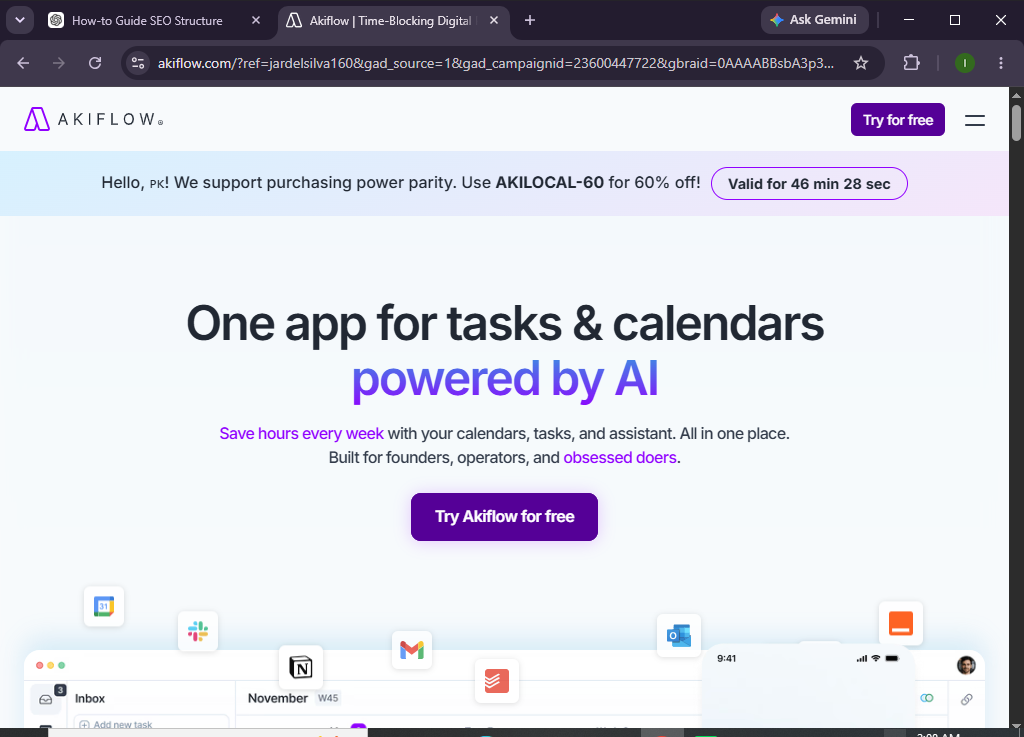
In this guide, you’ll learn how to use Akiflow to capture tasks, organize your schedule, block time on your calendar, and stay focused throughout your workday.
How do you use Akiflow to organize tasks and plan your daily schedule?
Quick Answer
Getting started with Akiflow is simple:
- Create an Akiflow account.
- Connect your calendar and apps.
- Import or create tasks.
- Organize tasks by priority.
- Schedule tasks with time blocking.
- Track your progress.
- Review and plan each day.
Prerequisites
Before using Akiflow, you’ll need:
- An Akiflow account
- Internet connection
- Google Calendar or Outlook Calendar
- List of tasks or projects
- Supported productivity apps (optional)
- Desktop or web application
Create a Workflow Manually (Recommended for Beginners)
If you’re new to productivity management, organizing your first workspace in Akiflow is the best way to understand how the platform actually works.
Step 1: Create Your Akiflow Account
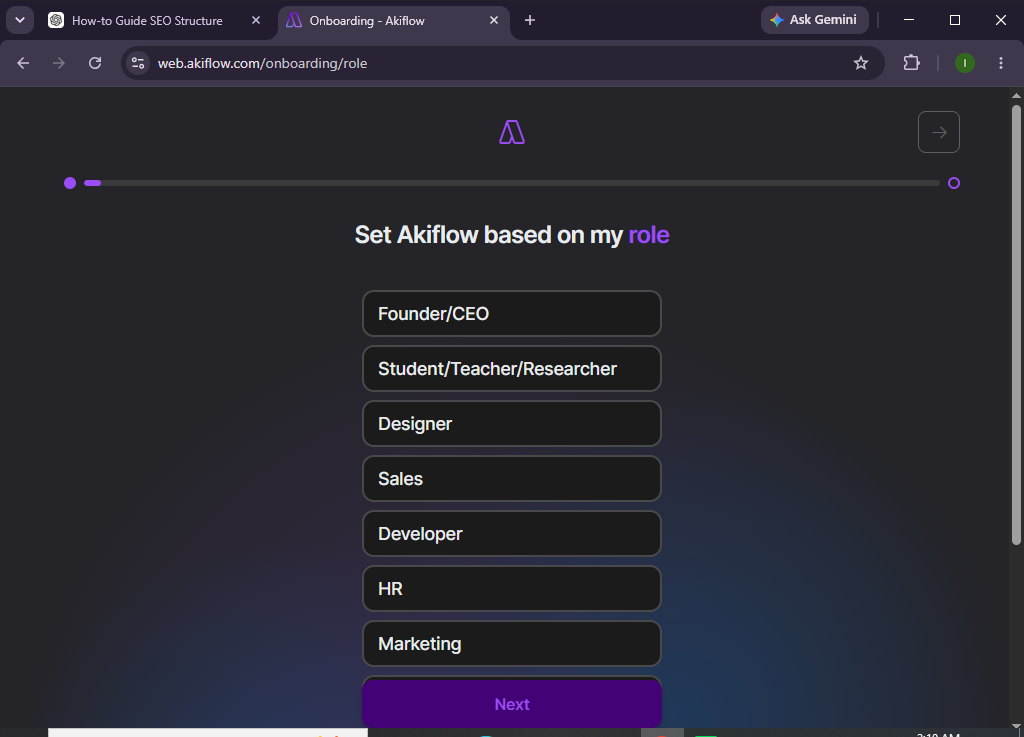
Visit the Akiflow website and sign up using your email or Google account.
Verify your account and complete the onboarding process. your account and complete the onboarding process.
Step 2: Connect Your Calendar
Navigate to Settings and connect your preferred calendar.
Supported integrations may include:
- Google Calendar
- Outlook Calendar
Akiflow will automatically sync your meetings and availability.
Step 3: Connect Your Productivity Apps
Akiflow supports integrations with many productivity tools.
You can connect apps such as:
- Slack
- Gmail
- Notion
- Asana
- Trello
- ClickUp
- Todoist
- Jira
Tasks from connected apps can be imported into your unified inbox.
Step 4: Capture and Organize Tasks
Add new tasks manually or import them automatically.
For each task, include:
- Title
- Due date
- Priority
- Labels
- Project
- Notes
Organize tasks into manageable categories.
Step 5: Schedule Tasks with Time Blocking
Drag tasks directly onto your calendar.
Allocate dedicated time blocks for:
- Deep work
- Meetings
- Emails
- Administrative tasks
- Personal activities
Time blocking helps you maintain a realistic daily schedule.
Step 6: Manage Your Daily Agenda
Review your agenda to see:
- Scheduled tasks
- Meetings
- Upcoming deadlines
- Focus sessions
Adjust your plan whenever priorities change.
Step 7: Complete and Update Tasks
As you finish work:
- • Mark tasks complete.
- • Reschedule unfinished items.
- • Update priorities.
- • Archive completed tasks.
Keeping your task list current improves productivity.
Step 8: Review Your Productivity
At the end of the day, review:
- Completed tasks
- Pending work
- Calendar usage
- Productivity trends
Use these insights to improve future planning.
Want one place to manage all your tasks and meetings?
Akiflow helps you plan smarter, reduce distractions, and stay on top of your daily priorities.
How can you get the most out of Akiflow?
Tips
- Consolidate tasks from all your apps.
- Time-block important work first.
- Review your schedule every morning.
- Keep your inbox organized.
- Prioritize tasks daily.
- Minimize context switching.
- Reserve time for focused work.
- Perform a daily planning review.
What mistakes should you avoid when using Akiflow?
Common Mistakes
- Ignoring task priorities.
- Overloading your calendar.
- Forgetting to review imported tasks.
- Skipping daily planning.
- Leaving completed tasks unorganized.
- Not updating your schedule when priorities change.
How can you maximize productivity with Akiflow?
Best Practices
- Start each day with a planning session.
- Keep your task inbox clean.
- Schedule high-priority work during peak focus hours.
- Group similar tasks together.
- Review your calendar before ending the day.
- Connect all frequently used productivity apps.
- Keep task descriptions simple and actionable.
- Build a consistent time-blocking routine.
What should you do if Akiflow isn’t working properly?
Troubleshooting
Calendar isn’t syncing
Reconnect your calendar and verify account permissions.
Imported tasks are missing
Check integration settings and refresh the application.
Unable to schedule tasks
Ensure your calendar is connected and available time slots exist.
Integrations aren’t updating
Reconnect the affected application and authorize permissions again.
Login issues
Reset your password or verify your email account.
Frequently Asked Questions
Is Akiflow free?
Akiflow offers a free trial, while full access to its productivity and integration features requires a paid subscription.
Can Akiflow connect with Google Calendar?
Yes. Akiflow integrates with Google Calendar and other supported calendar platforms.
Does Akiflow support task imports?
Yes. You can import tasks from many popular productivity tools into a centralized inbox.
What is time blocking in Akiflow?
Time blocking lets you assign specific periods on your calendar to complete individual tasks or projects.
Can I manage multiple projects?
Absolutely. Akiflow allows you to organize tasks across multiple projects and workspaces.
Is Akiflow suitable for remote professionals?
Yes. Akiflow is widely used by freelancers, remote workers, entrepreneurs, and busy professionals who want to streamline their daily workflow.
Conclusion
Akiflow helps you bring together your tasks, calendar, and favorite productivity apps into a single workspace, making it easier to plan your day and stay focused. By combining task management with time blocking and seamless integrations, it reduces the friction of switching between multiple tools and helps you work more intentionally.
Follow the steps in this guide to create a streamlined workflow, prioritize what matters most, and make every workday more productive.
Simplify the way you organize your work.
Give Akiflow a try and experience how bringing your tasks, calendar, and daily planning into one place can help you stay focused and get more done.