How to Use a Philips Hue Starter Kit (Bulbs + Bridge): A Complete Beginner’s Step-by-Step Guide
Learn how to set up and use a Philips Hue Starter Kit, connect the Bridge, install smart bulbs, customize lighting, and control your smart home with this easy step-by-step beginner’s guide.
By TechScaleMedia Editorial · Updated July 2026 · 11 min read
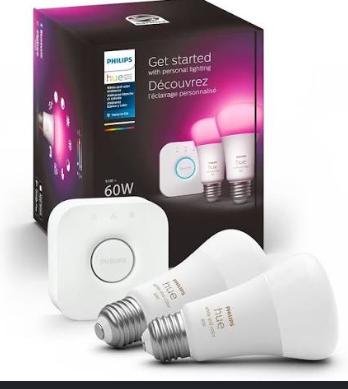
The Philips Hue Starter Kit (Bulbs + Bridge) is a smart lighting system that lets you control your home’s lights using a smartphone, tablet, voice assistant, or automation routines. With features like adjustable brightness, millions of color options (on compatible bulbs), customizable lighting scenes, timers, and remote access, Philips Hue makes it easy to create the perfect atmosphere for relaxing, working, entertaining, or improving home security.
Although the Philips Hue system is designed for simple installation, many beginners have difficulty connecting the Hue Bridge, pairing bulbs, organizing rooms, or creating lighting automations. Understanding the proper setup process helps you unlock the full potential of your smart lighting system.
This guide explains how to use the Philips Hue Starter Kit (Bulbs + Bridge), from installation and setup to troubleshooting common issues and following best practices for long-term performance.
Ready to transform your home’s lighting? Follow this step-by-step guide to set up your Philips Hue Starter Kit and enjoy smart lighting that’s both convenient and customizable.
How do you use the Philips Hue Starter Kit (Bulbs + Bridge)?
Quick Answer
Using the Philips Hue Starter Kit is easy:
- Install the Philips Hue bulbs.
- Connect the Hue Bridge.
- Download the Philips Hue app.
- Pair the Bridge with the app.
- Add your smart bulbs.
- Organize lights into rooms.
- Create scenes, schedules, and automations.
Prerequisites
Before you begin, make sure you have:
- Philips Hue Starter Kit (Bulbs + Bridge)
- Compatible light fixtures
- Stable Wi-Fi router
- Ethernet cable (included)
- Smartphone or tablet
- Philips Hue app
- Philips Hue account (optional for remote access)
Step-by-Step Instructions
Follow these simple steps to set up your Philips Hue Starter Kit, connect the Bridge, install the smart bulbs, and start controlling your lights with the Hue app.
Step 1: Install the Smart Bulbs
Turn off the light switch.
Remove your existing bulbs.
Install the Philips Hue bulbs into compatible light fixtures.
Turn the wall switch back on.
Step 2: Connect the Hue Bridge
Place the Hue Bridge near your Wi-Fi router.
Connect the Bridge to your router using the supplied Ethernet cable.
Plug the Bridge into a power outlet.
Wait until all indicator lights become steady.
Step 3: Download the Philips Hue App
Install the Philips Hue app on your smartphone or tablet.
Open the app and sign in or create a Philips Hue account if desired.
Step 4: Pair the Hue Bridge
Open the app.
The app should automatically detect the Hue Bridge.
Press the large button on the top of the Bridge when prompted.
Wait for pairing to complete.
Step 5: Add Your Smart Bulbs
The app will search for nearby Philips Hue bulbs.
Once detected:
- Assign names to each bulb.
- Confirm each light is working properly.
- Save your settings.
Step 6: Organize Lights
Assign your bulbs to specific rooms, such as:
- Living Room
- Bedroom
- Kitchen
- Office
- Hallway
Creating rooms makes controlling multiple lights much easier.
Step 7: Create Lighting Scenes and Automations
Customize your lighting experience by creating:
- Morning routines
- Evening relaxation scenes
- Movie lighting
- Reading mode
- Vacation schedules
- Sleep timers
Test each automation to confirm everything works correctly.
What Tips Help You Get the Most from Philips Hue Smart Lighting?
Tips
Following these tips helps improve convenience and lighting performance.
Give Every Light a Clear Name
Simple names make voice control easier.
Create Lighting Zones
Group nearby lights together for quicker control.
Experiment with Lighting Scenes
Different brightness and color combinations create unique moods for different activities.
Schedule Lights Automatically
Program lights to turn on or off at specific times.
Keep the Hue Bridge Connected
Avoid disconnecting the Bridge to ensure uninterrupted smart control.
Use Voice Assistants
Connect Philips Hue with compatible voice assistants for hands-free lighting control.
Update the System Regularly
Install firmware updates for the Bridge and bulbs whenever available.
What Common Mistakes Should You Avoid?
Common Mistakes
Turning Off the Wall Switch
The smart bulbs require power to remain connected.
Placing the Bridge Too Far from the Router
A stable connection improves reliability.
Forgetting to Organize Rooms
Room organization simplifies automation and voice commands.
Ignoring Firmware Updates
Updates improve compatibility, security, and performance.
Giving Lights Similar Names
Distinct names reduce confusion when controlling multiple rooms.
Overcomplicating Automations
Start with simple routines before creating advanced lighting schedules.
Using Unsupported Bulbs
Only compatible Philips Hue bulbs can connect directly to the Hue Bridge.
How Can You Troubleshoot Common Philips Hue Starter Kit Problems?
Troubleshooting
Problem: Hue Bridge Isn’t Detected
Solution
- Check the Ethernet cable.
- Restart the Bridge.
- Restart your router.
Problem: Bulbs Aren’t Found
Solution
- Ensure the wall switch is turned on.
- Move bulbs closer during setup if necessary.
- Search for bulbs again through the app.
Problem: Lights Won’t Respond
Solution
- Check Bridge connectivity.
- Restart the Hue app.
- Verify the bulbs have power.
Problem: Automations Don’t Run
Solution
- Review automation schedules.
- Confirm time zone settings.
- Ensure the Bridge remains online.
Problem: Voice Commands Aren’t Working
Solution
- Re-link your voice assistant.
- Verify light names.
- Sync devices again.
Problem: Lights Appear Offline
Solution
- Restart the Bridge.
- Check your network connection.
- Update the firmware.
What Are the Best Practices for Long-Term Performance?
Best Practices
Keep the Bridge Powered On
Continuous power ensures reliable smart lighting.
Install Firmware Updates
Keep bulbs and the Bridge updated for optimal performance.
Review Lighting Schedules Seasonally
Adjust automations as daylight hours change.
Maintain Strong Network Connectivity
Reliable internet improves remote control performance.
Organize Rooms and Zones
Update room assignments whenever you add new bulbs.
Clean Bulbs Carefully
Use a dry microfiber cloth to remove dust.
Expand Your Smart Lighting Gradually
Add additional Philips Hue accessories over time as your smart home grows.
Frequently Asked Questions
Can I control Philips Hue lights when I’m away from home?
Yes. Remote access is available when your Hue Bridge is connected to your account and the internet.
Do I always need the Hue Bridge?
Most advanced Philips Hue features require the Hue Bridge.
Can I change bulb colors?
Yes. Color-capable Philips Hue bulbs support millions of colors and adjustable white tones.
Can multiple family members control the lights?
Yes. Multiple users can access the lighting system through the Philips Hue app.
Why won’t my bulbs connect?
Ensure the bulbs have power and the Hue Bridge is properly connected.
Can Philips Hue work with voice assistants?
Yes. It supports several popular voice assistant platforms.
How often should I update the system?
Install firmware updates whenever they become available.
Conclusion
The Philips Hue Starter Kit (Bulbs + Bridge) makes it easy to create a personalized smart lighting experience throughout your home. By setting up the Hue Bridge correctly, organizing your lights into rooms, and taking advantage of schedules and lighting scenes, you can improve convenience, comfort, and energy efficiency with minimal effort.
Routine firmware updates, reliable network connectivity, and thoughtful lighting automation will help your Philips Hue system continue performing smoothly for years to come. Whether you’re creating a relaxing atmosphere, improving home security, or simplifying your daily routine, Philips Hue offers a flexible and intelligent lighting solution.
Brighten Every Room with Smart Lighting That Adapts to You
Your Philips Hue Starter Kit opens the door to a more personalized lighting experience. Explore different scenes, automate your daily routines, and gradually expand your smart lighting system to create a home that’s more comfortable, efficient, and uniquely yours.