How to Use a Google Nest Hub Max: A Complete Beginner’s Step-by-Step Guide
Learn how to use a Google Nest Hub Max with this complete beginner’s step-by-step guide to set up your smart display, control smart home devices, make video calls, play media, and get the most out of Google Assistant.
By TechScaleMedia Editorial · Updated July 2026 · 11 min read
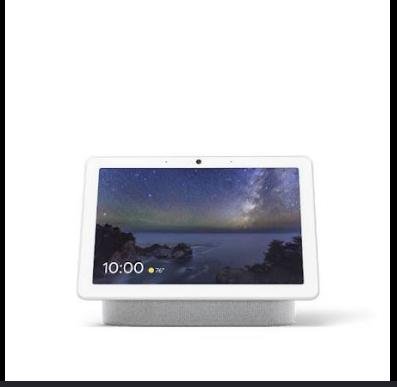
The Google Nest Hub Max is a smart display that brings together voice control, home automation, entertainment, video calling, and everyday productivity in one device. With its built-in Google Assistant, touchscreen display, camera, speakers, and smart home integration, you can control compatible devices, watch videos, view calendars, make video calls, display photos, and manage daily routines—all using simple voice commands or touch controls.
Although the Google Nest Hub Max is designed for quick setup, many new users encounter challenges when connecting it to Wi-Fi, linking smart home devices, enabling Voice Match, or customizing routines. Learning the proper setup process helps you unlock all of its features and create a more connected smart home.
This guide explains how to use the Google Nest Hub Max, from initial setup and account configuration to troubleshooting common issues and following best practices for long-term performance.
Ready to make your home smarter and more connected? Follow this step-by-step guide to set up your Google Nest Hub Max and start getting more from your smart home experience.
How do you use the Google Nest Hub Max?
Quick Answer
Using the Google Nest Hub Max is easy:
- Plug in the device.
- Connect it to Wi-Fi.
- Install the Google Home app.
- Add the Nest Hub Max.
- Sign in with your Google account.
- Enable Voice Match.
- Connect your smart home devices and customize routines.
Prerequisites
Before you begin, make sure you have:
- Google Nest Hub Max
- Power adapter
- Stable Wi-Fi connection
- Smartphone or tablet
- Google Home app
- Google account
- Compatible smart home devices (optional)
Step-by-Step Instructions
Follow these simple steps to set up your Google Nest Hub Max, connect it to Wi-Fi, customize its settings, and start using its smart home, entertainment, and voice assistant features with ease.
Step 1: Power On the Device
Place the Google Nest Hub Max on a stable surface near a power outlet.
Connect the power adapter.
Wait for the welcome screen to appear.
Step 2: Install the Google Home App
Download the Google Home app on your smartphone or tablet.
Sign in using your Google account.
Enable Bluetooth and Location Services if prompted.
Step 3: Add the Nest Hub Max
Open the Google Home app.
Tap Add Device.
The app will automatically search for nearby devices.
Select your Google Nest Hub Max and follow the on-screen instructions.
Step 4: Connect to Wi-Fi
Choose your home Wi-Fi network.
Enter your Wi-Fi password.
Wait for the Nest Hub Max to complete the connection.
Step 5: Configure Personal Settings
Complete the setup by configuring:
- Voice Match
- Face Match (if available)
- Preferred language
- Location
- Music services
- Video streaming services
- Calendar integration
Save your settings.
Step 6: Connect Smart Home Devices
Link compatible smart devices such as:
- Smart lights
- Smart thermostats
- Smart plugs
- Smart cameras
- Smart locks
Assign them to rooms within the Google Home app.
Step 7: Create Routines
Customize routines for everyday activities, including:
- Morning routine
- Bedtime routine
- Leaving home
- Returning home
- Weather updates
- News briefings
Test each routine to ensure it operates correctly.
What Tips Help You Get the Most from Google Nest Hub Max?
Tips
Following these tips helps improve convenience and overall performance.
Enable Voice Match
Allow the Nest Hub Max to recognize individual family members and provide personalized responses.
Position the Display Properly
Place the device where both the screen and speakers are easily accessible.
Organize Smart Devices by Room
Grouping devices makes voice commands simpler and more efficient.
Customize Your Dashboard
Arrange frequently used controls for quicker access.
Keep the Camera Lens Clean
A clean camera improves video call quality and Face Match recognition.
Explore Google Assistant Commands
Learn new voice commands to control entertainment, reminders, and smart devices more efficiently.
Install Software Updates
Keep the system updated to receive new features and security improvements.
What Common Mistakes Should You Avoid?
Common Mistakes
Using Weak Wi-Fi
Poor connectivity can interrupt voice commands and streaming services.
Skipping Voice Match Setup
Without Voice Match, personalized features may not work correctly.
Ignoring Privacy Controls
Review microphone and camera settings according to your preferences.
Connecting Too Many Devices at Once
Add smart home devices gradually to simplify setup.
Forgetting Software Updates
Outdated software may reduce compatibility and performance.
Placing the Device Near Loud Appliances
Background noise may interfere with voice recognition.
Leaving the Camera Uncovered During Video Calls
Check the camera switch before making or receiving calls.
How Can You Troubleshoot Common Google Nest Hub Max Problems?
Troubleshooting
Problem: Device Won’t Connect to Wi-Fi
Solution
- Restart your Wi-Fi router.
- Verify the network password.
- Move the Nest Hub Max closer to the router.
Problem: Google Assistant Doesn’t Respond
Solution
- Confirm the microphone is enabled.
- Restart the device.
- Check your internet connection.
Problem: Smart Devices Aren’t Responding
Solution
- Open the Google Home app.
- Confirm devices remain online.
- Reconnect the affected devices if necessary.
Problem: Video Calls Aren’t Working
Solution
- Verify camera permissions.
- Check your Google account settings.
- Restart the device.
Problem: Screen Freezes
Solution
- Restart the Nest Hub Max.
- Install pending software updates.
- Disconnect and reconnect the power adapter.
Problem: Voice Match Isn’t Recognizing You
Solution
- Retrain Voice Match in the Google Home app.
- Speak clearly during setup.
- Reduce background noise.
What Are the Best Practices for Long-Term Performance?
Best Practices
Keep the Software Updated
Install updates as soon as they become available.
Maintain a Strong Wi-Fi Connection
Reliable internet improves responsiveness and streaming quality.
Clean the Display Regularly
Use a microfiber cloth to remove fingerprints and dust.
Review Smart Home Connections
Remove devices that are no longer in use.
Update Your Routines Periodically
Adjust automations as your daily schedule changes.
Secure Your Google Account
Enable two-factor authentication for better account protection.
Restart the Device Occasionally
A periodic restart helps maintain smooth performance.
Frequently Asked Questions
Can I control smart home devices with Google Nest Hub Max?
Yes. It supports many compatible smart lights, thermostats, locks, cameras, and other smart home products.
Does Google Nest Hub Max support video calls?
Yes. It supports video calling through compatible Google services.
Can multiple users use the same device?
Yes. Voice Match allows personalized experiences for multiple household members.
Can I watch YouTube on Google Nest Hub Max?
Yes. You can stream YouTube videos directly on the display.
Why isn’t Google Assistant hearing my voice?
Check whether the microphone is enabled and ensure there’s a stable internet connection.
Does the Google Nest Hub Max require a subscription?
Most core features are available without a subscription, although some connected services may require separate plans.
How often should I update the device?
Install software updates whenever Google releases them for the best performance and security.
Conclusion
The Google Nest Hub Max is a versatile smart display that simplifies everyday life by combining voice assistance, entertainment, smart home control, and productivity into one easy-to-use device. By setting it up correctly, organizing your connected devices, and creating personalized routines, you can enjoy a more convenient and efficient smart home experience.
Regular software updates, strong Wi-Fi connectivity, and thoughtful customization will help your Google Nest Hub Max continue delivering reliable performance for years to come. Whether you’re managing your schedule, controlling smart devices, or staying connected with family, this smart display serves as a powerful hub for your connected home.
Unlock a Smarter Everyday Routine with Google Nest Hub Max
Your Google Nest Hub Max is more than just a smart display—it’s your personal assistant, entertainment center, and smart home controller all in one. Complete your setup, explore its powerful features, and discover new ways to simplify your daily routine while keeping your connected home running effortlessly.