How to Use a Mechanical Gaming Keyboard with Rapid Trigger: A Complete Beginner’s Step-by-Step Guide
A Rapid Trigger Mechanical Gaming Keyboard is a high-performance keyboard designed for competitive gaming, using Hall effect magnetic switches or optical switches to provide faster key response and adjustable actuation. Unlike traditional mechanical keyboards with fixed actuation points, rapid trigger technology allows keys to reset instantly when released, helping gamers achieve quicker movement and more precise inputs.
By TechScaleMedia Editorial · Updated July 2026 · 11 min read
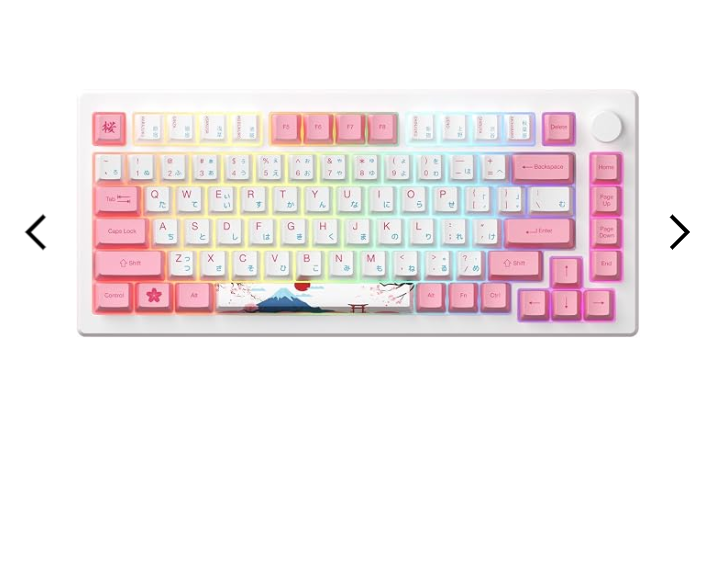
These keyboards are especially popular among FPS players, esports competitors, and users who want more control over key sensitivity. However, new users may be unsure how to configure actuation points, adjust rapid trigger sensitivity, create profiles, or balance speed with accuracy.
This guide explains how to set up and use a Rapid Trigger Mechanical Gaming Keyboard, including software configuration, key customization, testing, troubleshooting, and optimization.
How Do You Use a Rapid Trigger Mechanical Gaming Keyboard?
Quick Answer
- Connect the keyboard to your device.
- Install the manufacturer’s software.
- Enable Rapid Trigger mode.
- Adjust actuation points.
- Customize key sensitivity.
- Create profiles and macros.
- Test settings in games.
- Update firmware when needed.
Prerequisites
Before you begin, you’ll need:
- Rapid Trigger Mechanical Gaming Keyboard
- USB cable or wireless connection
- Manufacturer’s configuration software
- Gaming PC or compatible device
- Keyboard firmware updater (if available)
Create a Workflow Manually (Recommended for Beginners)
If you’re new to gaming keyboards, using your first Rapid Trigger Mechanical Gaming Keyboard is the best way to understand how the technology actually works.
Step 1: Connect the Keyboard
Connect the keyboard using your preferred method:
- USB-C/USB-A cable
- 2.4GHz wireless dongle
- Bluetooth connection
Wait for your computer to recognize the device.
Step 2: Install Keyboard Software
Download the official configuration software from the manufacturer’s website.
The software allows you to adjust:
- Rapid Trigger settings
- Actuation points
- RGB lighting
- Macros
- Key assignments
- Profiles
Step 3: Enable Rapid Trigger Mode
Open the keyboard software and activate Rapid Trigger.
This allows keys to reset immediately after release instead of waiting for a fixed reset point.
This feature is useful for fast movements such as:
- Counter-strafing in FPS games
- Quick directional changes
- Repeated key presses
Step 4: Adjust Actuation Points
Set how far a key must travel before registering an input.
Common settings:
- Lower actuation → faster response
- Higher actuation → better control and fewer accidental presses
Many gamers use lower settings for movement keys and higher settings for general typing.
Step 5: Configure Rapid Trigger Sensitivity
Adjust the reset sensitivity based on your preference.
A highly sensitive setting provides faster resets but may require more control to avoid accidental inputs.
Test different values until the keyboard feels comfortable.
Step 6: Customize Keys and Macros
Use the software to:
- Remap keys
- Create shortcuts
- Assign macros
- Set game-specific commands
Save your preferred layout for different games or tasks.
Step 7: Create Custom Profiles
Create separate profiles for:
- FPS games
- Racing games
- Productivity work
- General typing
Switch between profiles whenever needed.
Step 8: Adjust RGB Settings
If your keyboard supports RGB lighting, customize:
- Lighting effects
- Brightness
- Individual key colors
Step 9: Test Your Settings
Use a key testing tool or test directly in your games.
Check:
- Key response speed
- Accidental inputs
- Movement accuracy
- Comfort during extended sessions
Step 10: Update Firmware
Check the manufacturer’s software for firmware updates.
Updates can improve:
- Switch calibration
- Stability
- Compatibility
- Performance
Ready to upgrade your gaming setup?
Follow these steps to fine-tune your keyboard for faster reactions and a more responsive gaming experience.
How Can You Use a Rapid Trigger Mechanical Gaming Keyboard More Efficiently?
Tips
Start With Balanced Settings
Begin with moderate actuation and rapid trigger values, then adjust gradually based on comfort and gameplay.
Customize High-Usage Keys First
Focus on important keys like movement and action keys instead of changing the entire keyboard at once.
Match Settings to Each Game Type
Fast-paced games may benefit from quicker response settings, while slower games may require more control.
Keep the Keyboard Surface Clean
Regular cleaning helps prevent dust buildup that can affect key movement and feel.
Test Changes Before Competitive Play
Try new configurations in practice sessions before using them in ranked matches or tournaments.
How Can You Avoid Common Rapid Trigger Mechanical Gaming Keyboard Errors?
Common Mistakes
Using Extremely Sensitive Settings Immediately
Very low actuation values can lead to unintended key presses and reduced control.
Copying Professional Players’ Settings
A setup that works for another player may not match your hand movement or play style.
Ignoring Key Calibration
Incorrect calibration can affect the accuracy of magnetic or optical switches.
Changing Multiple Features at Once
Making several adjustments together makes it difficult to identify which setting improved or reduced performance.
Using Unsupported Software
Third-party tools may cause compatibility issues or interfere with keyboard functions.
How Can You Get the Most Value from a Rapid Trigger Mechanical Gaming Keyboard?
Best Practices
Create a Backup of Your Configurations
Save your preferred layouts and settings so they can be restored after software changes or device resets.
Use Different Profiles for Different Purposes
Separate gaming, work, and typing configurations can improve comfort and efficiency.
Keep Firmware and Software Current
Regular updates help maintain compatibility and improve keyboard stability.
Store the Keyboard Properly
Protect the keyboard from moisture, excessive dust, and physical damage when not in use.
Review Settings Occasionally
As your gameplay improves, fine-tuning your configuration can help maintain the best experience.
How Can You Troubleshoot Rapid Trigger Mechanical Gaming Keyboard Effectively?
Troubleshooting
Rapid Trigger Is Not Working
- Confirm the feature is enabled in the software.
- Check if your keyboard supports Rapid Trigger mode.
- Update firmware if necessary.
Keys Register Too Easily
- Increase actuation distance.
- Reduce sensitivity.
- Create a less aggressive profile.
Keyboard Software Cannot Detect Device
- Reconnect the keyboard.
- Try another USB port.
- Restart the software.
Double Inputs Occur
- Adjust Rapid Trigger sensitivity.
- Recalibrate switches.
- Update firmware.
Wireless Connection Problems
- Recharge the keyboard.
- Reconnect the wireless receiver.
- Reduce interference from nearby devices.
Frequently Asked Questions
What is Rapid Trigger on a keyboard?
Rapid Trigger allows keys to reset immediately when released, enabling faster repeated inputs compared to traditional switches.
Are Rapid Trigger keyboards better for gaming?
They can provide advantages in competitive games, especially FPS titles where quick movement and reactions matter.
What are Hall effect switches?
Hall effect switches use magnetic sensors to detect key movement, allowing adjustable actuation and rapid trigger functionality.
What actuation point should I use for FPS games?
Many players prefer lower actuation settings for movement keys, but the ideal value depends on personal preference.
Can I use a Rapid Trigger keyboard for typing?
Yes. You can adjust actuation settings to make typing more comfortable and prevent accidental presses.
Do Rapid Trigger keyboards reduce input lag?
They can reduce key response delay by allowing faster activation and reset compared to traditional switches.
Conclusion
A Rapid Trigger Mechanical Gaming Keyboard gives gamers more control, faster responses, and customizable input settings through adjustable actuation and switch technology. By configuring the software correctly, creating game-specific profiles, and testing different sensitivity levels, you can build a setup that matches your playing style.
Whether you compete in FPS games, stream, or simply want a more responsive keyboard, proper configuration helps you get the most out of rapid trigger technology.
Upgrade Your Gaming Performance With Faster Inputs
Configure your Rapid Trigger Mechanical Gaming Keyboard today and unlock faster reactions, smoother movement, and personalized controls. Fine-tune your settings to match your gameplay and experience the advantage of next-generation keyboard technology.