How to Use the TP-Link Deco X55 AX3000 Wi-Fi 6 Mesh System: A Complete Beginner’s Step-by-Step Guide
The TP-Link Deco X55 AX3000 Wi-Fi 6 Mesh System is a whole-home networking solution designed to provide fast and reliable wireless coverage across multiple rooms and floors. Using Wi-Fi 6 technology, it improves network efficiency, supports more connected devices, and reduces congestion compared to older Wi-Fi standards.
By TechScaleMedia Editorial · Updated July 2026 · 11 min read
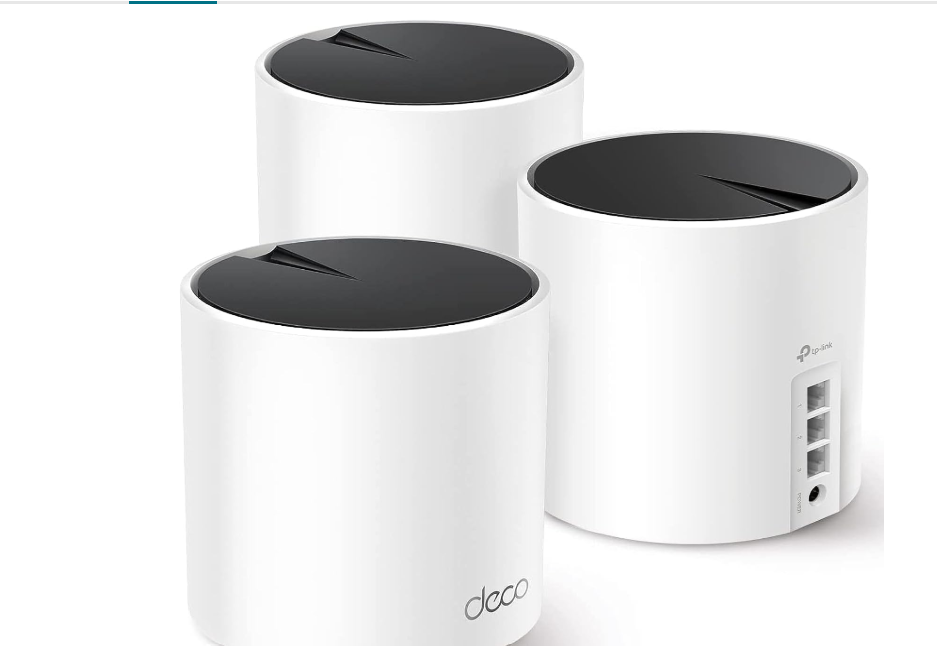
Unlike traditional routers, the Deco X55 uses multiple units that work together as one network, allowing devices to switch automatically between nodes as you move around your home. This makes it ideal for streaming, gaming, remote work, and smart home setups.
This guide explains how to set up and use the TP-Link Deco X55, including installation, mesh placement, security features, troubleshooting, and optimization.
How Do You Use the TP-Link Deco X55 Mesh System?
Quick Answer
- Connect the main Deco unit to your modem.
- Install the Deco app.
- Complete the setup wizard.
- Create your Wi-Fi network.
- Add additional Deco units.
- Configure security and parental controls.
- Check network performance.
- Update firmware.
Prerequisites
Before getting started, you’ll need:
- TP-Link Deco X55 Mesh System
- Broadband modem
- Ethernet cable
- Smartphone or tablet
- TP-Link Deco app
- TP-Link ID account
- ISP connection details (if required)
Create a Workflow Manually (Recommended for Beginners)
If you’re new to mesh Wi-Fi, setting up your first TP-Link Deco X55 AX3000 Wi-Fi 6 Mesh System is the best way to understand how the platform actually works.
Step 1: Connect the Main Deco Unit
Connect the primary Deco unit to your modem using an Ethernet cable.
- Power on the modem.
- Connect the Deco unit.
- Wait until the LED indicates it is ready for setup.
Step 2: Install the Deco App
Download the TP-Link Deco app and sign in with your TP-Link ID.
The app will automatically detect your Deco device and guide you through installation.
Step 3: Configure Internet Settings
Follow the setup wizard and select your connection type:
- DHCP
- PPPoE
- Static IP
Enter ISP details if required.
Step 4: Create Your Wi-Fi Network
Set your:
- Wi-Fi name (SSID)
- Password
All Deco units use the same network name, allowing seamless roaming throughout your home.
Step 5: Add Additional Deco Units
Place extra Deco units around your home.
For better coverage:
- Keep units within range of each other.
- Avoid thick walls and large obstacles.
- Place them in open areas.
The app automatically pairs each additional unit.
Step 6: Check Signal Strength
Use the Deco app to check each unit’s connection quality.
Move any weak nodes closer to the main unit for better performance.
Step 7: Enable Network Features
Configure useful features such as:
- Guest Wi-Fi
- Parental controls
- HomeShield security
- QoS device prioritization
Step 8: Update Firmware
Enable automatic firmware updates through the app to receive security improvements and performance enhancements.
Ready to upgrade your home network?
Follow these steps to eliminate Wi-Fi dead zones and create a faster, more reliable home network.
How Can You Use TP-Link Deco X55 Mesh System More Efficiently?
Tips
Place Units on Elevated Surfaces
Keep Deco units on shelves or tables instead of floors to improve signal distribution.
Keep the Main Deco Near the Modem
Placing the primary unit close to the modem helps maintain a stable connection.
Use Wired Connections for Heavy Tasks
Connect gaming consoles, desktops, or work devices through Ethernet when possible for better stability.
Check Wi-Fi Performance Room by Room
Test different areas of your home after installation to identify coverage gaps.
Avoid Wireless Interference
Keep Deco units away from microwaves, thick metal objects, and other devices that may affect signals.
How Can You Avoid Common TP-Link Deco X55 Mesh System Errors?
Common Mistakes
Setting Up Satellite Units Before the Main Deco
Always complete the primary Deco installation before adding additional nodes.
Placing Nodes Behind Large Obstacles
Walls, cabinets, and large appliances can weaken communication between mesh units.
Using Incorrect Internet Settings
Selecting the wrong connection type during setup can prevent the system from connecting properly.
Assuming More Units Always Improve Wi-Fi
Too many mesh nodes can create unnecessary wireless interference.
Forgetting to Check Device Compatibility
Older devices may not support Wi-Fi 6 features but can still connect using previous Wi-Fi standards.
How Can You Get the Most Value from TP-Link Deco X55 Mesh System?
Best Practices
Review Network Performance Occasionally
Check your network speed and connected devices to ensure everything is working as expected.
Customize Device Profiles
Create user profiles in the Deco app to manage different household members and their devices.
Keep Your Network Information Secure
Use strong passwords and update access details when necessary.
Use Automatic Updates
Allow the Deco app to install firmware updates to maintain security and reliability.
Plan Future Network Expansion
If you add smart devices or extend your home, evaluate coverage before adding more Deco units.
How Can You Troubleshoot TP-Link Deco X55 Mesh System Effectively?
Troubleshooting
Deco Unit Cannot Connect
- Restart the unit.
- Move it closer to the main Deco.
- Check the Ethernet connection.
Weak Satellite Signal
- Reduce distance between units.
- Remove physical obstacles.
- Reposition the node.
No Internet Connection
- Restart the modem and Deco system.
- Check ISP settings.
- Confirm cable connections.
Slow Wi-Fi Speed
- Check connected devices.
- Test from different locations.
- Update firmware.
Deco App Cannot Find Device
- Enable Bluetooth.
- Connect to the Deco Wi-Fi network.
- Restart the app.
Frequently Asked Questions
Is the TP-Link Deco X55 worth it?
Yes. It is a good option for homes needing reliable Wi-Fi 6 coverage, better device handling, and fewer dead zones.
How many Deco X55 units do I need?
The number depends on your home’s size, layout, and the number of obstacles affecting signal strength.
Does Deco X55 support older devices?
Yes. Wi-Fi 6 is backward compatible with older Wi-Fi devices.
Can I create a guest network?
Yes. The Deco app allows you to create a separate Wi-Fi network for visitors.
Does Deco X55 replace my router?
Yes, it can work as your main router, or it can operate in Access Point Mode with an existing router.
What is HomeShield?
HomeShield is TP-Link’s security and network management service that offers features like device protection, parental controls, and QoS tools.
Conclusion
The TP-Link Deco X55 AX3000 Wi-Fi 6 Mesh System provides an easy way to improve home internet coverage and manage multiple connected devices. With proper installation, smart node placement, and useful features like guest networking and parental controls, it can deliver a smooth and reliable Wi-Fi experience.
Whether you are working from home, streaming, gaming, or using smart devices, the Deco X55 helps create a stable network throughout your living space.
Upgrade Your Home Wi-Fi Experience
Set up your TP-Link Deco X55 Mesh System today and enjoy faster, more reliable coverage across every room. Eliminate weak signals, connect more devices, and create a seamless Wi-Fi network built for modern homes.