How to Use the TP-Link TL-SG105 5-Port Gigabit Ethernet Switch: A Complete Beginner’s Step-by-Step Guide
The TP-Link TL-SG105 5-Port Gigabit Ethernet Switch is a compact, plug-and-play networking device that expands your available wired Ethernet connections. It allows you to connect multiple devices, such as computers, gaming consoles, smart TVs, printers, and NAS systems, through a single router connection while maintaining gigabit speeds.
By TechScaleMedia Editorial · Updated July 2026 · 11 min read
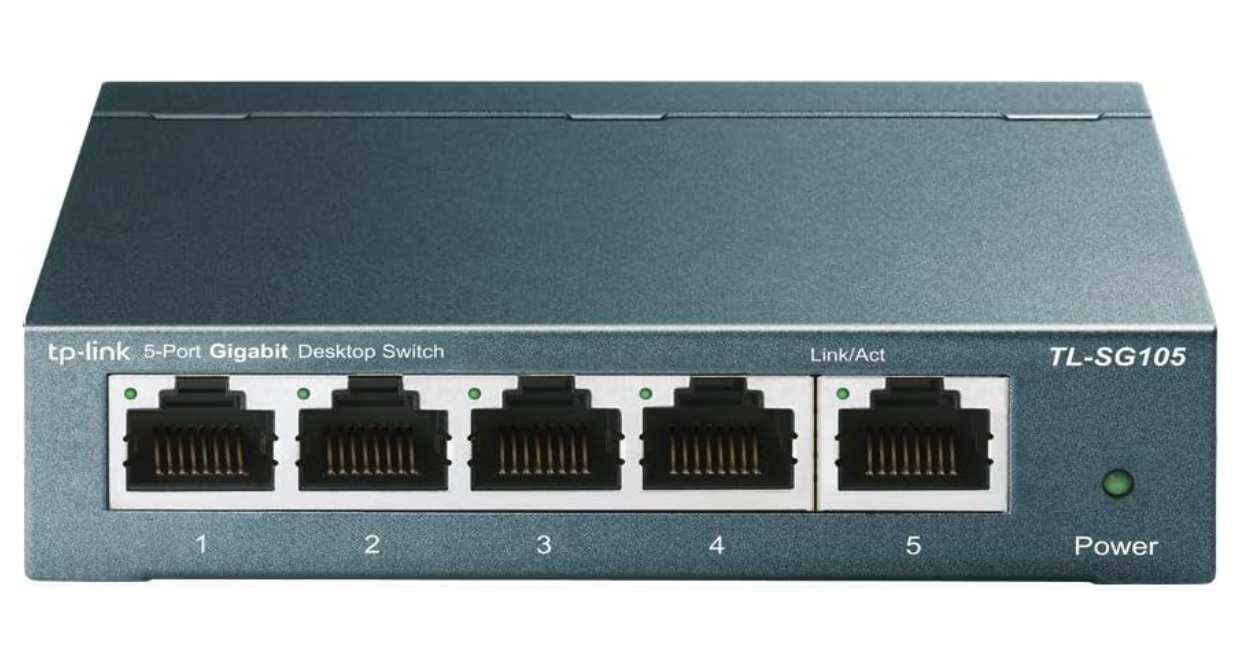
Unlike managed switches, the TL-SG105 requires no software installation, account setup, or manual configuration. Simply connect it to your network, plug in your devices, and it automatically starts transferring data.
This guide explains how to set up and use the TP-Link TL-SG105, including installation, device connections, troubleshooting, and network optimization.
How Do You Use the TP-Link TL-SG105 Ethernet Switch?
Quick Answer
- Place the switch near your router or wired devices.
- Connect the switch to your router using Ethernet.
- Plug in the power adapter.
- Connect computers, consoles, TVs, or NAS devices.
- Check LED indicators.
- Test network connectivity.
Prerequisites
Before getting started, you’ll need:
- TP-Link TL-SG105 Gigabit Switch
- Router with an available LAN port
- Ethernet cables
- Wired devices you want to connect
- Power adapter included with the switch
Create a Workflow Manually (Recommended for Beginners)
If you’re new to wired networking, connecting your first TP-Link TL-SG105 Ethernet Switch is the best way to understand how the platform actually works.
Step 1: Choose the Installation Location
Place the switch where multiple wired devices need access.
Good locations include:
- Near your router
- Home office desk
- Entertainment center
- Network cabinet
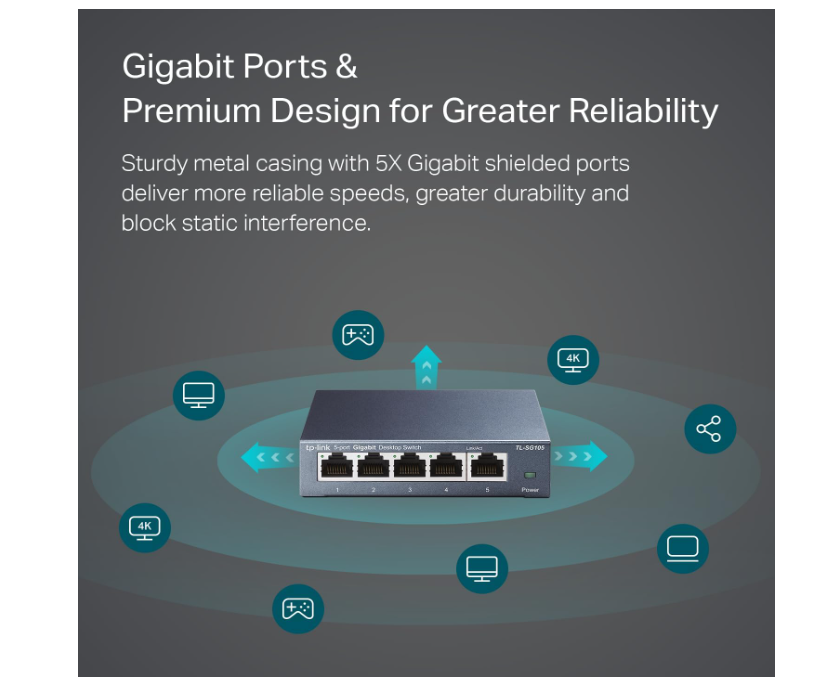
Ensure the area has proper airflow.
Step 2: Connect the Switch to Your Router
Use an Ethernet cable to connect any port on the TL-SG105 to a LAN port on your router.
The switch automatically receives network access from the router.
Step 3: Power On the Switch
Connect the power adapter and turn on the switch.
No app, login, or manual configuration is required because it is an unmanaged switch.
Step 4: Connect Wired Devices
Plug Ethernet cables from your devices into the remaining switch ports.
You can connect:
- Desktop computers
- Gaming consoles
- Smart TVs
- Network printers
- NAS storage devices
Step 5: Check LED Indicators
Each port has an LED light showing connection status.
- Solid light indicates an active connection.
- Blinking light shows data transfer activity.
Step 6: Test Network Access
Check that connected devices can:
- Access the internet
- Communicate with other network devices
- Transfer files if connected to shared storage
Step 7: Expand Your Network (Optional)
If more ports are needed, you can connect another switch to the TL-SG105.
Avoid creating network loops, as they can interrupt network performance.
Ready to upgrade your home network?
Follow these steps to expand your wired network quickly and create a more reliable connection for your important devices.
How Can You Use TP-Link TL-SG105 Ethernet Switch More Efficiently?
Tips
Use Shorter Ethernet Cable Runs
Place the switch close to the devices you want to connect to reduce cable clutter and keep your setup organized.
Prioritize Wired Connections for High-Usage Devices
Connect devices like gaming consoles, desktop computers, and NAS systems through Ethernet for more stable performance.
Check Cable Categories
Use Cat 5e, Cat 6, or higher Ethernet cables to support gigabit speeds.
Keep Port Usage Organized
Assign specific ports to specific devices so you can identify connections easily later.
Avoid Blocking Ventilation Openings
Leave enough space around the switch to allow proper airflow.
How Can You Avoid Common TP-Link TL-SG105 Ethernet Switch Errors?
Common Mistakes
Connecting the Switch to the Modem Instead of the Router
A switch expands an existing network but does not replace a router’s connection management features.
Assuming Every Device Gets Gigabit Speed Automatically
Connected devices must also support gigabit Ethernet to achieve maximum speeds.
Using Poor-Quality Ethernet Cables
Old or damaged cables can limit connection speed and cause unstable performance.
Creating Network Loops
Incorrectly connecting multiple switches together can disrupt the entire network.
Expecting Wireless Features
The TL-SG105 only provides wired Ethernet connections and does not create Wi-Fi.
How Can You Get the Most Value from TP-Link TL-SG105 Ethernet Switch?
Best Practices
Plan Your Network Layout Before Adding More Devices
A simple and organized structure makes troubleshooting easier as your network grows.
Keep a Record of Connected Devices
Maintain a basic list of which devices are connected to each port for easier management.
Protect the Switch From Physical Damage
Place it in a secure location away from moisture, heat sources, and accidental bumps.
Disconnect Unused Network Equipment
Removing unused devices helps keep your network cleaner and easier to manage.
Clean the Device Periodically
Remove dust from the switch and surrounding area to maintain proper operation.
How Can You Troubleshoot TP-Link TL-SG105 Ethernet Switch Effectively?
Troubleshooting
Connected Device Has No Internet
- Check the Ethernet cable.
- Confirm the switch is powered on.
- Restart the router if needed.
LED Light Is Off
- Reseat the Ethernet cable.
- Try another switch port.
- Replace the cable if necessary.
Slow Network Speed
- Check cable quality.
- Confirm connected devices support gigabit Ethernet.
- Avoid using damaged network cables.
Multiple Devices Lose Connection
- Restart the router and switch.
- Check for incorrect switch connections.
Frequently Asked Questions
Does the TP-Link TL-SG105 require setup?
No. It is an unmanaged switch that works immediately after connecting power and Ethernet cables.
Can I connect the switch directly to a modem?
Usually, no. A router is recommended because it manages network connections and shares internet access.
How many devices can I connect?
The TL-SG105 has five Ethernet ports. One port is typically used for the router connection, leaving four available for additional devices.
Does the switch improve Wi-Fi speed?
No. It improves wired network expansion but does not increase wireless performance.
Can I use it for gaming?
Yes. A wired connection through the switch can provide stable low-latency connectivity for gaming devices.
Does it need firmware updates?
No. Since it is an unmanaged switch, there is no software management or regular firmware maintenance.
Conclusion
The TP-Link TL-SG105 5-Port Gigabit Ethernet Switch is an easy and affordable way to expand wired network connections at home or in a small office. With its plug-and-play design and gigabit performance, it allows you to connect more devices without complicated configuration.
By using quality cables, organizing your network properly, and connecting devices correctly, you can create a reliable wired setup for computers, gaming systems, smart TVs, and storage devices.
Expand Your Wired Network Easily
Set up your TP-Link TL-SG105 Gigabit Ethernet Switch today and enjoy a cleaner, faster, and more reliable wired network for your home or office devices. Connect more equipment without complicated settings and keep your important devices running smoothly.