How to Use an Ultra-Wideband (UWB) Smart Lock: A Complete Beginner’s Step-by-Step Guide
Learn how to set up, connect, and use an Ultra-Wideband (UWB) smart lock with this beginner-friendly step-by-step guide to enjoy secure, hands-free, and seamless keyless entry.
By TechScaleMedia Editorial · Updated July 2026 · 11 min read
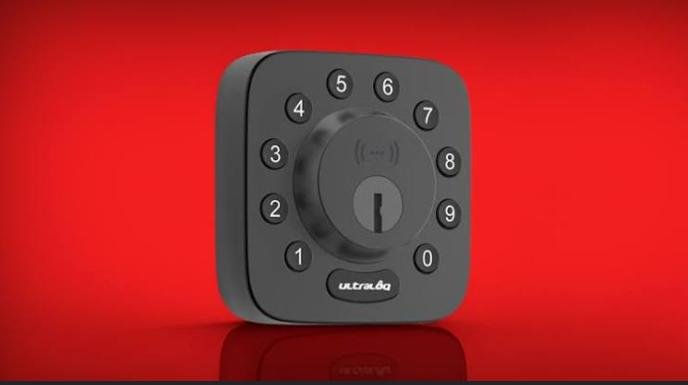
An Ultra-Wideband (UWB) Smart Lock offers a modern, secure, and hands-free way to lock and unlock your door using precise location technology. Unlike traditional smart locks that rely solely on Bluetooth or Wi-Fi, UWB technology accurately detects your position, allowing the lock to determine when you’re approaching or leaving your home. This provides faster unlocking, improved security, and a more seamless entry experience without needing to remove your phone from your pocket.
Although UWB smart locks are designed for convenience, many users face challenges during setup, pairing with smartphones, configuring auto-unlock features, or managing digital access for family members. Understanding the correct setup process helps ensure smooth operation while keeping your home secure.
This guide explains how to use an Ultra-Wideband (UWB) Smart Lock, from installation and smartphone pairing to troubleshooting common issues and following best practices for long-term performance.
Want keyless entry with enhanced security? Follow this step-by-step guide to set up your UWB Smart Lock and enjoy smarter, more secure access to your home.
How do you use an Ultra-Wideband (UWB) Smart Lock?
Quick Answer
Using a UWB Smart Lock is simple:
- Install the smart lock.
- Insert the batteries.
- Download the companion app.
- Pair the lock with your smartphone.
- Enable UWB permissions.
- Configure auto-lock and auto-unlock settings.
- Test the lock before daily use.
Prerequisites
Before you begin, make sure you have:
- Ultra-Wideband (UWB) Smart Lock
- Compatible smartphone with UWB support
- Fresh batteries (if required)
- Stable Wi-Fi or Bluetooth connection (depending on the model)
- Companion mobile app
- Screwdriver for installation
- User manual
Step-by-Step Instructions
Follow these simple steps to set up your Ultra-Wideband (UWB) smart lock, connect it to your smartphone, and enjoy fast, secure, hands-free access to your home.
Step 1: Install the Smart Lock
Remove your existing lock if necessary.
Install the UWB Smart Lock according to the manufacturer’s instructions.
Ensure all screws are tightened securely and the lock operates smoothly.
Step 2: Install the Batteries
Insert the recommended batteries into the lock.
Wait until the status indicator confirms the lock is powered on.
Some models may perform an automatic calibration after startup.
Step 3: Download the Mobile App
Install the official companion app on your smartphone.
Create an account or sign in using your existing credentials.
Step 4: Pair the Smart Lock
Open the app and select Add New Device.
Follow the pairing instructions to connect the lock with your smartphone.
Wait until the setup is completed successfully.
Step 5: Enable UWB Features
Grant the required permissions for:
- Ultra-Wideband
- Bluetooth
- Location Services
- Notifications
These permissions allow the lock to detect your location accurately for automatic unlocking.
Step 6: Configure Smart Access Settings
Customize features such as:
- Auto Unlock
- Auto Lock
- Temporary guest access
- Lock notifications
- Entry history
Save your preferences before continuing.
Step 7: Test the Smart Lock
Walk away from your door and return.
Confirm that:
- The lock detects your approach.
- The door unlocks automatically (if enabled).
- The app displays the correct lock status.
Repeat the test if necessary.
What Tips Help You Improve Security with a UWB Smart Lock?
Tips
Following these tips helps improve both convenience and home security.
Enable Automatic Locking
Set the lock to secure your door automatically after a specified period.
Keep Your Smartphone Updated
Operating system updates improve compatibility and security.
Assign Unique Access for Family Members
Create individual digital keys instead of sharing one account.
Review Entry Logs Regularly
Check access history to monitor who entered your home.
Replace Batteries Before They Run Low
Don’t wait until the battery is completely depleted.
Keep the App Updated
Install updates to receive new security improvements and features.
Test Auto-Unlock Occasionally
Verify that automatic unlocking continues working correctly after software updates.
What Common Mistakes Should You Avoid?
Common Mistakes
Disabling Required Permissions
Turning off Location or UWB permissions may prevent automatic unlocking.
Ignoring Low Battery Warnings
Weak batteries can reduce lock reliability.
Sharing Your Main Account
Provide separate user access instead of sharing your login credentials.
Skipping Firmware Updates
Outdated firmware may affect security and compatibility.
Installing the Lock Incorrectly
Improper alignment may prevent smooth locking and unlocking.
Forgetting Backup Entry Methods
Always keep a backup key or emergency access option available if supported.
Not Testing the Lock After Installation
Verify all features before relying on the lock daily.
How Can You Troubleshoot Common UWB Smart Lock Problems?
Troubleshooting
Problem: Phone Doesn’t Unlock the Door
Solution
- Enable UWB and Bluetooth.
- Turn on Location Services.
- Move closer to the lock.
- Restart the app.
Problem: Smart Lock Won’t Pair
Solution
- Restart the lock.
- Restart your smartphone.
- Repeat the pairing process.
Problem: Auto Unlock Doesn’t Work
Solution
- Check app permissions.
- Verify UWB is enabled.
- Review automation settings.
Problem: Lock Doesn’t Respond
Solution
- Replace the batteries.
- Restart the lock.
- Update the firmware.
Problem: Notifications Aren’t Appearing
Solution
- Enable notifications in both your phone settings and the companion app.
- Check internet connectivity.
Problem: Lock Feels Difficult to Turn
Solution
- Inspect door alignment.
- Tighten loose screws.
- Ensure nothing blocks the locking mechanism.
What Are the Best Practices for Long-Term Performance?
Best Practices
Install Firmware Updates Promptly
Keep both the lock and app updated for improved security.
Replace Batteries Regularly
Use high-quality batteries and replace them before they become critically low.
Clean the Exterior
Use a soft microfiber cloth to remove dust and fingerprints.
Inspect the Lock Mechanism
Periodically check that the deadbolt moves freely.
Review User Access
Remove digital keys that are no longer needed.
Protect Your Account
Enable two-factor authentication if available.
Test Emergency Access
Occasionally verify that backup unlocking methods work correctly.
Frequently Asked Questions
What is Ultra-Wideband (UWB) technology?
UWB is a wireless technology that provides highly accurate distance and location detection, allowing smart locks to recognize when you’re approaching the door.
Do I need a UWB-compatible smartphone?
Yes. Full UWB functionality requires a compatible smartphone that supports Ultra-Wideband technology.
Can multiple people use the same smart lock?
Yes. Most UWB Smart Locks allow multiple authorized users through the companion app.
What happens if the batteries die?
Many models provide emergency power options or backup keys. Check your lock’s manual for available backup methods.
Can I unlock the door remotely?
Many UWB Smart Locks support remote access when connected through a compatible smart home hub or internet gateway.
Is a UWB Smart Lock more secure than a traditional lock?
UWB improves location accuracy and can provide additional security features, but overall security depends on the specific lock model and proper configuration.
How often should I replace the batteries?
Replace them whenever the app or lock reports low battery, even if the lock is still functioning.
Conclusion
An Ultra-Wideband (UWB) Smart Lock offers a secure and convenient way to access your home using advanced location technology and intelligent automation. By installing the lock correctly, enabling UWB features, and managing user access responsibly, you can enjoy hands-free entry while improving your home’s overall security.
Routine firmware updates, battery maintenance, and regular testing will help ensure reliable performance for years to come. Whether you’re arriving home with your hands full or managing access for family members, a UWB Smart Lock makes everyday entry faster, smarter, and more secure.
Experience the Future of Keyless Home Access
Your Ultra-Wideband (UWB) Smart Lock is designed to make home entry effortless without compromising security. Complete the setup, personalize your access settings, and enjoy the confidence of knowing your home is protected with intelligent, next-generation technology every day.