How to Use a Smart Thermostat (Nest / Tado / Sensi): A Complete Beginner’s Step-by-Step Guide
Learn how to set up, program, and control a smart thermostat like Nest, Tado, or Sensi with this beginner-friendly step-by-step guide to improve home comfort, save energy, and reduce heating and cooling costs.
By TechScaleMedia Editorial · Updated July 2026 · 11 min read
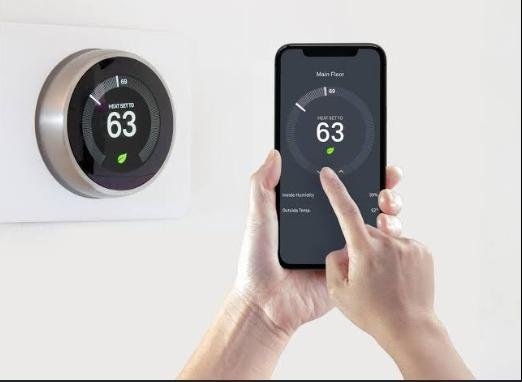
A Smart Thermostat such as Google Nest, Tado, or Sensi helps you control your home’s heating and cooling system more efficiently while improving comfort and reducing energy costs. Unlike traditional thermostats, smart thermostats let you adjust temperatures remotely using a smartphone, create automated schedules, monitor energy usage, and integrate with voice assistants for hands-free control.
Although smart thermostats are designed to simplify home climate management, many first-time users struggle with installation, Wi-Fi setup, scheduling, or selecting the right energy-saving features. Learning the correct setup process allows you to maintain a comfortable indoor environment while making the most of your thermostat’s intelligent features.
This guide explains how to use a Smart Thermostat (Nest / Tado / Sensi), from installation and connecting to Wi-Fi to creating schedules, troubleshooting common issues, and following best practices for long-term performance.
Ready to make your home more comfortable and energy-efficient? Follow this step-by-step guide to get started with your Smart Thermostat.
How do you use a Smart Thermostat (Nest / Tado / Sensi)?
Quick Answer
Using a Smart Thermostat is easy:
- Install the thermostat.
- Connect it to your home’s Wi-Fi.
- Download the companion app.
- Pair the thermostat with your account.
- Set your preferred temperature.
- Create daily heating and cooling schedules.
- Monitor and adjust your home’s climate remotely.
Prerequisites
Before you begin, make sure you have:
- Smart Thermostat (Nest, Tado, or Sensi)
- Compatible HVAC system
- Stable Wi-Fi connection
- Smartphone or tablet
- Companion mobile app
- Screwdriver (if installing yourself)
- User manual
Step-by-Step Instructions
Follow these simple steps to set up, connect, and start using your smart thermostat (Nest, Tado, or Sensi) for efficient and convenient home temperature control.
Step 1: Install the Smart Thermostat
Turn off power to your HVAC system before installation.
Replace your existing thermostat following the manufacturer’s installation instructions.
Secure the new thermostat firmly to the wall.
Step 2: Power On the Thermostat
Restore power to your HVAC system.
Wait for the thermostat display to start.
Follow the initial setup prompts.
Step 3: Connect to Wi-Fi
Select your home’s Wi-Fi network.
Enter the password.
Wait until the thermostat confirms a successful connection.
Step 4: Install the Mobile App
Download the official companion app on your smartphone.
Create an account or sign in.
Follow the instructions to add your thermostat.
Step 5: Configure Temperature Preferences
Set:
- Preferred daytime temperature
- Nighttime temperature
- Heating limits
- Cooling limits
Save your preferred settings.
Step 6: Create Automatic Schedules
Program schedules based on your routine.
Examples include:
- Lower temperatures while you’re away
- Comfortable settings before you wake up
- Energy-saving mode overnight
Review the schedule to ensure it matches your lifestyle.
Step 7: Control Your Home Remotely
Use the mobile app to:
- Change temperatures
- Switch between heating and cooling modes
- Monitor indoor climate
- Adjust schedules from anywhere
What Tips Help You Save More Energy with a Smart Thermostat?
Tips
Following these tips can improve comfort while reducing energy consumption.
Create a Weekly Schedule
Automate temperature changes based on workdays, weekends, and sleeping hours.
Avoid Frequent Manual Adjustments
Allow the thermostat’s programmed schedule to manage your home’s temperature efficiently.
Enable Energy-Saving Features
Use Eco Mode or Away Mode when you’re not at home.
Monitor Energy Reports
Review usage insights to identify opportunities for reducing energy consumption.
Keep Wi-Fi Connected
A stable connection allows remote control and software updates.
Pair with Voice Assistants
Control the thermostat using voice commands for added convenience.
Adjust Temperatures Gradually
Small temperature changes often improve comfort without increasing energy usage.
What Common Mistakes Should You Avoid?
Common Mistakes
Skipping the Initial Setup
Incomplete setup may prevent access to advanced features.
Using Weak Wi-Fi
Poor connectivity can interrupt remote access.
Constantly Changing the Temperature
Frequent adjustments reduce scheduling efficiency.
Ignoring Software Updates
Updates improve security, stability, and functionality.
Incorrect HVAC Compatibility
Always verify your heating and cooling system supports the thermostat before installation.
Forgetting to Set Away Mode
Leaving home without activating energy-saving settings may increase utility costs.
Blocking the Thermostat
Avoid placing furniture or decorations around the thermostat that may affect temperature readings.
How Can You Troubleshoot Common Smart Thermostat Problems?
Troubleshooting
Problem: Thermostat Won’t Connect to Wi-Fi
Solution
- Restart your router.
- Verify the Wi-Fi password.
- Move the router closer if necessary.
Problem: HVAC System Doesn’t Respond
Solution
- Check the thermostat wiring.
- Confirm HVAC power is on.
- Restart the thermostat.
Problem: Mobile App Can’t Find the Thermostat
Solution
- Ensure both devices use the same Wi-Fi network.
- Restart the app.
- Repeat the pairing process.
Problem: Incorrect Temperature Reading
Solution
- Keep the thermostat away from direct sunlight.
- Remove nearby heat sources.
- Recalibrate if supported.
Problem: Schedule Isn’t Running
Solution
- Review your programmed schedule.
- Disable temporary overrides.
- Save any recent changes.
Problem: Thermostat Freezes
Solution
- Restart the thermostat.
- Install firmware updates.
- Reset the device if necessary.
What Are the Best Practices for Long-Term Performance?
Best Practices
Install Firmware Updates
Keep your thermostat updated to improve performance and security.
Clean the Thermostat Regularly
Remove dust using a soft microfiber cloth.
Review Your Schedule Seasonally
Adjust heating and cooling schedules as weather changes.
Secure Your Account
Use a strong password and enable two-factor authentication when available.
Inspect HVAC Performance
Regular HVAC maintenance helps the thermostat operate more efficiently.
Maintain Reliable Wi-Fi
Stable connectivity improves remote access and automation.
Check Energy Reports Monthly
Review usage trends to optimize your home’s energy efficiency.
Frequently Asked Questions
Can I control my Smart Thermostat when I’m away from home?
Yes. Once connected to Wi-Fi, you can adjust settings remotely using the companion app.
Does a Smart Thermostat save energy?
Yes. Features like scheduling, Eco Mode, and occupancy detection can help reduce unnecessary heating and cooling.
Can I use voice commands?
Yes. Many Smart Thermostats support popular voice assistants for hands-free control.
Why won’t my thermostat connect to Wi-Fi?
Check your internet connection, verify the password, and restart both the router and thermostat.
Can I install the thermostat myself?
Many homeowners can install compatible models, but professional installation may be recommended for complex HVAC systems.
What happens if my internet goes down?
Most Smart Thermostats continue controlling your HVAC system using existing schedules, although remote access may be unavailable.
How often should I update the thermostat?
Install firmware updates whenever they’re available to ensure optimal performance and security.
Conclusion
A Smart Thermostat (Nest / Tado / Sensi) makes it easier to maintain a comfortable home while improving energy efficiency through automation, remote control, and intelligent scheduling. By completing the setup correctly, creating personalized schedules, and taking advantage of energy-saving features, you can enjoy greater comfort and potentially lower utility bills.
Regular software updates, routine HVAC maintenance, and reviewing your temperature schedules throughout the year will help keep your Smart Thermostat performing at its best. Whether you’re home or away, smart climate control gives you greater convenience and peace of mind.
Take Control of Your Home’s Comfort
Your Smart Thermostat is designed to do more than adjust the temperature—it helps create a home that’s comfortable, efficient, and easier to manage. Explore its smart features, customize schedules that fit your lifestyle, and let intelligent automation handle your home’s climate every day.