How to Use Wix: A Beginner’s Step-by-Step Guide
Creating a professional website can feel intimidating if you don’t have coding or web design experience. Many beginners struggle with complicated website builders, technical settings, and time-consuming customization. As a result, launching a business website, portfolio, or online store often takes longer than expected.
By TechScaleMedia Editorial · Updated July 2026 · 11 min read
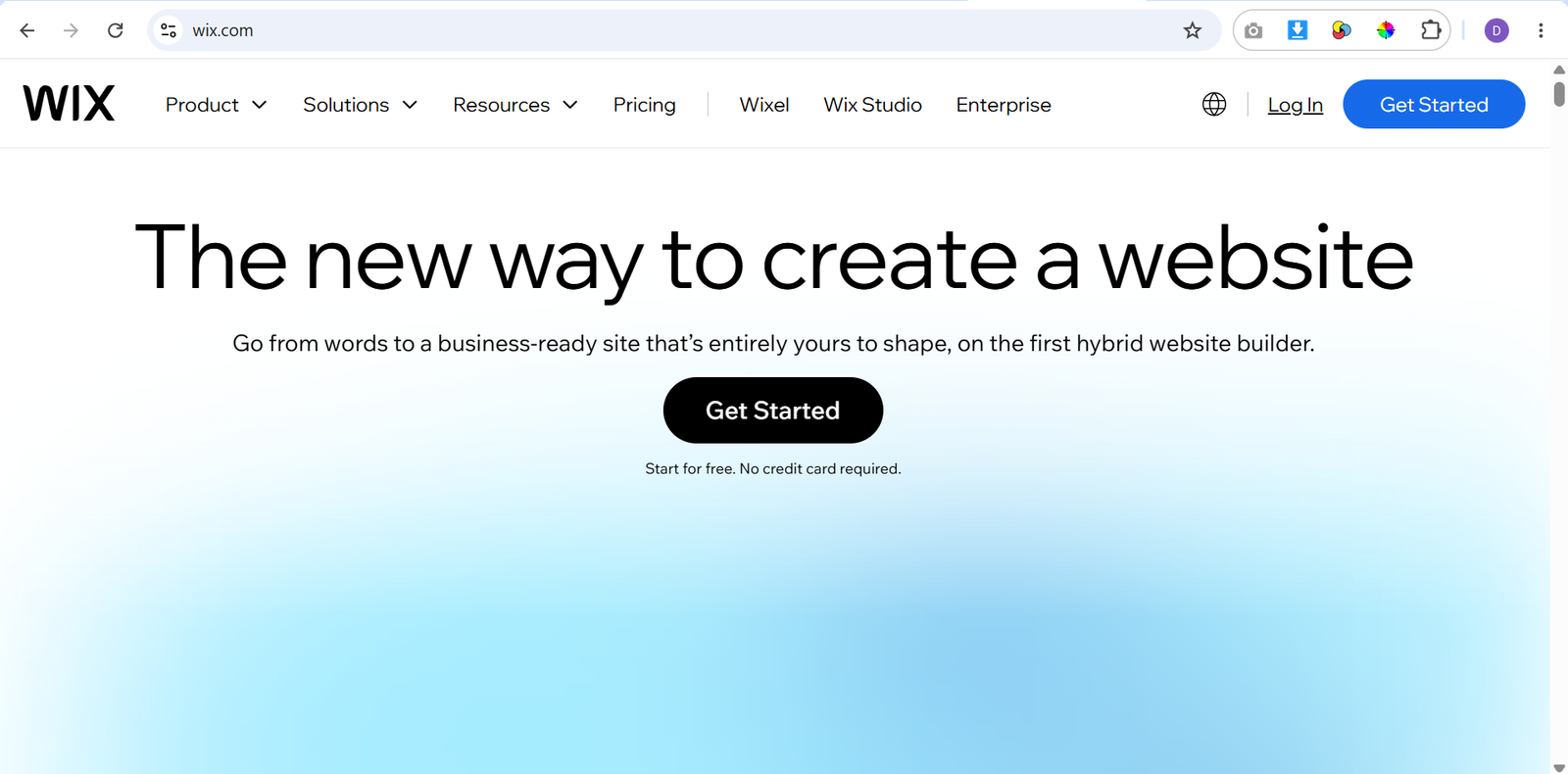
Wix eliminates these challenges with an easy-to-use drag-and-drop website builder that lets anyone create a modern website without writing code. Whether you’re building a small business website, personal portfolio, blog, or e-commerce store, Wix provides professionally designed templates, AI-powered website creation, built-in SEO tools, and an extensive app marketplace to help you launch quickly.
In this guide, you’ll learn how to use Wix step by step, from creating your account and choosing a template to customizing your website, optimizing it for search engines, and publishing it online.
How Do You Use Wix?
Quick Answer
Getting started with Wix is simple:
- Create a Wix account.
- Choose a website template or use the AI Website Builder.
- Customize your website design.
- Add and organize pages.
- Set up your navigation menu.
- Install apps from the Wix App Market.
- Optimize your website for SEO.
- Connect your custom domain.
- Preview and publish your website.
- Monitor website performance with Wix Analytics.
Prerequisites
Before getting started, you’ll need:
- A Wix account
- A computer or mobile device
- A stable internet connection
- Your business or personal branding materials (logo, colors, images)
- Written content for your website
- A custom domain (optional)
- Payment details if you plan to upgrade to a premium plan
Create a Workflow Manually (Recommended for Beginners)
If you’re new to website building, creating your first website in Wix is the best way to understand how the platform actually works.
Step 1: Create a Wix Account
Visit Wix and sign up using your email address, Google account, or another supported login option.
After signing in, Wix will ask a few questions about:
- Your business or website type
- Your goals
- The type of website you want to build
These answers help Wix recommend suitable templates and features for your project.
Step 2: Choose How You Want to Build Your Website
Wix offers two ways to start building your website.
Use the AI Website Builder
The AI Website Builder asks a few questions about your business and automatically creates a personalized website with pages, images, and layouts.
This option is ideal if you want to launch your site quickly with minimal setup.
Choose a Website Template
If you prefer complete design control, browse Wix’s library of professionally designed templates.
Templates are available for:
- Small businesses
- Online stores
- Restaurants
- Portfolios
- Blogs
- Consultants
- Agencies
- Personal websites
- Events
- Nonprofit organizations
Select a template that closely matches your industry to reduce customization time.
Step 3: Customize Your Website Design
After selecting a template, open the Wix Editor to personalize your website.
You can customize:
- Colors
- Fonts
- Backgrounds
- Images
- Buttons
- Sections
- Headers
- Footers
- Layout spacing
The drag-and-drop editor allows you to move elements visually without coding.
Maintain consistent branding throughout your website to create a professional appearance.
Step 4: Add and Organize Website Pages
Next, create the pages visitors will use to navigate your website.
Common pages include:
- Home
- About
- Services
- Products
- Contact
- Blog
- FAQ
- Testimonials
- Privacy Policy
Arrange your pages in a logical order so visitors can easily find the information they need.
Step 5: Set Up Your Navigation Menu
A clear navigation menu improves the user experience.
Organize your menu by placing your most important pages first.
For larger websites, use dropdown menus to group related pages together.
Before publishing, test every menu link to ensure it directs visitors to the correct page.
Step 6: Add Features with the Wix App Market
The Wix App Market lets you extend your website’s functionality without installing complex software.
Popular apps include:
- Contact forms
- Appointment booking
- Live chat
- Email marketing
- Customer reviews
- Social media feeds
- Event management
- Online booking systems
- Marketing tools
Only install apps that support your business goals to keep your website running efficiently.
Step 7: Set Up an Online Store (Optional)
If you plan to sell products online, use Wix Stores to build your e-commerce website.
You can:
- Add physical or digital products
- Manage inventory
- Set product prices
- Configure shipping options
- Accept secure online payments
- Track customer orders
This allows you to manage both your website and online store from a single dashboard.
Step 8: Optimize Your Website for SEO
Improving your website’s SEO helps potential customers discover your business through search engines.
Use Wix SEO tools to:
- Create SEO-friendly page titles
- Write unique meta descriptions
- Customize page URLs
- Add image alt text
- Submit your sitemap
- Connect your website to search engines
Following basic SEO best practices can improve your website’s visibility over time.
Step 9: Connect Your Custom Domain
A custom domain makes your website look more professional and strengthens your brand.
You can:
- Purchase a domain through Wix
- Connect a domain you already own
After connecting your domain, check that your SSL certificate is active so visitors can browse your website securely.
Step 10: Preview and Publish Your Website
Before making your website public, preview it on both desktop and mobile devices.
Check for:
- Broken links
- Formatting issues
- Spelling errors
- Image quality
- Button functionality
- Navigation accuracy
Once you’re satisfied, click Publish to make your website available online.
Step 11: Monitor Website Performance
After publishing, continue improving your website using Wix Analytics.
Monitor important metrics such as:
- Visitor traffic
- Popular pages
- Bounce rate
- Conversion rates
- Sales performance
- User behavior
These insights help you identify opportunities to improve your website and grow your online presence.
Ready to build your website without coding?
Start using Wix to design, customize, and publish a professional website that helps grow your business or personal brand.
How Can You Use Wix More Efficiently?
Tips
- Start with a template that’s closest to your business to reduce editing time.
- Save your work after making major design changes.
- Use global text and color styles to keep your branding consistent across pages.
- Duplicate existing sections instead of rebuilding similar layouts from scratch.
- Preview your website frequently as you edit to catch layout issues early.
- Name pages clearly so they’re easier to manage from the dashboard.
How Can You Avoid Common Wix Errors?
Common Mistakes
- Publishing placeholder text or sample images without replacing them.
- Deleting important template sections before understanding their purpose.
- Creating too many menu items, making navigation confusing.
- Ignoring mobile-specific adjustments after editing the desktop version.
- Uploading oversized images that increase page load time.
- Forgetting to test contact forms before publishing.
How Can You Get the Most Value from Wix?
Best Practices
- Review your website analytics monthly to understand visitor behavior.
- Refresh outdated content and images regularly to keep your site relevant.
- Audit installed apps periodically and remove those you no longer use.
- Test your site’s performance after major updates or redesigns.
- Maintain a consistent publishing schedule if you run a blog.
- Review your SEO settings whenever you add new pages or products.
- Check all important links every few months to prevent broken navigation.
How Can You Troubleshoot Wix Effectively?
Troubleshooting
Website looks different on mobile
Use the Wix Mobile Editor to adjust layouts and optimize your website for smaller screens.
Images load slowly
Compress large image files before uploading them to improve page speed.
Custom domain isn’t working
Verify your domain connection settings and allow time for DNS changes to take effect.
Contact forms aren’t receiving submissions
Confirm that your form is properly connected and that notification settings are configured correctly.
Website changes aren’t visible
Clear your browser cache or refresh the page after publishing updates.
Frequently Asked Questions
Do I need coding skills to use Wix?
No. Wix is designed for beginners and lets you build and customize websites using a visual editor without writing code.
Can I build an online store with Wix?
Yes. Wix Stores allows you to sell physical and digital products, manage inventory, accept secure payments, and track customer orders.
Does Wix include SEO tools?
Yes. Wix provides built-in SEO features that help you optimize page titles, meta descriptions, URLs, image alt text, and other elements to improve your website’s search engine visibility.
Can I connect my own domain to Wix?
Yes. You can purchase a domain through Wix or connect an existing domain to create a professional web address for your website.
Is Wix suitable for small businesses?
Absolutely. Wix offers website templates, marketing tools, e-commerce features, booking systems, analytics, and business apps that make it an excellent choice for freelancers, entrepreneurs, and small businesses.
Conclusion
Wix makes website creation accessible to anyone by combining an intuitive drag-and-drop editor with customizable templates, built-in SEO tools, and powerful business features. Whether you’re launching a personal portfolio, promoting your services, or running an online store, Wix provides everything you need to build and manage a professional website without technical expertise.
By following the steps in this guide, you’ll be able to create, customize, optimize, and publish a website that supports your goals while delivering a smooth experience for your visitors.
Start using Wix today to build a professional website without coding.
Explore its templates, AI-powered design tools, and built-in business features to create a website that attracts visitors, strengthens your online presence, and helps your business grow.