How to Use Microsoft 365: A Beginner’s Step-by-Step Guide
Microsoft 365 is a complete productivity ecosystem that combines essential work tools, cloud services, and communication platforms in one connected environment. It includes popular applications such as Word, Excel, PowerPoint, Outlook, Teams, and OneDrive, helping individuals, families, students, and businesses create content, manage information, communicate, and store files securely.
By TechScaleMedia Editorial · Updated July 2026 · 11 min read
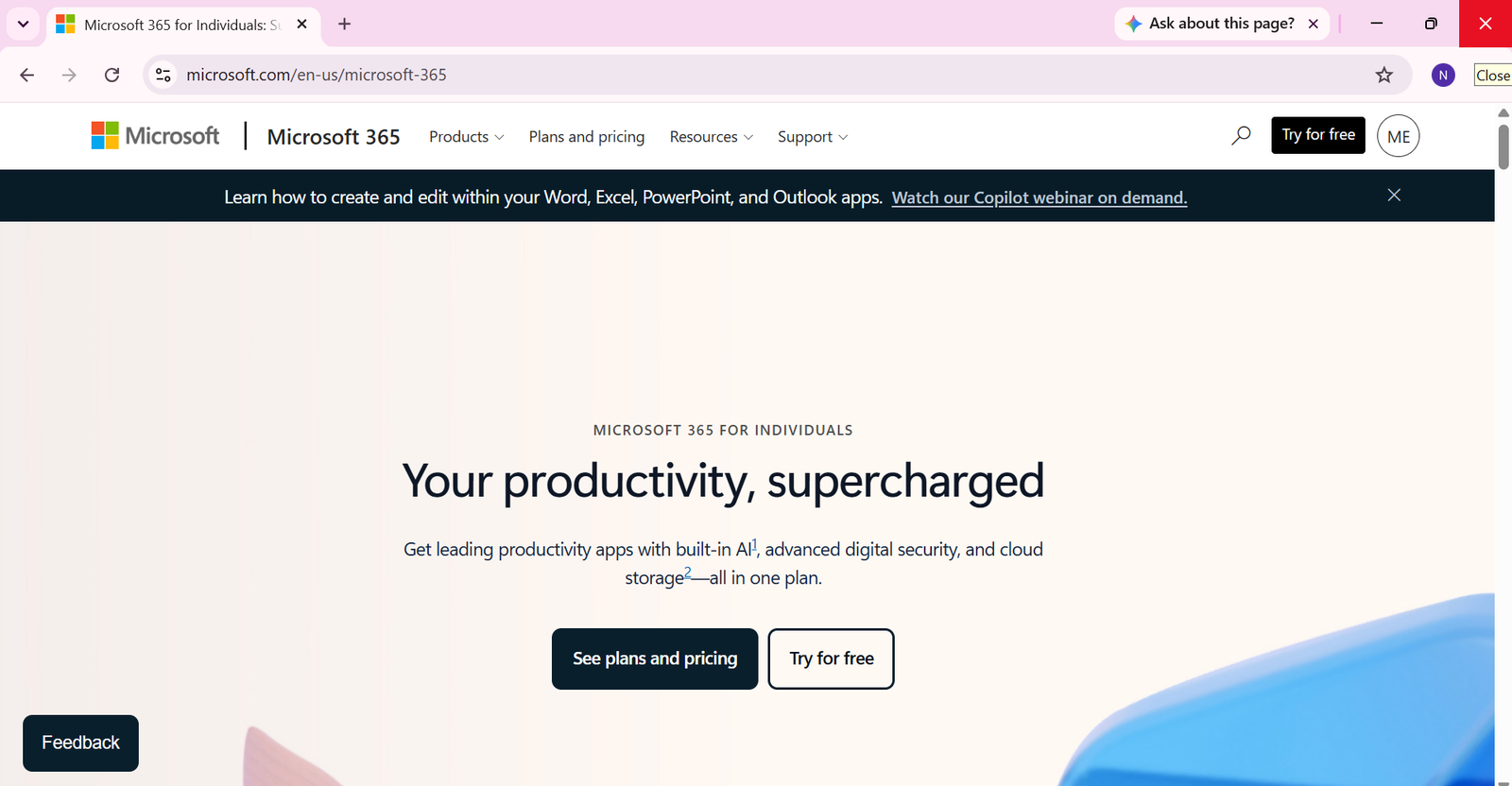
Whether you need to write documents, analyze data, organize emails, host online meetings, or collaborate with colleagues, Microsoft 365 provides tools designed for everyday productivity. With cloud syncing and AI-powered features like Microsoft Copilot, users can complete tasks faster while keeping their work accessible across devices.
In this guide, you’ll learn how to use Microsoft 365 step by step, from creating an account and installing applications to managing files, collaborating with others, and improving your workflow.
How Do You Use Microsoft 365?
Quick Answer
Using Microsoft 365 involves:
- Creating a Microsoft account.
- Choosing a suitable subscription plan.
- Installing Microsoft applications.
- Connecting OneDrive cloud storage.
- Setting up communication tools.
- Creating, managing, and sharing files.
Prerequisites
Before getting started, you’ll need:
- A Microsoft account
- A Microsoft 365 Personal, Family, or Business subscription
- A compatible device (Windows, macOS, iOS, or Android)
- Internet connection
- Enough storage space for applications and files
Create a Workflow Manually (Recommended for Beginners)
If you’re new to productivity software, creating your first workspace in Microsoft 365 is the best way to understand how the platform actually works.
Step 1: Create a Microsoft Account and Choose a Plan
Start by creating a Microsoft account through Microsoft’s official website.
After signing in, select a plan based on your requirements.
Common options include:
- Microsoft 365 Personal — designed for individual users.
- Microsoft 365 Family — suitable for multiple household members.
- Microsoft 365 Business — built for organizations and professional teams.
Your selected plan determines available applications, storage capacity, and collaboration features.
Step 2: Install Microsoft 365 Applications
Download Microsoft 365 applications through the Microsoft 365 portal or Microsoft Store on Windows.
The main applications include:
- Word for creating documents.
- Excel for spreadsheets and data analysis.
- PowerPoint for presentations.
- Outlook for email and calendars.
- Teams for communication and meetings.
- OneDrive for cloud storage.
The Microsoft 365 installation hub allows you to manage applications, updates, and account settings from one location.
Step 3: Sign In and Activate Your Subscription
Open each installed application and sign in with your Microsoft account.
Activation connects your apps with your subscription and enables premium features.
After activation, your preferences and files can synchronize across supported devices.
Step 4: Set Up OneDrive Cloud Storage
OneDrive helps you store files online and access them from different devices.
To set it up:
- Open OneDrive.
- Sign in with your Microsoft account.
- Select folders you want to sync.
- Enable automatic backup where needed.
With OneDrive, you can:
- Access files anywhere.
- Recover previous file versions.
- Share documents securely.
- Protect important data from device failures.
Step 5: Create Documents, Spreadsheets, and Presentations
Microsoft 365 includes specialized applications for different productivity tasks.
Microsoft Word
Use Word for:
- Reports
- Letters
- Resumes
- Business documents
Microsoft Excel
Use Excel for:
- Financial tracking
- Data organization
- Calculations
- Charts and analysis
Microsoft PowerPoint
Use PowerPoint for:
- Business presentations
- Educational slides
- Visual reports
These applications provide templates, formatting tools, and automation features to create professional content efficiently.
Step 6: Configure Outlook Email and Calendar
Outlook combines email management with scheduling tools.
After opening Outlook, you can:
- Connect email accounts.
- Organize messages with folders.
- Create calendar events.
- Schedule meetings.
- Set reminders.
Using Outlook helps keep communication and appointments organized in one place.
Step 7: Set Up Microsoft Teams Collaboration
Microsoft Teams provides communication tools for businesses, schools, and remote teams.
You can use Teams to:
- Create dedicated channels.
- Chat with team members.
- Schedule online meetings.
- Share files.
- Collaborate on projects.
Teams connects with Microsoft 365 applications, making it easier to communicate while working on shared projects.
Step 8: Use Microsoft Copilot AI Features
Microsoft Copilot is an AI assistant available in supported Microsoft 365 plans.
It can help with tasks such as:
- Drafting documents in Word.
- Summarizing information.
- Analyzing spreadsheet data.
- Creating presentation ideas.
- Improving email writing.
Copilot reduces repetitive work and helps users complete tasks more efficiently.
Step 9: Manage Security and Account Protection
Microsoft 365 includes security features to protect your account and files.
Recommended security settings include:
- Enable two-factor authentication.
- Review connected devices.
- Use Windows Security tools.
- Keep applications updated.
- Monitor account activity.
These settings help protect personal information and business data.
Step 10: Collaborate on Files in Real Time
Microsoft 365 allows multiple users to work on the same document simultaneously.
You can:
- Share files using secure links.
- Edit documents together.
- Add comments.
- Track changes.
- Review updates instantly.
Real-time editing improves teamwork by keeping everyone focused on the same file version.
Looking to improve your team’s productivity and collaboration?
Explore Microsoft 365 and discover powerful apps and cloud tools to help you work smarter, communicate better, and stay productive with confidence.
How Can You Get the Most Value from Microsoft 365?
Tips
- Use templates when creating frequently needed documents.
- Learn keyboard shortcuts for common tasks.
- Customize application settings according to your workflow.
- Explore Microsoft 365 features gradually.
- Keep applications updated for improved performance.
What Should You Avoid When Using Microsoft 365?
Common Mistakes
- Saving important files only on one device.
- Sharing documents without checking access permissions.
- Ignoring account security settings.
- Creating multiple duplicate versions of the same file.
- Using outdated applications that may lack important updates.
How Can You Maximize Your Microsoft 365 Experience?
Best Practices
- Create a clear folder structure for organizing documents.
- Review sharing permissions before providing file access.
- Use version history for important projects.
- Establish collaboration guidelines for teams.
- Regularly check account security settings.
How Can You Troubleshoot Microsoft 365 Effectively?
Troubleshooting
Microsoft 365 Applications Won’t Open
Restart the application, check for available updates, and confirm that your subscription is active.
OneDrive Sync Is Delayed
Check your internet connection, available storage space, and synchronization settings.
Teams Audio or Video Problems
Verify microphone and camera permissions, then test your device settings.
Files Cannot Be Edited
Check whether you have editing permissions or if the document is opened in protected mode.
Microsoft 365 Apps Are Running Slowly
Close unnecessary programs, restart your device, and install the latest updates.
Frequently Asked Questions
What is the difference between Microsoft 365 and Microsoft Office?
Microsoft 365 includes Office applications along with cloud storage, online collaboration features, regular updates, and additional services.
How does OneDrive work in Microsoft 365?
OneDrive stores files online and synchronizes them across connected devices, allowing users to access and manage documents from anywhere.
Can multiple people edit the same Word document?
Yes. Microsoft 365 supports real-time co-authoring, allowing several users to edit Word, Excel, and PowerPoint files together.
What can Microsoft Copilot do?
Microsoft Copilot helps users create content, summarize information, analyze data, and improve productivity using AI features integrated into Microsoft 365 applications.
Which Microsoft 365 plan is best?
The best plan depends on your needs. Personal plans work well for individuals, Family plans support multiple users, and Business plans provide additional tools for organizations.
Conclusion
Microsoft 365 provides a complete digital workspace by combining document creation, cloud storage, communication, collaboration, and AI-powered assistance. Its connected ecosystem allows users to manage everyday tasks more efficiently while keeping files accessible and secure across devices.
By learning how to use Word, Excel, PowerPoint, Outlook, Teams, and OneDrive together, you can create a more organized workflow for personal projects, education, or professional work.
Build a stronger foundation for productivity and collaboration with Microsoft 365.
Start using Microsoft 365 today to create documents, manage files, collaborate with others, and improve productivity with a powerful cloud-based ecosystem built for modern work and communication.