How to Use TidyCal: A Beginner’s Step-by-Step Guide
Learn how to set up TidyCal, create booking pages, manage appointments, and streamline your scheduling process with this easy beginner-friendly guide.
By TechScaleMedia Editorial · Updated July 2026 · 11 min read
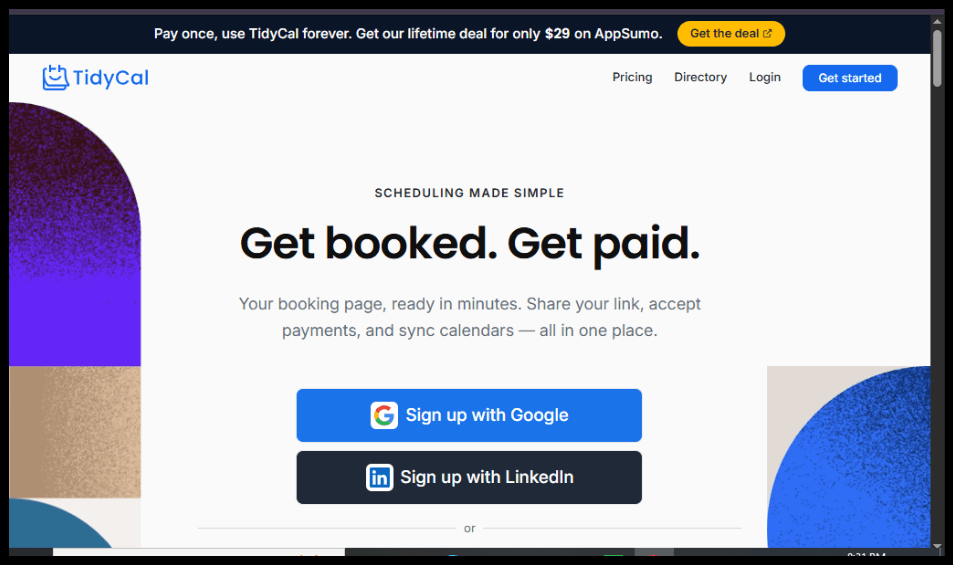
Scheduling meetings through endless emails can waste valuable time. TidyCal is an easy-to-use online scheduling tool that allows clients, colleagues, and customers to book appointments based on your real-time availability. It integrates with popular calendar services, helping you avoid double bookings and streamline your scheduling process.
In this guide, you’ll learn how to use TidyCal to create booking pages, connect your calendar, set your availability, and automate meeting scheduling. Whether you’re a freelancer, consultant, coach, recruiter, or business owner, TidyCal makes booking appointments simple.
Ready to simplify appointment scheduling? Try TidyCal and let people book meetings with you effortlessly.
How do you use TidyCal to schedule meetings online?
Quick Answer
Getting started with TidyCal is simple:
- Create a TidyCal account.
- Connect your calendar.
- Set your availability.
- Create a booking type.
- Customize your booking page.
- Share your booking link.
- Manage appointments from your dashboard.
Prerequisites
Before using TidyCal, make sure you have:
- A TidyCal account
- Google Calendar, Outlook, or another supported calendar
- Internet connection
- Your preferred working hours
- Video meeting platform (Zoom, Google Meet, Microsoft Teams, etc.) if required
Step-by-Step Instructions
Follow a simple step-by-step process to set up your TidyCal account, create booking pages, customize availability, and start managing meetings efficiently.
Step 1: Create Your TidyCal Account
Visit the TidyCal website and sign up using your email address.
Complete the account verification process and log in.
Step 2: Connect Your Calendar
Go to Calendar Settings and connect:
- Google Calendar
- Outlook Calendar
- Apple Calendar (if supported)
This allows TidyCal to check your availability and prevent scheduling conflicts.
Step 3: Set Your Availability
Configure your working schedule by selecting:
- Available days
- Working hours
- Break times
- Buffer time between meetings
- Time zone
Your booking page will automatically reflect these settings.
Step 4: Create a Booking Type
Click New Booking Type.
Choose the type of appointment you want to offer, such as:
- One-on-one meeting
- Group session
- Consultation
- Discovery call
- Interview
- Coaching session
Set the meeting duration and description.
Step 5: Customize Your Booking Page
Personalize your booking page by adding:
- Business logo
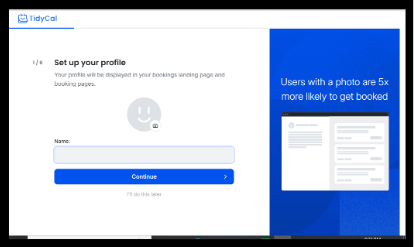
- Profile photo
- Meeting description
- Confirmation message
- Booking questions
- Cancellation policy
A professional booking page creates a better experience for your clients.
Step 6: Share Your Booking Link
Copy your booking link and share it through:
- Social media
- Website
- LinkedIn profile
- Business cards
- Messaging apps
Anyone with the link can book an available time slot.
Step 7: Manage Your Appointments
From your dashboard, you can:
- View upcoming meetings
- Edit bookings
- Cancel appointments
- Reschedule meetings
- Receive booking notifications
Everything stays organized in one place.
Step 8: Review Your Booking Activity
Monitor your scheduling performance by reviewing:
- Upcoming appointments
- Booking history
- Available time slots
- Calendar synchronization
- Meeting confirmations
Regularly updating your schedule helps maintain accurate availability.
How can you get the most out of TidyCal?
Tips
Get the most out of TidyCal by customizing your booking settings, optimizing availability, and creating a smoother scheduling experience for you and your clients.
- Connect your primary calendar before creating booking pages.
- Add buffer time between appointments.
- Keep your availability updated.
- Use descriptive meeting titles.
- Customize confirmation emails.
- Test your booking page before sharing it.
- Include cancellation and rescheduling policies.
- Sync all work calendars to avoid conflicts.
What mistakes should you avoid when using TidyCal?
Common Mistakes
- Forgetting to connect your calendar.
- Setting incorrect availability.
- Sharing the wrong booking link.
- Overbooking your schedule.
- Ignoring time zone settings.
- Not testing the booking process before sending it to clients.
What should you do if TidyCal isn’t working as expected?
Troubleshooting
Learn how to fix common TidyCal issues, resolve scheduling errors, and quickly troubleshoot setup or integration problems.
Calendar isn’t syncing
Reconnect your calendar and verify permissions.
Clients can’t book meetings
Ensure your availability is active and your booking page is published.
Double bookings occur
Check if all calendars are connected correctly.
Meeting links aren’t generated
Verify your video conferencing integration settings.
Login issues
Reset your password or confirm your email verification.
How can you schedule meetings more efficiently with TidyCal?
Best Practices
- Set realistic working hours.
- Leave buffer time between meetings.
- Update your availability weekly.
- Use separate booking types for different services.
- Keep booking questions concise.
- Send reminder emails before meetings.
- Regularly review your appointment schedule.
- Maintain a professional booking page.
Frequently Asked Questions
Is TidyCal free?
TidyCal offers affordable pricing with core scheduling features, and some plans include lifetime access depending on promotions.
Can I connect Google Calendar?
Yes. TidyCal integrates with Google Calendar and other supported calendar services.
Does TidyCal prevent double bookings?
Yes. TidyCal checks your connected calendar before allowing someone to book a meeting.
Can I create multiple booking pages?
Yes. You can create different booking types for consultations, interviews, coaching sessions, demos, and more.
Does TidyCal support Zoom and Google Meet?
Yes. TidyCal integrates with popular video conferencing platforms for online meetings.
Is TidyCal suitable for freelancers?
Absolutely. Freelancers, coaches, consultants, agencies, and small businesses use TidyCal to simplify appointment scheduling.
Conclusion
TidyCal makes scheduling meetings fast, professional, and hassle-free by allowing clients and colleagues to book appointments based on your real-time availability. With calendar syncing, customizable booking pages, automated confirmations, and flexible scheduling options, it helps eliminate the back-and-forth of arranging meetings.
By following the steps in this guide and implementing best practices, you’ll be able to automate your scheduling process, reduce conflicts, and provide a smooth booking experience for everyone.
Get Started with TidyCal and Save Time
Stop wasting time coordinating schedules. Try TidyCal today and create professional booking pages, automate appointments, and let clients schedule meetings whenever you’re available.