How to Use ExpressVPN: A Beginner’s Step-by-Step Guide
Online privacy is becoming increasingly important as cyber threats, tracking technologies, and unsecured public Wi-Fi networks continue to grow. Whether you’re working remotely, traveling, or simply browsing the web, protecting your internet connection helps keep your personal information safe.
By TechScaleMedia Editorial · Updated July 2026 · 11 min read
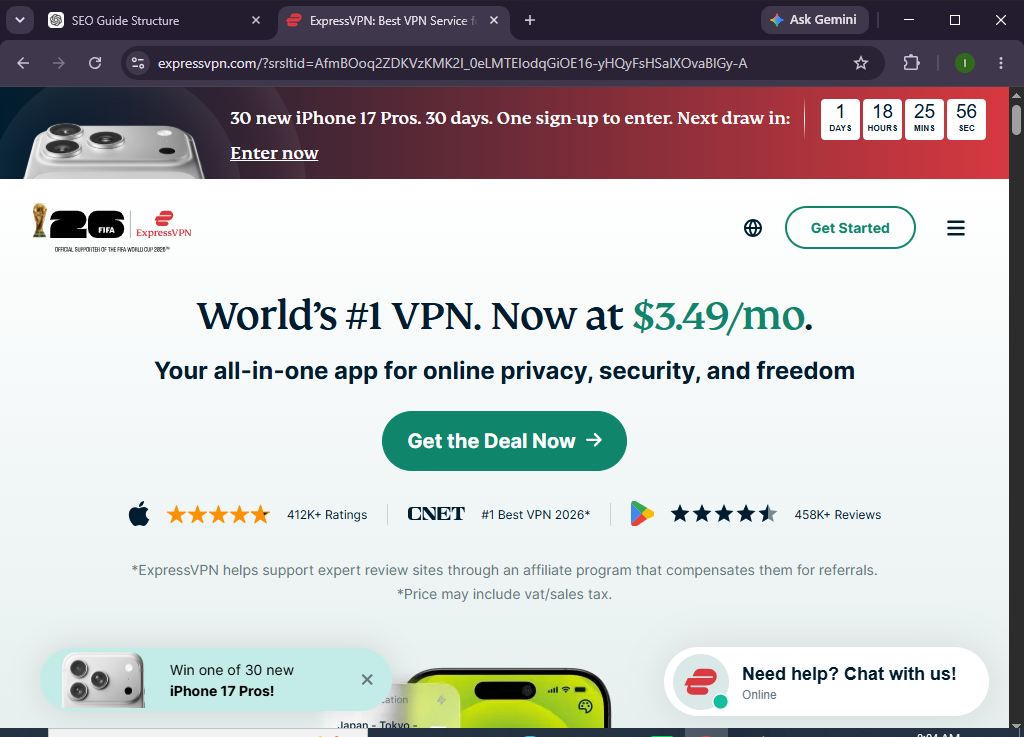
ExpressVPN is a premium virtual private network (VPN) that encrypts your internet traffic, hides your IP address, and provides secure access to the internet through a global network of high-speed servers. With user-friendly apps and advanced security features, ExpressVPN makes online privacy accessible to everyone.
Whether you’re new to VPNs or looking for a reliable solution for secure browsing, this guide will show you exactly how to set up and use ExpressVPN from scratch.
How Do You Set Up and Use ExpressVPN?
Quick Answer
To use ExpressVPN:
- Create your ExpressVPN account.
- Choose a subscription plan.
- Download and install the ExpressVPN app.
- Sign in using your activation code or account credentials.
- Select a VPN server location.
- Click Connect to establish a secure VPN connection.
- Enable security features like Network Lock (Kill Switch) if available.
- Browse the internet with encrypted protection.
- Disconnect when you’re finished using the VPN.
- Keep the app updated for the latest security improvements.
Prerequisites
Before you begin, make sure you have:
- An ExpressVPN account
- An active ExpressVPN subscription
- A Windows, macOS, Linux, Android, iOS, or supported smart device
- A stable internet connection
- Permission to install software
- Basic knowledge of internet browsing
Create a Workflow Manually (Recommended for Beginners)
If you’re new to online privacy, setting up your first secure connection in ExpressVPN is the best way to understand how the platform actually works.
Step 1: Create Your ExpressVPN Account
Visit the ExpressVPN website and sign up for an account.
During registration:
- Enter your email address.
- Select a subscription plan.
- Complete the payment process.
- Verify your account if prompted.
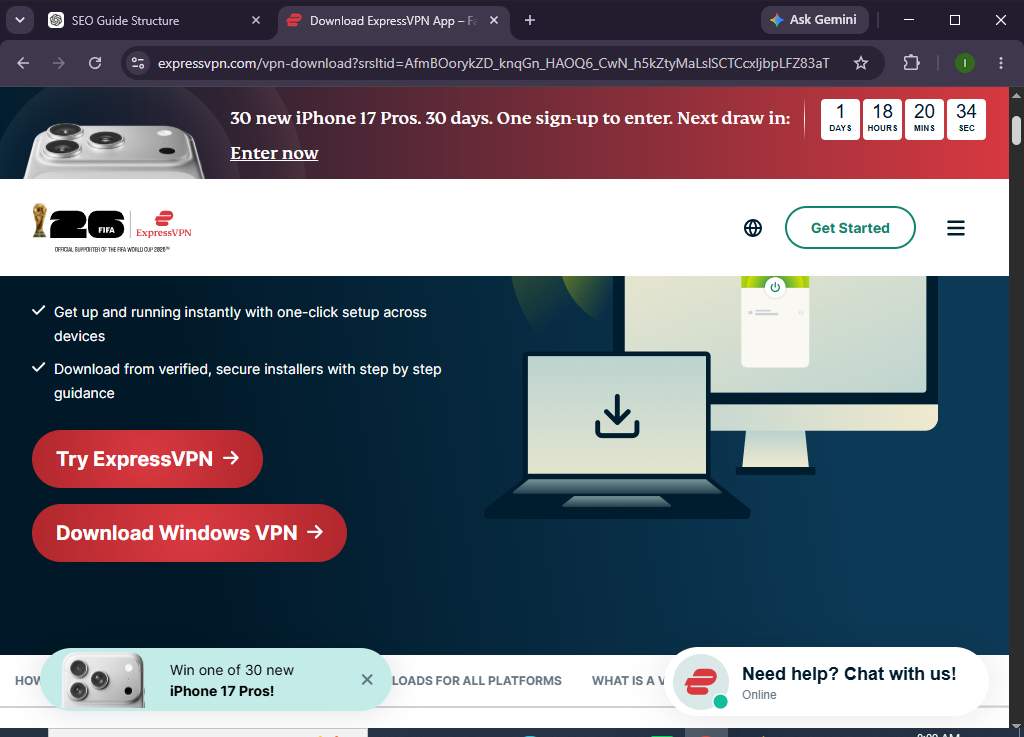
After registration, access your ExpressVPN dashboard.
Step 2: Download the ExpressVPN Application
Download the app for your device.
Supported platforms include:
- Windows
- macOS
- Linux
- Android
- iPhone/iPad
- Smart TVs
- Routers
Run the installer after downloading.
Step 3: Install and Launch the App
Complete the installation process.
After installation:
- Launch ExpressVPN.
- Enter your activation code or sign in.
- Allow any required permissions.
You’ll now see the main application dashboard.
Step 4: Choose a VPN Server
Click the location selector.
Choose either:
- Smart Location (recommended)
- A nearby server for faster speeds
- A specific country
The app will prepare your secure connection.
Step 5: Connect to ExpressVPN
Click the large Connect button.
After a few seconds:
- Your IP address changes.
- Your internet traffic becomes encrypted.
- The app confirms a successful connection.
Step 6: Configure Security Settings
Open Options or Settings.
Enable features such as:
- Network Lock (Kill Switch)
- Auto Connect
- TrustedServer technology (enabled by default)
- Preferred VPN protocol
These settings enhance both privacy and reliability.
Step 7: Verify Your VPN Connection
Open an IP address checker.
Confirm:
- Your IP address has changed.
- Your displayed location matches your selected server.
This ensures your VPN is working correctly.
Step 8: Browse Securely
While connected, you can safely:
- Browse websites
- Use public Wi-Fi
- Shop online
- Access work resources
- Stream supported services
- Protect sensitive information
Your internet traffic remains encrypted throughout your session.
Step 9: Disconnect Safely
When you’re finished:
- Open ExpressVPN.
- Click Disconnect.
- Close the application if desired.
Reconnect whenever secure browsing is needed.
Step 10: Keep ExpressVPN Updated
Regularly install updates to receive:
- Security improvements
- Performance enhancements
- New features
- Bug fixes
Keeping the application updated helps maintain optimal protection.
Want to browse with confidence wherever you are?
Explore ExpressVPN and enjoy a secure, private internet connection across all your favorite devices.
How Can You Improve Your ExpressVPN Experience?
Tips
- Use Smart Location for the fastest connection.
- Enable Network Lock for added security.
- Connect before using public Wi-Fi.
- Keep the app updated.
- Choose nearby servers for better speeds.
- Enable Auto Connect.
- Restart the app if performance decreases.
- Use strong account credentials.
What Should You Avoid When Using ExpressVPN?
Common Mistakes
- Forgetting to activate the VPN on public Wi-Fi
- Using outdated application versions
- Ignoring security updates
- Choosing distant servers unnecessarily
- Disabling security features
- Sharing your account credentials
- Using weak passwords
How Can You Maximize Your Online Privacy with ExpressVPN?
Best Practices
- Keep the VPN enabled on public Wi-Fi.
- Enable Network Lock.
- Connect before accessing sensitive accounts.
- Use strong passwords.
- Enable multi-factor authentication where available.
- Keep your operating system updated.
- Install app updates promptly.
- Choose trusted VPN server locations.
- Monitor account activity.
- Review security settings periodically.
What Should You Do If ExpressVPN Isn’t Working?
Troubleshooting
Unable to connect
- Check your internet connection.
- Restart the application.
- Try another server.
Slow connection
- Choose a nearby location.
- Switch VPN protocols.
- Restart your router.
Login issues
- Verify your account information.
- Use your activation code.
- Reset your password if necessary.
Frequent disconnections
- Update the application.
- Switch servers.
- Check network stability.
Frequently Asked Questions
Is ExpressVPN easy for beginners?
Yes. ExpressVPN has a simple interface that allows most users to connect securely with just one click.
Can I use ExpressVPN on multiple devices?
Yes. ExpressVPN supports multiple simultaneous device connections depending on your subscription.
Does ExpressVPN hide my IP address?
Yes. Your public IP address is replaced with the VPN server’s IP while connected.
Is ExpressVPN safe to use on public Wi-Fi?
Yes. It encrypts your internet traffic, helping protect your data on public networks.
Which devices support ExpressVPN?
ExpressVPN supports Windows, macOS, Linux, Android, iOS, routers, smart TVs, and several other platforms.
Does ExpressVPN keep my browsing private?
ExpressVPN encrypts your internet traffic and is designed to improve online privacy while connected.
Conclusion
ExpressVPN makes protecting your online privacy simple with fast encrypted connections, an extensive global server network, and user-friendly applications. Whether you’re working remotely, traveling, or browsing from home, it helps secure your internet activity without adding unnecessary complexity.
By following this guide—creating your account, installing the app, connecting to a server, enabling security features, and keeping the software updated—you can enjoy a safer and more private online experience.
Ready to make online privacy part of your daily routine?
Set up ExpressVPN today, connect to a secure server, and enjoy a faster, safer, and more private internet experience wherever life takes you.