How to Host a Website on ChemiCloud: A Beginner’s Step-by-Step Guide
Finding a reliable web hosting provider is essential for building a fast, secure, and successful website. ChemiCloud is a cloud-based hosting provider that offers excellent performance, free daily backups, built-in security, and an easy-to-use control panel. Whether you’re launching a personal website, business portfolio, blog, or online store, ChemiCloud makes it simple to get your website online without requiring advanced technical skills.
By TechScaleMedia Editorial · Updated July 2026 · 11 min read
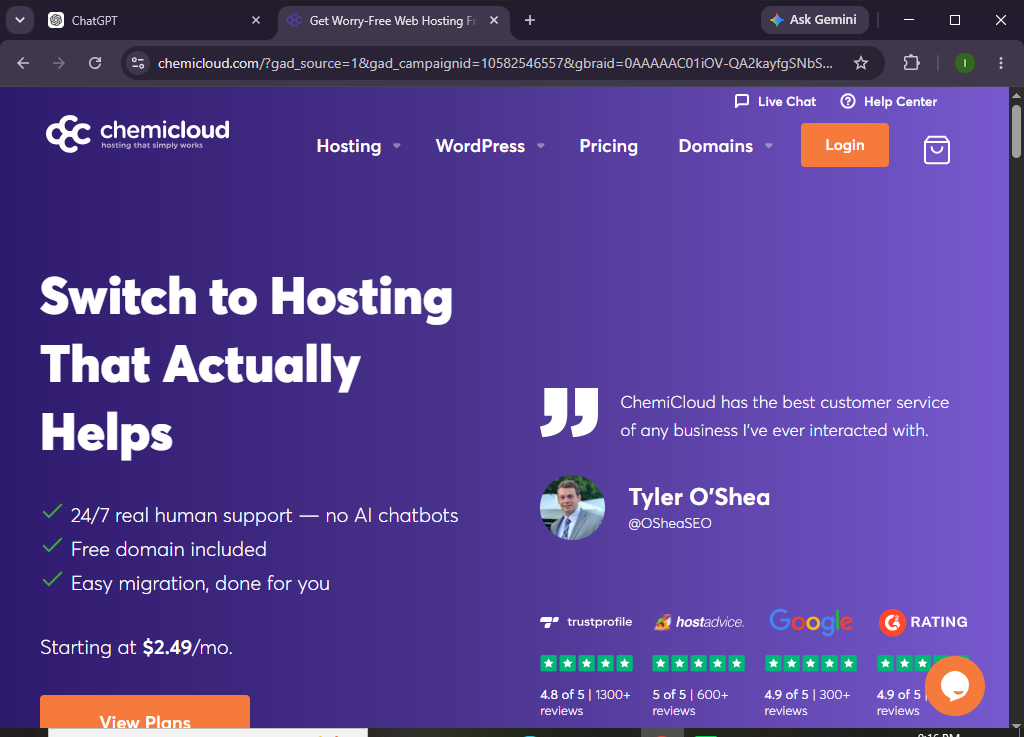
With its global data centers, free website migration, SSD storage, and responsive customer support, ChemiCloud is an excellent choice for beginners and growing businesses alike. This guide will walk you through the complete process of hosting your website on ChemiCloud—from creating an account to launching your site.
How do you host a website on ChemiCloud?
Quick Answer
Hosting a website on ChemiCloud is simple. Just follow these steps:
- Create a ChemiCloud hosting account.
- Choose a hosting plan that fits your needs.
- Access your hosting dashboard.
- Add a new website.
- Connect your custom domain.
- Update your DNS records.
- Activate the free SSL certificate.
- Upload your website files or install your preferred CMS.
- Test your website before publishing.
- Launch your website and keep it updated regularly.
Quick Tip: Most users can complete the setup within 20–30 minutes, excluding DNS propagation time.
Prerequisites
Before getting started, you’ll need:
- A ChemiCloud hosting account
- A registered domain name
- A stable internet connection
- Website files or a CMS to build your site
- Basic knowledge of website management
Create a Workflow Manually (Recommended for Beginners)
If you’re new to web hosting, launching your first website on ChemiCloud is the best way to understand how the platform actually works.
Step 1: Create Your ChemiCloud Account
Visit the ChemiCloud website and select a hosting plan based on your website requirements.
When choosing a plan, consider:
- Expected monthly traffic
- Storage needs
- Number of websites
- Business or personal use
Complete the registration process and log in to your hosting account.
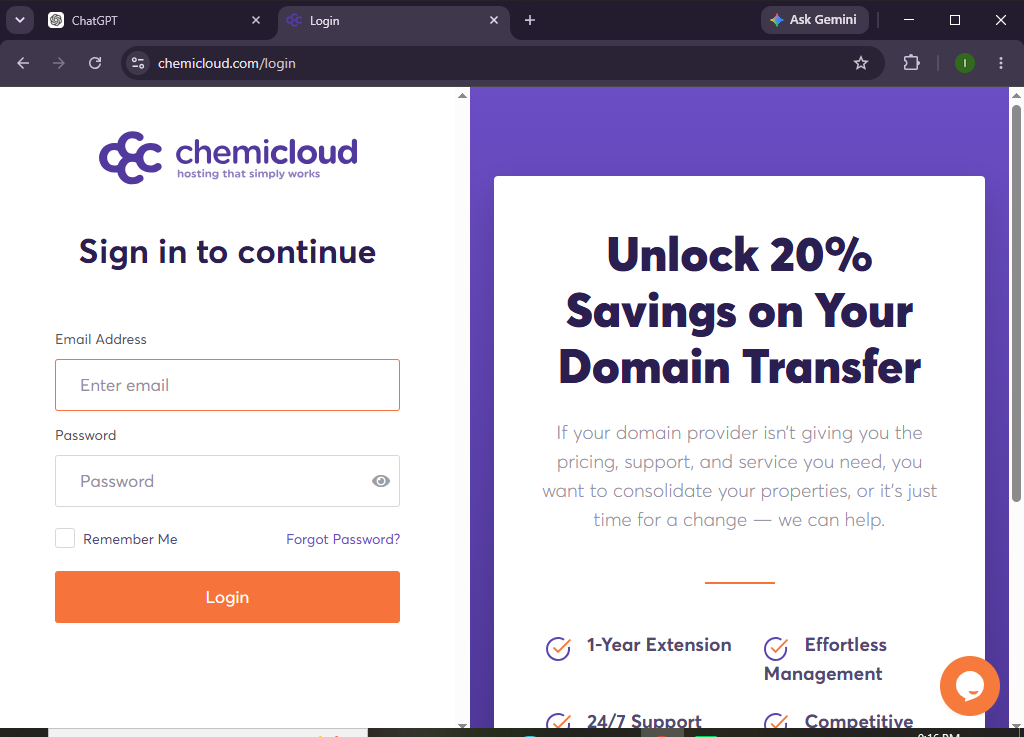
Step 2: Open Your Hosting Dashboard
After logging in, access your hosting dashboard where you can manage:
- Websites
- Domains
- Email accounts
- SSL certificates
- Backups
- Hosting settings
Spend a few minutes exploring the available tools.
Step 3: Add a New Website
Click Create Website or Add Website.
Inside your dashboard:
- Click Add Website
- Enter your website details
- Select your preferred server location
- Confirm the setup
ChemiCloud will automatically prepare your hosting environment.
Step 4: Connect Your Domain Name
To use your own domain:
- Go to the Domains section.
- Add your domain name.
- Copy the DNS information provided.
- Log in to your domain registrar.
- Update the DNS records.
Allow time for the changes to propagate across the internet.
Step 5: Enable Free SSL
ChemiCloud provides free SSL certificates with its hosting plans.
Verify that:
- HTTPS is enabled
- SSL is active
- Visitors can securely access your website
A secure website also improves user trust and SEO.
Step 6: Upload Your Website
Now add your website to the hosting account.
Depending on your project, you can:
- Upload website files using File Manager or FTP
- Install a content management system
- Import an existing website
- Restore a previous backup
Choose the method that best fits your website.
Step 7: Customize Your Website
After installation, personalize your site by:
- Adding pages
- Uploading your logo
- Creating navigation menus
- Installing useful plugins or extensions
- Adding images and content
- Configuring contact forms
Review your branding before publishing.
Step 8: Optimize Website Performance
Although ChemiCloud offers optimized hosting, you can improve performance by:
- Compressing images
- Removing unused plugins
- Keeping software updated
- Cleaning unnecessary files
- Optimizing website content
These practices help improve loading speed and user experience.
Step 9: Test Your Website
Before going live, check your website carefully.
Test:
- Homepage
- Navigation
- Contact forms
- Mobile responsiveness
- Internal links
- Images
- SSL certificate
- Loading speed
Resolve any issues before launching.
Step 10: Publish Your Website
Once everything is working correctly:
- Make your website live
- Share it with your audience
- Monitor website performance
- Continue updating your content regularly
Your website is now successfully hosted on ChemiCloud.
Want reliable hosting with exceptional customer support?
Get started with ChemiCloud and launch your website with confidence today.
How can you improve your website’s performance on ChemiCloud?
Tips
- Select the closest server location to your audience.
- Optimize images before uploading.
- Keep your website software updated.
- Remove unused themes and plugins.
- Enable automatic backups.
- Test your website after major updates.
- Monitor storage usage regularly.
Which hosting mistakes should you avoid on ChemiCloud?
Common Mistakes
- Selecting a hosting plan that’s too small for your website
- Forgetting to update DNS records
- Skipping SSL activation checks
- Uploading oversized media files
- Installing unnecessary plugins
- Ignoring regular backups
- Publishing without testing the website
What are the best ways to maintain your ChemiCloud-hosted website?
Best Practices
- Update your website software regularly.
- Use secure passwords for all accounts.
- Schedule automatic backups.
- Remove inactive plugins and themes.
- Optimize media before uploading.
- Monitor website uptime.
- Test website performance regularly.
- Keep your hosting account information up to date.
- Review security settings periodically.
What should you do if your Rocket.net website isn’t working as expected?
Troubleshooting
| Problem | Solution |
|---|---|
| Website isn’t loading | Verify DNS settings and wait for propagation. |
| SSL certificate isn’t active | Check your domain connection and allow SSL provisioning time. |
| Unable to access the dashboard | Reset your login credentials or contact support. |
| Website is loading slowly | Optimize images, review plugins, and clear cache. |
| Domain isn’t connected | Recheck your DNS configuration with your registrar. |
| Website shows unexpected errors | Disable recently installed plugins or restore a backup if necessary. |
Frequently Asked Questions
Is ChemiCloud suitable for beginners?
Yes. ChemiCloud offers an intuitive dashboard, guided setup, and helpful customer support, making it beginner-friendly.
Can I migrate my website to ChemiCloud?
Yes. ChemiCloud offers free website migration services for eligible hosting plans.
Does ChemiCloud include free SSL?
Yes. Free SSL certificates are included with hosting plans to help secure your website.
Can I host multiple websites?
Yes. Depending on the hosting plan you choose, you can host multiple websites.
Is ChemiCloud good for small businesses?
Absolutely. Its reliable performance, cloud infrastructure, and security features make it an excellent option for small businesses and growing websites.
Does ChemiCloud provide daily backups?
Yes. Many ChemiCloud hosting plans include automatic daily backups for added peace of mind.
Conclusion
ChemiCloud provides an easy and dependable way to host websites, combining cloud-powered performance with beginner-friendly management tools. From setting up your hosting account and connecting your domain to enabling SSL and optimizing performance, the platform simplifies every stage of the hosting process.
By following this guide, you’ll be able to launch a secure, reliable, and high-performing website while taking advantage of ChemiCloud’s powerful hosting features and responsive customer support.
Ready to build your online presence with dependable cloud hosting?
Choose ChemiCloud today and enjoy reliable performance, strong security, daily backups, and the tools you need to launch your website successfully.