How to Host a Website on StablePoint: A Beginner’s Step-by-Step Guide
A dependable web hosting provider is the foundation of every successful website. Whether you’re building a personal blog, business website, portfolio, or eCommerce store, your hosting service plays a major role in your site’s speed, security, and overall reliability. StablePoint is a cloud-based hosting platform that simplifies website management with scalable hosting, automatic backups, global server locations, and an intuitive dashboard.
By TechScaleMedia Editorial · Updated July 2026 · 11 min read
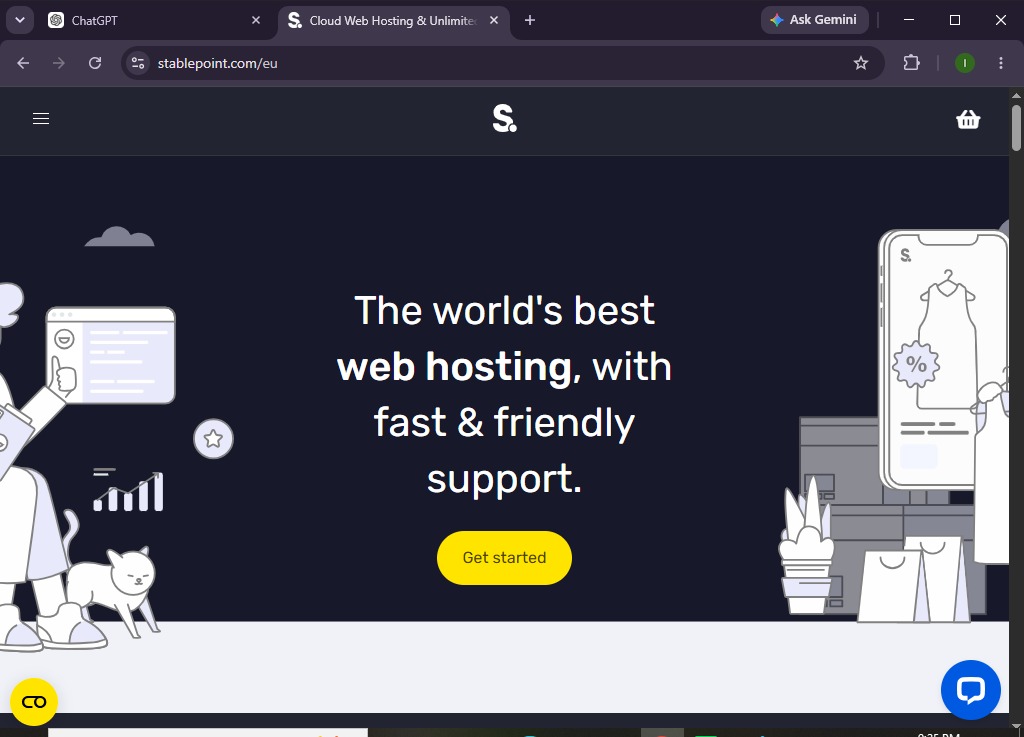
Designed for both beginners and experienced users, StablePoint offers a streamlined hosting experience without the complexity of server management. In this guide, you’ll learn how to host a website on StablePoint, connect your domain, secure your site with SSL, and prepare it for launch.
How do you host a website on StablePoint?
Quick Answer
Follow these simple steps to host your website on StablePoint:
- Sign up for a StablePoint hosting account.
- Select the hosting plan that meets your requirements.
- Log in to your hosting dashboard.
- Create a new website.
- Connect your custom domain name.
- Update your DNS records.
- Enable the free SSL certificate.
- Upload your website files or install your preferred CMS.
- Test your website’s functionality and performance.
- Launch your website and monitor it regularly.
Quick Tip: Most websites can be hosted on StablePoint in 20–30 minutes, while DNS changes may take a few hours to fully propagate.
Prerequisites
Before starting, make sure you have:
- A StablePoint hosting account
- A registered domain name
- Reliable internet access
- Website files or a content management system
- Basic understanding of website hosting
Create a Workflow Manually (Recommended for Beginners)
If you’re new to web hosting, launching your first website on StablePoint is the best way to understand how the platform actually works.
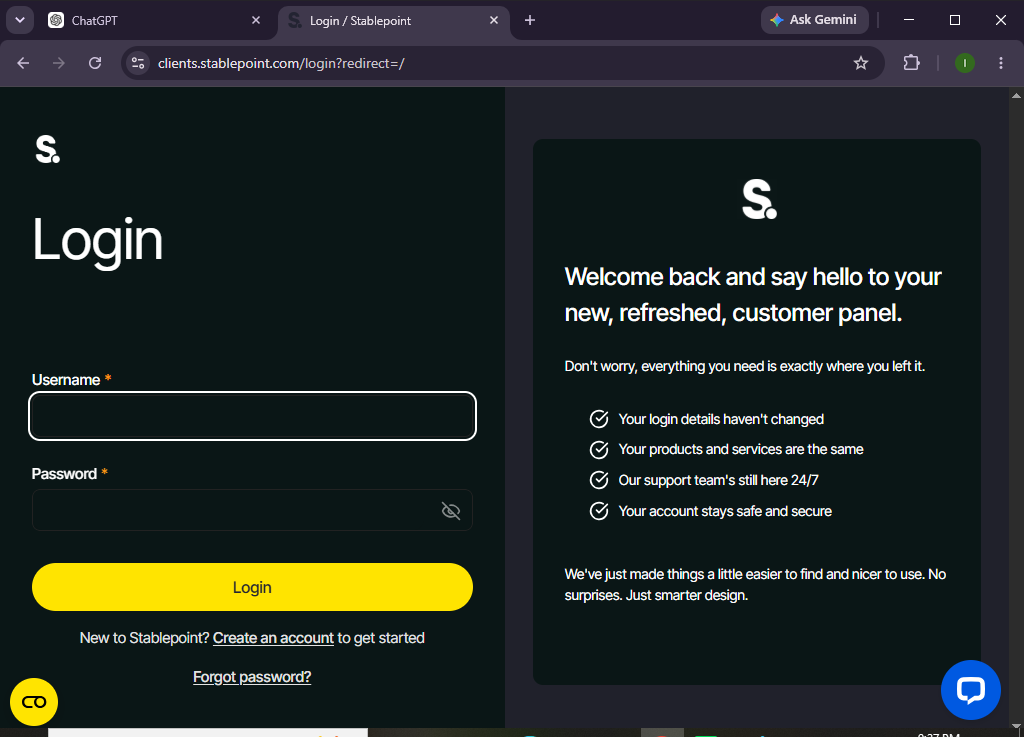
Step 1: Create a StablePoint Account
Visit StablePoint’s website and register for a hosting account.
While selecting your hosting plan, consider:
- Website size
- Expected monthly traffic
- Storage requirements
- Number of websites you plan to host
Complete the signup process and verify your account.
Step 2: Access Your Hosting Dashboard
After logging in, you’ll reach the StablePoint control panel.
Here you can manage:
- Websites
- Domains
- SSL certificates
- Email accounts
- Backups
- Hosting settings
Take a few moments to familiarize yourself with the dashboard.
Step 3: Create Your Website
Click Create Website and enter the required information.
You’ll typically need to:
- Name your website
- Select a server location
- Choose your preferred setup option
StablePoint will automatically prepare your hosting environment.
Step 4: Connect Your Domain Name
To use your own domain:
- Add your domain inside the dashboard.
- Copy the DNS information provided.
- Log in to your domain registrar.
- Replace the existing DNS records with the new ones.
Wait for DNS propagation before continuing.
Step 5: Active SSL
StablePoint includes free SSL certificates with its hosting plans.
Verify that:
- HTTPS is enabled
- SSL status is active
- Your website loads securely
A secure website helps build visitor trust and supports better search rankings.
Step 6: Upload Your Website
Now it’s time to add your website.
You can:
- Upload website files
- Install a CMS
- Restore an existing backup
- Migrate a website from another host
Choose the method that best suits your project.
Step 7: Personalize Your Website
Customize your website by:
- Selecting a theme or template
- Creating pages
- Adding your logo
- Building navigation menus
- Uploading images
- Installing useful plugins or extensions
Review your content before publishing.
Step 8: Optimize Performance
Improve your website’s performance by:
- Compressing images
- Deleting unused plugins
- Keeping software updated
- Reducing unnecessary scripts
- Optimizing website content
These steps help improve page speed and user experience.
Step 9: Test Your Website
Before making your site public.
Test:
- Homepage
- Internal links
- Contact forms
- Mobile responsiveness
- SSL certificate
- Loading speed
- Images and media
Fix any issues you discover.
Step 10: Launch Your Website
Once everything has been tested:
- Publish your website
- Share it with your audience
- Monitor website performance
- Keep your content updated
Your website is now live on StablePoint.
Looking for a hosting platform that grows with your website?
Start your hosting journey with StablePoint and enjoy flexible cloud hosting built for performance.
How can you get the best results from StablePoint hosting?
Tips
- Choose the nearest server location for your audience.
- Keep your website software updated.
- Compress media files before uploading.
- Remove inactive plugins and themes.
- Schedule automatic backups.
- Check your website after every update.
- Monitor storage and bandwidth usage regularly.
What hosting mistakes should you avoid when using StablePoint?
Common Mistakes
- Selecting the wrong hosting plan
- Forgetting to update DNS records
- Publishing before SSL is active
- Uploading unoptimized images
- Installing unnecessary plugins
- Ignoring routine website maintenance
- Skipping website testing before launch
How can you keep your StablePoint-hosted website secure and optimized?
Best Practices
- Keep all website software updated.
- Use strong, unique passwords.
- Enable regular backups.
- Remove unused themes and plugins.
- Optimize images before uploading.
- Monitor uptime and website speed.
- Test your website after major updates.
- Review security settings regularly.
- Track website performance over time.
How do you solve common StablePoint hosting issues?
Troubleshooting
| Problem | Solution |
|---|---|
| Website isn’t loading | Verify DNS records and allow propagation time. |
| SSL isn’t working | Check your domain settings and wait for SSL activation. |
| Unable to log in | Reset your password or contact customer support. |
| Website loads slowly | Optimize images, remove unused plugins, and clear cache. |
| Domain isn’t connected | Double-check your DNS configuration. |
| Website displays errors | Review recent changes or restore a backup if needed. |
Frequently Asked Questions
Is StablePoint suitable for beginners?
Yes. StablePoint offers an intuitive interface and easy-to-use hosting tools, making it ideal for beginners.
Can I migrate an existing website?
Yes. StablePoint supports website migrations from many hosting providers.
Does StablePoint provide free SSL?
Yes. Free SSL certificates are included with eligible hosting plans.
Can I host multiple websites?
Yes. Multi-site hosting depends on the hosting plan you choose.
Is StablePoint suitable for business websites?
Absolutely. Its cloud infrastructure, scalability, and security features make it a reliable choice for business websites.
Does StablePoint include automatic backups?
Yes. Many hosting plans include scheduled backups to help protect your website data.
Conclusion
StablePoint simplifies website hosting by combining cloud infrastructure, security features, and an easy-to-use dashboard into one platform. Whether you’re launching your first website or migrating an existing one, the platform provides the tools needed to create a secure and reliable online presence.
By following this guide, you can confidently host your website, optimize its performance, and maintain a professional online presence with minimal technical effort.
Ready to build a website on reliable cloud infrastructure?
Explore StablePoint today and enjoy scalable hosting, powerful security features, and the flexibility to grow your website as your audience expands.