How to Use Taskade: A Beginner’s Step-by-Step Guide
Learn how to use Taskade to organize tasks, create projects, collaborate with teams, and boost productivity with simple step-by-step instructions.
By TechScaleMedia Editorial · Updated July 2026 · 11 min read
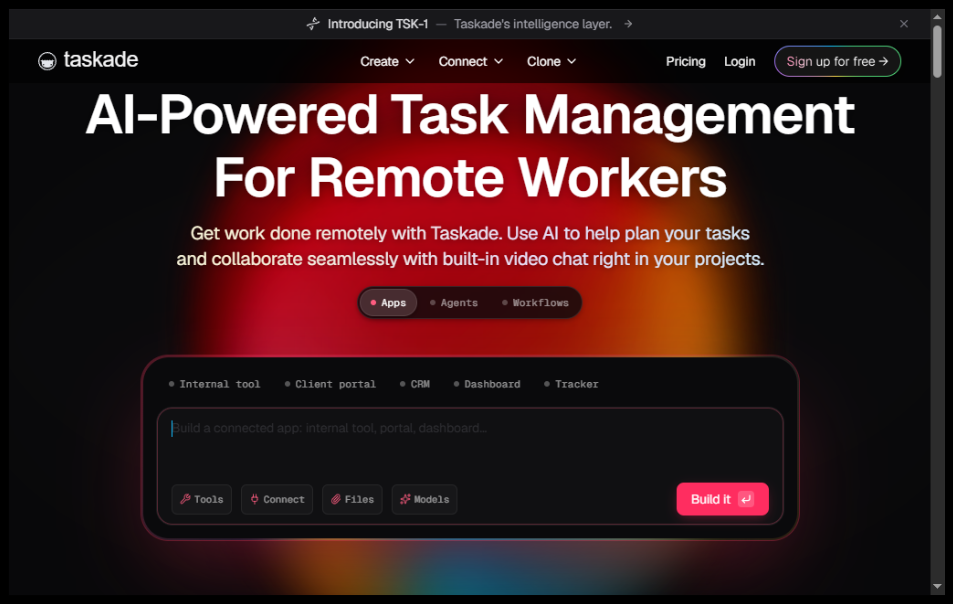
Keeping track of projects, tasks, and team collaboration can become overwhelming as your workload grows. Taskade is an AI-powered productivity and project management platform that helps individuals and teams organize work, collaborate in real time, automate workflows, and manage knowledge—all from a single workspace.
In this guide, you’ll learn how to use Taskade to create projects, organize tasks, collaborate with teammates, and leverage AI to work more efficiently. Whether you’re a freelancer, student, startup, or remote team, this guide will help you get started quickly.
Ready to organize your work with AI? Try Taskade and simplify project management today
How do you use Taskade to organize tasks and manage projects?
Quick Answer
Using Taskade is easy:
- Create a Taskade account.
- Create a workspace.
- Start a new project.
- Add tasks and subtasks.
- Invite team members.
- Use AI to generate or organize content.
- Track project progress from your dashboard.
Prerequisites
Before using Taskade, you’ll need:
- A Taskade account
- Internet connection
- A project or task list
- Team member email addresses (optional)
- Google or Microsoft account (optional for sign-in)
Step-by-Step Instructions
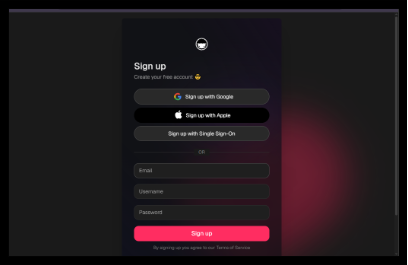
Step 1: Create Your Taskade Account
Visit Taskade’s website and sign up using your email address or your Google or Microsoft account.
Verify your account and log in.
Step 2: Create a Workspace
A workspace helps organize all your projects.
Enter:
- Workspace name
- Team name (optional)
- Workspace icon
- Description
You can create multiple workspaces for different clients or departments.
Step 3: Create Your First Project
Click New Project.
Choose a template or start from scratch.
Popular project types include:
- Task Lists
- Mind Maps
- Project Boards
- Outlines
- Meeting Notes
- Team Wikis
Step 4: Add Tasks and Subtasks
Inside your project, create:
- Main tasks
- Subtasks
- Due dates
- Priorities
- Assignees
- Tags
Organize work into clear action items.
Step 5: Collaborate with Your Team
Invite teammates by email.
Team members can:
- Edit tasks
- Leave comments
- Assign work
- Share files
- Collaborate in real time
Everyone stays updated instantly.
Step 6: Use Taskade AI
Taskade AI can help you:
- Generate task lists
- Summarize documents
- Brainstorm ideas
- Write content
- Create workflows
- Answer questions
Simply enter a prompt and let AI assist your work.
Step 7: Monitor Project Progress
Track:
- Completed tasks
- Upcoming deadlines
- Team activity
- Project status
- Assigned work
The dashboard provides a clear overview of project performance.
Step 8: Automate Your Workflow
Use Taskade’s automation features to:
- Create recurring tasks
- Trigger workflows
- Connect with third-party apps
- Reduce repetitive work
Automation saves time and improves consistency.
How can you get the most out of Taskade?
Tips
Get the most out of Taskade with simple tips for organizing tasks, improving productivity, and managing projects efficiently.
- Start with ready-made templates.
- Break large projects into smaller tasks.
- Assign clear due dates.
- Use AI for brainstorming and writing.
- Keep your workspace organized.
- Review your dashboard daily.
- Collaborate using comments instead of long emails.
- Archive completed projects regularly.
What mistakes should you avoid when using Taskade?
Common Mistakes
- Creating projects without clear goals.
- Forgetting to assign task owners.
- Ignoring due dates.
- Overloading projects with unnecessary information.
- Not using templates for recurring work.
- Leaving completed tasks unorganized.
What should you do if Taskade isn’t working as expected?
Troubleshooting
Learn how to fix common Taskade issues, resolve syncing problems, and troubleshoot workspace or task management errors quickly.
Unable to invite team members
Verify the email address and workspace permissions.
AI isn’t responding
Check your internet connection and confirm AI features are available in your plan.
Tasks aren’t syncing
Refresh your workspace or sign out and back in.
Files won’t upload
Ensure the file size and format are supported.
Login issues
Reset your password or verify your email address.
How can you improve productivity with Taskade?
Best Practices
- Create separate workspaces for different teams.
- Use templates to save time.
- Update tasks daily.
- Keep project descriptions detailed.
- Utilize AI for repetitive work.
- Schedule weekly project reviews.
- Organize files inside projects.
- Regularly clean up completed tasks.
Frequently Asked Questions
Is Taskade free?
Yes. Taskade offers a free plan with essential project management features, along with paid plans that include advanced AI and collaboration tools.
Can I use Taskade alone?
Absolutely. Taskade works well for individual productivity as well as team collaboration.
Does Taskade include AI?
Yes. Taskade includes AI tools for content generation, brainstorming, workflow creation, and productivity assistance.
Can I collaborate with my team?
Yes. Team members can work together in real time, assign tasks, leave comments, and share files.
Does Taskade have project templates?
Yes. Taskade provides a wide range of templates for project management, meetings, marketing, education, and more.
Can Taskade integrate with other apps?
Yes. Taskade supports integrations and automation with many popular productivity tools.
Conclusion
Taskade combines AI-powered assistance with project management, task organization, and real-time collaboration, making it an excellent solution for individuals and teams alike. Its intuitive interface, flexible project views, and built-in automation features help streamline workflows and improve productivity.
By following the steps in this guide and adopting best practices, you’ll be able to manage projects more efficiently, collaborate effectively, and make the most of Taskade’s powerful AI capabilities.
Ready to Boost Your Productivity with Taskade?
Take control of your projects with AI. Try Taskade today and organize tasks, collaborate with your team, automate workflows, and boost productivity—all from one powerful workspace.