How to Use Capacities: A Beginner’s Step-by-Step Guide
Finding important information becomes harder as your notes, documents, and ideas grow over time. Capacities is a modern knowledge management and note-taking platform that helps you organize information using connected objects instead of traditional folders. It combines note-taking, knowledge management, AI assistance, and visual organization to help you build a smarter digital workspace.
By TechScaleMedia Editorial · Updated July 2026 · 11 min read
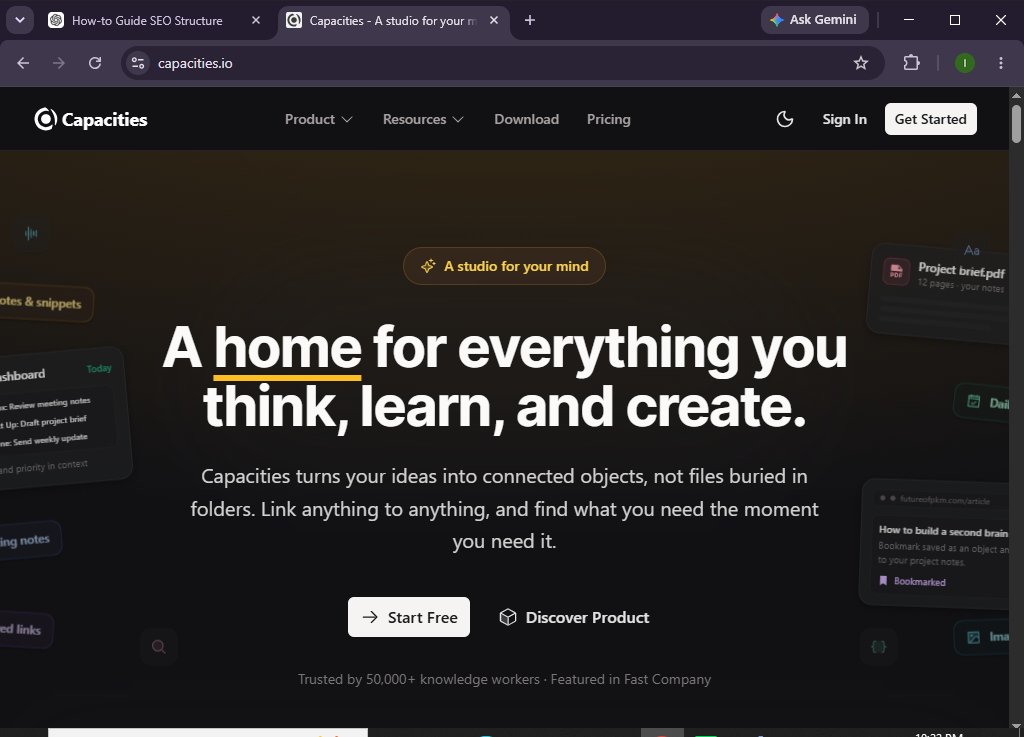
In this guide, you’ll learn how to use Capacities to capture ideas, organize your notes, connect related information, and create a personalized knowledge base for work or study.
How do you use Capacities to organize notes and manage knowledge?
Quick Answer
Getting started with Capacities is simple:
- Create a Capacities account.
- Set up your workspace.
- Create objects and notes.
- Organize information with tags and links.
- Use AI to improve your notes.
- Search your knowledge base.
- Keep your workspace updated.
Prerequisites
Before using Capacities, you’ll need:
- A Capacities account
- Internet connection
- Desktop app or web browser
- Notes, research, or project information
- Google account (optional)
Create a Workflow Manually (Recommended for Beginners)
If you’re new to knowledge management, creating your first workspace in Capacities is the best way to understand how the platform actually works.
Step 1: Create Your Capacities Account
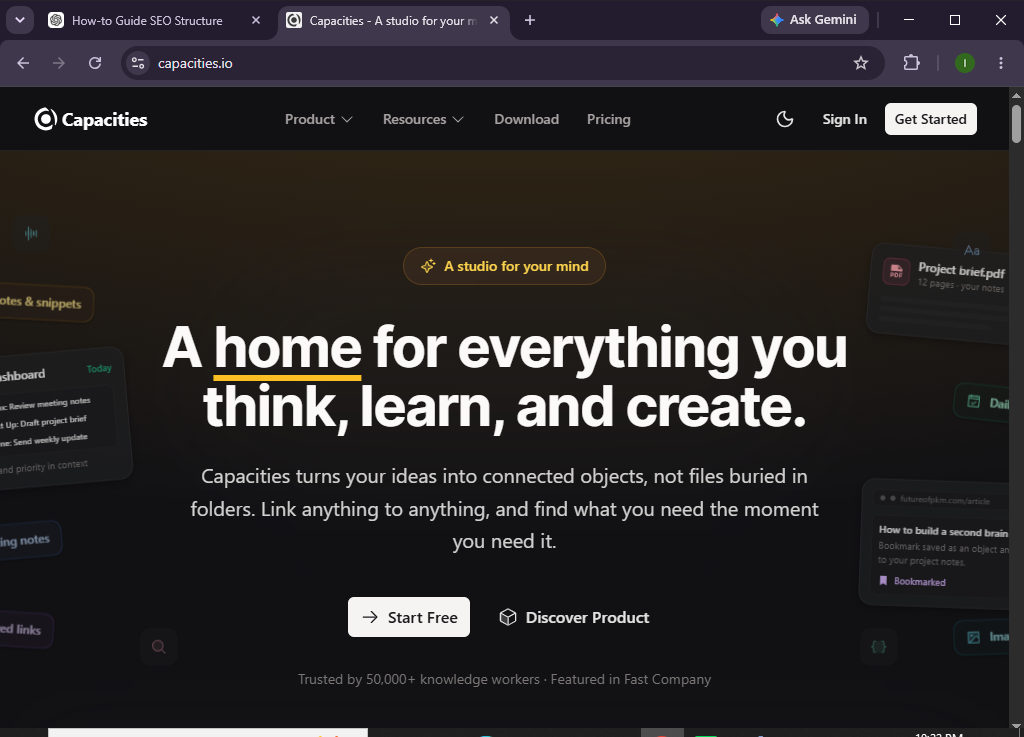
Visit the Capacities website and sign up using your email or Google account.
Verify your account and complete the onboarding process.
Step 2: Set Up Your Workspace
After logging in, create your personal workspace.
Configure:
- Workspace name
- Profile settings
- Theme preferences
- Default object types
Your workspace will store all your notes and knowledge.
Step 3: Create Your First Object
Unlike traditional note-taking apps, Capacities organizes information into Objects.
Create objects such as:
- Notes
- Books
- People
- Projects
- Meetings
- Companies
Each object contains structured information that can be connected to others.
Step 4: Add Notes and Content
Open an object and add:
- Text
- Images
- Checklists
- Links
- Files
- Code snippets (if needed)
You can also embed media and reference other objects within your notes.
Step 5: Link Related Information
Connect your objects by linking:
- Projects to meeting notes
- Books to research
- Contacts to clients
- Tasks to projects
- Ideas to ongoing work
These connections make it easier to navigate your knowledge base.
Step 6: Use Capacities AI
Capacities AI can help you:
- Summarize notes
- Generate ideas
- Rewrite content
- Brainstorm topics
- Answer questions
- Organize information
Use AI to save time and improve the quality of your notes.
Step 7: Search Your Knowledge Base
Use the global search feature to quickly find:
- Objects
- Notes
- Tags
- Linked content
- Files
Powerful search makes retrieving information effortless.
Step 8: Review and Maintain Your Workspace
Regularly:
- Archive completed projects
- Update notes
- Remove duplicate information
- Review linked objects
- Organize new content
Keeping your workspace clean improves long-term productivity.
Looking for a better way to organize your digital knowledge?
Capacities helps you connect ideas, manage notes, and find information faster—all in one intelligent workspace.
How can you organize your information more effectively in Capacities?
Tips
- Create consistent object types.
- Link related notes whenever possible.
- Use meaningful titles.
- Keep daily notes updated.
- Review your workspace every week.
- Use AI to summarize lengthy notes.
- Organize projects with dedicated objects.
- Archive outdated information regularly.
What mistakes should you avoid when using Capacities?
Common Mistakes
- Creating duplicate objects.
- Ignoring object relationships.
- Using inconsistent naming conventions.
- Keeping outdated notes.
- Forgetting to organize new information.
- Not taking advantage of AI features.
How can you build a smarter knowledge base with Capacities?
Best Practices
- Capture ideas immediately.
- Connect related information consistently.
- Keep your object structure simple.
- Review your notes regularly.
- Build reusable templates.
- Use AI for research and summaries.
- Archive inactive projects.
- Develop a daily note-taking habit.
What should you do if Capacities isn’t working properly?
Troubleshooting
Unable to find notes
Use the global search feature or check object filters.
Objects aren’t linking correctly
Refresh the workspace and verify object references.
AI features aren’t available
Ensure your subscription includes AI functionality and check your internet connection.
Sync issues
Log out, refresh the application, or reconnect your account.
Login problems
Reset your password or verify your email address.
Frequently Asked Questions
Is Capacities free?
Yes. Capacities offers a free plan with essential note-taking and knowledge management features, while premium plans provide advanced AI tools and additional functionality.
What makes Capacities different from traditional note-taking apps?
Capacities uses an object-based system that connects related information, making it easier to organize and discover knowledge than standard folder-based note apps.
Does Capacities include AI?
Yes. Capacities offers AI-powered features that can summarize notes, generate ideas, rewrite content, and assist with organizing your knowledge.
Can I use Capacities for project management?
Yes. Many users organize projects, meeting notes, research, and personal knowledge using customizable objects.
Does Capacities support backlinks?
Yes. You can create links between objects and notes, making it easy to navigate related information.
Is Capacities suitable for students and professionals?
Absolutely. It’s a great choice for students, researchers, writers, entrepreneurs, consultants, and knowledge workers who want to organize information efficiently.
Conclusion
Capacities offers a fresh approach to knowledge management by replacing rigid folders with connected objects that make information easier to organize and retrieve. Combined with AI-powered assistance, flexible note-taking, and intuitive linking, it provides an efficient workspace for managing ideas, projects, and research.
Whether you’re building a personal knowledge base or organizing work-related information, Capacities can help you stay organized, think more clearly, and access what you need when it matters most.
Your best ideas deserve more than scattered notes.
Start exploring Capacities today and create a connected workspace where your knowledge stays organized, searchable, and ready whenever inspiration strikes.