How to Use CleanMyMac X: A Beginner’s Step-by-Step Guide
Learn how to use CleanMyMac X with this beginner-friendly step-by-step guide to clean, optimize, and maintain your Mac for better speed and performance.
By TechScaleMedia Editorial · Updated July 2026 · 11 min read
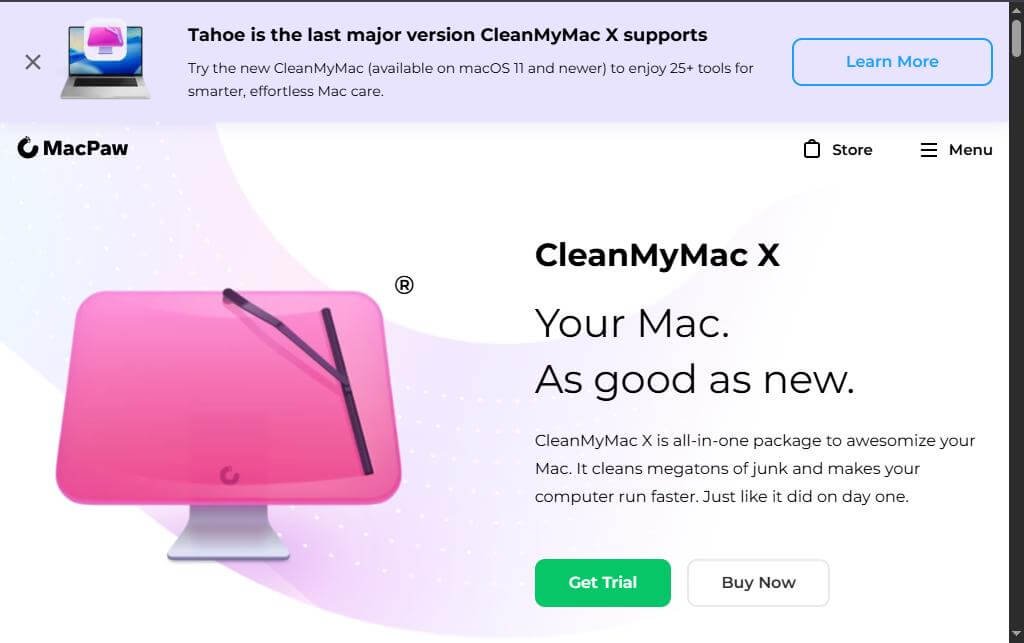
Over time, your Mac can become cluttered with junk files, duplicate files, unnecessary apps, and background processes that slow down performance. CleanMyMac X is an all-in-one Mac optimization tool that helps you clean, speed up, protect, and maintain your Mac with just a few clicks.
Whether you want to free up storage, remove malware, or improve system performance, this guide will walk you through using CleanMyMac X step by step.New to CleanMyMac X? Follow this beginner-friendly guide to clean and optimize your Mac in just a few minutes.
How do you use CleanMyMac X?
Quick Answer
To use CleanMyMac X:
- Install and launch CleanMyMac X.
- Run a Smart Scan.
- Review the scan results.
- Clean junk files and optimize performance.
- Remove unwanted applications.
- Monitor and maintain your Mac regularly.
Prerequisites
Before getting started, you’ll need:
- A Mac computer running a supported version of macOS
- CleanMyMac X installed
- Administrator permissions (for some system tasks)
- A stable internet connection for updates
Step-by-Step Instructions
Follow these simple, beginner-friendly steps to use CleanMyMac X effectively and safely optimize, clean, and maintain your Mac for better performance.
Step 1: Install and Open CleanMyMac X
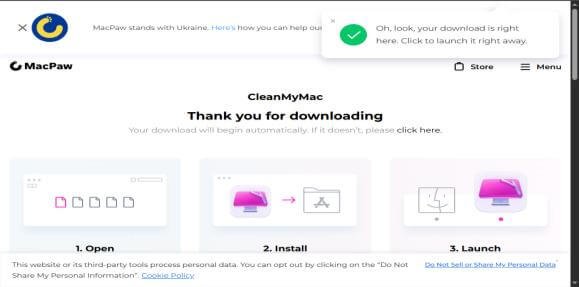
- Download CleanMyMac X from the official website.
- Install the application.
- Launch CleanMyMac X.
- Grant the necessary permissions when prompted.
Step 2: Run a Smart Scan
- Click Smart Scan from the sidebar.
- Press Scan.
- Wait while the application checks your Mac for:
- Junk files
- Performance issues
- Malware threats
After scanning, CleanMyMac X displays a summary of the results.
Step 3: Review the Scan Results
Review the categories found during the scan, such as:
- System Junk
- Mail Attachments
- Trash Files
- Large Files
- Malware Detection
- Performance Recommendations
Select the items you want to clean.
Step 4: Clean and Optimize Your Mac
Click Run to:
- Remove junk files
- Free up storage space
- Optimize system performance
- Perform recommended maintenance tasks
The cleanup process usually takes only a few minutes.
Step 5: Uninstall Unwanted Applications
Navigate to Applications.
From here, you can:
- Remove unused apps
- Delete leftover files
- Uninstall multiple apps at once
- Manage login items
This helps recover storage and improve system performance.
Step 6: Monitor Your Mac’s Health
Use the Menu App or Performance Monitor to view:
- CPU usage
- RAM usage
- Storage availability
- Battery health (supported models)
- Network activity
Regular monitoring helps you identify performance issues early.
How can you keep your Mac running smoothly with CleanMyMac X?
Tips
Learn simple CleanMyMac X tips to optimize storage, remove junk files, and keep your Mac running fast, secure, and clutter-free.
- Run Smart Scan every week.
- Remove unused applications regularly.
- Review large files before deleting them.
- Keep macOS and CleanMyMac X updated.
- Monitor storage usage to avoid running out of space.
What mistakes should you avoid when using CleanMyMac X?
Common Mistakes
- Deleting important files without reviewing them.
- Ignoring software updates.
- Running multiple cleanup tools at the same time.
- Removing applications you still need.
- Skipping regular maintenance scans.
Why isn’t CleanMyMac X cleaning or optimizing my Mac properly?
Troubleshooting
Try these solutions:
- Restart your Mac.
- Update CleanMyMac X to the latest version.
- Grant all required permissions.
- Check that you have administrator access.
- Run another Smart Scan after restarting.
How can you get the best results with CleanMyMac X?
Best Practices
Learn the essential tips and best practices to use CleanMyMac X safely and efficiently, helping you maximize performance while avoiding unnecessary system changes..
- Schedule regular Smart Scans.
- Back up important files before major cleanups.
- Uninstall unused apps instead of simply deleting them.
- Monitor system health regularly.
- Keep both macOS and CleanMyMac X updated.
Frequently Asked Questions
Is CleanMyMac X free?
CleanMyMac X offers a free version with limited functionality, while the full version requires a paid license.
Can CleanMyMac X speed up my Mac?
Yes. It helps improve performance by removing junk files, optimizing system resources, and uninstalling unnecessary applications.
Does CleanMyMac X remove malware?
Yes. It includes malware removal tools that help detect and eliminate common threats.
Can I uninstall apps with CleanMyMac X?
Yes. It completely removes applications along with their associated files and leftovers.
Is CleanMyMac X safe to use?
Yes. When downloaded from the official website, CleanMyMac X is a trusted and safe Mac optimization tool.
Conclusion
CleanMyMac X is an excellent solution for keeping your Mac clean, fast, and secure. By following this guide, you can remove unnecessary files, optimize system performance, manage applications, and maintain your Mac with minimal effort.
Ready to Optimize Your Mac with CleanMyMac X?
Ready to improve your Mac’s performance? Try CleanMyMac X today to clean junk files, free up storage, optimize system performance, and keep your Mac running like new with just a few clicks.