How to Use Proton Pass: A Beginner’s Step-by-Step Guide
Learn how to use Proton Pass with this beginner-friendly step-by-step guide to securely store passwords, create strong logins, and protect your online accounts.
By TechScaleMedia Editorial · Updated July 2026 · 11 min read
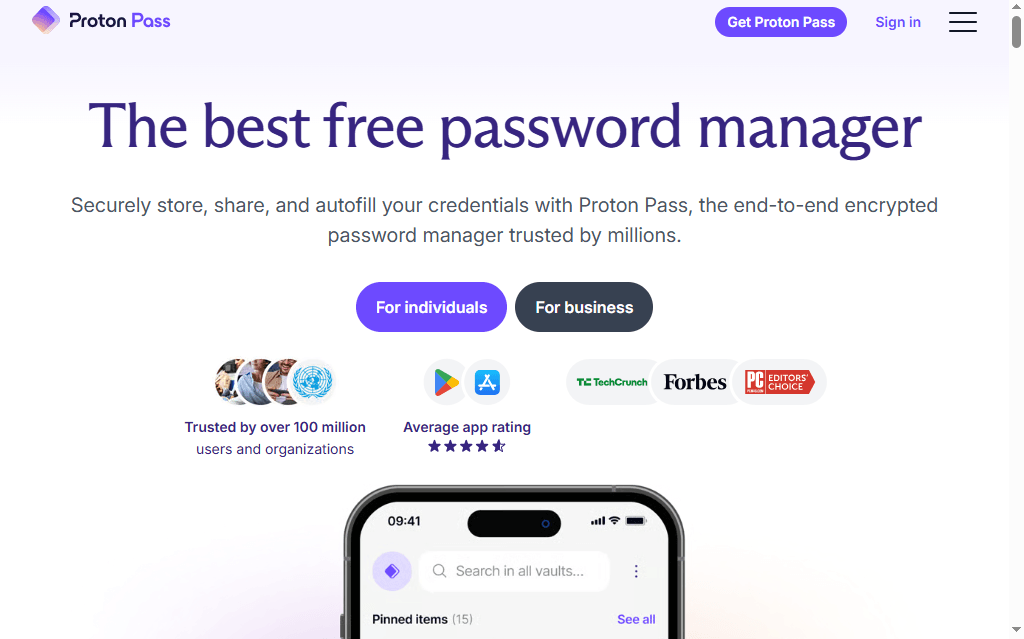
Remembering dozens of strong passwords can be difficult, and reusing passwords across multiple accounts puts your online security at risk. Proton Pass is a secure password manager that helps you generate, store, organize, and autofill passwords while protecting your sensitive information with end-to-end encryption.
Whether you’re securing personal accounts or managing work credentials, Proton Pass makes password management simple and safe.New to Proton Pass? Follow this beginner-friendly guide to securely store and manage your passwords in just a few minutes.
How do you use Proton Pass?
Quick Answer
To use Proton Pass:
- Create or sign in to your Proton account.
- Install the Proton Pass app or browser extension.
- Add or import your passwords.
- Organize passwords into vaults.
- Enable autofill and password generation.
- Sync your passwords across all devices.
Prerequisites
Before getting started, you’ll need:
- A Proton account
- Proton Pass installed on your device or browser
- Existing login credentials (optional if importing passwords)
- A stable internet connection
Step-by-Step Instructions
Follow this beginner-friendly, step-by-step guide to set up Proton Pass, securely store your passwords, and start protecting your online accounts in minutes.
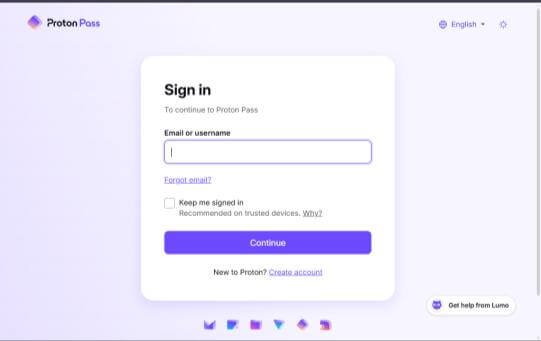
Step 1: Create or Sign In to Your Proton Account
- Visit the Proton website.
- Create a new Proton account or sign in with your existing one.
- Complete any required verification.
- Open Proton Pass from your dashboard.
Step 2: Install Proton Pass
You can use Proton Pass through:
- Chrome Extension
- Firefox Extension
- Edge Extension
- Brave Extension
- Android App
- iOS App.
Install the appropriate version and log in using your Proton account.
Step 3: Import or Add Passwords
You can either
- Import passwords from another password manager
- Import from your browser
- Add login credentials manually
For each login, save:
- Website URL
- Username or email
- Password
- Notes (optional)
Step 4: Organize Your Password Vault
Create separate vaults for better organization.
For example:
- Personal Accounts
- Work Accounts
- Banking
- Shopping
- Social Media
You can also edit, move, or delete saved logins whenever needed.
Step 5: Enable Autofill and Password Generator
Turn on the browser extension or mobile autofill settings.
Proton Pass can:
- Autofill usernames and passwords
- Generate strong passwords
- Save new logins automatically
- Suggest secure passwords during account creation
Step 6: Sync Across Devices
After signing in on multiple devices:
- Passwords sync automatically
- Access your vault anywhere
- Manage passwords from desktop or mobile
- Update passwords instantly across devices
How can you manage passwords more securely with Proton Pass?
Tips
Manage your passwords more securely with Proton Pass by generating strong, unique passwords, enabling end-to-end encryption, and using autofill to protect your accounts across all your devices.
- Use the password generator for every new account.
- Enable autofill to save time.
- Organize passwords into separate vaults.
- Update weak passwords regularly.
- Enable two-factor authentication on your Proton account.
What mistakes should you avoid when using Proton Pass?
Common Mistakes
- Reusing the same password across multiple accounts.
- Saving weak or predictable passwords.
- Forgetting your Proton account password.
- Ignoring password security alerts.
- Not backing up recovery information.
Why isn’t Proton Pass autofilling my passwords?
Troubleshooting
Try these solutions:
- Ensure the browser extension is enabled.
- Update Proton Pass to the latest version.
- Check your browser’s autofill permissions.
- Verify you’re signed into the correct Proton account.
- Restart your browser or mobile app.
How can you get the most out of Proton Pass?
Best Practices
Get the most out of Proton Pass by following security best practices to protect your passwords, simplify logins, and keep your online accounts safe across all your devices.
- Generate unique passwords for every account.
- Review your saved passwords regularly.
- Delete unused or outdated logins.
- Use separate vaults for work and personal accounts.
- Enable two-factor authentication for added security.
Frequently Asked Questions
Is Proton Pass free?
Yes. Proton Pass offers a free plan with essential password management features, along with premium plans that include additional security and advanced functionality.
Does Proton Pass sync across devices?
Yes. Your passwords securely sync across all devices where you’re signed in.
Can Proton Pass import passwords from other password managers?
Yes. It supports importing passwords from many popular password managers and web browsers.
Is Proton Pass secure?
Yes. Proton Pass uses end-to-end encryption to protect your passwords and sensitive information.
Does Proton Pass generate strong passwords?
Yes. It includes a built-in password generator that creates strong, unique passwords for your online accounts.
Conclusion
Proton Pass makes password management simple, secure, and convenient. By following this guide, you can safely store your passwords, generate stronger credentials, enable autofill, and keep your accounts synchronized across all your devices.
Ready to Get Started with Proton Pass?
Ready to improve your online security? Try Proton Pass today to securely store your passwords, generate strong credentials, enable autofill, and protect your digital accounts with end-to-end encryption.