How to Use Internxt: A Beginner’s Step-by-Step Guide
Learn how to use Internxt with this beginner-friendly step-by-step guide to securely store, sync, share, and protect your files with end-to-end encrypted cloud storage.
By TechScaleMedia Editorial · Updated July 2026 · 11 min read
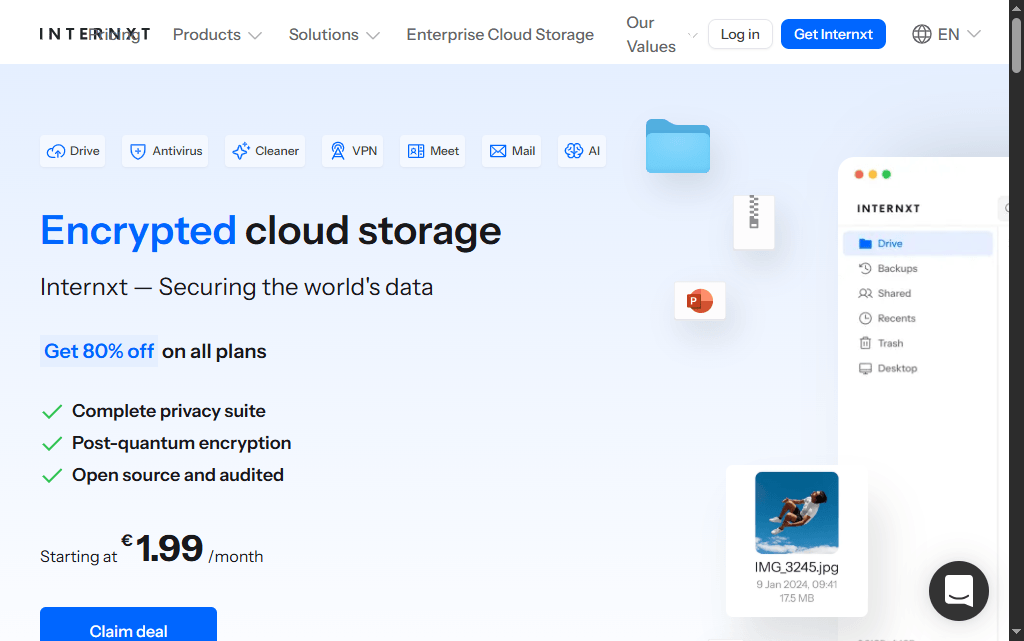
Keeping your files secure while making them accessible across multiple devices is essential in today’s digital world. Internxt is a privacy-focused cloud storage platform that lets you securely store, sync, back up, and share files using end-to-end encryption. Whether you’re protecting personal documents or business files, Internxt offers a simple and secure solution.
In this guide, you’ll learn how to use Internxt step by step, from creating an account to uploading and sharing your files . New to Internxt? Follow this beginner-friendly guide to securely store, sync, and share your files in just a few minutes.
How do you use Internxt?
Quick Answer
To use Internxt:
- Create an Internxt account.
- Install the Internxt desktop or mobile app.
- Upload your files to cloud storage.
- Organize files into folders.
- Share files securely with others.
- Sync and back up your important data.
Prerequisites
Before getting started, you’ll need:
- An Internxt account
- A computer or mobile device
- The Internxt app installed (optional but recommended)
- Files you want to upload
- A stable internet connection
Step-by-Step Instructions
Follow these simple step-by-step instructions to set up your Internxt account, securely store your files, and start using its privacy-focused cloud storage features with ease.
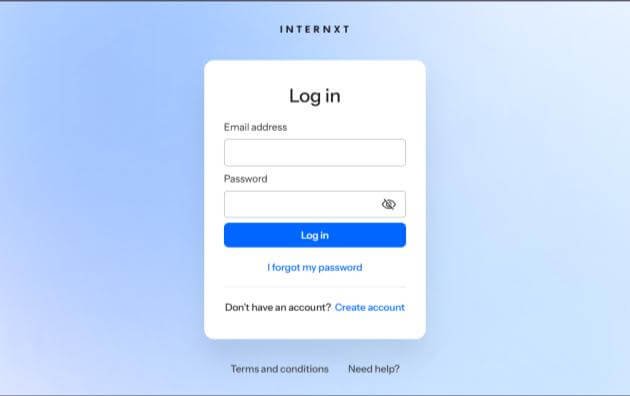
Step 1: Create an Internxt Account
- Visit the Internxt website.
- Click Sign Up.
- Enter your email address and create a secure password.
- Verify your email.
- Log in to your dashboard..
Step 2: Install the Internxt App
- Download the desktop or mobile application.
- Install it on your device.
- Open the application.
- Sign in with your Internxt account.
Using the desktop app allows automatic file syncing and backups
Step 3: Upload Your Files
- Click Upload Files or Upload Folder.
- Select the files from your computer.
- Wait for the upload to finish.
- Your files are automatically encrypted before storage
Step 4: Organize Your Cloud Storage
Keep your files organized by:
- Creating folders
- Renaming files
- Moving documents into categories
- Deleting unnecessary files
A well-organized cloud storage system makes files easier to find
Step 5: Share Files Securely
To share a file:
- Select the file or folder.
- Click Share.
- Generate a secure sharing link.
- Copy and send the link to others.
Only people with the link can access the shared file based on your sharing settings.
Step 6: Sync and Back Up Your Files
Enable syncing to automatically keep your files updated across devices.
You can also:
- Back up important folders
- Access files from multiple devices
- Restore deleted files (if available)
- Keep documents synchronized automatically
How can you use Internxt more efficiently?
Tips
Discover practical tips and best practices to use Internxt more efficiently, enhance security, and get the most out of its privacy-focused cloud storage features.
- Organize files into folders before uploading.
- Enable automatic backups for important documents.
- Use strong account passwords.
- Regularly remove unnecessary files.
- Sync files across all your devices for easy access.
What mistakes should you avoid when using Internxt?
Common Mistakes
- Forgetting your account password.
- Uploading duplicate files.
- Sharing sensitive files without reviewing permissions.
- Ignoring available storage limits.
- Disabling automatic synchronization.
Why isn’t Internxt syncing or uploading my files?
Troubleshooting
Try these solutions:
- Check your internet connection.
- Restart the Internxt application.
- Ensure you’re signed into the correct account.
- Update the app to the latest version.
- Verify that you have enough available cloud storage.
How can you get the most out of Internxt?
Best Practices
Follow these best practices to maximize Internxt’s security, storage efficiency, and collaboration features while keeping your files protected and organized.
- Back up important files regularly.
- Create a clear folder structure.
- Enable automatic synchronization.
- Review shared links periodically.
- Keep the Internxt app updated for the latest security improvements.
Frequently Asked Questions
Is Internxt free?
Yes. Internxt offers a free plan with limited storage, along with paid plans that provide additional storage and features.
Is Internxt secure?
Yes. Internxt uses end-to-end encryption to help protect your files and privacy.
Can I access my files on multiple devices?
Yes. Internxt supports syncing files across desktops, laptops, tablets, and smartphones.
Can I share files with others?
Yes. You can securely share files and folders by generating shareable links.
Does Internxt automatically back up files?
Yes. If enabled, the desktop application can automatically sync and back up selected folders.
Conclusion
Internxt makes cloud storage simple, secure, and privacy-focused. By following this guide, you can easily upload, organize, sync, and securely share your files while keeping your data protected with end-to-end encryption.
Ready to Protect Your Privacy? Get Started with Internxt
Ready to protect your files with secure cloud storage? Try Internxt today to back up your documents, sync files across devices, and securely share your data with confidence.