How to Use WP Umbrella: A Complete Guide to Managing Multiple WordPress Sites
Managing multiple WordPress websites can quickly become overwhelming. Keeping plugins and themes updated, monitoring uptime, creating backups, checking website performance, and ensuring every site remains secure often requires logging into each WordPress dashboard separately. This manual process is time-consuming, increases the risk of missing important updates, and makes website maintenance difficult for freelancers, agencies, and developers managing multiple client sites.
By TechScaleMedia Editorial · Updated July 2026 · 11 min read
That’s where WP Umbrella comes in. WP Umbrella is a SaaS-based WordPress management platform that lets you manage, monitor, secure, update, and back up multiple WordPress websites from a single dashboard. Instead of switching between different WordPress admin panels, you can monitor website health, automate backups, perform safe updates, track uptime, and generate maintenance reports—all from one centralized platform.
Whether you’re a freelance developer, WordPress agency, website manager, or business owner, WP Umbrella simplifies WordPress maintenance and helps keep your websites secure, optimized, and running smoothly.
Quick Answer
Using WP Umbrella involves creating an account, installing the WP Umbrella plugin on your WordPress sites, connecting each site with your API key, configuring automated backups and uptime monitoring, managing plugin and theme updates, and reviewing website health from a centralized dashboard. Once configured, WP Umbrella helps you monitor, maintain, and secure multiple WordPress websites without logging into each site individually.
Prerequisites
Before getting started, you’ll need:
- A WP Umbrella account
- A WordPress website
- Administrator access to your WordPress dashboard
- A stable internet connection
- Permission to install WordPress plugins
Popular integrations
Google Sheets, Gmail, Google Forms, Shopify, WooCommerce, WordPress, Slack, HubSpot, Salesforce, Airtable, OpenAI, Google Gemini, and Anthropic Claude.
Create a Workflow Manually (Recommended for Beginners)
If you’re new to WordPress site monitoring, setting up your first WP Umbrella project is the best way to understand how the platform works.
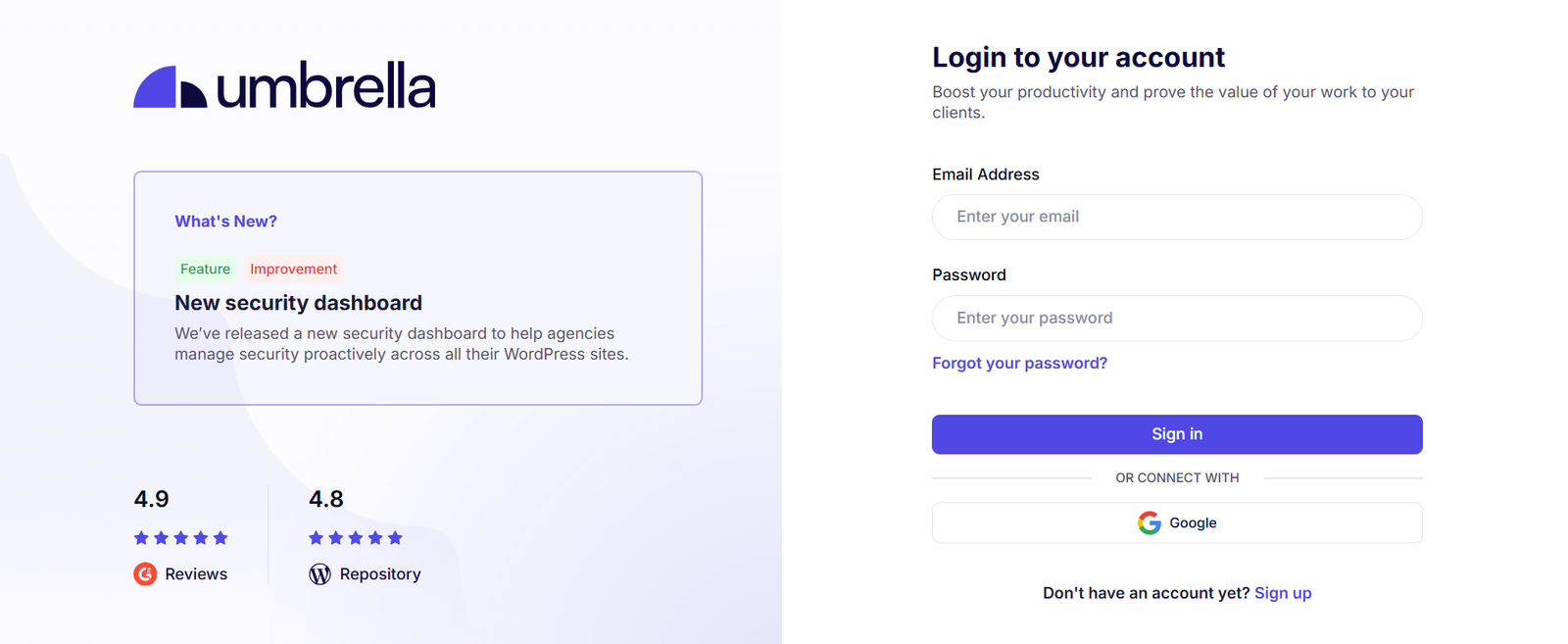
Step 1: Create Your WP Umbrella Account
Visit the WP Umbrella website and click Sign Up.
Create your account using your email address and verify your email if required.
Once logged in, you’ll access your WP Umbrella dashboard, where you can manage all your connected WordPress websites.
Step 2: Install the WP Umbrella Plugin
Log in to your WordPress admin dashboard.
Navigate to:
Plugins → Add New
Search for:
WP Umbrella
Click:
Install Now.
Then click:
Activate
The plugin will now be ready to connect with your WP Umbrella account.
Step 3: Connect Your Website
Open the WP Umbrella plugin settings inside your WordPress dashboard.
Copy your API key from your WP Umbrella account.
Paste the API key into the plugin settings and click Connect.
Once connected, your website will appear in your WP Umbrella dashboard, allowing you to manage it remotely.
Step 4: Configure Website Monitoring
After connecting your site, configure monitoring features to track your website’s health.
Enable:
- Uptime monitoring
- PHP error monitoring
- Performance monitoring
- Security monitoring
WP Umbrella will continuously monitor your website and notify you if it detects downtime or other issues.
Step 5: Enable Automatic Backups
Backups protect your website from unexpected failures or update issues.
Choose your backup preferences, including:
- Backup frequency
- Storage location
- Retention period
WP Umbrella automatically creates backups based on your schedule, making it easy to restore your site if needed.
Step 6: Manage WordPress Updates
Keeping WordPress updated is essential for security and performance.
From the WP Umbrella dashboard, you can:
- Update WordPress core
- Update plugins
- Update themes
- Review available updates
Instead of logging into every website individually, you can manage updates across multiple sites from one place.
Step 7: Monitor Website Performance
Use the dashboard to review your website’s overall health.
Monitor important metrics such as:
- Website uptime
- Response time
- PHP errors
- Available updates
- Backup status
- Site performance
These insights help you identify issues before they impact visitors.
Step 8: Generate Maintenance Reports
WP Umbrella allows you to create professional maintenance reports for clients.
Reports typically include:
- Completed updates
- Backup history
- Uptime statistics
- Security checks
- Website performance
- Maintenance activities
Congratulations! You’ve successfully connected your WordPress website to WP Umbrella and configured its essential monitoring and maintenance features. You’re Ready to Manage WordPress Sites with WP Umbrella.
Ready to simplify WordPress management?
Follow the step-by-step guide below to learn how to use WP Umbrella and manage all your websites from one dashboard.
Pro Tips to Get the Most Out of WP Umbrella
Follow these quick tips to manage your WordPress sites more efficiently:
- Group websites logically by clients, projects, or categories for faster management.
- Review alerts regularly to detect downtime, errors, and update issues before they impact users.
- Test updates before deployment to ensure compatibility and avoid issues on live websites.
- Generate client reports to showcase completed maintenance tasks and website performance improvements.
These features can save hours of manual website management and help you maintain more secure and reliable WordPress sites.
Common WP Umbrella Mistakes to Avoid
Avoid these issues to maintain reliable WordPress websites:
- Ignoring Backups. Without recent backups, recovering from website errors, failed updates, or security problems becomes difficult.
- Updating Everything Without Checking. Automatically applying every update can sometimes create compatibility issues. Review changes before updating important websites.
- Using Incorrect Connection Details. Make sure your API key is valid and each website is properly connected to avoid monitoring problems.
- Neglecting Website Monitoring. Failing to track uptime and performance can cause you to discover problems after visitors are already affected.
Best Practices for Using WP Umbrella
Create a reliable maintenance workflow with these practices:
- Schedule Regular Maintenance
Set a consistent routine for checking updates, backups, and website health. - Monitor Website Performance Trends
Track speed, uptime, and errors over time to identify recurring issues. - Maintain Security Awareness
Respond quickly to security warnings and keep WordPress components updated. - Create a Standard Process for Client Sites
Use the same maintenance workflow across all websites to improve efficiency and reduce mistakes.
Troubleshooting Common WP Umbrella Issues
If your WP Umbrella dashboard isn’t working as expected, these quick troubleshooting tips can help.
Website Won’t Connect
Verify your API key and ensure the plugin is activated.
Backups Aren’t Running
Check your backup schedule and storage settings.
Updates Fail
Ensure your WordPress installation has the necessary file permissions.
Website Isn’t Showing in Dashboard
Reconnect the plugin and refresh your WP Umbrella account.
Frequently Asked Questions
What is WP Umbrella?
WP Umbrella is a SaaS platform that helps you manage, monitor, update, secure, and back up multiple WordPress websites from a single dashboard.
Is WP Umbrella free?
WP Umbrella offers a free trial, while ongoing use requires a paid subscription based on the number of websites you manage.
Is WP Umbrella suitable for beginners?
Yes. WP Umbrella has a user-friendly interface that makes it easy for beginners to monitor and maintain WordPress websites without advanced technical knowledge.
Can I manage multiple WordPress sites?
Yes. WP Umbrella is specifically designed to help freelancers, agencies, and developers manage multiple WordPress websites from one centralized dashboard.
Does WP Umbrella create automatic backups?
Yes. You can schedule automatic backups to protect your websites and restore them quickly if needed.
Can WP Umbrella update plugins and themes?
Yes. WP Umbrella lets you manage WordPress core, plugin, and theme updates across all your connected websites from a single dashboard.
Conclusion
WP Umbrella simplifies WordPress maintenance by bringing website monitoring, automatic backups, updates, security, and performance tracking into one centralized platform. Instead of logging into multiple WordPress dashboards, you can manage all your websites from a single interface, saving time and reducing maintenance efforts.
Whether you’re a freelancer managing client websites, a WordPress agency handling dozens of projects, or a business owner maintaining multiple sites, WP Umbrella helps you keep your websites secure, updated, and running smoothly.
Ready to Simplify Your WordPress Management?
Start using WP Umbrella today by connecting your first WordPress website, enabling automated backups, and configuring uptime monitoring. As you become familiar with the platform, explore advanced features like centralized updates, maintenance reports, and performance monitoring to streamline your entire WordPress maintenance workflow and keep every website running at its best.