How to Use InstaWP to Build, Test, and Launch WordPress Sites Faster (Complete Guide)
InstaWP is an all-in-one cloud platform that simplifies the complete WordPress development workflow—from instantly creating sandbox sites and testing changes to collaborating with teams and deploying websites to production. Instead of managing servers, hosting, and complex configurations, developers can focus on building high-quality WordPress websites faster and more efficiently.
By TechScaleMedia Editorial · Updated July 2026 · 11 min read
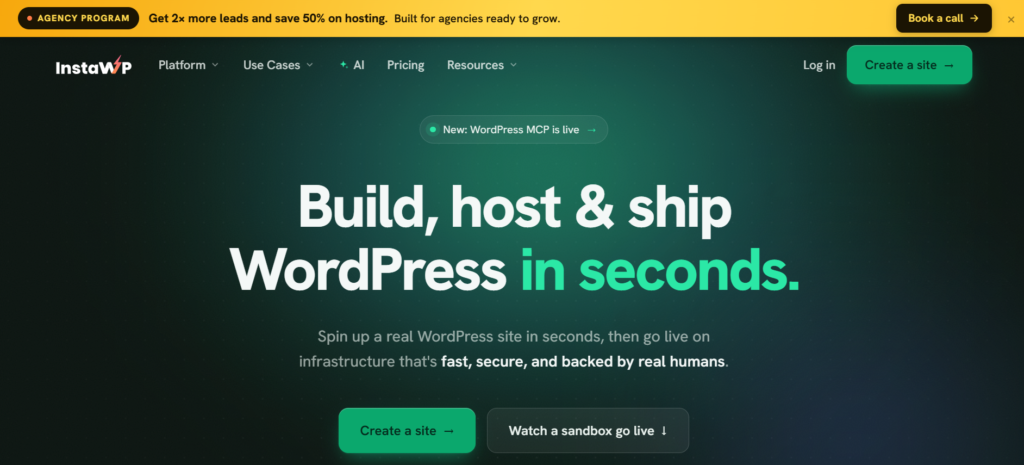
By following the steps in this guide, you’ll learn how to create a new WordPress site, customize it, safely test updates, collaborate with your team, and launch your website with confidence. Whether you’re a freelancer, agency, or development team, InstaWP provides the tools needed to streamline WordPress development and reduce deployment time.
Ready to build WordPress sites faster? Follow this step-by-step guide to learn how to use InstaWP and discover how it can save hours of development time while simplifying every stage of the WordPress lifecycle.
Quick Answer
To create a WordPress website with InstaWP, sign in to your account and click Create Site. Select your preferred WordPress and PHP versions, then let InstaWP generate a fully functional WordPress installation in seconds. Once your site is ready, access the WordPress dashboard to install themes and plugins, customize your website, test changes in a safe cloud environment, and deploy it to a live production site when you’re ready. This entire process can be completed in under a minute, making InstaWP one of the fastest ways to build and launch WordPress websites.
Prerequisites
Before getting started, make sure you have:
- An InstaWP account
- A modern web browser
- Basic WordPress knowledge
- Internet connection
- WordPress theme or plugins (optional)
- Website backup if migrating an existing site
Create a Workflow Manually (Recommended for Beginners)
If you’re new to WordPress automation, creating your first WPInsta workflow is the best way to understand how the tool works.
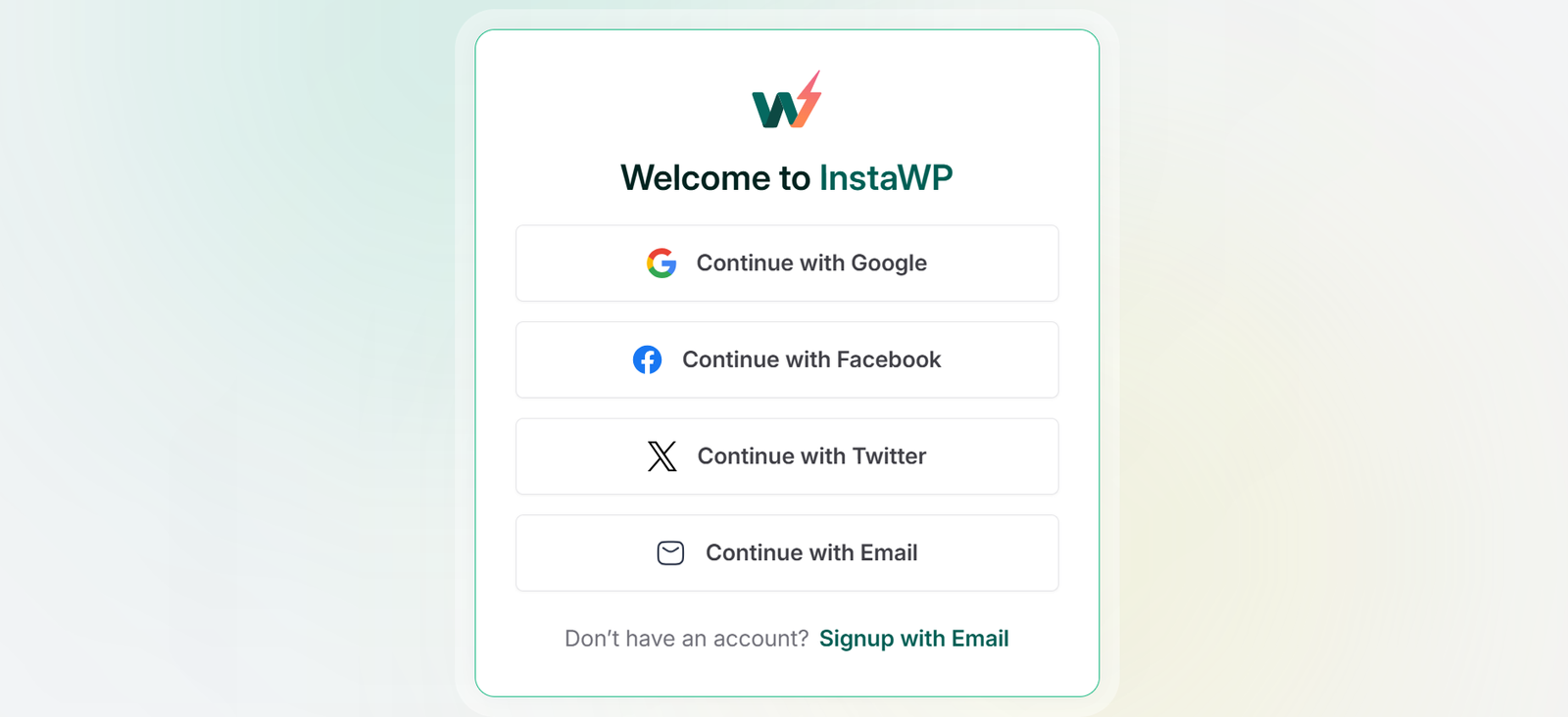
Step 1: Sign Up for InstaWP
Visit the InstaWP website and sign up using your email address or a supported login option. After verifying your account, you’ll be taken to your dashboard.
The dashboard is your central workspace where you can create, manage, and organize all of your WordPress sites from one place.
Step 2: Create a New WorIdPress Site
Click the Create Site button.
You’ll be able to choose:
- WordPress Version
- WordPress version
- PHP version
- Site configuration
- Temporary URL
- Development environment
After clicking Create, InstaWP provisions your cloud WordPress installation automatically.
Within seconds your site is ready.
Step 3: Access Your WordPress Dashboard
Every newly created site includes:
- WordPress Admin URL
- Admin username
- Password
- Temporary live URL
Click WP Admin to start building immediately.
No manual installation is required.
Step 4: Customize Your Website
Now you can build your website exactly like a normal WordPress installation.
Typical tasks include:
- Installing themes
- Installing plugins
- Creating pages
- Designing layouts
- Uploading media
- Configuring settings
Since everything runs in the cloud, there’s no need to install WordPress locally.
Step 5: Import an Existing Website (Optional)
If you’re working with an existing WordPress website, InstaWP allows you to import it quickly.
You can migrate:
- Complete WordPress sites
- Database
- Media files
- Themes
- Plugins
This is especially useful for redesigns or client projects.
Step 6: Test Before Deployment
One of InstaWP’s biggest strengths is safe testing.
Before making changes on a live website, you can test:
- Plugin compatibility
- Theme updates
- WordPress updates
- Custom code
- PHP versions
- Performance improvements
Testing first minimizes the risk of breaking production websites.
Step 7: Collaborate With Your Team
For agencies and development teams, collaboration is built in.
You can:
- Share sites
- Invite team members
- Manage permissions
- Review changes
- Work simultaneously on projects
This keeps development organized without constantly exchanging backups.
Step 8: Deploy to Production
Once testing is complete, you’re ready to launch.
Instead of migrating manually, InstaWP allows you to move your website from development to production with minimal effort.
Production environments include features such as:
- Global CDN
- Automated backups
- Security scanning
- Object caching
- DDoS protection
- High-performance hosting
This creates a seamless transition from development to a live website.
Want to skip the hassle of installing WordPress manually?
Create your first InstaWP site and start building in under a minute.
Pro Tips to Get the Most Out of WPInsta
Follow these tips to get the best experience with InstaWP:
- Create reusable site templates for recurring projects.
- Keep plugins updated before deployment.
- Test every major update in a sandbox first.
- Organize projects using clear naming conventions.
- Use staging environments before pushing changes live.
- Regularly review backups for critical projects.
- Enable caching features for production sites.
- Remove unused plugins to improve performance.
Common WPInsta Mistakes to Avoid
Pabbly Connect is beginner-friendly, but small configuration mistakes can prevent your automations from working correctly. Avoid these common errors.
- Choosing the wrong trigger event. Selecting New Contact instead of New Order can make workflows run at the wrong time, or not at all.
- Mapping fields incorrectly. Incorrect mapping may send customer information to the wrong destination or leave important fields blank.
- Ignoring required app permissions. Without API access or authorisation, the workflow can’t read or write data.
- Creating one large workflow. Packing too many actions into a single workflow makes it harder to manage and troubleshoot.
- Skipping workflow testing. Activating a workflow without testing can result in incorrect data transfers or failed automations.
- Using generic AI prompts. Vague prompts often produce incomplete workflows. Be specific about the apps, triggers, actions, and expected outcome.
Best Practices
To maximize your productivity with InstaWP:
- Build every project in a sandbox before going live.
- Use version control for custom development.
- Maintain separate development, staging, and production environments.
- Keep WordPress core, themes, and plugins updated.
- Test across different PHP versions.
- Monitor performance before deployment.
- Standardize workflows using templates.
- Schedule regular backups and security checks.
Troubleshooting Common WPInsta Issues
If your WPInsta workflow isn’t working as expected, these quick troubleshooting tips can help.
WSite Creation Takes Longer Than Expected
Refresh the dashboard and verify your internet connection.
Unable to Access WP Admin
Use the credentials provided in your InstaWP dashboard or regenerate access if needed.
Plugin Conflicts
Disable recently installed plugins one by one to identify the issue.
Deployment Problems
Verify that your production environment is correctly configured and all required settings are complete before launching.
Website Appears Slow
Enable caching, optimize images, and review installed plugins to improve performance.
Frequently Asked Questions
Is InstaWP free to use?
Yes. InstaWP offers a free plan that allows you to create temporary WordPress development sites. Paid plans provide additional resources and advanced features such as longer site retention, collaboration tools, premium hosting options, and higher usage limits.
Can I migrate an existing WordPress website to InstaWP?
Yes. You can import an existing WordPress website into InstaWP for development, testing, redesigns, or troubleshooting. This allows you to work on a copy of your site without affecting the live version.
Does InstaWP support WooCommerce websites?
Yes. InstaWP fully supports WooCommerce, making it a practical solution for developing, testing, and optimizing online stores before deploying updates to production.
Can I use my own custom domain?
Yes. Depending on your hosting and deployment setup, you can connect a custom domain when you’re ready to publish your website.
Is InstaWP suitable for beginners?
Absolutely. InstaWP removes many of the technical steps involved in setting up WordPress, making it easier for beginners to create and explore websites without configuring servers or installing local development software.
Can multiple people work on the same project?
Yes. InstaWP includes collaboration features that allow agencies, freelancers, and development teams to share projects, manage permissions, and work together in a single cloud-based environment.
How long does it take to create a WordPress site?
Most WordPress sites can be created in under a minute. The exact time depends on your selected configuration and current server availability, but the process is significantly faster than traditional manual installations.
Conclusion
Managing WordPress development doesn’t have to involve multiple tools, complex server configurations, or time-consuming deployments. InstaWP simplifies the entire workflow by bringing development, testing, collaboration, hosting, and deployment into one cloud-based platform.
Whether you’re building a client website, testing new plugins, creating reusable templates, or launching production-ready WordPress sites, InstaWP helps you work faster while reducing technical overhead. By following the steps and best practices in this guide, you can streamline your WordPress projects and spend more time building great websites instead of managing infrastructure.
Get Started with InstaWP Today
Ready to simplify your WordPress development workflow?
Create your first cloud-based WordPress site with InstaWP and experience instant site creation, safe testing environments, seamless collaboration, and one-click deployment—all from a single platform.
Whether you’re a freelance developer, a growing agency, or an enterprise team, InstaWP provides the tools you need to build and launch WordPress sites faster.
Start using InstaWP today and transform the way you develop, manage, and deploy WordPress websites.