

How to Use TaskMagic: A Beginner's Step-by-Step Guide
Repeating the same browser tasks every day—such as logging into websites, filling out forms, copying data, downloading files, or clicking through multiple pages—can be time-consuming. Instead of performing these actions manually, you can automate them with TaskMagic.
TaskMagic is a no-code browser automation platform that records your actions and turns them into reusable automated workflows. It helps individuals and businesses save time by automating repetitive web-based tasks without requiring programming skills.
Whether you’re a marketer, virtual assistant, recruiter, salesperson, or business owner, TaskMagic can streamline your daily work and boost productivity.
In this guide, you’ll learn how to set up TaskMagic and create your first browser automation. Ready to automate repetitive browser tasks without coding?
How do you use TaskMagic?
A Quick Answer
To use TaskMagic:
- 1. Create a TaskMagic account.
- 2. Install the browser extension or desktop application (if required).
- 3. Record your browser actions.
- 4. Connect your apps. 4. Edit and customize the workflow.
- 5. Add conditions or delays if needed.
- 6. Test the automation.
- 7. Save and run the workflow manually or on a schedule.
Once configured, TaskMagic can repeat your recorded browser actions automatically.
Prerequisites
Before getting started, you’ll need:
- A TaskMagic account
- A stable internet connection
- Google Chrome or another supported browser
- Login credentials for the websites you want to automate
- A clear understanding of the browser task you want to automate
What You'll Need Before Using TaskMagic
- Automate repetitive browser tasks instantly
- Help teams save time with automation
- Simplify workflows without coding skills
- Securely automate data and web actions
- Perfect for creators, marketers, and businesses
Create a Workflow Manually (Recommended for Beginners)
If you’re new to automation, manually building your first workflow is the best way to understand how TaskMagic works and automate browser tasks with confidence.
Create a TaskMagic Account
Visit the TaskMagic website.
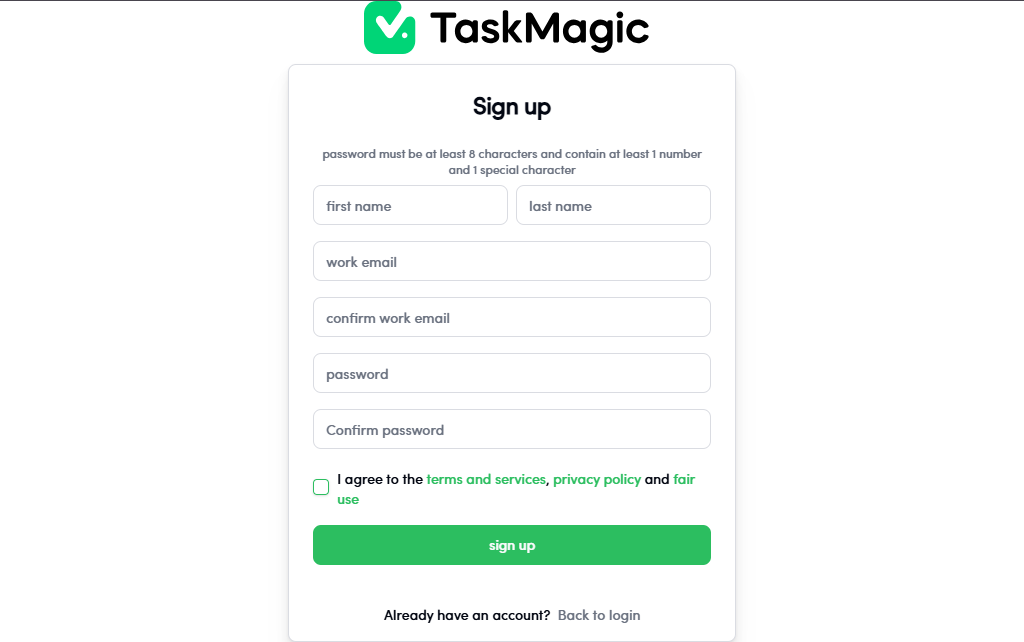
Click Sign Up and create your account using your email address or another available sign-in option.
Verify your account if prompted.
Depending on your setup, install the TaskMagic browser extension or desktop application.
After installation:
- Open TaskMagic.
- Sign in to your account.
Grant any required browser permissions.
From the dashboard:
- Click Create New Task or New Automation.
- Enter a descriptive name.
Examples include:
- Auto Form Filler
- Lead Collection
- Website Data Entry
- Daily Report Automation
Click Start Recording.
Perform the actions exactly as you normally would.
Examples:
- Open a website.
- Log in.
- Fill out a form.
- Click buttons.
- Copy text.
- Download files.
- Navigate between pages.
TaskMagic records each step automatically.
When finished, click Stop Recording.
Review the recorded actions.
You can:
- Delete unnecessary steps.
- Rearrange actions.
- Add wait times.
- Insert conditional logic.
- Update text fields.
- Modify clicks or inputs.
Editing ensures your automation runs smoothly.
Instead of using the same information every time, TaskMagic allows you to use variables.
Examples:
- Customer Name
- Email Address
- Company Name
- Product ID
Variables make one automation reusable for multiple tasks.
Click Run Test.
Verify that:
- Every click works.
- Forms are completed correctly.
- Websites load properly.
- Variables are inserted accurately.
- The workflow finishes without errors.
If needed, adjust the workflow and test again.
Schedule or Run the Automation
Once testing is complete, choose how you’d like to run it.
Options include:
- Manual execution
- Scheduled automation
- Trigger-based execution (if available)
Save your automation.
TaskMagic will now repeat your recorded browser actions automatically.
What are the best tips for using TaskMagic effectively?
These expert TaskMagic tips will help you build smarter, faster, and more reliable browser automations:
- Record your actions slowly for greater accuracy.
- Use descriptive names for automations.
- Test workflows after every edit.
- Add wait times for slow-loading websites.
- Use variables instead of hardcoded values.
- Keep workflows organized by project or client.
What are the most common mistakes to avoid when using TaskMagic?
Although TaskMagic is beginner-friendly, small configuration mistakes can prevent your browser automations from working correctly. Avoid these common errors to build reliable workflows from the start.
Performing actions too fast during recording can cause the automation to miss important steps.
Unsaved workflows can result in lost progress and unavailable automations.
Testing the workflow helps ensure it runs correctly and catches errors before deployment.
Without proper wait times, the workflow may execute before page elements are fully loaded.
Changes to a website can make previously recorded elements invalid and break the automation.
Using fixed values reduces workflow flexibility and makes updates more difficult.
How do you troubleshoot common TaskMagic issues?
If your TaskMagic automation isn’t working as expected, these quick troubleshooting tips can help.
Check whether:
- The webpage layout has changed.
- Internet connectivity is stable.
- Required pages loaded completely.
Try:
- Re-recording that step.
- Updating the selected page element.
- Adding a short delay before clicking.
Verify:
- Your username and password are correct.
- Multi-factor authentication isn't interrupting the automation.
- Login pages haven't changed.
Review:
- Recorded actions
- Variables
- Workflow sequence
- Browser permissions
What are the best practices for using TaskMagic?
Once your TaskMagic workflows are running successfully, following these best practices will keep your automations organized, scalable, and easy to maintain.
Start with short automations before building longer workflows.
Add delays for dynamic websites. .
Keep your browser updated.
Review workflows whenever websites change their layout.
Use variables whenever possible.
Test workflows regularly.
Organize automations into folders.
Frequently Asked Questions
1. Is TaskMagic beginner-friendly?
Yes. TaskMagic is designed for users with no coding experience and provides a visual workflow builder with browser recording capabilities.
2. Does TaskMagic require programming?
No. You simply record your browser actions, and TaskMagic converts them into an automation.
3. What types of tasks can TaskMagic automate?
TaskMagic can automate:
- Data entry
- Form filling
- Website navigation
- Lead collection
- Web scraping
- File downloads
- Browser-based repetitive tasks
4. Can I edit recorded workflows?
Yes. Every recorded action can be modified, deleted, reordered, or expanded with additional logic.
5. Can businesses use TaskMagic?
Yes. Businesses use TaskMagic for sales, marketing, operations, recruiting, customer support, and administrative automation.
6. Is TaskMagic suitable for repetitive browser work?
Absolutely. It is specifically designed to automate repetitive browser tasks that normally require manual clicks and typing.
Conclusion
TaskMagic makes browser automation simple by allowing users to record their actions and replay them whenever needed. Whether you’re automating data entry, form submissions, lead generation, or repetitive website tasks, TaskMagic helps reduce manual work and improve productivity. Begin with a small workflow, test it thoroughly, and gradually expand your automations as your needs grow.