How to Use Qustodio: A Beginner’s Step-by-Step Guide
Monitor, manage, and protect your family’s digital activity with Qustodio using this beginner-friendly step-by-step guide to parental controls and online safety.
By TechScaleMedia Editorial · Updated July 2026 · 11 min read
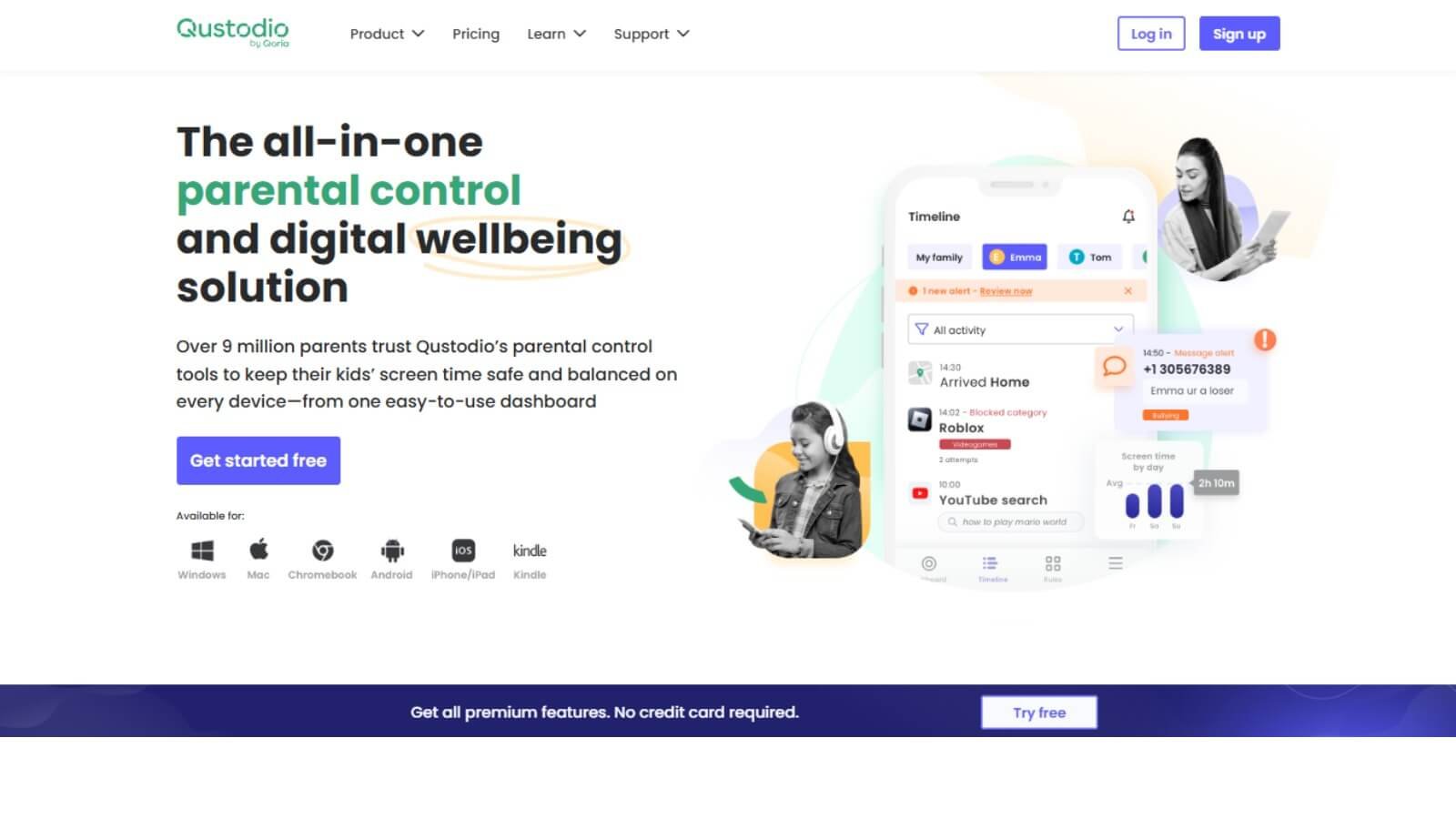
Keeping children safe online is more challenging than ever as they use multiple devices for learning, entertainment, and communication. Qustodio helps parents create healthier digital habits by providing tools to manage device usage, filter inappropriate websites, monitor app activity, and receive location updates—all from a single dashboard. Instead of manually checking each device, parents can set customized rules that adapt to each child’s age and needs.
In this guide, you’ll learn how to set up Qustodio, configure its key features, and use it effectively to build a safer and more balanced digital environment for your family.
Ready to improve your family’s digital safety? Start using Qustodio to manage screen time, protect your children online, and stay connected wherever they go.
How do you use Qustodio?
Quick Answer
Using Qustodio is simple:
- Create a Qustodio parent account.
- Choose a family plan.
- Install Qustodio on all devices.
- Create child profiles.
- Set screen time limits.
- Enable web content filtering.
- Monitor app usage.
- Turn on GPS location tracking.
- Review activity reports.
- Update parental controls as your child grows.
Prerequisites
Before getting started, you’ll need:
- A Qustodio account
- A compatible device (Android, iPhone, iPad, Windows, Mac, or Kindle)
- Internet connection
- Your child’s device
- Permission to install apps on each device
Step-by-Step Instructions
Follow these simple steps to set up Qustodio, manage devices, and start monitoring your family’s online activity with confidence.
Step 1: Create a Qustodio Parent Account
Visit the Qustodio website or download the mobile app and sign up for a parent account.
During setup, you’ll:
- Enter your email address.
- Create a secure password.
- Choose a subscription plan based on the number of devices you want to manage.
After registration, you’ll access the Parent Dashboard, where all family settings are managed from one place.
Step 2: Install Qustodio on Your Devices
Download and install the Qustodio app on both your own device and each child’s device.
Qustodio supports:
- Android
- iPhone and iPad
- Windows
- macOS
- Amazon Kindle
During installation, grant the requested permissions so the app can apply parental controls and monitor activity correctly.
Step 3: Create Individual Profiles for Each Child
Add a separate profile for every child in your family.
Each profile stores its own:
- Screen time schedules
- Website filters
- App rules
- Activity history
- Location settings
Using individual profiles makes it easier to customize restrictions according to each child’s age and digital habits.
Step 4: Configure Screen Time Rules
Set limits for when and how long devices can be used.
You can create schedules for:
- Daily usage limits
- School hours
- Homework time
- Bedtime
- Weekend routines
These schedules encourage a balanced routine while reducing unnecessary device usage throughout the day.
Step 5: Enable Web Content Filtering
Qustodio allows you to control the types of websites your child can access.
You can block categories such as:
- Adult content
- Gambling
- Violence
- Drugs
- Explicit websites
- Unsafe or suspicious pages
Content filtering helps create a safer browsing experience without manually blocking individual websites.
Step 6: Monitor and Manage App Usage
Open the Apps section to view how your child uses installed applications.
You can:
- See the most frequently used apps.
- Restrict access to selected apps.
- Limit entertainment during study hours.
- Block distracting applications when necessary.
These insights help parents understand digital habits and make informed decisions about app access.
Step 7: Turn On Location Tracking
Enable GPS tracking to view your child’s location directly from the Parent Dashboard.
You can also create Safe Places such as:
- Home
- School
- Sports facilities
- A relative’s house
Qustodio sends notifications when your child arrives at or leaves these locations, giving you greater peace of mind.
Step 8: Review Calls and Text Messages (Android Only)
For supported Android devices, Qustodio offers additional communication monitoring features.
Parents can review:
- Call history
- Contact information
- SMS activity (where available)
These tools provide extra visibility into your child’s communication while helping identify unusual activity or potential safety concerns.
Step 9: Check Activity Reports
The Activity Dashboard summarizes how each child uses their devices.
Reports include:
- Total device usage
- Frequently visited websites
- Popular apps
- Search activity
- Daily and weekly trends
Reviewing these reports regularly helps you adjust settings based on real usage patterns rather than guesswork.
Step 10: Update Controls as Your Child Grows
Parental controls should evolve as children become more responsible.
Consider reviewing settings every few months to:
- Increase screen time where appropriate.
- Allow additional educational resources.
- Modify website restrictions.
- Update Safe Places.
- Remove unnecessary limitations for older children.
Keeping your settings up to date ensures they remain appropriate without becoming overly restrictive.
Tips
Set up screen time limits, app rules, and activity alerts to get the most out of Qustodio while balancing your family’s digital habits.
- Customize settings for each child instead of using identical rules.
- Allow educational apps while limiting unnecessary distractions.
- Discuss online safety with your children so they understand the purpose of parental controls.
- Test new restrictions before applying them permanently.
- Keep the Qustodio app updated to access the latest features and security improvements.
Common Mistakes
- Skipping required device permissions during installation.
- Applying the same restrictions to children of different ages.
- Forgetting to install Qustodio on every device your child uses.
- Blocking too many websites without reviewing educational needs.
- Setting controls once and never updating them.
Troubleshooting
Screen time limits aren’t working
Check that Qustodio has all required permissions and is allowed to run in the background.
Location tracking isn’t updating
Verify that GPS services and location permissions are enabled on your child’s device.
Websites aren’t being filtered
Confirm that web filtering is active and that your child is using a supported browser.
App activity isn’t showing
Make sure usage access and accessibility permissions are enabled for Qustodio.
Reports aren’t updating
Check the internet connection on both parent and child devices, then allow time for the dashboard to synchronize.
Best Practices
- Review your parental control settings every few months.
- Create age-appropriate rules instead of relying on one configuration for everyone.
- Use activity reports to guide conversations rather than simply enforcing restrictions.
- Set realistic device schedules that support school, hobbies, and family time.
- Combine digital tools with open communication to build responsible online habits.
Frequently Asked Questions
Is Qustodio free?
Qustodio offers both free and premium plans. The premium version includes advanced features such as detailed activity reports, app management, location tracking, and expanded parental controls.
Can Qustodio monitor multiple devices?
Yes. Parents can manage several devices from one account, making it suitable for families with multiple children.
Does Qustodio work on Android and iPhone?
Yes. Qustodio supports Android, iPhone, iPad, Windows, macOS, and Amazon Kindle devices.
Can Qustodio block apps?
Yes. You can block selected apps, set usage limits, and restrict access during specific times of the day.
Does Qustodio track my child’s location?
Yes. Qustodio includes GPS location tracking and geofencing, allowing parents to receive notifications when children enter or leave designated places.
Can I monitor calls and text messages?
Yes, but these features are available only on supported Android devices.
Conclusion
Qustodio gives parents a practical way to manage their children’s digital activities without constantly supervising every device. By combining screen time management, web filtering, app controls, location tracking, and detailed activity insights, it helps families create healthier technology habits while supporting a safer online experience. As your child’s needs change, you can easily adjust settings to provide the right balance between protection and independence.
Get Started with Qustodio in Minutes
Start using Qustodio today to manage screen time, protect your children from inappropriate online content, monitor device activity, and build a safer digital environment for your entire family with one easy-to-use parental control platform.