How to Use LastPass: A Beginner’s Step-by-Step Guide
Remembering dozens of passwords for websites, apps, and online services can be overwhelming. Reusing the same password across multiple accounts may seem convenient, but it significantly increases the risk of unauthorized access if one account is compromised.
By TechScaleMedia Editorial · Updated July 2026 · 11 min read
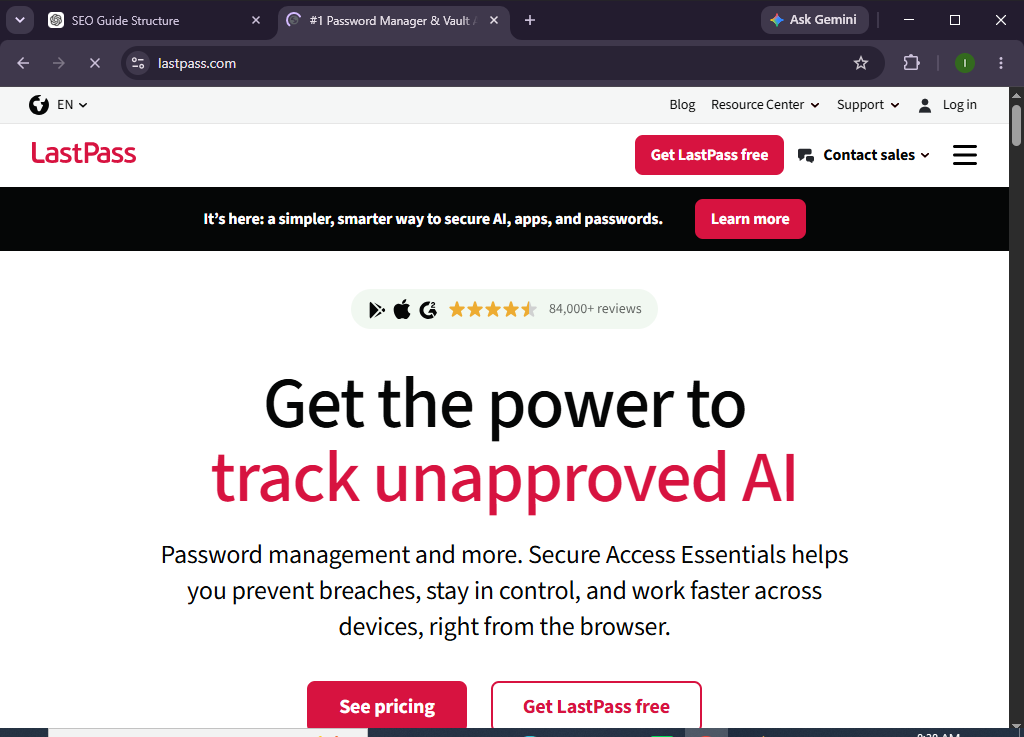
LastPass is a password manager that securely stores your login credentials in an encrypted vault, generates strong passwords, and autofills them across your devices. Instead of memorizing multiple passwords, you only need to remember one master password while LastPass handles the rest.
Whether you’re managing personal accounts or securing business logins, this guide will show you exactly how to set up and use LastPass from scratch.
How Do You Set Up and Use LastPass?
Quick Answer
To use LastPass:
- Create your LastPass account.
- Set a strong master password.
- Download and install the LastPass app or browser extension.
- Sign in to your password vault.
- Import or manually add your passwords.
- Generate strong passwords for new accounts.
- Enable autofill for faster logins.
- Turn on multi-factor authentication (MFA).
- Organize passwords into folders.
- Review your Security Dashboard regularly.
Prerequisites
Before you begin, make sure you have:
- A LastPass account
- A Windows, macOS, Linux, Android, or iOS device
- A supported web browser
- A stable internet connection
- Permission to install software or browser extensions
- A strong master password
Create a Workflow Manually (Recommended for Beginners)
If you’re new to password management, creating your first secure vault in LastPass is the best way to understand how the platform actually works.
Step 1: Create Your LastPass Account
Visit the LastPass website and click Get Started or Sign Up.
During registration:
- Enter your email address.
- Create a strong master password.
- Confirm your password.
- Verify your account if prompted.
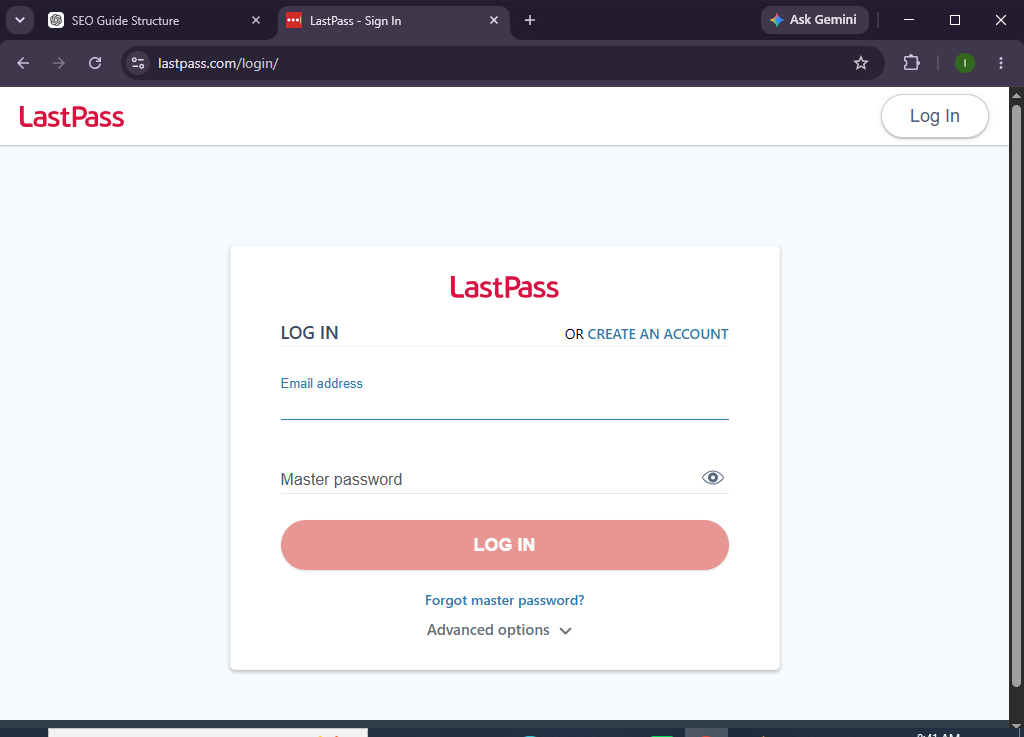
Once your account is created, sign in to your LastPass vault.
Step 2: Install the LastPass Application or Browser Extension
Download LastPass for your preferred device.
Supported platforms include:
- Windows
- macOS
- Linux
- Android
- iPhone/iPad
- Chrome
- Edge
- Firefox
- Safari
Complete the installation process.
Step 3: Sign In to Your Vault
Launch the application or browser extension.
Then:
- Enter your email address.
- Enter your master password.
- Complete MFA if enabled.
You’ll now have access to your encrypted password vault.
Step 4: Import Existing Passwords
If you’ve previously saved passwords in your browser or another password manager:
- Open Import Passwords.
- Select the source.
- Review the imported credentials.
- Save them to your LastPass vault.
You can also add passwords manually.
Step 5: Save New Login Credentials
Whenever you sign in to a new website:
- Enter your username and password.
- Allow LastPass to save the credentials.
- Confirm the save request.
The login information will be securely stored for future use.
Step 6: Generate Strong Passwords
Use the built-in password generator when creating new accounts.
Customize the password by choosing:
- Password length
- Numbers
- Symbols
- Uppercase and lowercase letters
Save the generated password directly to your vault.
Step 7: Enable Autofill
Turn on Autofill to speed up logins.
When visiting a saved website:
- Click the LastPass icon.
- Select your saved login.
- Autofill your username and password automatically.
This eliminates the need to type passwords manually.
Step 8: Enable Multi-Factor Authentication
For stronger account security:
- Open Account Settings.
- Navigate to Security.
- Enable Multi-Factor Authentication.
- Complete the setup using your preferred authentication method.
This adds an extra layer of protection to your LastPass account.
Step 9: Organize Your Password Vault
Create folders to organize your credentials.
Examples include:
- Personal
- Work
- Banking
- Shopping
- Entertainment
- Social Media
A well-organized vault makes passwords easier to locate.
Step 10: Monitor Your Security Dashboard
Review the Security Dashboard regularly.
Check for:
- Weak passwords
- Reused passwords
- Compromised credentials
- Security recommendations
Update passwords whenever risks are identified.
Looking for a smarter way to organize your passwords?
Explore LastPass and simplify password management while improving the security of your online accounts.
How Can You Get the Most Out of LastPass?
Tips
- Create a unique master password.
- Enable multi-factor authentication.
- Use the password generator for every new account.
- Regularly review your Security Dashboard.
- Replace weak or reused passwords.
- Install LastPass on all your devices.
- Organize passwords into folders.
- Keep the app and browser extension updated.
What Should You Avoid When Using LastPass?
Common Mistakes
- Reusing passwords across websites
- Choosing a weak master password
- Ignoring security alerts
- Disabling multi-factor authentication
- Sharing passwords through email or messaging apps
- Leaving outdated passwords in your vault
- Forgetting to update compromised credentials
How Can You Keep Your LastPass Vault Secure?
Best Practices
- Use a long, unique master password.
- Enable multi-factor authentication immediately.
- Review your vault for weak passwords regularly.
- Update compromised passwords as soon as possible.
- Remove unused login credentials.
- Keep LastPass updated on every device.
- Lock your devices when unattended.
- Review your Security Dashboard monthly.
- Avoid storing your master password in unsecured locations.
- Monitor your account activity for unusual logins.
What Should You Do If LastPass Isn’t Working?
Troubleshooting
Unable to sign in
- Verify your email and master password.
- Reset your master password if available.
- Complete any required verification steps.
Browser extension isn’t working
- Restart your browser.
- Update the extension.
- Reinstall it if necessary.
Autofill isn’t working
- Confirm Autofill is enabled.
- Refresh the webpage.
- Update the browser extension.
Passwords aren’t syncing
- Check your internet connection.
- Sign out and back in.
- Verify you’re using the same LastPass account on all devices.
Frequently Asked Questions
Is LastPass free?
LastPass offers both free and premium plans with different features and device support.
Does LastPass encrypt my passwords?
Yes. LastPass stores passwords in an encrypted vault to help protect your login credentials.
Can LastPass generate secure passwords?
Yes. It includes a password generator that creates strong, unique passwords for new accounts.
Does LastPass work on mobile devices?
Yes. LastPass supports Android and iOS devices, along with Windows, macOS, Linux, and major web browsers.
Can I use LastPass on multiple devices?
Yes. Device support depends on your subscription plan.
Is LastPass suitable for businesses?
Yes. LastPass offers business plans with centralized password management, secure sharing, and administrative controls.
Conclusion
LastPass makes password management easier by securely storing your credentials, generating strong passwords, and simplifying logins across multiple devices. Instead of remembering dozens of passwords, you only need one master password to access your encrypted vault.
By following this guide—creating your account, installing the app, importing passwords, enabling autofill, turning on multi-factor authentication, and reviewing your Security Dashboard—you can improve both convenience and online security.
Stop relying on weak or repeated passwords.
Set up LastPass today, organize your login credentials in one secure vault, and make stronger password security a seamless part of your everyday online experience.