How to Use the GL.iNet GL-MT3600BE (Beryl 7) Portable Travel Router: A Complete Beginner’s Step-by-Step Guide
The GL.iNet GL-MT3600BE (Beryl 7) is a compact Wi-Fi 7 travel router designed to create a private and secure network wherever you go. It allows travelers to connect multiple devices through hotel Ethernet, public Wi-Fi, or mobile hotspots while adding features like VPN support, a 2.5 Gbps port, and advanced network management.
By TechScaleMedia Editorial · Updated July 2026 · 11 min read
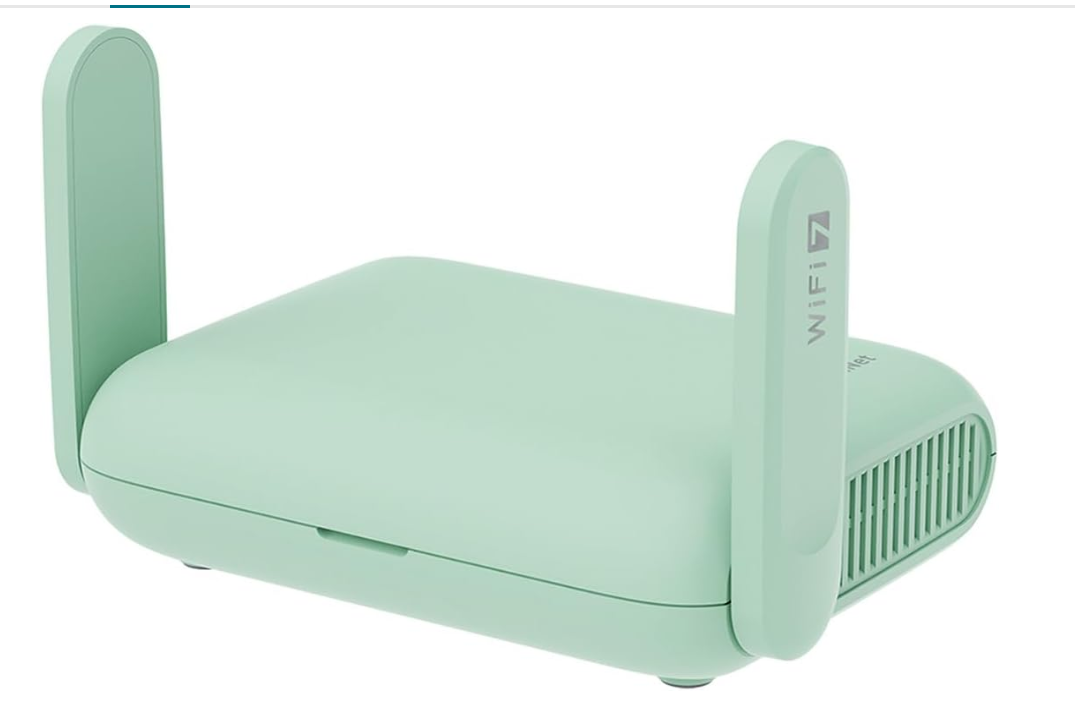
Unlike public Wi-Fi networks, a travel router gives you control over your connection by providing your own Wi-Fi name, password, and security settings. This makes it useful for business travelers, remote workers, digital nomads, and anyone who frequently connects to unfamiliar networks.
This guide explains how to set up and use the GL.iNet Beryl 7, including connecting to different internet sources, configuring VPN protection, managing devices, and optimizing performance.
How Do You Use the GL.iNet Beryl 7 Travel Router?
Quick Answer
- Power on the router.
- Connect to the default Wi-Fi network.
- Open the admin panel.
- Choose your internet source.
- Create your personal Wi-Fi network.
- Configure VPN settings.
- Connect your devices.
- Manage settings through the GL.iNet app.
Prerequisites
Before getting started, you’ll need:
- GL.iNet GL-MT3600BE (Beryl 7) Router
- USB-C power cable or charger
- Smartphone or laptop
- Internet source:
- Hotel Ethernet
- Existing Wi-Fi network
- Mobile hotspot
- VPN account (optional)
Create a Workflow Manually (Recommended for Beginners)
If you’re new to routers, setting up your first GL.iNet Beryl 7 Travel Router is the best way to understand how the platform actually works.
Step 1: Power On the Router
Connect the Beryl 7 using the USB-C power cable.
Wait for the router to boot completely before connecting your devices.
Step 2: Connect to the Default Wi-Fi
Find the default Wi-Fi name and password on the router label.
Connect your phone or laptop to this network.
Step 3: Access the Admin Panel
Open a web browser and enter the router’s management address.
Follow the setup instructions to configure your device.
Step 4: Choose Your Internet Source
Select how the router will access the internet:
Ethernet Mode
Connect a hotel or wired internet connection to the 2.5 Gbps port.
Repeater Mode
Connect the router to an existing Wi-Fi network.
Tethering Mode
Use your smartphone’s mobile hotspot for internet access.
Step 5: Create Your Private Wi-Fi Network
Set your own:
- Wi-Fi name (SSID)
- Secure password
All your devices can now connect through one trusted network.
Step 6: Set Up VPN Protection
Enable VPN client mode by adding your VPN provider details.
Supported options may include:
- WireGuard
- OpenVPN
Once enabled, connected devices can use the protected VPN connection automatically.
Step 7: Enable Advanced Features
Depending on your needs, you can configure:
- VPN server access
- Wi-Fi 7 features like Multi-Link Operation (MLO)
- Device monitoring
- Network tools through the GL.iNet app
Step 8: Manage the Router Through the App
Use the GL.iNet app to:
- View connected devices
- Change settings
- Monitor network activity
- Enable or disable features quickly
Ready to upgrade your home network?
Follow the steps below to create a secure and reliable travel network anywhere.
How Can You Use GL.iNet Beryl 7 Travel Router More Efficiently?
Tips
Choose the Best Connection Method
Use Ethernet when available for better stability, and switch to repeater or hotspot mode when wired access is unavailable.
Position the Router Properly
Keep the Beryl 7 in an open area to improve wireless signal distribution.
Carry a Backup Power Option
A small USB-C power bank can help you use the router in locations without convenient power outlets.
Test Hotel Networks Before Use
Some hotels require browser-based login pages, so confirm the connection works before relying on it.
Use Device Names in the App
Rename connected devices to quickly identify phones, laptops, and other equipment.
How Can You Avoid Common GL.iNet Beryl 7 Travel Router Errors?
Common Mistakes
Choosing the Wrong Operating Mode
Selecting the incorrect connection type can stop the router from accessing the internet.
Forgetting to Complete Hotel Login Pages
Some public networks require accepting terms or entering details through a browser before internet access works.
Using Weak VPN Credentials
Incorrect VPN information can prevent secure connections from being established.
Ignoring Compatibility Requirements
Not all networks support the same connection methods, so check whether Ethernet, Wi-Fi, or hotspot mode is available.
Performing Factory Resets Too Quickly
Many connection issues can be fixed through settings adjustments without deleting all configurations.
How Can You Get the Most Value from GL.iNet Beryl 7 Travel Router?
Best Practices
Create Travel-Specific Profiles
Save commonly used settings for hotels, home networks, or mobile hotspots to make future setup faster.
Remove Unused Plugins and Services
Disable extra features you no longer need to keep the router efficient and easier to manage.
Keep Essential Accessories Together
Store cables, adapters, and the router in one travel pouch to avoid missing equipment.
Review VPN Settings Periodically
Check your VPN configuration occasionally to ensure it matches your current provider requirements.
Protect the Router During Transport
Use a protective case or safe storage method to prevent damage while traveling.
How Can You Troubleshoot GL.iNet Beryl 7 Travel Router Effectively?
Troubleshooting
Router Has No Internet Connection
- Check the selected connection mode.
- Restart the router.
- Verify the hotel or hotspot connection works separately.
Devices Cannot Connect to Wi-Fi
- Confirm the Wi-Fi password.
- Restart the router.
- Check connected device limits.
VPN Is Not Working
- Verify your VPN credentials.
- Check the VPN configuration.
- Restart the VPN connection.
Slow Travel Wi-Fi Speed
- Move closer to the internet source.
- Use Ethernet instead of public Wi-Fi when possible.
- Reduce unnecessary connected devices.
Cannot Access Admin Panel
- Confirm you are connected to the router’s Wi-Fi.
- Restart the browser or router.
Frequently Asked Questions
Is the GL.iNet Beryl 7 worth it for travel?
Yes. It is useful for travelers who need secure personal Wi-Fi, VPN support, and better control over public internet connections.
Can I use it with hotel Wi-Fi?
Yes. It can connect through hotel Ethernet or existing Wi-Fi networks.
Does the Beryl 7 include a VPN?
It supports VPN client and server features, but you need your own VPN service for client connections..
What is the 2.5 Gbps port used for?
It provides faster wired connections when using compatible internet sources and devices.
Can I connect multiple devices?
Yes. The router allows multiple phones, laptops, tablets, and smart devices to share one internet connection.
Does it work without Wi-Fi?
Yes. You can connect it through Ethernet or a mobile hotspot.
Conclusion
The GL.iNet GL-MT3600BE (Beryl 7) is a powerful pocket-sized travel router that combines Wi-Fi 7 performance, VPN security, and flexible connectivity options in a compact design. By setting it up correctly and using features like VPN protection, device management, and multiple connection modes, you can create a safer and more reliable internet experience while traveling.
Stay Connected Securely Wherever You Travel
Set up your GL.iNet Beryl 7 Travel Router today and take control of your internet connection. Whether you’re working remotely, staying in hotels, or using public networks, this portable router helps you enjoy secure, private, and reliable Wi-Fi wherever your journey takes you.