How to Use the NETGEAR Nighthawk Modem Router Combo: A Complete Beginner’s Step-by-Step Guide
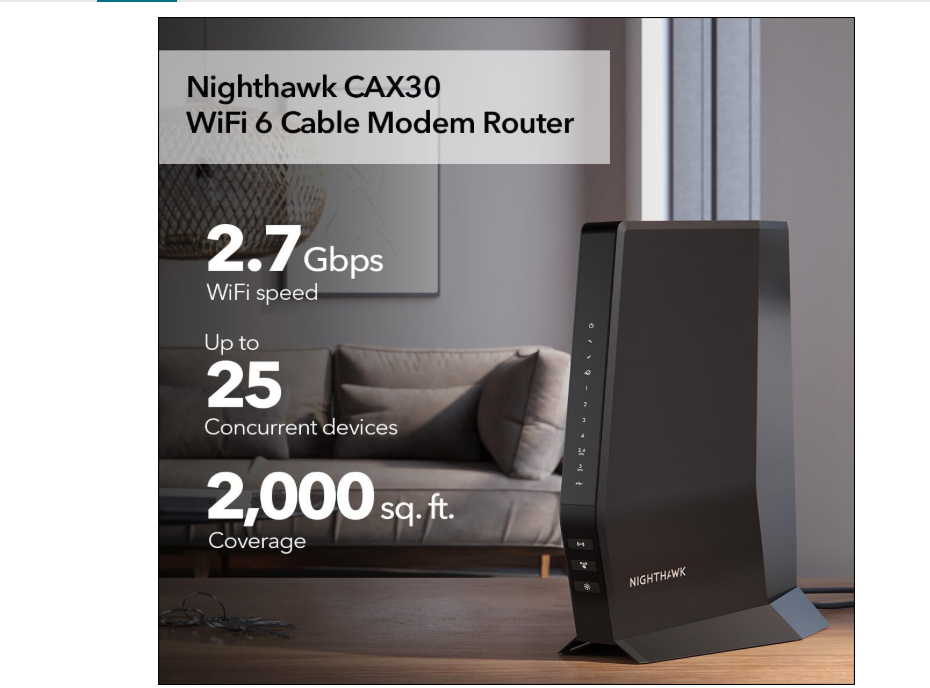
The NETGEAR Nighthawk Modem Router Combo combines a cable modem and dual-band Wi-Fi router into one device, making it an excellent choice for cable internet users who want a simpler home network. Instead of managing separate hardware, you can enjoy reliable internet, wireless coverage, and network management from a single unit.
By TechScaleMedia Editorial · Updated July 2026 · 11 min read
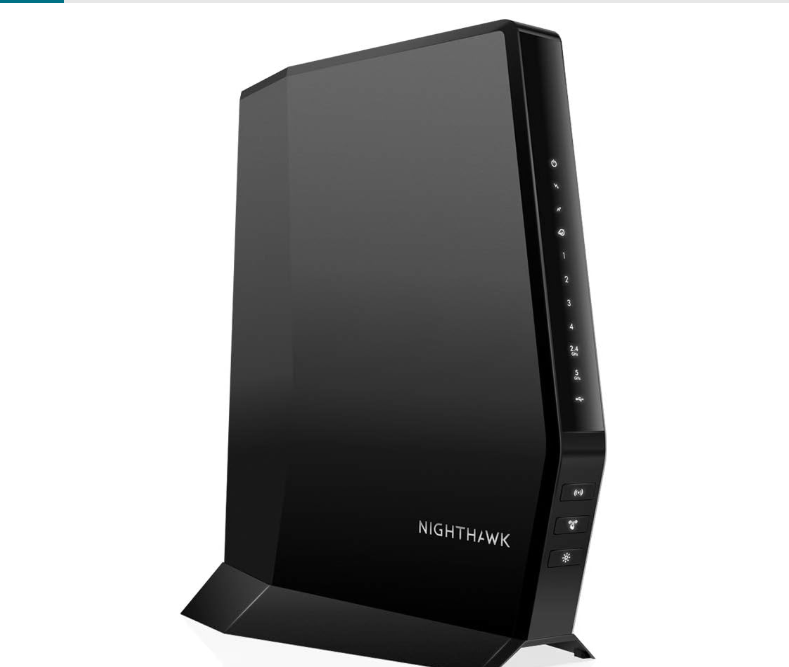
Although installation is straightforward, first-time users may need help activating the modem with their ISP, configuring Wi-Fi, or setting up features like guest networking and parental controls. This guide explains how to install, configure, and maintain your Nighthawk Modem Router Combo for secure and reliable performance.
How Do You Use the NETGEAR Nighthawk Modem Router Combo?
Quick Answer
- Verify ISP compatibility.
- Connect the coaxial cable.
- Power on the device.
- Activate the modem with your ISP.
- Access the Nighthawk app or web interface.
- Configure your Wi-Fi network.
- Enable guest Wi-Fi and parental controls.
- Update the firmware.
Prerequisites
Before getting started, you’ll need:
- NETGEAR Nighthawk Modem Router Combo
- Active cable internet service
- Coaxial cable
- Ethernet cable (optional)
- Smartphone or computer
- Nighthawk app
- ISP account information
Create a Workflow Manually (Recommended for Beginners)
If you’re new to modem routers, setting up your first NETGEAR Nighthawk Modem Router Combo is the best way to understand how the platform actually works.
Step 1: Verify ISP Compatibility
Confirm that your Nighthawk model is supported by your cable internet provider before installation.
Step 2: Connect the Coaxial Cable
Connect the coaxial cable from the wall outlet to the modem’s cable input, then plug in the power adapter.
Wait until the Power, Downstream, Upstream, and Online lights become stable.
Step 3: Activate the Modem
Activate the modem through your ISP’s website, app, or customer support.
You may need to provide the modem’s MAC address during activation.
Step 4: Access the Setup Page
Open the Nighthawk app or log in through the router’s web management page to begin configuration.
Step 5: Configure Your Wi-Fi Network
Create your:
- Wi-Fi network name (SSID)
- Secure Wi-Fi password
Configure both the 2.4 GHz and 5 GHz wireless bands if needed.
Step 6: Configure Network Features
Customize useful features such as:
- Guest Wi-Fi
- Parental controls
- Port forwarding (if required for gaming or remote access)
Step 7: Monitor Connected Devices
Use the Nighthawk app to review connected devices and remove any unfamiliar devices from your network.
Step 8: Update the Firmware
Install the latest firmware to improve security, stability, and compatibility.
Ready to upgrade your home network?
Follow the steps below to get your home network up and running quickly.
How Can You Use NETGEAR Nighthawk Modem Router Combo More Efficiently?
Tips
Place the Device Near the Cable Outlet
Choose a location close to the cable connection to avoid using long coaxial cables, which may reduce signal quality.
Elevate the Unit
Place the modem router on a shelf or desk instead of the floor for better Wi-Fi coverage.
Label Important Devices
Rename frequently used devices in the Nighthawk app so they’re easier to identify and manage.
Check Signal Levels After Activation
Confirm that the modem has a stable connection before connecting all of your devices.
Use the 5 GHz Band for Faster Speeds
Connect newer phones, laptops, and streaming devices to the 5 GHz band for better performance at shorter distances.
How Can You Avoid Common NETGEAR Nighthawk Modem Router Combo Errors?
Common Mistakes
Skipping ISP Activation
The modem won’t provide internet access until your cable provider completes the activation process.
Tightening the Coaxial Cable Incorrectly
A loose or over-tightened cable can cause connection problems.
Changing Multiple Settings at Once
Modify one setting at a time so it’s easier to identify the cause if an issue occurs.
Forgetting to Save Configuration Changes
Always save your settings before exiting the management page.
Using the Default Wi-Fi Name
Changing the default network name makes it easier to recognize your network and improves privacy.
How Can You Get the Most Value from NETGEAR Nighthawk Modem Router Combo?
Best Practices
Review Network Usage Monthly
Improve your profile, portfolio, and proposal quality.
Back Up Your Router Configuration
Save a copy of your network settings so they can be restored quickly after a reset.
Remove Inactive Devices
Delete old or unused devices from the management app to keep your network organized.
Review Port Forwarding Rules
If you’ve created custom port forwarding rules, remove any that are no longer needed to reduce unnecessary exposure.
Inspect Cable Connections Periodically
Check the coaxial cable and power adapter occasionally to ensure they remain secure and undamaged.
How Can You Troubleshoot NETGEAR Nighthawk Modem Router Combo Effectively?
Troubleshooting
No Internet Connection
Check the coaxial cable, restart the modem, and verify ISP activation.
Wi-Fi Isn’t Visible
Restart the device and confirm wireless broadcasting is enabled.
Slow Internet Speed
Restart the modem, reduce interference, or contact your ISP if speeds remain low.
Can’t Access the Admin Panel
Verify you’re connected to the network and use the correct gateway address.
Device Won’t Activate
Confirm compatibility with your ISP and verify the MAC address entered during activation.
Frequently Asked Questions
Does the Nighthawk Modem Router Combo replace separate devices?
Yes. It combines a cable modem and Wi-Fi router into a single unit.
Can I use it with any internet provider?
No. It works with compatible cable internet providers only. Check your ISP’s approved device list before purchasing.
Do I need the Nighthawk app?
No, but it simplifies setup and ongoing network management.
Can I create a guest Wi-Fi network?
Yes. You can create a separate network for visitors through the app or web interface.
Why won’t my modem connect to the internet?
The modem may not be activated, the coaxial cable may be loose, or your ISP may not support the model.
Conclusion
The NETGEAR Nighthawk Modem Router Combo offers an easy way to simplify your home network by combining a cable modem and Wi-Fi router into one device. With proper installation, ISP activation, and a few basic security settings, you can enjoy fast, reliable internet while reducing hardware clutter.
Simplify Your Home Network with NETGEAR Nighthawk
Set up your NETGEAR Nighthawk Modem Router Combo today to enjoy reliable Wi-Fi, fewer devices to manage, and a secure home network for streaming, gaming, remote work, and everyday internet use.