How to Use the TP-Link BE6500 Dual-Band Wi-Fi 7 Router (BE400): A Complete Beginner’s Step-by-Step Guide
The TP-Link BE6500 (BE400) is an entry-level Wi-Fi 7 router built for faster wireless performance and efficient home networking. It features dual 2.5 Gbps Ethernet ports for high-speed wired connections and supports the latest Wi-Fi technologies to improve streaming, online gaming, video calls, and everyday internet use.
By TechScaleMedia Editorial · Updated July 2026 · 11 min read
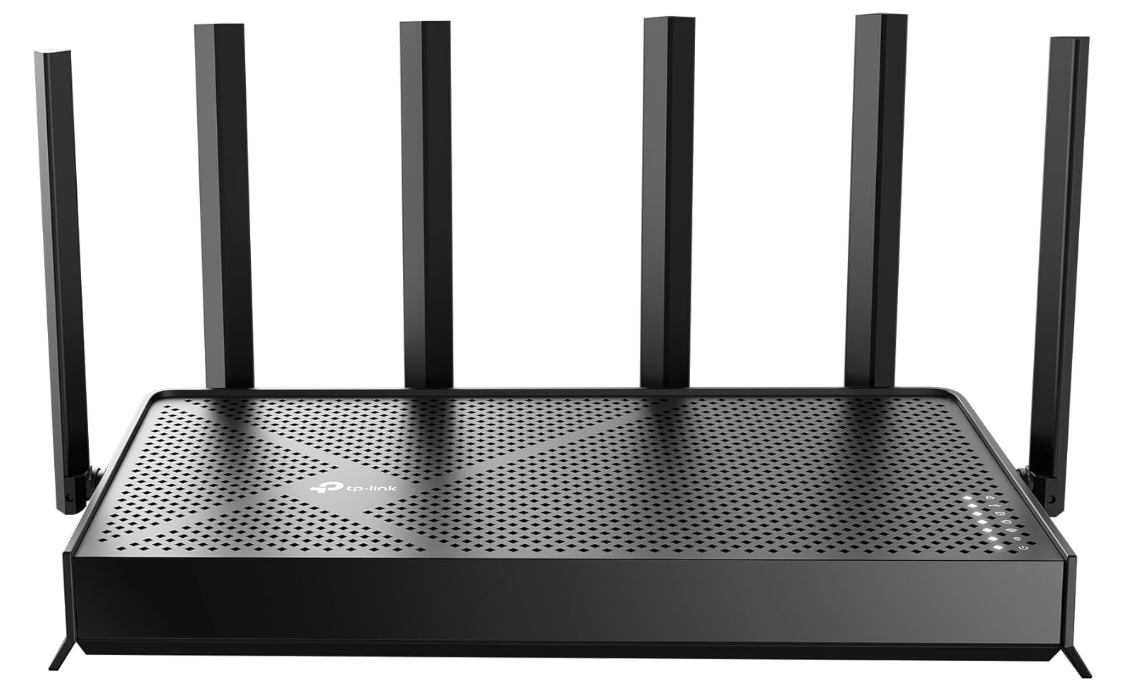
While the setup process is straightforward, new users may be unsure how to configure the router, use the 2.5 Gbps ports, enable Wi-Fi 7 features like Multi-Link Operation (MLO), or optimize network settings. A proper setup helps you get the best speed, coverage, and security from your router.
This guide explains how to use the TP-Link BE6500 (BE400), including installation, initial configuration, performance optimization, troubleshooting, and maintenance.
How Do You Use the TP-Link BE6500 (BE400) Router?
Quick Answer
- Connect the router to your modem.
- Install the TP-Link Tether app.
- Complete the setup wizard.
- Create your Wi-Fi network.
- Connect wired devices to the 2.5 Gbps LAN port.
- Enable Wi-Fi 7 features (if supported).
- Configure Guest Wi-Fi and QoS.
- Turn on HomeShield security.
- Update the firmware.
Prerequisites
Before getting started, you’ll need:
- TP-Link BE6500 (BE400) Router
- Broadband modem
- Ethernet cable
- Smartphone or computer
- TP-Link Tether app
- ISP login details (if required)
Create a Workflow Manually (Recommended for Beginners)
If you’re new to Wi-Fi 7, setting up your first TP-Link BE6500 (BE400) is the best way to understand how the platform actually works.
Step 1: Connect the Router
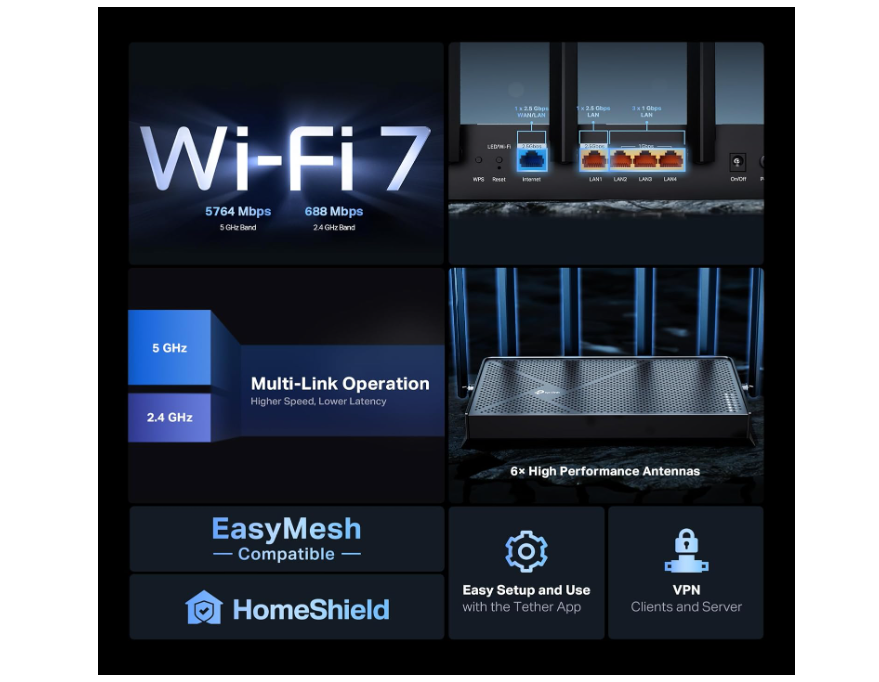
Connect your modem to the router’s 2.5 Gbps WAN port using an Ethernet cable. Turn on the modem first, then power on the router.
Step 2: Install the Tether App
Download the TP-Link Tether app or open the router’s web management page. Sign in or create a TP-Link account.
Step 3: Complete the Setup Wizard
Follow the setup wizard and select your internet connection type:
- Dynamic IP
- PPPoE
- Static IP
Enter your ISP credentials if requested.
Step 4: Configure Your Wi-Fi Network
Create your Wi-Fi name (SSID) and password.
You can use:
- Separate network names for each band
- Smart Connect to manage devices automatically
Step 5: Connect High-Speed Wired Devices
Use the second 2.5 Gbps LAN port for devices such as:
- Gaming PC
- NAS
- Desktop computer
- Streaming device
Step 6: Enable Wi-Fi 7 Features
If your devices support Wi-Fi 7, enable features like:
- Multi-Link Operation (MLO)
- Advanced wireless optimization
These improve speed, stability, and reduce latency.
Step 7: Configure Network Features
Create a Guest Wi-Fi network, enable QoS to prioritize important devices, and activate HomeShield security if available.
Step 8: Update the Firmware
Check for firmware updates through the Tether app or web interface to improve performance and security.
Ready to upgrade your home network?
Follow the steps below to set up your router correctly and enjoy a faster, more reliable home network.
How Can You Use TP-Link BE6500 (BE400) More Efficiently?
Tips
- Place the router in a central, open location.
- Connect gaming or NAS devices using the 2.5 Gbps LAN port.
- Use Wi-Fi 7-compatible devices for maximum performance.
- Test internet speed after setup.
- Restart the router after major setting changes.
How Can You Avoid Common TP-Link BE6500 (BE400) Setup Errors?
Common Mistakes
- Placing the router inside cabinets or behind furniture.
- Using old Ethernet cables that don’t support higher speeds.
- Disabling automatic firmware updates.
- Forgetting to enable QoS for high-priority devices.
- Using weak Wi-Fi passwords.
How Can You Get the Most Value from TP-Link BE6500 (BE400)?
Best Practices
- Keep firmware updated.
- Review connected devices regularly.
- Secure your network with a strong password.
- Use Guest Wi-Fi for visitors.
- Reboot the router occasionally for stable performance.
How Can You Troubleshoot TP-Link BE6500 (BE400) Effectively?
Troubleshooting
No Internet Connection
Restart the modem and router, then verify cable connections.
Slow Wi-Fi Speed
Move the router to a better location and check for interference.
Devices Can’t Connect
Restart the device and confirm the correct Wi-Fi password.
2.5 Gbps Port Not Reaching Full Speed
Ensure your modem, Ethernet cable, and connected device all support 2.5 Gbps.
Tether App Can’t Find the Router
Connect to the router’s Wi-Fi and restart the app.
Frequently Asked Questions
What is Wi-Fi 7?
Wi-Fi 7 is the latest wireless standard that offers higher speeds, lower latency, and better performance than previous Wi-Fi generations.
What is Multi-Link Operation (MLO)?
MLO allows compatible devices to use multiple wireless links simultaneously for faster and more reliable connections.
Can I use the BE400 with my current modem?
Yes. The router works with most broadband modems.
Do I need Wi-Fi 7 devices?
No. The router is backward compatible with Wi-Fi 6, Wi-Fi 5, and older devices, although Wi-Fi 7 devices unlock its full capabilities.
What is the 2.5 Gbps LAN port used for?
It provides faster wired connections for compatible devices such as gaming PCs, NAS systems, and workstations.
Conclusion
The TP-Link BE6500 (BE400) is an excellent entry-level Wi-Fi 7 router that combines fast wireless performance with dual 2.5 Gbps Ethernet ports. With the right setup, updated firmware, and optimized settings, you can enjoy faster downloads, smoother gaming, reliable streaming, and a more responsive home network.
Upgrade to Faster Wi-Fi 7 Today
Set up your TP-Link BE6500 (BE400) correctly to unlock faster wireless speeds, improved network reliability, and high-speed wired performance for gaming, streaming, remote work, and all your connected devices.