How to Use a Netgear Orbi Mesh Wi-Fi System: A Complete Beginner’s Step-by-Step Guide
A Netgear Orbi Mesh Wi-Fi System provides fast, reliable Wi-Fi coverage throughout your home using a router and one or more satellite units. Its dedicated backhaul connection helps maintain strong speeds for streaming, gaming, video calls, and smart home devices.
By TechScaleMedia Editorial · Updated July 2026 · 11 min read
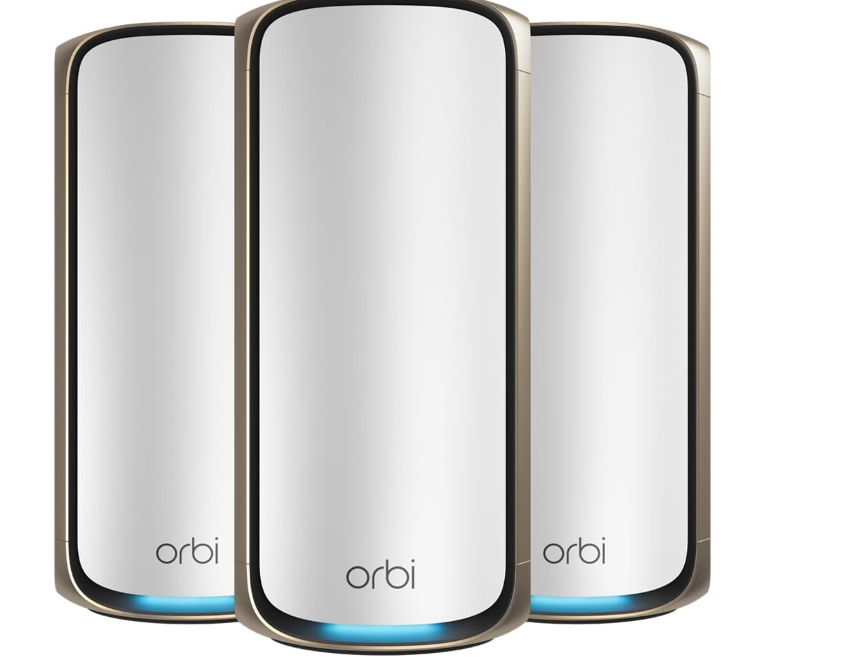
Although setup is simple, many users struggle with satellite placement, syncing devices, or enabling security features. This guide explains how to use a Netgear Orbi Mesh Wi-Fi System, from installation and initial setup to troubleshooting common issues and following best practices for long-term performance.
How Do You Use a Netgear Orbi Mesh Wi-Fi System?
Quick Answer
- Connect the Orbi router to your modem.
- Install the Orbi app.
- Complete the setup wizard.
- Create your Wi-Fi network.
- Add and sync satellite units.
- Enable NETGEAR Armor (if available).
- Set up a guest network.
- Configure parental controls.
- Update the firmware.
Prerequisites
Before getting started, you’ll need:
- Netgear Orbi Mesh Wi-Fi System
- Broadband modem
- Ethernet cable
- Smartphone or tablet
- Orbi app
- Netgear account
Create a Workflow Manually (Recommended for Beginners)
If you’re new to mesh Wi-Fi, setting up your first Netgear Orbi Mesh Wi-Fi System is the best way to understand how the platform actually works.
Step 1: Connect the Router

Connect the Orbi router to your modem using an Ethernet cable. Turn on the modem first, then power on the router and wait until it’s ready.
Step 2: Install the Orbi App
Download the Orbi app, sign in to your Netgear account, and let the app detect your router.
Step 3: Complete the Setup
Follow the setup wizard to configure your internet connection and create your Wi-Fi name and password.
Step 4: Add Satellite Units
Place each satellite halfway between the router and the area with weak Wi-Fi. Wait until the app confirms a successful connection.
Step 5: Enable Security
Turn on NETGEAR Armor (if included) to protect your network from online threats.
Step 6: Configure Network Features
Create a guest Wi-Fi network and set parental controls if needed.
Step 7: Update the Firmware
Install the latest firmware updates to improve security and performance.
Want seamless, high-speed Wi-Fi throughout your entire home?
Follow this step-by-step guide to set up your Netgear Orbi Mesh Wi-Fi System correctly.
What Tips Help You Improve Netgear Orbi Performance?
Tips
These tips help maximize the performance of your mesh Wi-Fi system.
Position the Router Near the Center of Your Home
A central location provides more even Wi-Fi coverage across all rooms.
Keep Satellites Within Reliable Range
Install satellites where they still receive a strong signal from the router before extending coverage farther.
Use Wired Connections for Stationary Devices
Connect desktop PCs, gaming consoles, or smart TVs directly to an Orbi Ethernet port whenever possible.
Test Coverage After Installation
Walk through your home while connected to Wi-Fi to identify any weak areas that may require repositioning.
Separate High-Usage Devices
Distribute streaming and gaming devices across different rooms instead of clustering them around one satellite.
Rename Connected Devices
Label devices in the Orbi app to make network management easier.
Use the Traffic Meter
Review network usage occasionally to understand which devices consume the most bandwidth.
How Can You Avoid Common Netgear Orbi Mesh Wi-Fi System Errors?
Common Mistakes
- Placing satellites too far from the router.
- Blocking units behind furniture.
- Interrupting the setup process.
- Ignoring satellite status lights.
- Skipping firmware updates.
How Can You Get the Most Value from Netgear Orbi Mesh Wi-Fi System?
Best Practices
- Keep the firmware updated.
- Review connected devices regularly.
- Secure your Wi-Fi with a strong password.
- Add more satellites only if coverage is insufficient.
- Restart the system occasionally for optimal performance.
How Can You Troubleshoot Netgear Orbi Mesh Wi-Fi System Effectively?
Troubleshooting
Satellite Won’t Connect
Move it closer to the router and sync again.
No Internet
Restart the modem and router, then check cable connections.
Weak Wi-Fi
Reposition the satellite or add another unit.
Slow Speeds
Restart the network and reduce heavy bandwidth usage.
App Can’t Find the Router
Enable Bluetooth and restart the app.
Frequently Asked Questions
Does Orbi replace my router?
Yes, or it can work in Access Point Mode.
What is the dedicated backhaul?
A separate wireless connection between the router and satellites that improves performance.
Can I create a guest network?
Yes, through the Orbi app.
How many satellites do I need?
Most homes need one or two satellites, while larger homes may require more.
Why isn’t my satellite syncing?
Move it closer to the router and try syncing again.
Conclusion
The Netgear Orbi Mesh Wi-Fi System is an excellent choice for reliable whole-home Wi-Fi. With proper setup, smart satellite placement, and regular updates, you can enjoy fast, secure, and seamless internet throughout your home.
Enjoy Strong Wi-Fi Everywhere
Set up your Netgear Orbi Mesh Wi-Fi System today and eliminate dead zones with fast, reliable coverage for streaming, gaming, remote work, and all your connected devices.