How to Use a TP-Link Deco Mesh Wi-Fi System: A Complete Beginner’s Step-by-Step Guide
A TP-Link Deco Mesh Wi-Fi System is a whole-home networking solution designed to eliminate Wi-Fi dead zones and provide fast, reliable internet coverage throughout your home. Unlike traditional routers that lose signal strength as you move farther away, Deco uses multiple mesh units (nodes) that work together to create a single, seamless Wi-Fi network. Whether you’re streaming 4K videos, attending video meetings, gaming online, or managing smart home devices, Deco ensures stable connectivity in every room.
By TechScaleMedia Editorial · Updated July 2026 · 11 min read
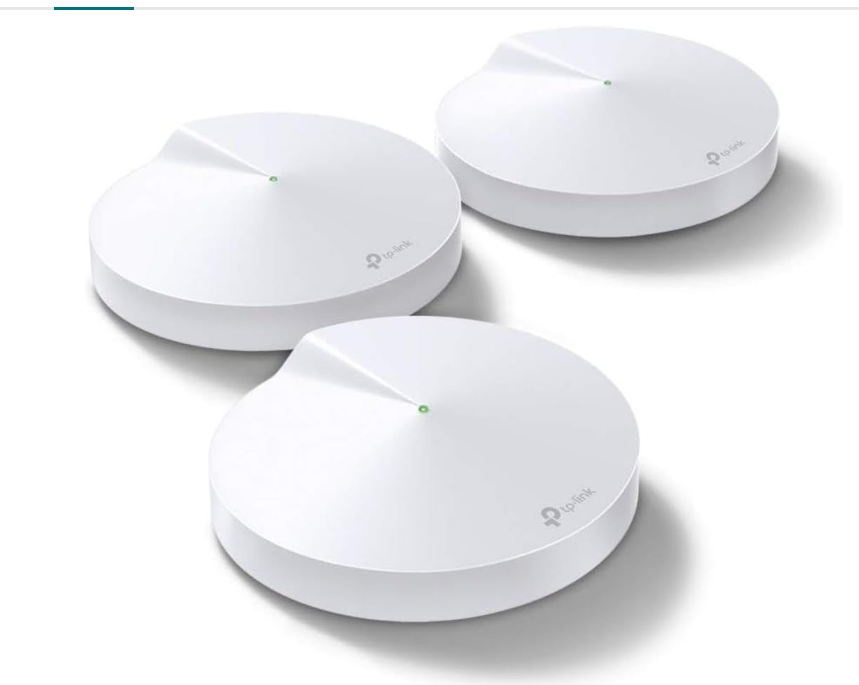
Setting up a mesh Wi-Fi system is much easier than many people expect. However, first-time users often face challenges such as choosing the best placement for each Deco unit, configuring the internet connection, enabling HomeShield security features, or optimizing network performance. Proper installation and configuration ensure maximum Wi-Fi coverage, faster speeds, and uninterrupted roaming as you move around your home.
This guide explains how to use a TP-Link Deco Mesh Wi-Fi System, from the initial installation and network setup to optimizing performance, troubleshooting common problems, and following best practices for long-term reliability.
How Do You Use a TP-Link Deco Mesh Wi-Fi System?
Quick Answer
Using a TP-Link Deco Mesh Wi-Fi System is simple:
- Connect the primary Deco unit to your modem.
- Install the TP-Link Deco app.
- Create or sign in to your TP-Link ID.
- Follow the in-app setup wizard.
- Create your Wi-Fi network name and password.
- Place additional Deco units around your home.
- Enable HomeShield security features.
- Create a guest Wi-Fi network.
- Configure parental controls and QoS.
- Keep your Deco firmware updated.
Prerequisites
Before you begin, make sure you have:
- TP-Link Deco Mesh Wi-Fi System
- Broadband modem
- Ethernet cable
- Smartphone or tablet
- TP-Link Deco app (Android or iOS)
- TP-Link ID account
- Internet service credentials (if required by your ISP)
Create a Workflow Manually (Recommended for Beginners)
If you’re new to mesh Wi-Fi, setting up your first TP-Link Deco Mesh Wi-Fi System is the best way to understand how the platform actually works.
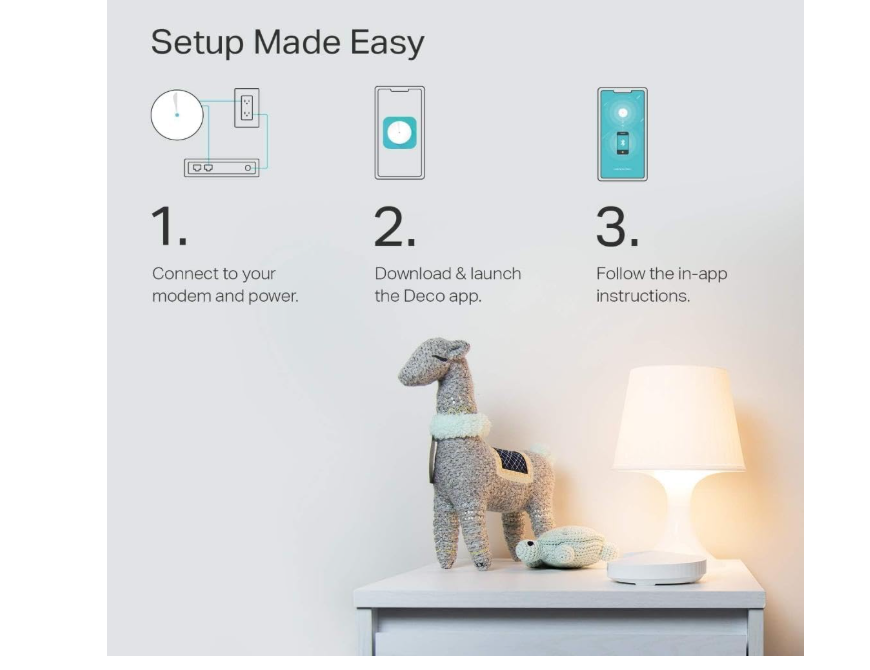
Step 1: Connect the Main Deco Unit
Unbox the primary Deco unit.
- Connect it to your modem using the included Ethernet cable.
- Turn off your modem before connecting.
- Power on the modem first, then plug in the Deco.
- Wait until the LED starts blinking blue, indicating it’s ready for setup.
This main Deco becomes the central hub of your mesh Wi-Fi system.
Step 2: Install the TP-Link Deco App
Download the TP-Link Deco app from the App Store or Google Play.
- Open the app.
- Sign in or create a TP-Link ID.
- Grant the requested permissions.
- Allow Bluetooth and location access if prompted.
The app will automatically detect your Deco device.
Step 3: Follow the Setup Wizard
The Deco app guides you through the installation.
Choose your internet connection type:
- DHCP
- PPPoE
- Static IP
If your internet provider supplied a username and password, enter those credentials when prompted.
Once complete, the Deco will establish an internet connection automatically.
Step 4: Create Your Wi-Fi Network
Now create your home Wi-Fi.
Set:
- Wi-Fi network name (SSID)
- Secure password
One of the biggest advantages of Deco is that every unit uses a single SSID, allowing devices to roam automatically without reconnecting.
Step 5: Add Additional Deco Units
Place the remaining Deco units around your home.
For best mesh Wi-Fi placement:
- Position each unit about one room away from the previous one.
- Avoid thick concrete walls.
- Keep units elevated on shelves or tables.
- Avoid placing them inside cabinets or behind TVs.
The app automatically pairs each new node.
Step 6: Check Signal Strength
After placing each Deco unit:
- Open the Deco app.
- View the signal strength indicator.
- Reposition any unit showing a weak connection.
Proper placement improves whole-home Wi-Fi coverage and eliminates dead zones.
Step 7: Enable HomeShield Security
If your Deco model includes HomeShield, activate its security features.
You can enable:
- Network security scanning
- Antivirus protection
- IoT device security
- Intrusion prevention
- Device isolation
These tools help protect your home network from online threats.
Step 8: Create a Guest Network
Open the Guest Network settings.
Create a separate Wi-Fi network for visitors.
Benefits include:
- Keeps guests off your private devices
- Protects shared files and smart home devices
- Allows temporary internet access without revealing your main password
Step 9: Configure Parental Controls and QoS
The Deco app lets you manage internet access for your family.
Create profiles for each household member.
Configure:
- Screen time limits
- Website filtering
- Bedtime schedules
- Usage reports
You can also enable Quality of Service (QoS) to prioritize bandwidth for activities such as:
- Video conferencing
- Gaming
- Streaming
- Remote work
Step 10: Update Firmware Regularly
Open the app and check for firmware updates.
Enable automatic updates whenever possible.
Firmware updates often include:
- Security improvements
- Bug fixes
- Better Wi-Fi performance
- Compatibility enhancements
Keeping your Deco system updated ensures reliable network performance.
Want stronger Wi-Fi in every room without dead zones?
Follow this step-by-step guide to set up your TP-Link Deco Mesh Wi-Fi System the right way.
What Tips Help You Get Better Performance from a TP-Link Deco Mesh Wi-Fi System?
Tips
These practical tips help improve speed, coverage, and everyday performance.
Place Deco Units at Mid-Height
Position each unit on a shelf or table instead of the floor for better signal distribution.
Reduce Wireless Interference
Keep Deco units away from microwaves, cordless phones, Bluetooth hubs, and thick metal objects that can weaken Wi-Fi signals.
Use Ethernet Backhaul When Possible
If your home has Ethernet wiring, connect Deco units with Ethernet cables for faster and more stable communication between nodes.
Connect High-Bandwidth Devices to the Closest Node
Place gaming consoles, smart TVs, and desktop computers near the nearest Deco unit for the best possible performance.
Run Speed Tests After Installation
Use the Deco app to test internet speed in different rooms and adjust node placement if needed.
Limit Unused Connected Devices
Disconnect devices you no longer use to reduce unnecessary network traffic.
Name Your Network Clearly
Choose an easy-to-recognize Wi-Fi name so family members can identify the correct network quickly.
What Common Mistakes Should You Avoid?
Common Mistakes
Avoid these setup mistakes that can reduce mesh network performance.
Installing All Units Too Close Together
Keeping every node in one area wastes coverage and leaves other parts of the house with weak signals.
Blocking Airflow Around the Units
Placing Deco units in enclosed spaces can cause heat buildup, which may affect long-term performance.
Skipping the Signal Check
Always verify each node has a strong connection before finalizing its location.
Mixing Different Network Names
Using separate Wi-Fi names from an old router can create confusion and prevent seamless roaming.
Forgetting ISP Login Information
Some internet providers require PPPoE credentials during setup. Have these ready before installing the system.
Ignoring LED Status Lights
The LED color provides valuable information about setup progress and connection status.
Adding Too Many Nodes Unnecessarily
Installing more units than your home requires can increase wireless interference instead of improving coverage.
What Are the Best Practices for Long-Term Performance?
Best Practices
Follow these habits to keep your Deco system running efficiently over time.
Review Network Activity Monthly
Check connected devices occasionally to identify unknown devices or unusual activity.
Restart After Major Configuration Changes
Placing Deco units in enclosed spaces can cause heat buildup, which may affect long-term performance.
Update Your Wi-Fi Password Periodically
Always verify each node has a strong connection before finalizing its location.
Remove Offline Devices
Using separate Wi-Fi names from an old router can create confusion and prevent seamless roaming.
Expand the Mesh as Your Needs Grow
Some internet providers require PPPoE credentials during setup. Have these ready before installing the system.
Back Up Important Network Settings
Keep a record of your ISP credentials, Wi-Fi password, and administrator account information for faster recovery if you reset the system.
Review Parental Control Rules
Update device profiles and schedules as your family’s internet usage changes over time.
How Can You Troubleshoot Common TP-Link Deco Problems?
Troubleshooting
Problem: Deco App Cannot Find My Device
Solution
- Enable Bluetooth.
- Move closer to the Deco unit.
- Restart the app.
- Reset the Deco if necessary.
Problem: No Internet Connection
Solution
- Restart the modem.
- Restart all Deco units.
- Verify ISP settings.
- Check Ethernet cable connections.
Problem: Weak Wi-Fi Signal
Solution
- Reposition the Deco units.
- Reduce physical obstacles.
- Add another Deco node for larger homes.
Problem: Devices Keep Disconnecting
Solution
- Update firmware.
- Restart the mesh network.
- Forget and reconnect the Wi-Fi network.
- Check for interference from nearby electronics.
Problem: Slow Internet Speeds
Solution
- Run the built-in speed test.
- Prioritize important devices using QoS.
- Limit heavy downloads during peak usage.
- Contact your ISP if speeds remain low.
Problem: Guest Network Isn’t Working
Solution
- Ensure Guest Network is enabled.
- Restart the Deco system.
- Recreate the guest network if needed.
Frequently Asked Questions
How many TP-Link Deco units do I need?
Most apartments need one or two units, while larger homes typically require three or more depending on the layout and square footage.
Can I use Deco with my existing modem?
Yes. Deco connects directly to most cable, fiber, and DSL modems.
Does Deco replace my router?
Yes. In Router Mode, Deco replaces your existing wireless router. It can also operate in Access Point Mode if you want to keep your current router.
Can I create a guest Wi-Fi network?
Yes. The Deco app allows you to create a separate guest network to keep visitor devices isolated from your main network.
What is seamless roaming?
Seamless roaming automatically connects your devices to the strongest Deco unit as you move around your home without interrupting your connection.
Does TP-Link Deco include parental controls?
Yes. Most Deco models include parental controls that let you manage screen time, filter content, and create user profiles through the Deco app.
Why is my Deco system showing a weak signal?
The units may be too far apart or blocked by walls or large metal objects. Reposition the nodes or add another Deco unit to improve coverage.
Conclusion
A TP-Link Deco Mesh Wi-Fi System is one of the easiest ways to achieve fast, reliable, and seamless internet coverage throughout your home. By connecting the primary unit correctly, placing satellite nodes in optimal locations, enabling HomeShield security, and using features like guest networking, parental controls, and QoS, you can build a secure and high-performing home network.
Regular firmware updates, smart node placement, and routine monitoring through the Deco app will keep your whole-home Wi-Fi running smoothly for years. Whether you’re working remotely, streaming movies, gaming online, or managing dozens of smart devices, a properly configured Deco system delivers consistent coverage without frustrating dead zones.
Eliminate Wi-Fi Dead Zones and Enjoy Seamless Connectivity
Don’t let weak signals slow you down. Set up your TP-Link Deco Mesh Wi-Fi System today to enjoy fast, secure, and reliable internet in every corner of your home. With just a few simple steps, you can improve your network performance, protect your connected devices, and experience uninterrupted browsing, streaming, gaming, and remote work wherever you are.