How to Use Dashlane: A Beginner’s Step-by-Step Guide
Managing multiple online accounts can become difficult when you use the same passwords repeatedly or store login details in unsafe places. Weak passwords, forgotten credentials, and data breaches can put your personal information at risk.
By TechScaleMedia Editorial · Updated July 2026 · 11 min read
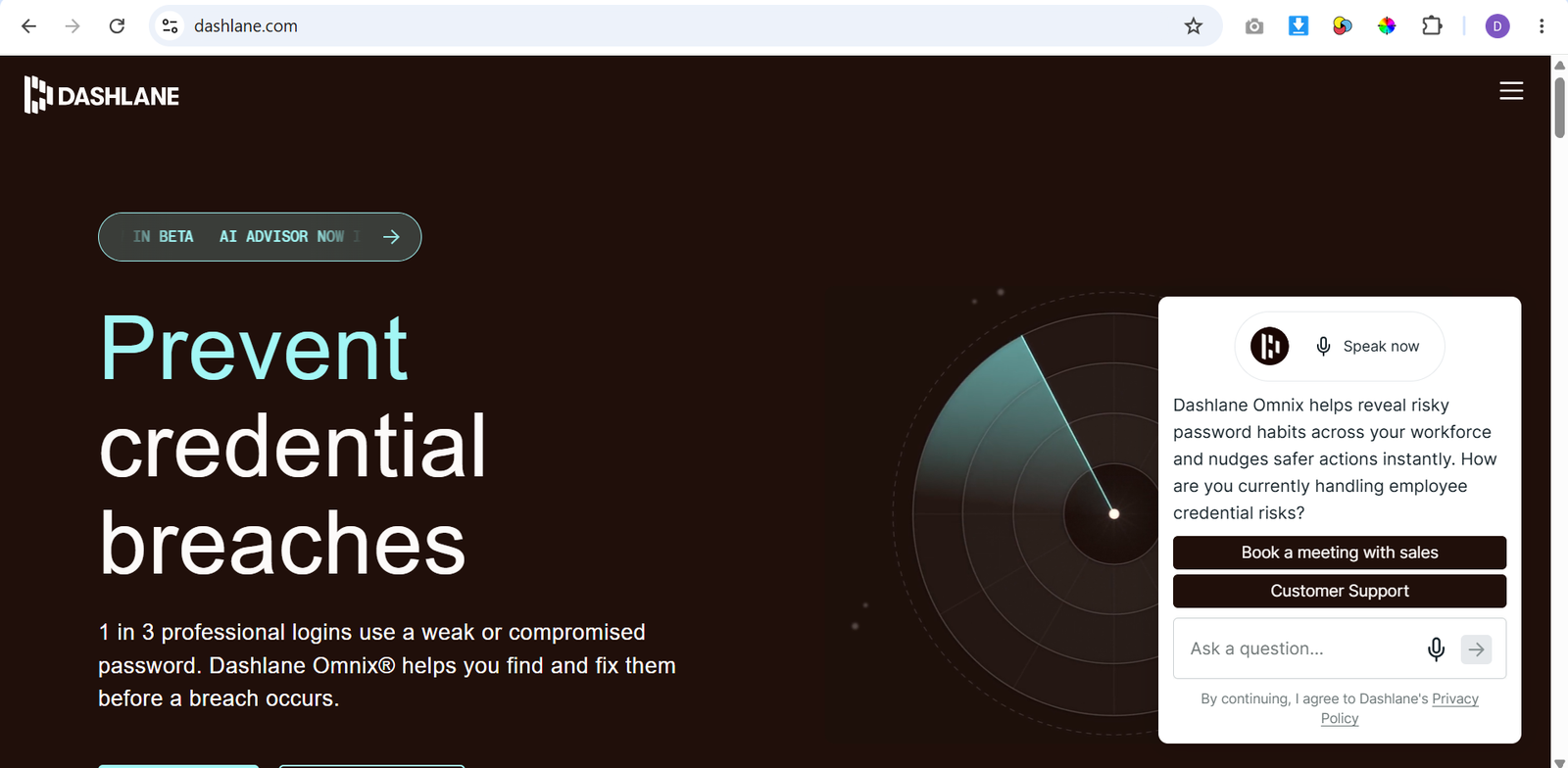
Dashlane solves this problem by securely storing your passwords, generating strong credentials, autofilling login details, and monitoring your accounts for potential security issues. Instead of remembering dozens of passwords, you only need to remember one secure Master Password.
In this guide, you’ll learn how to use Dashlane step by step, from setting up your account and importing passwords to improving password security and protecting your digital identity.
How Do You Use Dashlane?
Quick Answer
Using Dashlane is simple:
- Create a Dashlane account.
- Set a strong Master Password.
- Install the browser extension or mobile app.
- Import existing passwords.
- Save new login details.
- Enable security monitoring.
- Turn on two-factor authentication.
- Use autofill for passwords and payments.
- Share credentials securely when needed.
Prerequisites
Before getting started, you’ll need:
- A Dashlane account
- A strong Master Password
- A computer or smartphone
- A supported browser
- Existing login details (optional)
- Email address for security alerts
Create a Workflow Manually (Recommended for Beginners)
If you’re new to password management, securing your first account with Dashlane is the best way to understand how the platform actually works.
Step 1: Create Your Dashlane Account
Visit Dashlane and create your account using your email address.
During setup, you will create a Master Password.
This password protects your entire password vault, so make sure it is:
- Unique
- Strong
- Easy for you to remember
Avoid using a password that you already use for another account.
Step 2: Install the Dashlane Extension and App
Install Dashlane on the devices you use regularly.
You can add:
- Browser extension for Chrome, Edge, Firefox, or Safari
- Mobile app for Android or iPhone
The extension allows Dashlane to save passwords, fill login forms, and generate secure passwords while browsing.
Step 3: Import Your Existing Passwords
If you already have saved passwords in your browser or another password manager, import them into Dashlane.
This helps you move all credentials into one secure location.
You can import passwords from sources such as:
- Browser password managers
- CSV files
- Other password managers
Review imported passwords after migration to remove old or duplicate accounts.
Step 4: Save New Login Credentials
When you sign in to a website, Dashlane can automatically save your login information.
Stored details may include:
- Website name
- Username
- Password
- Notes
- Additional account information
Once saved, Dashlane can automatically fill these details whenever you return to that website.
Step 5: Generate Strong Passwords
Dashlane includes a password generator that creates secure passwords for new accounts.
A strong password usually includes:
- Uppercase letters
- Lowercase letters
- Numbers
- Special characters
Using unique passwords for every account reduces the risk if one website experiences a security breach.
Step 6: Check Your Password Security
Use Dashlane’s security tools to review your password health.
The security check can help identify:
- Weak passwords
- Reused passwords
- Old credentials
- Potentially compromised passwords
Update risky passwords to improve your overall account protection.
Step 7: Enable Dark Web Monitoring
Dashlane can monitor whether your email addresses appear in known data breaches.
To set it up:
- Add your email address.
- Enable monitoring.
- Review security alerts.
If your information appears in a breach, update affected passwords immediately.
Step 8: Use Autofill for Passwords and Payments
Dashlane can automatically fill:
- Login credentials
- Addresses
- Payment information
This saves time when signing into websites or completing online purchases.
You can manage autofill settings and choose what information Dashlane can access.
Step 9: Enable Two-Factor Authentication
Add an extra layer of protection by enabling two-factor authentication (2FA).
With 2FA, signing in requires:
- Your Master Password
- A verification code or authentication method
This helps protect your account even if someone discovers your password.
Step 10: Share Passwords Securely
Dashlane allows users to share selected credentials without sending passwords through email or messages.
This is useful for:
- Families sharing subscriptions
- Teams managing business accounts
- Shared services
Only share access with trusted people and remove permissions when they are no longer needed.
Ready to secure your online accounts?
Start using Dashlane to manage passwords safely, improve account security, and simplify your everyday online logins.
How Can You Use Dashlane More Efficiently?
Tips
- Use browser shortcuts and autofill features to save time when signing into websites.
- Organize saved items with categories so you can find information faster.
- Add secure notes for important information that does not belong in regular documents.
- Review your security dashboard occasionally to identify areas that need attention.
- Install Dashlane on frequently used devices for a consistent experience.
- Use the search feature inside your vault instead of manually browsing entries.
- Remove outdated accounts from your vault to keep it organized.
How Can You Avoid Common Dashlane Errors?
Common Mistakes
- Storing sensitive information in regular notes apps instead of a secure vault.
- Ignoring security notifications after a potential data exposure.
- Forgetting to update account recovery details.
- Sharing private account access through messages or email.
- Leaving unused browser extensions installed.
- Importing old account information without checking for duplicates.
- Using Dashlane without protecting the main account properly.
How Can You Get the Most Value from Dashlane?
Best Practices
- Enable multi-factor authentication on important online services.
- Review your digital accounts periodically and close unused ones.
- Keep applications and devices updated to reduce security risks.
- Use separate accounts for personal and business activities.
- Limit shared access only to people who actually need it.
- Maintain an organized digital security routine instead of reacting only after problems occur.
- Combine a password manager with safe browsing habits for stronger protection.
How Can You Troubleshoot Dashlane Effectively?
Troubleshooting
Dashlane is not filling passwords automatically
Check that the browser extension is enabled and autofill permissions are turned on.
Imported passwords are missing
Review the import file format and try importing again from the original password source.
Master Password is not working
Confirm that you are entering the correct password. Dashlane cannot access or recover your Master Password.
Security alerts are not appearing
Check that monitoring features are enabled and your email address has been added.
Dashlane extension is not working
Update your browser, restart it, and reinstall the extension if necessary.
Frequently Asked Questions
Is Dashlane safe to use?
Yes. Dashlane uses encryption to protect stored information and provides security features such as password monitoring and two-factor authentication.
Can Dashlane generate passwords?
Yes. Dashlane includes a password generator that creates strong and unique passwords for new accounts.
Can Dashlane detect data breaches?
Yes. Dashlane’s monitoring features can alert users if their information appears in known security breaches.
Can I use Dashlane on multiple devices?
Yes. Dashlane supports computers, browsers, and mobile devices, allowing users to access their password vault across supported platforms.
Can Dashlane store payment information?
Yes. Dashlane can securely store payment details and use autofill features to make online checkout faster.
Conclusion
Dashlane makes managing online security easier by storing passwords securely, creating stronger credentials, and reducing the risk of reused or weak passwords. With features like autofill, password monitoring, and secure sharing, it helps individuals and teams protect their digital accounts.
By following this guide, you can set up Dashlane, organize your passwords, improve account security, and create safer online habits.
Build a stronger foundation for password security and digital protection with Dashlane.
Start using Dashlane today to secure your passwords, simplify online logins, and protect your digital identity with a reliable password management solution.