How to Use GoPro: A Beginner’s Step-by-Step Guide
Capturing high-quality videos during adventures, sports, or travel can be difficult with a smartphone. Fast movement, shaky footage, harsh weather, and limited mounting options often make it challenging to record smooth, professional-looking videos. That’s where GoPro comes in. Designed for action and adventure, GoPro cameras deliver stunning video quality, advanced stabilization, and rugged durability, making them ideal for everything from hiking and cycling to underwater exploration and vlogging.
By TechScaleMedia Editorial · Updated July 2026 · 11 min read
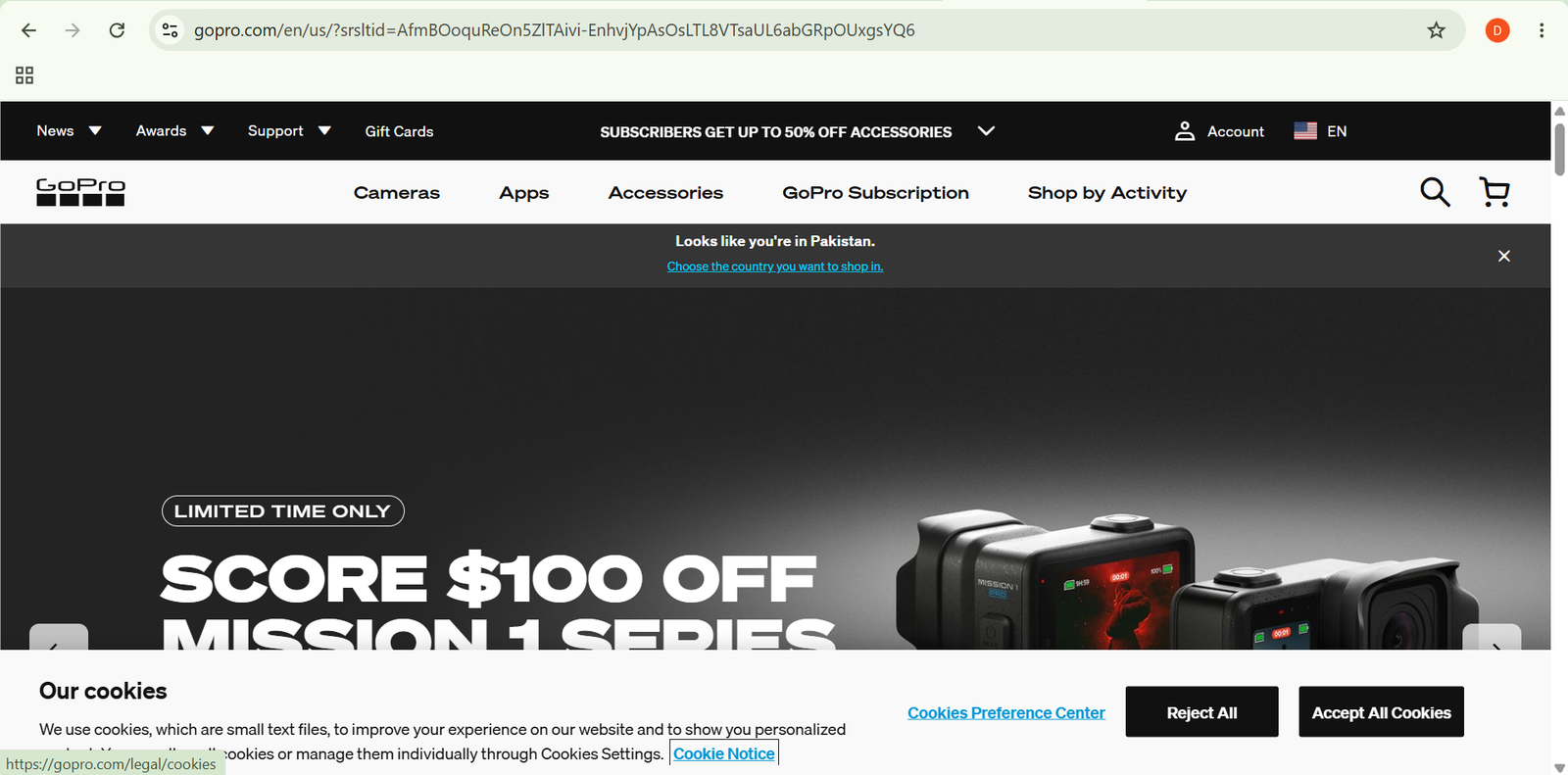
In this guide, you’ll learn how to use a GoPro step by step, from setting up your camera and choosing the right settings to editing your footage with the GoPro Quik app and sharing your finished videos.
How Do You Use GoPro?
Quick Answer
To use GoPro is simple:
- Charge your GoPro camera.
- Download and connect the GoPro Quik app.
- Update the camera firmware.
- Choose a capture mode.
- Adjust video settings.
- Mount your GoPro securely.
- Enable HyperSmooth stabilization.
- Record your footage.
- Transfer videos to the Quik app.
- Edit and export your final video.
Prerequisites
Before getting started, you’ll need:
- A GoPro camera
- A fully charged battery
- A microSD card (recommended UHS-I U3 or faster)
- The GoPro Quik app installed on your smartphone
- A GoPro account (optional but recommended)
- A stable Wi-Fi or Bluetooth connection
- Appropriate GoPro mounts or accessories for your activity
Create a Workflow Manually (Recommended for Beginners)
If you’re new to action cameras, capturing your first adventure with GoPro is the best way to understand how the platform actually works.
Step 1: Charge Your Camera and Connect to the GoPro Quik App
Before your first recording session, fully charge your GoPro using the included USB-C cable.
Once charged:
- Turn on your GoPro.
- Install the GoPro Quik app on your smartphone.
- Enable Bluetooth and Wi-Fi.
- Follow the on-screen instructions to pair your camera.
Connecting your camera to the Quik app makes it easier to control settings, transfer files, and receive firmware updates.
Step 2: Update Your Camera Firmware
Keeping your GoPro updated ensures you have the latest features, performance improvements, and bug fixes.
To update:
- Open the Quik app.
- Connect your GoPro.
- Check for available firmware updates.
- Download and install the latest version.
Avoid turning off the camera during the update process.
Step 3: Choose Your Capture Mode
GoPro offers multiple shooting modes for different situations.
Common modes include:
- Video for everyday recording
- Photo for high-resolution images
- Time Lapse for capturing long events
- TimeWarp for stabilized moving time-lapse videos
- Slow Motion for dramatic action sequences
Choose the mode that best matches the type of content you want to create.
Step 4: Adjust Resolution and Frame Rate
Selecting the right video settings helps you balance image quality, storage space, and battery life.
For example:
- 5.3K or 4K for maximum detail
- 1080p for smaller file sizes
- 30 FPS for everyday videos
- 60 FPS for smoother motion
- 120 FPS or 240 FPS for slow-motion footage
Higher resolutions produce sharper videos but require more storage and processing power.
Step 5: Mount Your GoPro
One of GoPro’s biggest advantages is its versatility.
Choose a mount based on your activity, such as:
- Helmet mount
- Chest mount
- Handlebar mount
- Tripod
- Selfie stick
- Suction cup mount
- Magnetic clip
Ensure the mount is securely attached before recording, especially during high-speed activities.
Step 6: Enable HyperSmooth Stabilization
GoPro’s HyperSmooth technology significantly reduces camera shake, resulting in smoother videos.
To enable it:
- Open camera settings.
- Navigate to Stabilization.
- Turn on HyperSmooth.
- Choose the stabilization level available on your camera model.
This feature is especially useful for running, mountain biking, skiing, and handheld filming.
Step 7: Record Your Footage
Once your settings are ready, start recording your adventure.
You can begin recording by:
- Pressing the camera’s shutter button.
- Using Voice Control commands.
- Starting recording remotely through the Quik app.
Keep your shots steady and experiment with different camera angles to make your videos more engaging.
Step 8: Transfer Footage to Your Phone
After recording, move your videos to the GoPro Quik app for editing.
To transfer files:
- Open the Quik app.
- Connect your GoPro.
- Select the videos you want to import.
- Allow Quik to transfer them automatically.
Some GoPro models support automatic background transfers, making the process even more convenient.
Step 9: Edit Your Videos with the Quik App
The GoPro Quik app includes built-in editing tools that make creating professional videos easy.
You can:
- Automatically generate highlight videos
- Trim unwanted clips
- Rearrange scenes
- Add transitions
- Include music
- Apply filters
- Insert text and titles
- Adjust video speed
If you prefer more control, switch from Auto Edit to Manual Edit and customize every scene.
Step 10: Export and Share Your Video
Once you’re satisfied with your edit:
- Choose your export resolution.
- Save the finished video to your device.
- Share directly to platforms like YouTube, Instagram, Facebook, TikTok, or other social media channels.
You can also store your videos in cloud storage for future editing or backup.
Ready to capture your adventures like a pro?
Grab your GoPro, follow this guide, and start creating incredible action videos in minutes.
How Can You Get the Most Value from GoPro?
Tips
- Record in 4K or higher for better editing flexibility.
- Use HyperSmooth whenever filming handheld action.
- Clean the camera lens before every recording.
- Carry extra batteries for longer adventures.
- Format your microSD card regularly for optimal performance.
- Use official GoPro mounts for added safety.
- Record multiple camera angles to create more dynamic videos.
- Keep firmware updated for the latest features.
What Should You Avoid When Using GoPro?
Common Mistakes
- Recording with a low battery.
- Forgetting to insert a compatible microSD card.
- Using an unstable or loose mount.
- Choosing unnecessarily high resolution for short social media videos.
- Forgetting to enable HyperSmooth during action shots.
- Overlooking firmware updates.
- Filling the memory card completely before transferring footage.
How Can You Maximize Your GoPro Experience?
Best Practices
- Update firmware before important trips.
- Use the appropriate frame rate for your activity.
- Keep spare batteries and memory cards available.
- Organize your footage after every recording session.
- Back up important videos to cloud storage or an external drive.
- Experiment with different mounts to create unique perspectives.
- Preview important recordings before leaving your location.
How Can You Troubleshoot GoPro Effectively?
Troubleshooting
Camera won’t connect to the Quik app
Restart both your smartphone and GoPro, enable Bluetooth and Wi-Fi, then try pairing again.
Video appears shaky
Verify that HyperSmooth stabilization is enabled and that the camera is mounted securely.
Battery drains quickly
Reduce screen brightness, disable unnecessary wireless features, or carry additional batteries for extended recording sessions.
Videos won’t transfer
Ensure both devices remain connected during the transfer and verify that sufficient storage is available on your phone.
Memory card error
Use a compatible high-speed microSD card and format it within the GoPro camera before recording.
Frequently Asked Questions
Can I use a GoPro without the Quik app?
Yes. You can record directly using the camera, but the Quik app makes it easier to update firmware, transfer files, edit videos, and control your camera remotely.
What is HyperSmooth?
HyperSmooth is GoPro’s built-in video stabilization technology that reduces camera shake and produces smoother footage during movement.
Can I use a GoPro underwater?
Yes. Most modern GoPro cameras are waterproof to specific depths without an additional housing. For deeper dives, use an official waterproof protective case.
Is GoPro good for vlogging?
Yes. GoPro is an excellent choice for travel vloggers and outdoor creators because of its compact size, image stabilization, and wide-angle lens.
Conclusion
GoPro makes it easy to capture stunning videos wherever your adventures take you. With high-resolution recording, HyperSmooth stabilization, versatile mounting options, and the powerful GoPro Quik app, even beginners can create professional-looking content without complex equipment. By following the steps in this guide, you’ll be ready to record, edit, and share memorable moments with confidence.
Build a stronger foundation for action photography and adventure filmmaking with GoPro.
Start using GoPro today to capture smooth, high-quality action videos, edit them effortlessly with the Quik app, and share your adventures with the world—all from one powerful and portable action camera.