How to Use Trend Micro: A Beginner’s Step-by-Step Guide
Cyber threats such as viruses, ransomware, phishing scams, and malicious websites can put your personal data and devices at risk. Without reliable protection, even everyday activities like browsing the web, shopping online, or opening email attachments can expose you to security threats.
By TechScaleMedia Editorial · Updated July 2026 · 11 min read
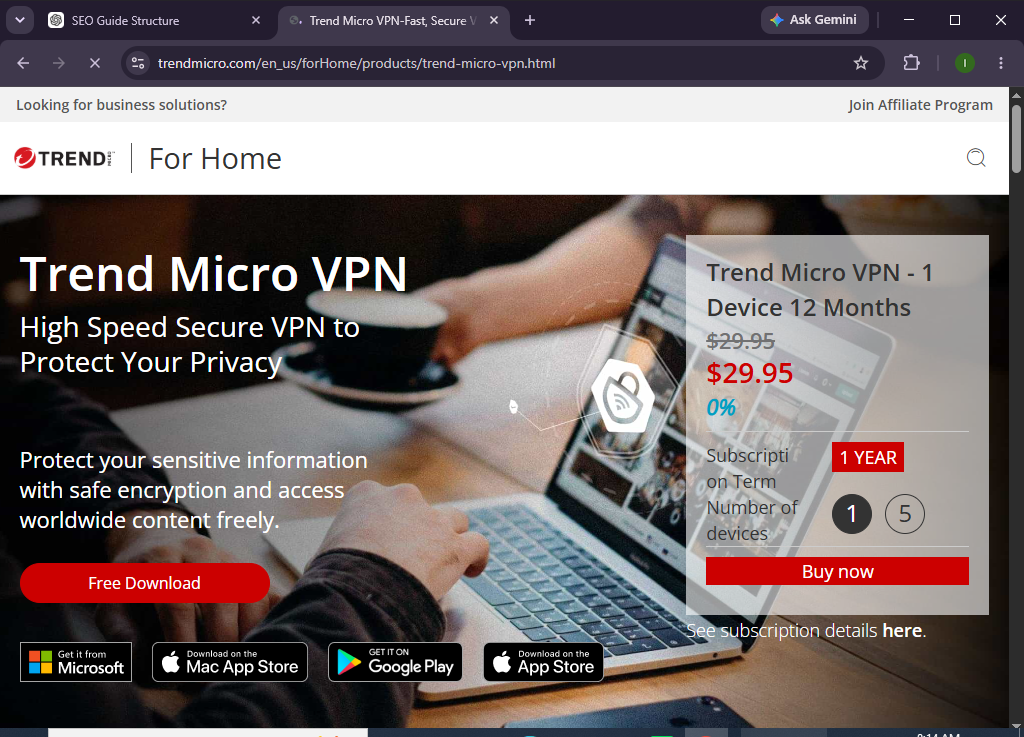
Trend Micro is a comprehensive cybersecurity solution that helps protect your devices with real-time threat detection, antivirus protection, web security, ransomware defense, and privacy features. Its intuitive interface makes it easy for both beginners and experienced users to strengthen their digital security.
Whether you’re protecting a personal computer, family devices, or your home office, this guide will show you exactly how to set up and use Trend Micro from scratch.
How Do You Set Up and Use Trend Micro?
Quick Answer
To use Trend Micro:
- Create your Trend Micro account.
- Purchase or activate your subscription.
- Download and install the Trend Micro application.
- Sign in and activate your license.
- Run your first security scan.
- Enable real-time protection and ransomware defense.
- Configure your security preferences.
- Schedule automatic scans and updates.
- Review security alerts regularly.
- Keep the software updated for continuous protection.
Prerequisites
Before you begin, make sure you have:
- A Trend Micro account
- An active Trend Micro subscription or license key
- A Windows, macOS, Android, or iOS device
- A stable internet connection
- Administrator privileges on your device
- Permission to install software
- Basic computer knowledge
Create a Workflow Manually (Recommended for Beginners)
If you’re new to cybersecurity, protecting your first device in Trend Micro is the best way to understand how the platform actually works.
Step 1: Create Your Trend Micro Account
Visit the Trend Micro website and register for an account.
During registration:
- Enter your email address.
- Create a secure password.
- Verify your email.
- Sign in to your account dashboard.
Your account allows you to manage devices, licenses, and subscriptions.
Step 2: Download the Trend Micro Software
After signing in:
- Navigate to your dashboard.
- Select your subscribed product.
- Download the installer.
- Save it to your computer.
Choose the correct version for your operating system.
Step 3: Install Trend Micro
Run the downloaded installer.
Follow the setup wizard to:
- Accept the license agreement.
- Complete installation.
- Restart your computer if prompted.
Launch Trend Micro after installation.
Step 4: Activate Your License
Open Trend Micro.
Then:
- Sign in to your account.
- Enter your activation code if required.
- Verify your subscription.
Your protection becomes active immediately after activation.
Step 5: Run Your First Security Scan
Start a full system scan.
Trend Micro checks for:
- Viruses
- Malware
- Spyware
- Ransomware
- Potentially unwanted programs
- Security vulnerabilities
Review the scan results and follow the recommended actions.
Step 6: Enable Real-Time Protection
Open the security settings.
Ensure the following features are enabled:
- Real-Time Protection
- Web Threat Protection
- Ransomware Protection
- Email Protection
- Firewall integration (if available)
These features help protect your device continuously.
Step 7: Configure Security Settings
Customize your protection by adjusting:
- Scan schedules
- Notification preferences
- Folder protection
- Web filtering
- Automatic updates
Tailor the settings to match your security needs.
Step 8: Schedule Automatic Scans
Set up recurring scans.
Choose:
- Daily
- Weekly
- Monthly
Automatic scans help identify threats without requiring manual intervention.
Step 9: Review Security Reports
Visit the dashboard to monitor:
- Recent scans
- Detected threats
- Quarantined files
- Security recommendations
- Software updates
Review reports regularly to maintain device health.
Step 10: Keep Trend Micro Updated
Enable automatic updates.
Regular updates provide:
- New malware definitions
- Performance improvements
- Security enhancements
- Bug fixes
Keeping your software current ensures maximum protection.
Looking for a simple way to strengthen your digital security?
Explore Trend Micro and protect your devices with intelligent security tools designed to defend against today’s online threats.
How Can You Get the Best Protection from Trend Micro?
Tips
- Run full system scans regularly.
- Enable automatic updates.
- Keep real-time protection active.
- Review quarantine items before deleting them.
- Scan USB drives before opening files.
- Protect important folders with ransomware protection.
- Monitor security notifications.
- Update your operating system regularly.
What Should You Avoid When Using Trend Micro?
Common Mistakes
- Ignoring malware alerts
- Disabling real-time protection
- Skipping software updates
- Downloading software from unknown websites
- Opening suspicious email attachments
- Running multiple antivirus programs simultaneously
- Ignoring scheduled security scans
How Can You Keep Your Devices Secure with Trend Micro?
Best Practices
- Enable all available protection features.
- Schedule weekly full system scans.
- Update malware definitions automatically.
- Protect sensitive folders from ransomware.
- Keep your operating system updated.
- Avoid downloading software from untrusted sources.
- Review security reports frequently.
- Back up important files regularly.
- Educate family members about phishing scams.
- Monitor your device for unusual activity.
What Should You Do If Trend Micro Isn’t Working?
Troubleshooting
Installation fails
- Restart your computer.
- Remove conflicting antivirus software.
- Download the latest installer.
Software won’t update
- Check your internet connection.
- Verify your subscription.
- Restart the application.
Scan won’t start
- Close unnecessary programs.
- Restart the device.
- Update Trend Micro.
License activation problems
- Verify your activation code.
- Confirm your account information.
- Contact Trend Micro support if necessary.
Frequently Asked Questions
Is Trend Micro good for beginners?
Yes. Trend Micro offers an easy-to-use interface that makes it simple for beginners to protect their devices.
Does Trend Micro protect against ransomware?
Yes. Trend Micro includes ransomware protection to help safeguard your important files.
Can Trend Micro detect phishing websites?
Yes. It helps identify and block many malicious and phishing websites while browsing.
Does Trend Micro slow down my computer?
Trend Micro is designed to provide strong protection while minimizing the impact on system performance.
Can I protect multiple devices?
Yes. Many Trend Micro plans allow protection for multiple Windows, Mac, Android, and iOS devices.
Does Trend Micro update automatically?
Yes. Automatic updates help ensure you receive the latest malware definitions and security improvements.
Conclusion
Trend Micro provides comprehensive cybersecurity by combining antivirus protection, ransomware defense, web security, and real-time threat detection in a single solution. Its easy setup process and automated security features make it an excellent choice for users who want reliable protection without complicated configuration.
By following this guide—creating your account, installing the software, activating your license, enabling real-time protection, scheduling scans, and keeping the application updated—you can better protect your devices and personal information from today’s evolving cyber threats.
Protect your digital world before threats have a chance to strike.
Get started with Trend Micro, personalize your security settings, and enjoy smarter, always-on protection for your devices and online activities.