How to Use Proton VPN: A Beginner’s Step-by-Step Guide
Protecting your online privacy has become essential in today’s digital world. Whether you’re using public Wi-Fi, accessing sensitive information, or simply wanting to browse anonymously, your internet activity can be exposed without the right security tools.
By TechScaleMedia Editorial · Updated July 2026 · 11 min read
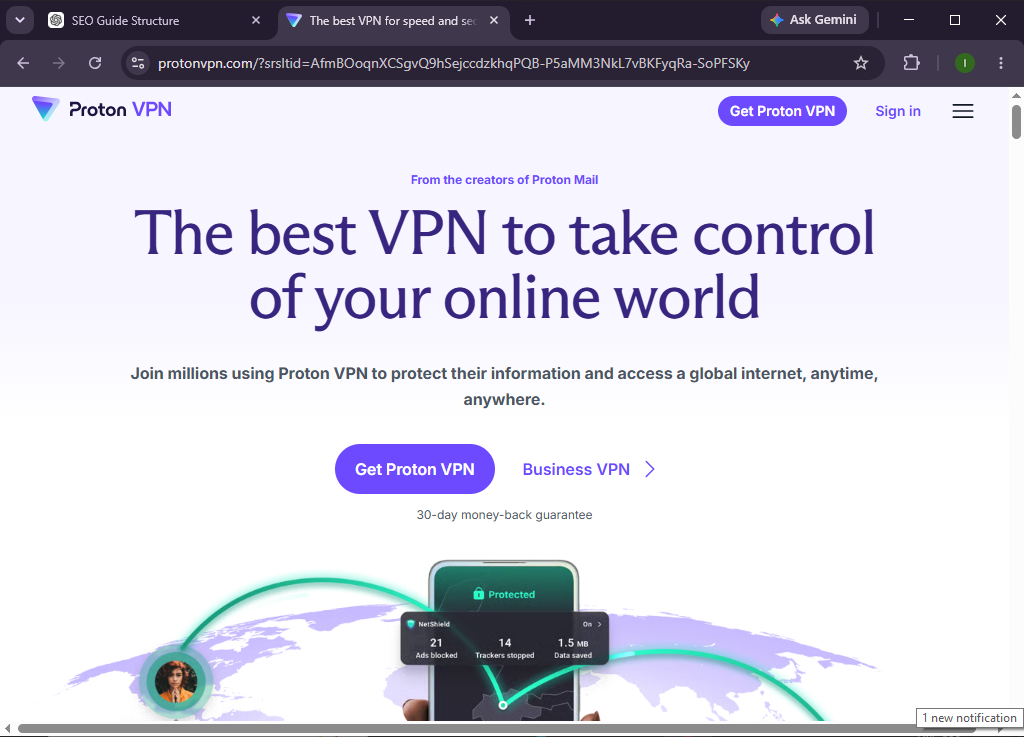
Proton VPN is a privacy-focused virtual private network (VPN) that encrypts your internet connection, hides your IP address, and helps keep your online activities private. Developed by the team behind Proton Mail, it offers strong encryption, a strict no-logs policy, and servers in multiple countries to help users browse the internet securely.
Whether you’re a beginner, remote worker, traveler, or privacy-conscious user, this guide will show you exactly how to set up and use Proton VPN from scratch.
How Do You Set Up and Use Proton VPN?
Quick Answer
To use Proton VPN, create a Proton account, choose a VPN plan, download the Proton VPN app, install it on your device, sign in, select a VPN server, and connect. Once connected, your internet traffic is encrypted, helping protect your privacy and secure your online activities.
Prerequisites
Before you begin, make sure you have:
- A Proton account
- A Proton VPN subscription (or Free plan)
- A Windows, macOS, Linux, Android, or iOS device
- A stable internet connection
- Permission to install applications
- Basic knowledge of internet browsing
Create a Workflow Manually (Recommended for Beginners)
If you’re new to online privacy, setting up your first secure connection in Proton VPN is the best way to understand how the platform actually works.
Step 1: Create Your Proton Account
Visit the Proton website and create your account.
During registration:
- Enter your email address.
- Create a strong password.
- Verify your account.
- Sign in to your Proton dashboard.
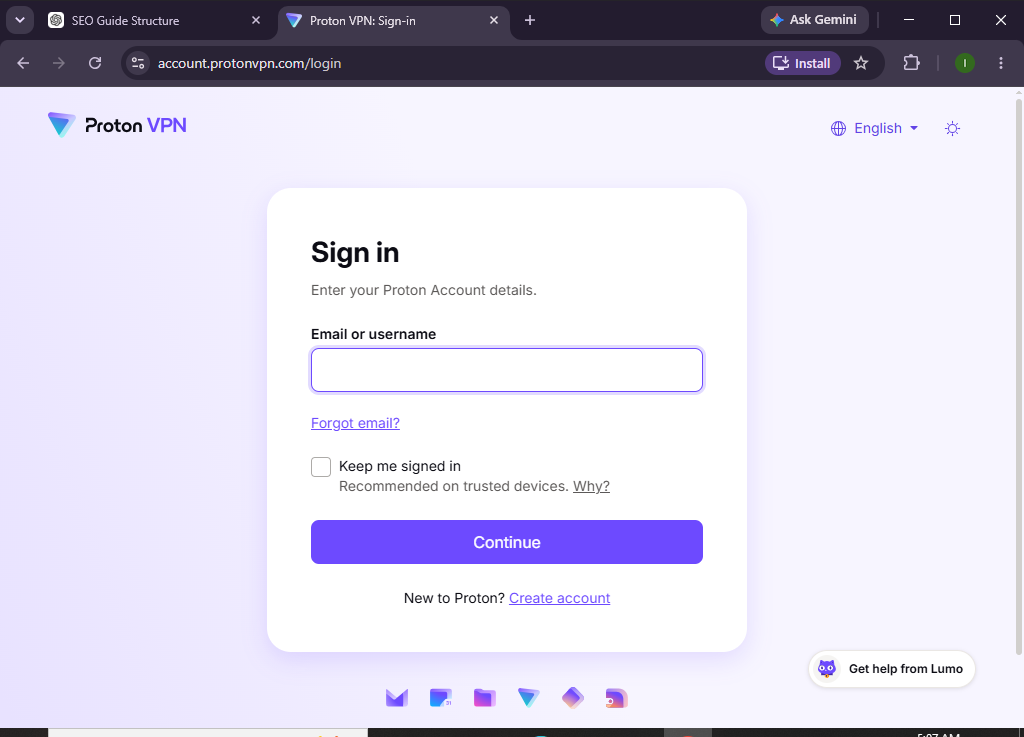
Your account gives you access to Proton VPN and other Proton services.
Step 2: Choose Your VPN Plan
Select the VPN plan that best fits your needs.
Available options may include:
- Free Plan
- Premium VPN Plan
Complete the subscription process if you choose a paid plan.
Once activated, your VPN service is ready to use.
Step 3: Download and Install Proton VPN
Download the Proton VPN application for your operating system.
Supported devices include:
- Windows
- macOS
- Linux
- Android
- iPhone/iPad
Run the installer and complete the installation process.
Launch the application after installation.
Step 4: Sign In to Proton VPN
Open the application.
Then:
- Enter your Proton account credentials.
- Click Sign In.
- Complete any required verification.
After logging in, you’ll see the available VPN servers.
Step 5: Select a VPN Server
Browse the available server locations.
You can choose:
- The fastest available server
- A nearby location for better speeds
- A specific country based on your browsing needs
Click your preferred server.
The application prepares the secure connection.
Step 6: Connect to the VPN
Click the Connect button.
After a few seconds:
- Your IP address changes.
- Your connection becomes encrypted.
- Secure browsing begins.
The application will display a connected status.
Step 7: Verify Your VPN Connection
Open your preferred web browser.
Visit an IP checker website to confirm:
- Your IP address has changed.
- Your displayed location matches your selected VPN server.
This verifies that the VPN connection is active.
Step 8: Customize VPN Settings
Open the Settings menu.
Depending on your platform, you can configure:
- Auto-connect
- Startup behavior
- Preferred protocol
- Kill Switch
- Split Tunneling
Adjust these options according to your privacy preferences.
Step 9: Browse Securely
With Proton VPN connected, you can safely:
- Browse websites
- Use public Wi-Fi
- Access online banking
- Stream supported content
- Work remotely
- Protect sensitive information
Your internet traffic remains encrypted throughout your session.
Step 10: Disconnect Safely
When you’re finished:
- Open the Proton VPN application.
- Click Disconnect.
- Exit the application if desired.
Reconnect anytime you need secure internet access.
Want a safer way to browse the web?
Explore Proton VPN and secure your internet connection with just a few clicks while keeping your online activity private.
How Can You Get the Best Performance from Proton VPN?
Tips
- Connect to nearby servers for faster speeds.
- Enable the Kill Switch for added protection.
- Keep the app updated.
- Use Auto-Connect on trusted devices.
- Switch servers if performance slows.
- Enable two-factor authentication on your Proton account.
- Regularly review your VPN settings.
- Use secure Wi-Fi whenever possible.
What Should You Avoid When Using Proton VPN?
Common Mistakes
- Using outdated VPN software
- Choosing distant servers unnecessarily
- Forgetting to enable the Kill Switch
- Sharing your Proton account credentials
- Ignoring software updates
- Disconnecting the VPN during sensitive activities
- Using weak account passwords
How Can You Maximize Your Privacy with Proton VPN?
Best Practices
- Keep the VPN enabled on public Wi-Fi.
- Turn on the Kill Switch.
- Update the application regularly.
- Use strong passwords.
- Enable multi-factor authentication.
- Connect before accessing sensitive accounts.
- Monitor your account activity.
- Keep your operating system updated.
- Review your security settings periodically.
- Choose trusted server locations.
What Should You Do If Proton VPN Isn’t Working?
Troubleshooting
Unable to connect
- Check your internet connection.
- Restart the VPN application.
- Try another server.
Slow browsing speeds
- Connect to a closer server.
- Restart your router.
- Close bandwidth-intensive applications.
Login problems
- Verify your credentials.
- Reset your password if needed.
- Confirm your subscription is active.
VPN disconnects unexpectedly
- Update the application.
- Switch VPN protocols.
- Try reconnecting to another server.
Frequently Asked Questions
Is Proton VPN free?
Yes. Proton VPN offers a free plan with access to selected servers, along with premium plans that include additional features and server locations.
Does Proton VPN keep logs?
Proton VPN follows a strict no-logs policy, helping protect your online privacy.
Can I use Proton VPN on multiple devices?
Yes. Depending on your subscription, you can connect multiple devices simultaneously.
Does Proton VPN support streaming?
Yes. Premium plans provide optimized servers for streaming supported content.
Is Proton VPN safe for public Wi-Fi?
Yes. It encrypts your internet traffic, making it much safer to use public wireless networks.
Can beginners use Proton VPN?
Absolutely. Its intuitive interface makes it easy to install, connect, and manage your VPN connection.
Conclusion
Proton VPN offers a simple yet powerful way to protect your online privacy. With encrypted connections, global servers, and user-friendly features, it helps keep your personal information secure whether you’re working remotely, traveling, or simply browsing the web.
By following this guide—creating your account, installing the app, connecting to a secure server, and using recommended security settings—you can enjoy a more private and secure internet experience every day.
Take the first step toward better online privacy with Proton VPN.
Create your account, connect to a secure server, and experience encrypted browsing that helps keep your personal data protected wherever you go.