How to Use Guardio: A Beginner’s Step-by-Step Guide
Cyber threats like phishing websites, malicious downloads, identity theft, and browser-based scams are becoming increasingly common. Simply relying on antivirus software may not be enough to protect your personal information while browsing the web.
By TechScaleMedia Editorial · Updated July 2026 · 11 min read
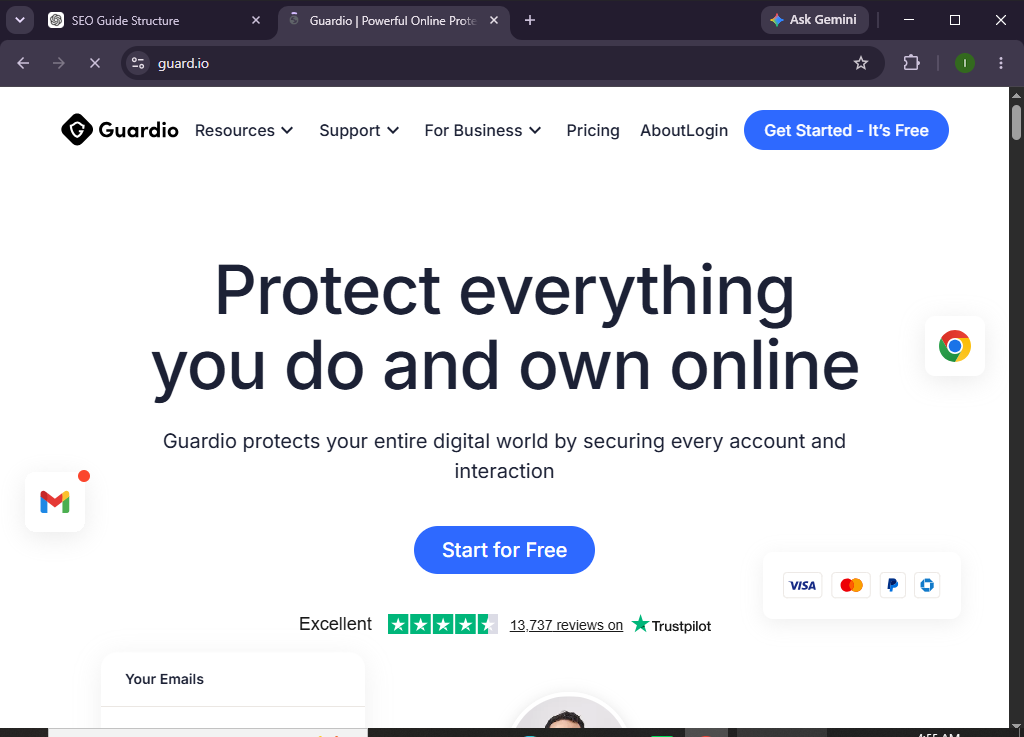
Guardio is a browser security solution that helps protect you from harmful websites, phishing attacks, malicious extensions, and online scams in real time. It continuously monitors your browsing activity, alerts you to potential threats, and helps keep your personal information safe.
Whether you’re a student, remote worker, online shopper, or simply want a safer browsing experience, this guide will show you exactly how to set up and use Guardio from scratch.
How Do You Set Up and Use Guardio?
Quick Answer
To use Guardio, create an account, install the Guardio browser extension, sign in, grant the required permissions, enable real-time protection, customize your security settings, and browse normally. Guardio automatically scans websites, blocks malicious content, and alerts you to online threats.
Prerequisites
Before you begin, make sure you have:
- A Guardio account
- A supported web browser (Google Chrome, Microsoft Edge, or other Chromium-based browsers)
- A stable internet connection
- Permission to install browser extensions
- An email address for account registration
- Basic web browsing knowledge
Create a Workflow Manually (Recommended for Beginners)
If you’re new to browser security, enabling your first protection in Guardio is the best way to understand how the platform actually works.
Step 1: Create Your Guardio Account
Visit the Guardio website and click Get Started or Sign Up.
Complete the registration process by:
- Entering your email address.
- Creating a secure password.
- Selecting your subscription plan.
- Verifying your email address.
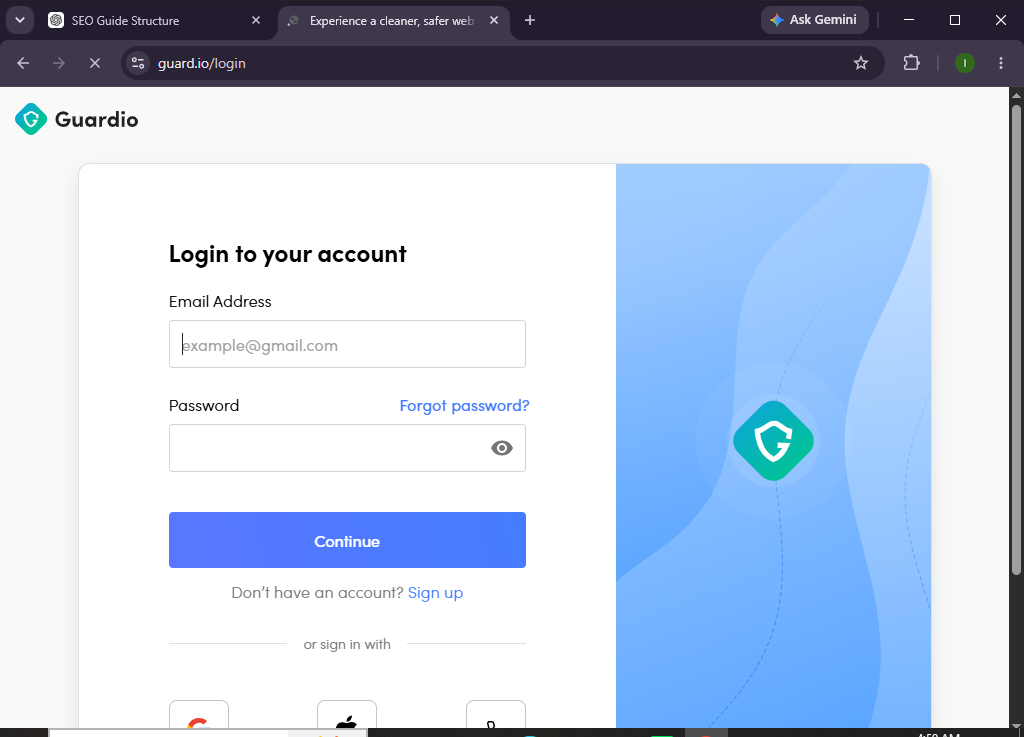
Once your account is verified, sign in to continue.
Step 2: Install the Guardio Browser Extension
Guardio works as a browser extension.
To install it:
- Open your supported browser.
- Visit the browser’s extension store.
- Search for Guardio.
- Click Add to Browser.
- Confirm the installation.
Once installed, the Guardio icon will appear in your browser toolbar.
Step 3: Sign In to Guardio
Click the Guardio extension icon.
Then:
- Enter your account credentials.
- Click Sign In.
- Complete any verification steps if prompted.
After logging in, your browser protection becomes active.
Step 4: Enable Real-Time Protection
Guardio automatically scans websites as you browse.
Ensure:
- Real-time protection is enabled.
- Safe browsing alerts are active.
- Threat detection features are turned on.
These settings help Guardio detect suspicious websites before they can harm your device.
Step 5: Review Your Security Dashboard
Open the Guardio dashboard to view your protection status.
The dashboard displays:
- Security score
- Blocked threats
- Recent alerts
- Browser protection status
- Account security information
Regularly checking your dashboard helps you stay informed about potential risks.
Step 6: Customize Security Settings
Navigate to Settings within Guardio.
You can configure options such as:
- Threat notifications
- Privacy alerts
- Browser protection preferences
- Security recommendations
Customize these settings based on your browsing habits and security needs.
Step 7:Browse the Web Securely
Once Guardio is active, browse as you normally would.
Guardio automatically helps protect you by:
- Blocking phishing websites
- Warning about malicious pages
- Detecting suspicious downloads
- Preventing harmful browser redirects
- Identifying unsafe search results
Protection runs in the background without interrupting your browsing experience.
Step 8: Respond to Security Alerts
If Guardio detects a threat, you’ll receive an alert.
Review the notification carefully.
Depending on the situation, you may need to:
- Leave the unsafe website.
- Remove a malicious browser extension.
- Change compromised passwords.
- Avoid downloading suspicious files.
Always follow the recommended security actions.
Step 9: Check for Data Breach Alerts
Guardio can notify you if your personal information appears in known data breaches.
If you receive an alert:
- Review the affected account.
- Change your password immediately.
- Enable two-factor authentication.
- Monitor your account for unusual activity.
Taking prompt action helps reduce security risks.
Step 10: Keep Guardio Updated
Browser extensions usually update automatically.
However, you should periodically:
- Confirm the extension is up to date.
- Review new security features.
- Restart your browser if updates are installed.
Keeping Guardio updated ensures you receive the latest protection against emerging threats.
Want to browse the internet with greater confidence?
Try Guardio to block online threats, detect scams, and protect your personal information while you browse.
How Can You Get the Best Protection with Guardio?
Tips
- Enable all recommended security features.
- Keep your browser updated.
- Review Guardio alerts promptly.
- Use strong, unique passwords.
- Enable two-factor authentication on important accounts.
- Avoid clicking suspicious links.
- Regularly check your security dashboard.
- Remove unused browser extensions.
What Should You Avoid When Using Guardio?
Common Mistakes
- Ignoring security alerts
- Using outdated browser versions
- Installing untrusted browser extensions
- Visiting suspicious websites intentionally
- Reusing passwords across multiple accounts
- Disabling real-time protection
- Delaying password changes after breach notifications
How Can You Stay Safe While Using Guardio?
Best Practices
- Keep Guardio enabled at all times.
- Update your browser regularly.
- Enable two-factor authentication for important accounts.
- Review security notifications immediately.
- Scan your browser extensions regularly.
- Use strong passwords with a password manager.
- Avoid downloading files from unknown sources.
- Monitor data breach alerts.
- Keep your operating system updated.
- Practice safe browsing habits every day.
What Should You Do If Guardio Isn’t Working?
Troubleshooting
Extension isn’t loading
- Restart your browser.
- Reinstall the extension.
- Check for browser updates.
No security alerts appear
- Verify real-time protection is enabled.
- Confirm you’re signed in.
- Check extension permissions.
Browser becomes slow
- Disable unnecessary extensions.
- Restart your browser.
- Update Guardio to the latest version.
Login issues
- Verify your email and password.
- Reset your password if necessary.
- Confirm your subscription is active.
Frequently Asked Questions
Is Guardio an antivirus program?
No. Guardio focuses on browser security by protecting against phishing websites, malicious downloads, browser threats, and online scams.
Which browsers support Guardio?
Guardio supports Google Chrome, Microsoft Edge, and other Chromium-based browsers.
Does Guardio block phishing websites?
Yes. Guardio actively detects and blocks known phishing websites before they can compromise your personal information.
Can Guardio detect data breaches?
Yes. Guardio can notify you if your email address or personal information appears in known data breaches.
Does Guardio slow down browsing?
Guardio is designed to run efficiently in the background while providing real-time protection with minimal impact on browsing performance.
Is Guardio suitable for everyday users?
Yes. Its simple interface makes it easy for beginners while still offering powerful protection against online threats.
Conclusion
Guardio makes online security simple by protecting your browser against phishing attacks, malicious websites, unsafe downloads, and data breaches. With real-time monitoring and easy-to-understand alerts, it helps you browse more safely without requiring advanced technical knowledge.
By following this guide—creating your account, installing the browser extension, enabling protection, reviewing alerts, and adopting good security habits—you can significantly reduce your exposure to common online threats.
Ready to make your web browsing safer?
Try Guardio today and protect yourself from phishing scams, malicious websites, and online threats with real-time browser security that works quietly in the background.