How to Use TextExpander by Smile: A Beginner’s Step-by-Step Guide
Learn how to use TextExpander by Smile with this beginner-friendly step-by-step guide to create text snippets, automate repetitive typing, and boost your productivity across apps and devices.
By TechScaleMedia Editorial · Updated July 2026 · 11 min read
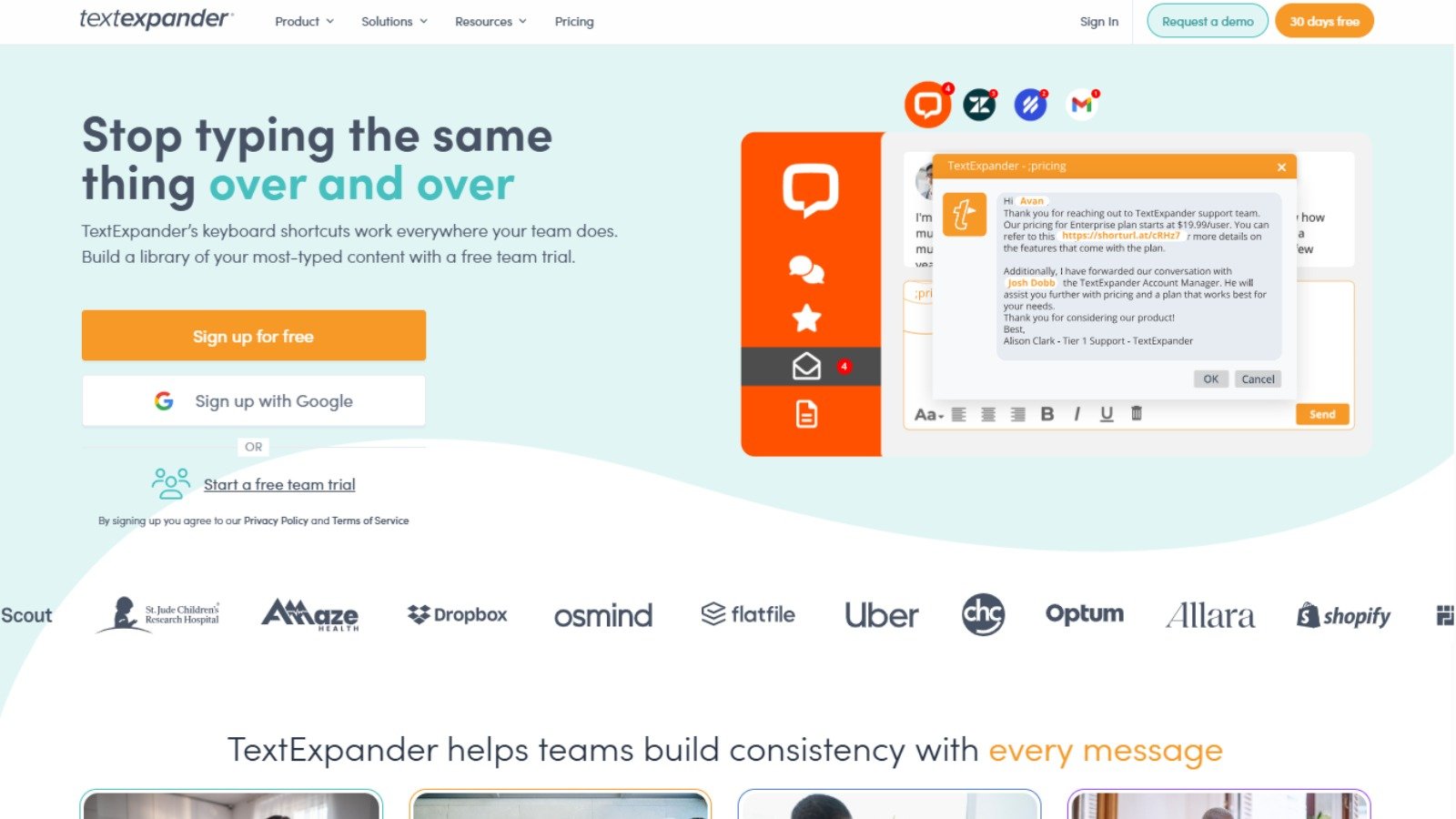
Typing the same emails, addresses, customer replies, and repetitive phrases every day can slow down your workflow and increase the chances of mistakes. Whether you’re responding to customers, creating documents, or sending sales emails, repeatedly entering the same text wastes valuable time.
TextExpander by Smile is a powerful text expansion software that replaces short abbreviations with full words, sentences, templates, or signatures. It helps individuals and teams automate repetitive typing, improve consistency, and boost productivity across applications on Mac, Windows, Chrome, iPhone, and iPad.
In this guide, you’ll learn how to use TextExpander step by step, create your first snippets, organize them efficiently, and use advanced features to save time while typing.
Ready to type faster and work more efficiently? Follow this guide to set up TextExpander and automate repetitive typing across your devices.
How Do You Use TextExpander?
Quick Answer
Using TextExpander is simple:
- Create a TextExpander account.
- Install the application.
- Create your first text snippet.
- Add fill-in fields for dynamic content.
- Organize snippets into groups.
- Share snippets with your team.
- Enable cloud syncing.
- Use snippets in any application.
- Review snippet usage analytics.
Prerequisites
Before getting started, you’ll need:
- A TextExpander account
- A supported device (Mac, Windows, Chrome, iPhone, or iPad)
- Internet connection
- Frequently used text, templates, or email responses
- Administrator access for installation (if required)
Step-by-Step Instructions
Follow these simple steps to set up TextExpander, create your first snippets, and use keyboard shortcuts to save time by expanding frequently typed text instantly.
Step 1: Create a TextExpander Account
Visit the TextExpander website and create an account.
Choose a subscription plan that matches your needs, whether you’re using the software individually or collaborating with a team.
After signing in, you’ll be ready to create and manage text snippets from your dashboard.
Step 2: Install TextExpander
Download and install TextExpander on the devices where you want to use it.
Supported platforms include:
- macOS
- Windows
- Google Chrome
- iPhone
- iPad
Once installed, sign in with your account to synchronize your snippets.
Step 3: Create Your First Snippet
A snippet is a shortcut that expands into longer text.
To create one:
- Select Add Snippet.
- Enter a short abbreviation, such as ;addr.
- Add the full text you want it to insert automatically, such as your mailing address or email signature.
- Save the snippet.
Now, whenever you type the abbreviation, TextExpander instantly replaces it with the complete text.
Step 4: Add Fill-In Fields
Some templates require different information each time they’re used.
Fill-ins let you add customizable fields for details such as:
- Customer names
- Company names
- Dates
- Order numbers
- Appointment times
When the snippet expands, TextExpander prompts you to enter the required information before inserting the completed text.
Step 5: Organize Snippets into Groups
As your snippet collection grows, organize similar content into folders or groups.
Common categories include:
- Customer Support
- Sales Emails
- Marketing
- Personal Templates
- Email Signatures
Organized groups make it easier to find, update, and manage frequently used snippets.
Step 6: Share Snippet Groups with Your Team
If multiple employees use the same responses or templates, create shared snippet groups.
This allows teams to maintain:
- Consistent customer communication
- Standardized email templates
- Updated company messaging
- Shared documentation
Any updates made to a shared group become available to authorized team members automatically.
Step 7: Enable Cloud Sync
Turn on cloud synchronization to keep your snippets available across all supported devices.
Cloud syncing ensures your latest templates remain accessible whether you’re working on your desktop, laptop, or mobile device.
Step 8: Use Snippets Anywhere You Type
TextExpander works in most applications where text can be entered.
For example, you can use snippets in:
- Email applications
- Web browsers
- Messaging platforms
- Word processors
- CRM software
- Help desk platforms
Simply type the assigned abbreviation, and the software expands it instantly.
Step 9: Review Usage Analytics (Team Plans)
If you’re using a team subscription, review snippet analytics to understand how your organization uses shared content.
Analytics can help you:
- Identify frequently used snippets
- Remove outdated templates
- Improve team efficiency
- Standardize communication
Tips
Get the most out of TextExpander by organizing snippets into groups, using clear abbreviations, and regularly updating your shortcuts to keep your workflow fast, accurate, and consistent.
- Start with a few high-frequency phrases before building a large snippet library.
- Use short, unique abbreviations that are unlikely to appear in normal typing.
- Create snippets for information you type every day, such as addresses, meeting links, or greetings.
- Use fill-ins for details that change frequently instead of creating multiple templates.
- Explore the built-in snippet library to discover ready-made templates.
Common Mistakes
- Choosing abbreviations that are too generic and trigger accidental expansions.
- Creating excessively long snippets that are difficult to edit later.
- Ignoring placeholder fields when a template requires different information each time.
- Forgetting to test snippets before using them in important communications.
- Storing sensitive information in snippets without following your organization’s security policies.
Troubleshooting
Snippets aren’t expanding
Confirm that TextExpander is running and that the correct abbreviation is being typed.
Cloud sync isn’t working
Check your internet connection and verify that you’re signed in with the correct account.
Fill-ins aren’t appearing
Review the snippet settings to ensure fill-in fields were added correctly before saving.
Shared snippets aren’t visible
Confirm that you’ve been added to the correct shared group and that synchronization has completed.
Snippet expansion doesn’t work in an app
Some applications may have security restrictions. Check whether TextExpander supports the application and has the required permissions.
Best Practices
- Review your snippet library regularly and remove entries you no longer use.
- Standardize naming conventions so snippets are easy to identify.
- Create separate libraries for personal, client, and company content.
- Monitor team analytics to identify the most valuable shared templates.
- Keep shared snippet libraries aligned with your latest branding, policies, and communication standards.
Frequently Asked Questions
What is TextExpander used for?
TextExpander is a text expansion tool that automatically replaces abbreviations with full text, helping users reduce repetitive typing and improve productivity.
Does TextExpander work on Windows and Mac?
Yes. TextExpander supports Windows, macOS, Chrome, iPhone, and iPad.
Can I share snippets with my team?
Yes. Team plans allow users to create shared snippet groups so everyone uses consistent templates and responses.
What are fill-ins in TextExpander?
Fill-ins are customizable fields that prompt you to enter information such as names, dates, or order numbers before a snippet is inserted.
Does TextExpander work in email applications?
Yes. TextExpander works in most email clients, browsers, messaging platforms, word processors, and many other applications where text can be entered.
Can TextExpander improve productivity?
Yes. By automating repetitive typing and standardizing frequently used text, TextExpander helps individuals and teams work faster while reducing typing errors.
Conclusion
TextExpander simplifies repetitive typing by allowing users to create reusable text snippets that work across multiple applications and devices. Whether you’re managing customer support, sending sales emails, or creating business documents, the software helps save time, improve consistency, and streamline everyday communication. By organizing snippets effectively and using advanced features like fill-ins and team sharing, you can significantly increase your productivity.
Ready to Speed Up Your Typing? Try TextExpander
Start using TextExpander today to automate repetitive typing, create reusable text templates, and improve your productivity with one of the best text expansion tools for individuals and teams.