How to Host a Website on Kinsta: A Beginner’s Step-by-Step Guide
Launching a website requires more than just a domain name—it also requires a hosting provider that delivers speed, reliability, and strong security. Kinsta is a premium cloud hosting platform built on Google Cloud infrastructure, offering high-performance hosting, automatic backups, advanced security, and an intuitive dashboard. Whether you’re creating a company website, online portfolio, blog, or eCommerce store, Kinsta makes hosting simple while delivering enterprise-grade performance.
By TechScaleMedia Editorial · Updated July 2026 · 11 min read
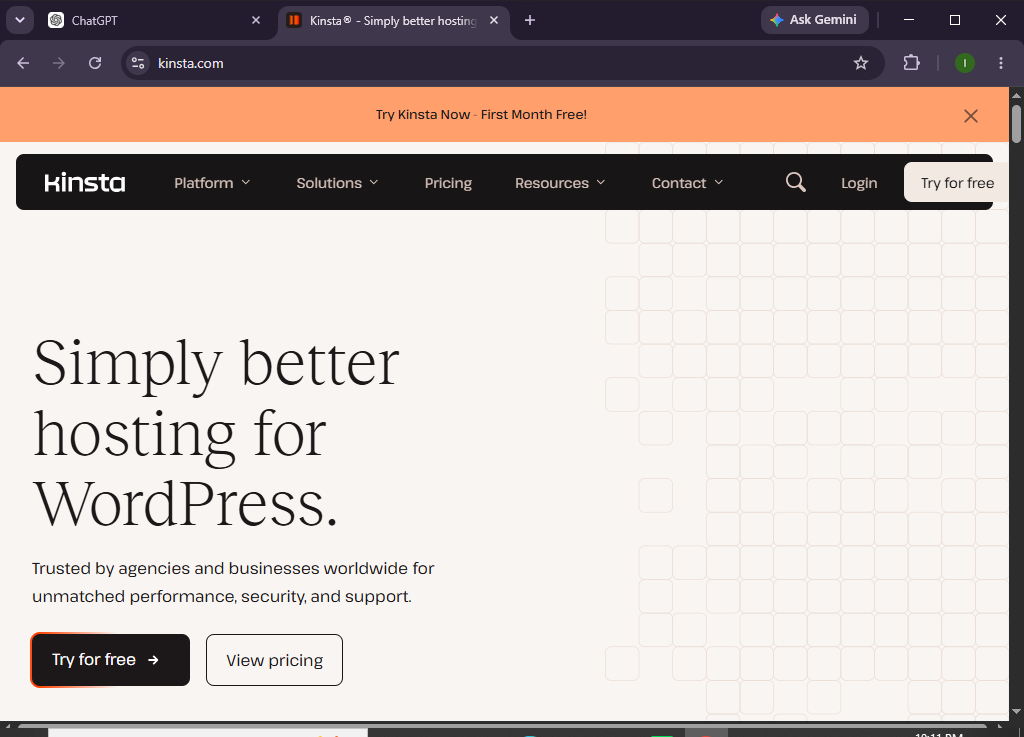
From built-in caching and free SSL certificates to daily backups and easy website management, Kinsta helps you focus on growing your website instead of managing servers. This guide explains how to host a website on Kinsta, from creating your account to publishing your site.
How do you host a website on Kinsta?
Quick Answer
Hosting a website on Kinsta is easy when you follow these steps:
- Create a Kinsta account.
- Select the hosting plan that suits your website.
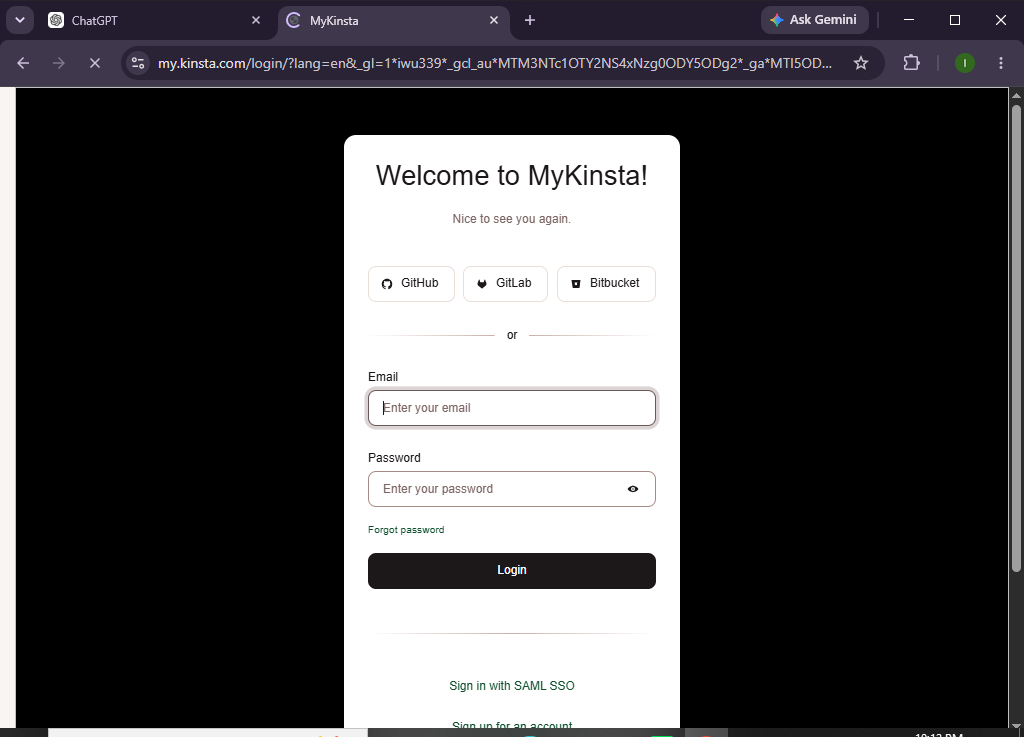
- Log in to the MyKinsta dashboard.
- Add a new website.
- Connect your custom domain.
- Update your DNS records.
- Enable the free SSL certificate.
- Upload your website or install your preferred CMS.
- Test your website’s speed and functionality.
- Launch your website and monitor its performance.
Quick Tip: If you’re moving from another hosting provider, Kinsta offers professional website migration services to make the transition smooth.
Prerequisites
Before getting started, ensure you have:
- A Kinsta hosting account
- A registered domain name
- A stable internet connection
- Website files or your preferred CMS
- Basic knowledge of website management
Create a Workflow Manually (Recommended for Beginners)
If you’re new to managed WordPress hosting, launching your first website on Kinsta is the best way to understand how the platform actually works.
Step 1: Create Your Kinsta Account
Visit the Kinsta website and choose a hosting plan based on your website’s needs.
Consider:
- Estimated monthly visitors
- Storage requirements
- Number of websites
- Business or personal use
Complete the registration process and verify your account.
Step 2: Access the MyKinsta Dashboard
After logging in, you’ll enter the MyKinsta dashboard.
Here you can manage:
- Websites
- Domains
- DNS
- SSL certificates
- Backups
- Analytics
- User access
Take a few minutes to explore the dashboard before creating your website.
Step 3: Add a New Website
Click Add Site.
You’ll be asked to:
- Enter your website name
- Choose your preferred data center
- Select how you’d like to build your website
Kinsta will automatically prepare your hosting environment.
Step 4: Connect Your Domain
To use your own domain:
- Open the Domains section.
- Add your domain.
- Copy the required DNS records.
- Update them with your domain registrar.
Wait for DNS propagation before continuing.
Step 5: Enable Free SSL
Kinsta provides free SSL certificates for every hosted website.
Verify that:
- HTTPS is enabled.
- SSL is active.
- Your website opens securely.
A secure connection helps protect visitor data and supports SEO.
Step 6: Upload Your Website
Now add your website by:
- Uploading website files
- Installing your preferred CMS
- Importing an existing website
- Migrating from another hosting provider
Choose the method that best matches your project.
Step 7: Customize Your Website
Personalize your website by:
- Choosing a design or theme
- Creating pages
- Uploading your logo
- Building navigation menus
- Adding images and videos
- Installing useful plugins or extensions
Review your content before moving forward.
Step 8: Optimize Website Performance
Improve your website’s performance by:
- Compressing large images
- Removing unused plugins
- Updating website software
- Optimizing media files
- Minimizing unnecessary scripts
These improvements help deliver faster page loading.
Step 9: Test Your Website
Before publishing, review:
- Homepage
- Navigation menus
- Contact forms
- Mobile responsiveness
- Internal links
- SSL certificate
- Website loading speed
Resolve any issues before launch.
Step 10: Publish Your Website
Once you’re satisfied:
- Publish your website
- Share your domain
- Monitor performance through MyKinsta
- Keep your website updated
Congratulations! Your website is now live on Kinsta.
Ready to host your website on a premium cloud platform?
Discover what Kinsta has to offer and launch your site with speed, security, and confidence.
How can you maximize your website’s performance on Kinsta?
Tips
- Choose the data center closest to your target audience.
- Optimize images before uploading.
- Keep your website software updated.
- Remove unused plugins and themes.
- Schedule regular backups.
- Monitor analytics for performance insights.
- Review website speed after major updates.
What hosting mistakes should you avoid on Kinsta?
Common Mistakes
- Choosing the wrong hosting plan
- Forgetting to update DNS records
- Publishing before SSL is active
- Uploading oversized images
- Installing unnecessary plugins
- Ignoring regular website maintenance
- Skipping final website testing
How can you maintain a secure and high-performing website on Kinsta?
Best Practices
- Update your website software regularly.
- Enable automatic backups.
- Use strong passwords and two-factor authentication.
- Remove inactive themes and plugins.
- Optimize media files before uploading.
- Monitor website analytics regularly.
- Test your website after every major update.
- Review security settings frequently.
- Upgrade your hosting plan as your website traffic increases.
How can you fix common hosting issues on Kinsta?
Troubleshooting
| Problem | Solution |
|---|---|
| Website isn’t loading | Check your DNS records and wait for propagation. |
| SSL certificate isn’t active | Verify domain settings and allow SSL activation to complete. |
| Can’t access MyKinsta | Reset your password or contact Kinsta support. |
| Website is loading slowly | Optimize images, review plugins, and clear cache. |
| Domain isn’t connecting | Double-check your DNS configuration. |
| Website displays unexpected errors | Undo recent changes or restore a recent backup. |
Frequently Asked Questions
Is Kinsta suitable for beginners?
Yes. Kinsta offers a clean dashboard and managed hosting services that simplify website management for beginners.
Can I migrate an existing website to Kinsta?
Yes. Kinsta provides professional migration services for eligible hosting plans.
Does Kinsta include free SSL?
Yes. Every hosted website includes a free SSL certificate.
Can I host multiple websites?
Yes. Multi-site hosting is available depending on the hosting plan you choose.
IIs Kinsta suitable for business and eCommerce websites?
Yes. Its cloud infrastructure, security features, and performance optimization make it ideal for business websites and online stores.
Does Kinsta perform automatic backups?
Yes. Kinsta includes automatic daily backups and offers additional backup options for enhanced data protection.
Conclusion
Kinsta provides a premium hosting experience by combining Google Cloud infrastructure with advanced security, excellent performance, and an intuitive management dashboard. Whether you’re creating a new website or migrating an existing one, the platform simplifies hosting while offering the reliability needed for long-term growth.
By following this guide, you’ll be able to launch a secure, fast, and professionally hosted website while taking full advantage of Kinsta’s managed hosting features.
Build your website on hosting designed for performance.
Get started with Kinsta today and enjoy premium cloud infrastructure, built-in security, automatic backups, and the confidence to scale your website as your audience grows.