How to Use Remote.com: A Beginner’s Step-by-Step Guide
Learn how to use Remote.com to hire, onboard, pay, and manage international employees while staying compliant with local employment and tax regulations.
By TechScaleMedia Editorial · Updated July 2026 · 11 min read
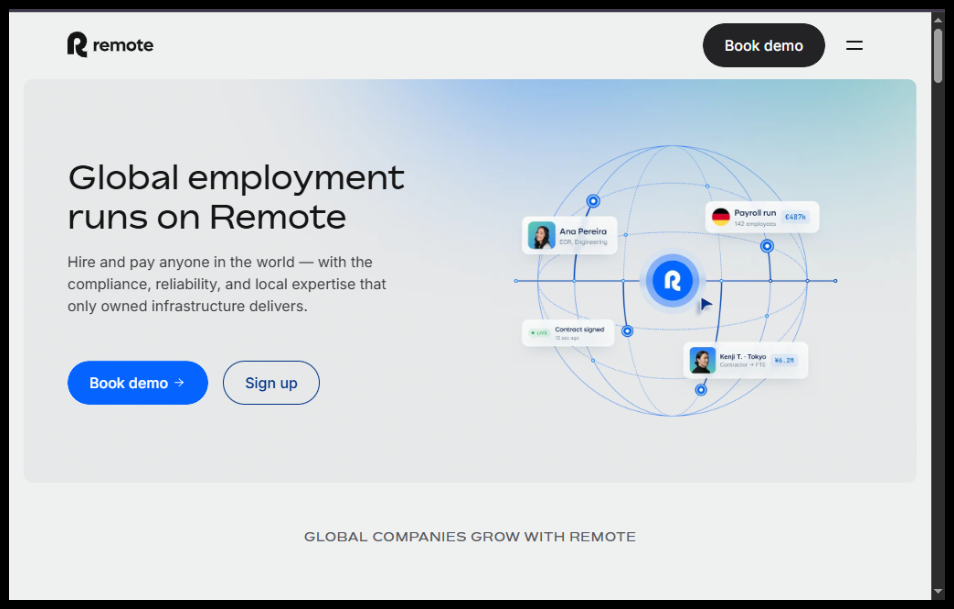
Building a global workforce has never been easier, thanks to Remote.com. Whether you’re hiring international employees, managing contractors, or running payroll across multiple countries, Remote.com provides everything you need in one secure platform. It eliminates the complexity of global employment by handling compliance, payroll, taxes, and HR administration.
In this guide, you’ll learn how to use Remote.com from setting up your account to hiring international talent, onboarding workers, and managing payroll efficiently. Follow these simple steps to get started, even if you’re completely new to the platform.
Ready to hire talent worldwide without the legal hassle? Try Remote.com and simplify global employment today.
How do you use Remote.com to hire and manage international employees?
Quick Answer
Using Remote.com is straightforward:
- Create a Remote.com account.
- Set up your company profile.
- Add employees or contractors.
- Generate compliant employment contracts.
- Complete onboarding.
- Configure payroll and benefits.
- Approve payments.
- Manage your global workforce from the dashboard.
Prerequisites
Before using Remote.com, make sure you have:
- A Remote.com business account
- Company registration details
- Employee or contractor information
- Tax and payment information
- Valid payment method
- Internet connection
- HR or payroll approval (if applicable)
Step-by-Step Instructions
Follow these simple steps to use Remote.com to hire, onboard, pay, and manage international employees while staying compliant with local employment laws.
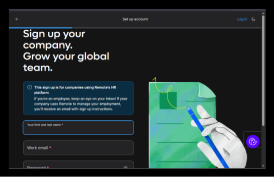
Step 1: Create Your Remote.com Account
- Visit Remote.com’s website and sign up using your business email address.
- Verify your email and enable two-factor authentication for enhanced security.
Step 2: Complete Your Company Profile
Add your company information, including:
- Business name
- Company address
- Industry
- Tax information
- Billing details
Completing your profile ensures a smooth hiring and payroll process.
Step 3: Hire an Employee or Contractor
From the dashboard:
- Click Hire
- Choose Employee or Contractor
- Select the worker’s country
- Enter their personal and employment details
Remote.com automatically adjusts employment requirements based on local labor laws.
Step 4: Create and Send Employment Contracts
Generate a legally compliant contract by:
- Choosing an employment type
- Setting salary or contractor payment
- Defining benefits
- Reviewing local compliance requirements
Send the contract for electronic signature.
Step 5: Complete Worker Onboarding
Employees or contractors will:
- Upload identification documents
- Enter tax information
- Add bank account details
- Complete onboarding forms
You’ll receive notifications once onboarding is successfully completed.
Step 6: Configure Payroll and Benefits
Set up:
- Payroll schedule
- Currency
- Salary or hourly rates
- Benefits package (if applicable)
Review all payroll information before processing payments.
Step 7: Approve Payroll
Remote.com automatically calculates:
- Taxes
- Employer contributions
- Payroll deductions
- Net salaries
Review the payroll summary and approve payments.
Step 8: Manage Your Workforce
Use the dashboard to:
- Monitor employee records
- Track payroll history
- Download invoices
- Manage contracts
- View compliance updates
Everything is centralized for easy workforce management.
How can you get the best results when using Remote.com?
Tips
Use Remote.com’s built-in compliance tools, automated payroll, and centralized employee management features to simplify hiring and managing international teams efficiently.
- Complete your company profile before hiring.
- Verify employee information carefully.
- Review contracts before sending them.
- Keep tax documents updated.
- Schedule payroll approvals in advance.
- Enable account security features.
- Regularly review compliance notifications.
- Organize employees by department or location.
What mistakes should you avoid when using Remote.com?
Common Mistakes
- Entering incorrect employee information.
- Selecting the wrong employment type.
- Forgetting to review payroll before approval.
- Missing required onboarding documents.
- Ignoring local employment regulations.
- Delaying payroll approvals.
What should you do if Remote.com isn’t working as expected?
Troubleshooting
Resolve common Remote.com hiring, payroll, and compliance issues quickly with these practical solutions to keep your global workforce running smoothly.
Unable to add a new employee
Verify that all required fields have been completed.
Payroll isn’t processing
Check your payment method and available balance.
Contract cannot be generated
Ensure all employment details have been entered correctly.
Employee onboarding is incomplete
Confirm that all required documents have been uploaded.
Login problems
Reset your password or verify your two-factor authentication settings.
How can you manage your global workforce more effectively with Remote.com?
Best Practices
- Standardize your hiring workflow.
- Keep employee records accurate and updated.
- Review contracts before sending them.
- Approve payroll early to avoid delays.
- Monitor compliance updates regularly.
- Store important documents securely.
- Generate payroll reports for financial
Frequently Asked Questions
Is Remote.com free?
Remote.com offers different pricing plans depending on whether you’re hiring contractors, employees, or using Employer of Record (EOR) services.
Can Remote.com hire employees in other countries?
Yes. Remote.com enables businesses to hire employees and contractors in many countries while complying with local labor laws.
Does Remote.com process payroll?
Yes. Remote.com manages international payroll, taxes, and employee payments from one platform.
Can contractors receive payments through Remote.com?
Yes. Contractors can receive payments through multiple supported payment methods based on their country.
Is Remote.com suitable for startups?
Absolutely. Remote.com is designed for startups, small businesses, and large enterprises managing distributed teams.
Is employee data secure?
Yes. Remote.com uses enterprise-grade security measures to protect business and employee information.
Conclusion
Remote.com makes international hiring, payroll, and compliance simple by providing an all-in-one platform for global workforce management. From onboarding new employees to processing payroll and staying compliant with local regulations, it helps businesses expand internationally without the usual administrative burden.
By following the steps in this guide and adopting best practices, you’ll be well-equipped to hire and manage remote talent efficiently while keeping your business compliant and organized.
Ready to Hire Employees Worldwide? Get Started with Remote.com
Start building your global team with confidence. Try Remote.com today and simplify international hiring, payroll, compliance, and HR management from one powerful platform.