How to Use Tana: A Beginner’s Step-by-Step Guide
As your notes, ideas, and projects grow, finding the right information at the right time can become difficult. Tana is an AI-powered knowledge management and note-taking platform designed to help you capture information, connect related ideas, and build a powerful personal knowledge base. With its flexible data structure and AI features, Tana makes organizing information faster and more intuitive.
By TechScaleMedia Editorial · Updated July 2026 · 11 min read

In this guide, you’ll learn how to use Tana to create notes, organize knowledge, manage tasks, and leverage AI to streamline your workflow.
How do you use Tana to organize notes and build a knowledge base?
Quick Answer
Getting started with Tana is easy:
- Create a Tana account.
- Set up your workspace.
- Create notes and pages.
- Organize information using nodes and tags.
- Use AI to enhance your notes.
- Link related ideas together.
- Search and manage your knowledge base.
Prerequisites
Before using Tana, you’ll need:
- A Tana account
- Internet connection
- Desktop or web browser
- Notes, research, or project information
- Basic understanding of your workflow (optional)
Create a Workflow Manually (Recommended for Beginners)
If you’re new to knowledge management, building your first workspace in Tana is the best way to understand how the platform actually works.
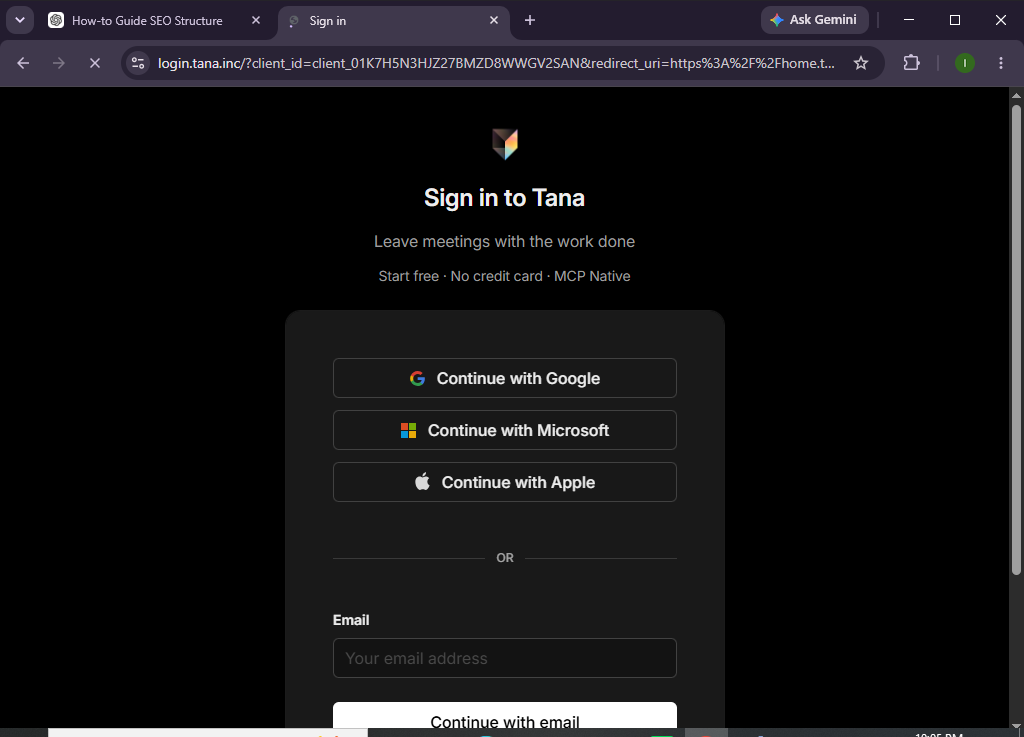
Step 1: Create Your Tana Account
Visit the Tana website and sign up using your email or supported login option.
Verify your account and access your workspace.
Step 2: Explore Your Workspace
After logging in, familiarize yourself with the interface, including:
- Daily Notes
- Search Bar
- Sidebar
- Workspaces
- Node Editor
Understanding the layout makes navigation easier.
Step 3: Create Your First Note
Click New Note or begin typing in your Daily Notes.
Add:
- Titles
- Bullet points
- Meeting notes
- Research
- Tasks
- Ideas
Every entry becomes part of your connected knowledge base.
Step 4: Organize Information with Nodes and Tags
Instead of traditional folders, Tana uses structured nodes.
You can:
- Create tags
- Link related notes
- Build custom fields
- Group similar information
- Organize projects
This makes information easier to retrieve later.
Step 5: Connect Related Ideas
Link notes together by referencing:
- Projects
- People
- Meetings
- Tasks
- Documents
These relationships create a dynamic knowledge graph that helps you discover connections between information.
Step 6: Use Tana AI
Tana AI can help you:
- Summarize notes
- Generate content
- Brainstorm ideas
- Rewrite text
- Organize information
- Answer questions from your knowledge base
Simply provide a prompt to get started.
Step 7: Search Your Knowledge Base
Use Tana’s search feature to quickly find:
- Notes
- Projects
- Tasks
- Tags
- Linked content
Powerful search capabilities help you retrieve information within seconds.
Step 8: Maintain Your Workspace
Regularly:
- Update notes
- Remove outdated information
- Merge duplicate entries
- Review linked content
- Archive completed projects
A well-maintained workspace remains efficient over time.
Looking for a smarter way to organize your ideas?
Tana helps you turn scattered notes into a connected knowledge system that grows with you.
How can you organize information more effectively in Tana?
Tips
- Capture ideas as soon as they occur.
- Use consistent tags.
- Link related notes whenever possible.
- Keep Daily Notes updated.
- Use AI for summaries.
- Review your knowledge base weekly.
- Build reusable templates.
- Keep your workspace organized.
What mistakes should you avoid when using Tana?
Common Mistakes
- Creating duplicate notes.
- Using inconsistent tags.
- Ignoring linked relationships.
- Overcomplicating your workspace.
- Forgetting to review old notes.
- Not taking advantage of AI features.
How can you build a better knowledge management system with Tana?
Best Practices
- Create a daily note every morning.
- Use tags consistently across projects.
- Connect related information instead of duplicating it.
- Review your notes regularly.
- Archive inactive projects.
- Build templates for recurring workflows.
- Use AI to organize large collections of notes.
- Keep your workspace clean and structured.
What should you do if Tana isn’t working properly?
Troubleshooting
Unable to find notes
Use the search function and verify your tags.
Linked notes aren’t appearing
Refresh your workspace and check node connections.
AI responses aren’t available
Confirm your subscription supports AI features and check your internet connection.
Sync issues
Log out and back in or refresh the application.
Login problems
Reset your password or verify your email address.
Frequently Asked Questions
Is Tana free?
Tana offers a free plan with core note-taking features, while advanced AI capabilities and collaboration tools are available on paid plans.
What makes Tana different from traditional note-taking apps?
Tana uses a structured node-based system that allows you to connect information dynamically instead of storing it in static folders.
Does Tana include AI?
Yes. Tana includes AI features that can summarize notes, generate content, organize information, and assist with knowledge management.
Can I use Tana for project management?
Yes. Many users manage projects, tasks, research, and meeting notes within Tana.
Does Tana support collaboration?
Yes. Depending on your plan, you can collaborate with team members and share knowledge across workspaces.
Is Tana suitable for students and professionals?
Absolutely. Tana is useful for students, researchers, writers, entrepreneurs, consultants, and knowledge workers who need to organize large amounts of information.
Conclusion
Tana is more than just a note-taking application—it’s a powerful knowledge management platform that helps you capture ideas, organize information, connect related concepts, and retrieve valuable insights whenever you need them. Its flexible node-based structure and AI-powered features make it an excellent choice for anyone looking to build a smarter, more connected workspace.
By following this guide and applying the best practices above, you’ll be well-equipped to create an organized knowledge base that supports your learning, creativity, and productivity.
Build a knowledge system that works as hard as you do.
Get started with Tana and experience a smarter way to capture ideas, organize information, and unlock the full value of your notes.