How to Use Routine: A Beginner’s Step-by-Step Guide
Staying on top of meetings, tasks, and notes can be difficult when your work is spread across multiple apps. Routine is a modern productivity platform that combines task management, calendar planning, note-taking, and scheduling into one streamlined workspace. Instead of switching between different tools, Routine helps you organize everything in one place so you can focus on getting work done.
By TechScaleMedia Editorial · Updated July 2026 · 11 min read
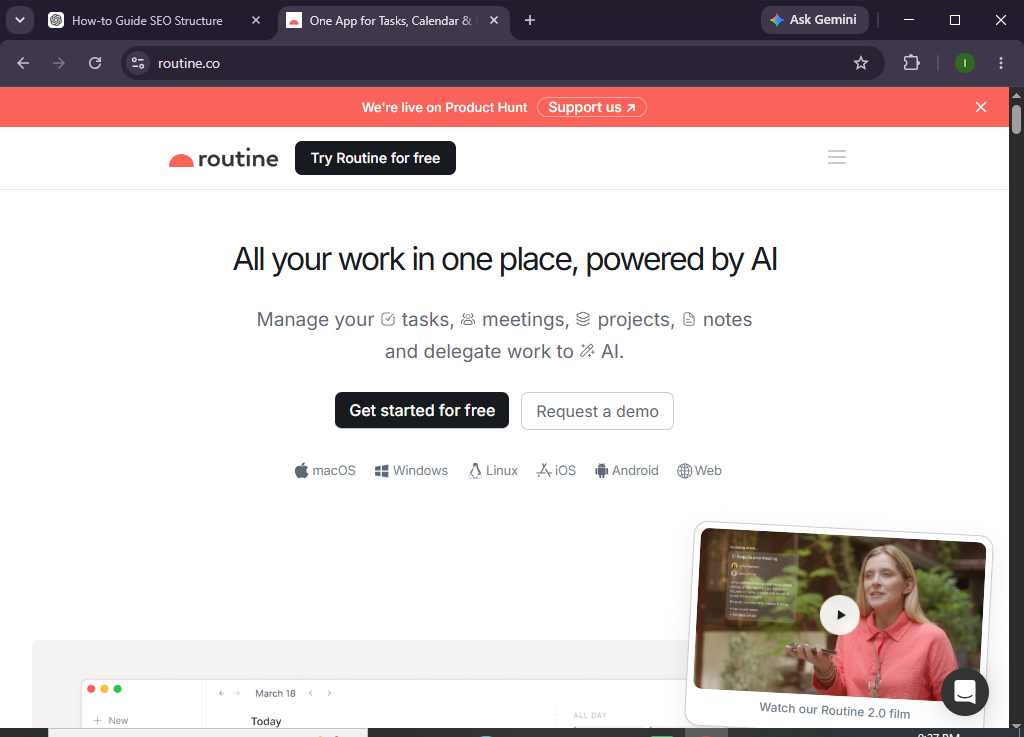
In this guide, you’ll learn how to use Routine to organize your daily schedule, manage tasks, capture ideas, and improve your personal productivity.
How do you use Routine to manage tasks and organize your daily schedule?
A Quick Overview
Getting started with Routine is simple:
- Create a Routine account.
- Connect your calendar.
- Create tasks and notes.
- Organize your daily agenda.
- Schedule tasks on your calendar.
- Track your progress.
- Review and plan each day.
Prerequisites
Before using Routine, make sure you have:
- A Routine account
- Internet connection
- Google Calendar or another supported calendar
- List of daily tasks
- Upcoming meetings or appointments
- Desktop or mobile device
Create a Workflow Manually (Recommended for Beginners)
If you’re new to productivity management, organizing your first workspace in Routine is the best way to understand how the platform actually works.
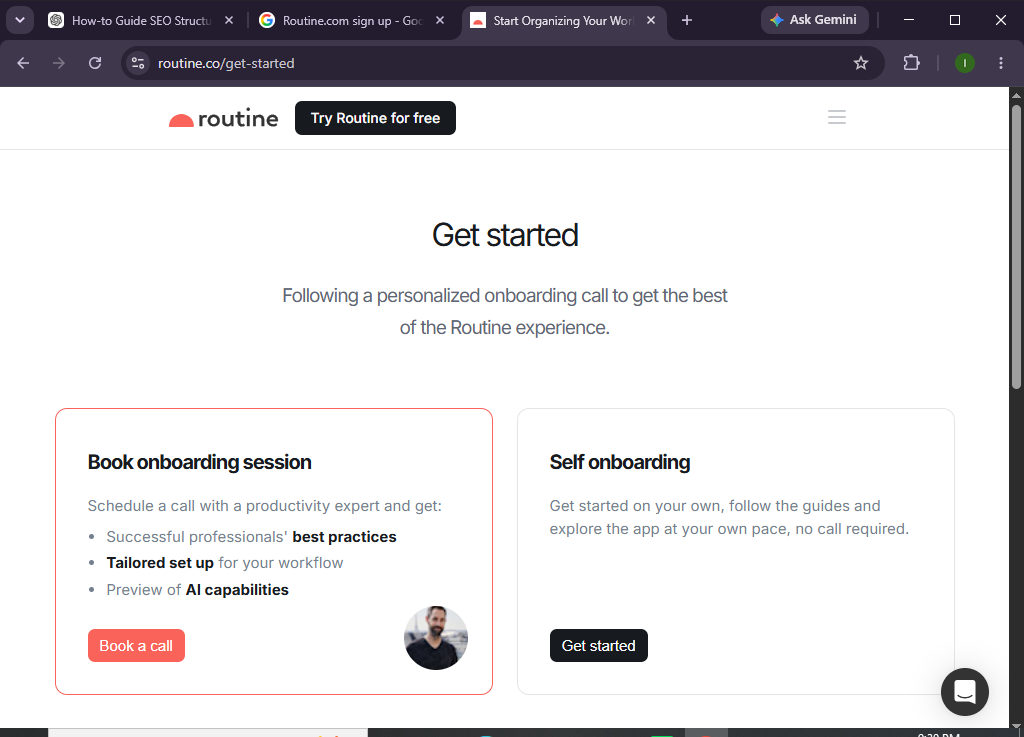
Step 1: Create Your Routine Account
Visit the Routine website and sign up using your email address.
Verify your account and complete the onboarding process.
Step 2: Connect Your Calendar
Navigate to Settings > Calendar.
Connect your preferred calendar, such as:
- Google Calendar
- Outlook Calendar (if supported)
Routine will automatically sync your existing events.
Step 3: Create Tasks
Click New Task.
Add:
- Task title
- Description
- Due date
- Priority level
- Tags (optional)
You can organize tasks into different categories for better productivity.
Step 4: Capture Notes and Ideas
Routine includes a built-in note-taking feature.
Use it to save:
- Meeting notes
- Project ideas
- To-do lists
- Research
- Quick reminders
Everything stays connected to your tasks and schedule.
Step 5: Plan Your Plan
Open your daily planner and schedule:
- Tasks
- Meetings
- Focus sessions
- Personal reminders
Drag and drop tasks directly onto your calendar to create a realistic daily plan.
Step 6: Organize Your Agenda
Review your calendar and prioritize:
- Urgent work
- Important deadlines
- Meetings
- Personal tasks
Routine helps you visualize your workload and avoid scheduling conflicts.
Step 7: Complete and Review Tasks
As you finish work:
- Mark tasks as completed
- Update priorities
- Move unfinished tasks
- Review your daily accomplishments
This keeps your workspace organized and your schedule up to date.
Step 8: Build a Daily Planning Habit
At the end of each day:
- Review completed work
- Prepare tomorrow’s schedule
- Organize notes
- Archive completed tasks
Daily planning helps you stay consistent and productive.
Want a more organized workday?
Routine helps you manage your calendar, tasks, and notes from one clean and distraction-free workspace.
How can you stay productive with Routine?
Tips
- Plan your day every morning.
- Schedule dedicated focus time.
- Keep task names short and clear.
- Capture ideas immediately.
- Review your agenda before meetings.
- Archive completed notes regularly.
- Sync your calendar frequently.
- Limit your daily task list to realistic goals.
What mistakes should you avoid when using Routine?
Common Mistakes
- Overloading your daily schedule.
- Forgetting to prioritize tasks.
- Ignoring calendar synchronization.
- Leaving unfinished tasks unreviewed.
- Keeping outdated notes.
- Not reviewing your daily agenda.
How can you make the most of Routine every day?
Best Practices
- Schedule your highest-priority work first.
- Review your calendar every morning.
- Organize tasks by priority.
- Keep meeting notes linked to related tasks.
- Avoid multitasking whenever possible.
- Clean up completed tasks weekly.
- Build a consistent planning routine.
- Keep your workspace simple and organized.
What should you do if Routine isn’t working properly?
Troubleshooting
Calendar isn’t syncing
Reconnect your calendar and check your permissions.
Tasks disappear
Verify task filters and refresh your workspace.
Notes aren’t saving
Check your internet connection and refresh the application.
Unable to schedule tasks
Ensure your calendar is connected and available time slots exist.
Login issues
Reset your password or verify your email account.
Frequently Asked Questions
Is Routine free?
Routine offers a free version with core productivity features, while premium plans provide additional capabilities and integrations.
Can I connect Google Calendar?
Yes. Routine integrates with Google Calendar and other supported calendar services.
Does Routine support note-taking?
Yes. Routine combines note-taking with task management and calendar planning in one workspace.
Can I schedule tasks on my calendar?
Yes. You can drag tasks directly into your calendar to plan your day more effectively.
Is Routine suitable for individuals?
Absolutely. Routine is ideal for students, freelancers, professionals, and anyone looking to improve personal productivity.
Does Routine support team collaboration?
Routine primarily focuses on personal productivity, though some collaboration features may be available depending on your plan.
Conclusion
Routine brings together task management, calendar scheduling, and note-taking into a single, distraction-free workspace that helps you stay organized throughout the day. By planning your schedule, capturing ideas quickly, and reviewing your progress regularly, you can build better work habits and accomplish more with less stress.
Whether you’re managing personal goals or professional responsibilities, Routine provides the tools you need to stay focused and productive every day.
Take the first step toward a more organized workday.
Explore Routine today and see how a single workspace for your tasks, notes, and calendar can help you stay focused and accomplish more every day.